KeyShot Studio
Revision Manager
Instead of overwriting the BIP file, the Revision Manager will create a serialized backup every time that you save your scene. The result is a .BIP.XX file (where “XX” is the revision index number) every time that you save. This allows you to revert to any saved version of your BIP file or delete revisions that you...
Last updated 3 August 2026
Instead of overwriting the BIP file, the Revision Manager will create a serialized backup every time that you save your scene. The result is a .BIP.XX file (where “XX” is the revision index number) every time that you save. This allows you to revert to any saved version of your BIP file or delete revisions that you don’t need anymore.
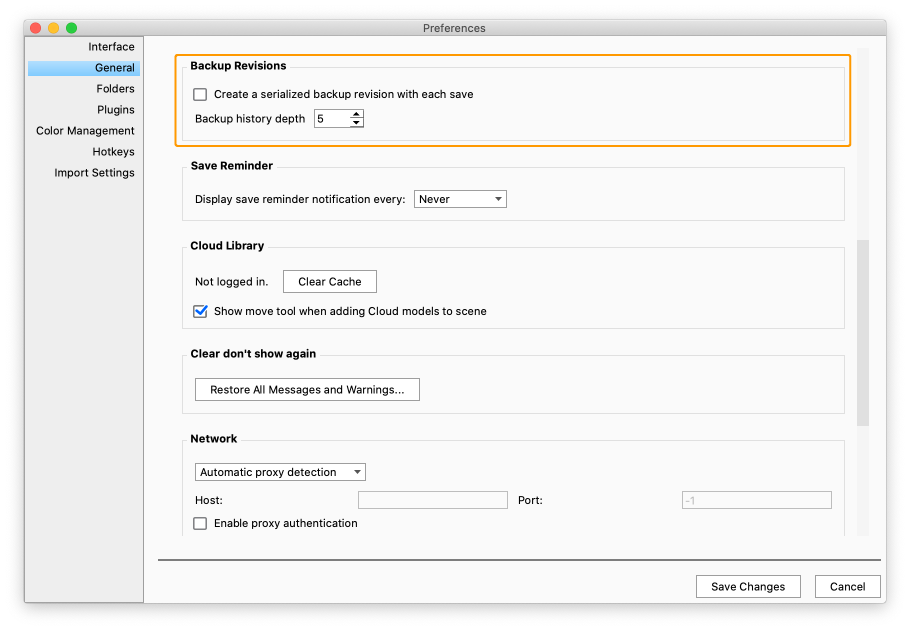
Enable Revision Manager
You enable the Revision manager in Preferences
- Windows: Edit > Preferences > General > Backup Revisions
- Mac: KeyShot Studio > Preferences > General > Backup Revisions
The Backup history depth enables you to control how many revisions are saved.
Manage Your Revisions
The instructions below assume that you’ve enabled Backup Revisions, and that you’ve saved your scene at least twice.
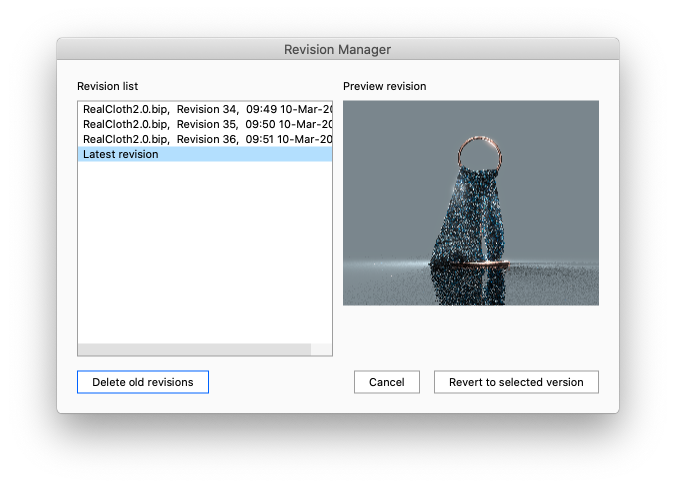
1. With your scene open, go to File > Revision Manager. The Revision Manager window appears.
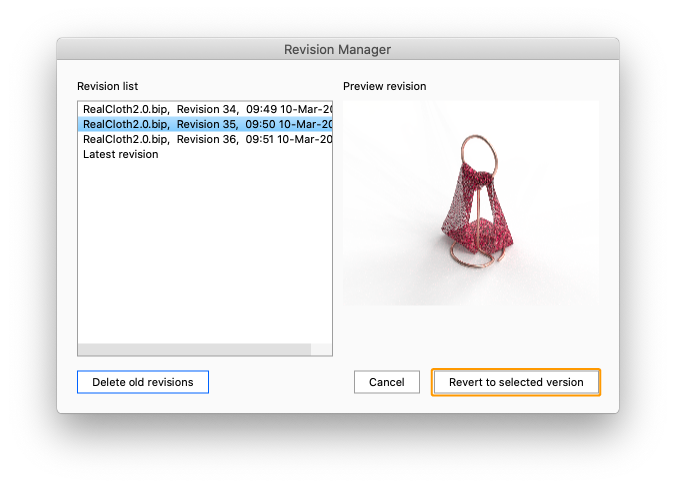
2. From the Revisions list, select the version (revision) of your scene to which you wish to revert. Then, click Revert to selected version.
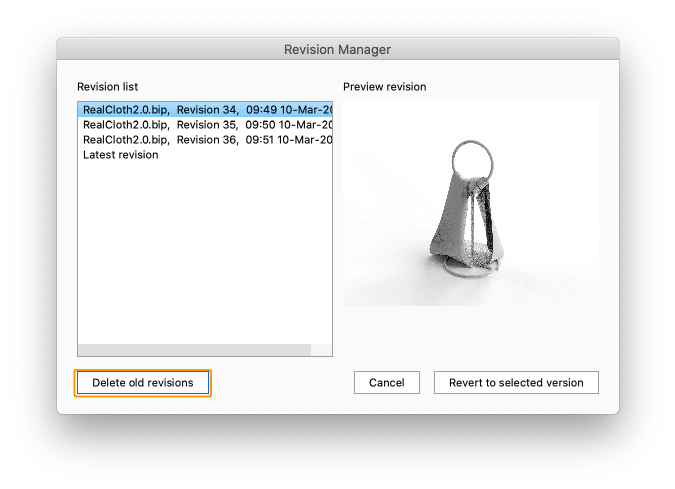
3. To delete old revisions, simply click Delete old revisions.