The Scene Tree in KeyShot shows Model Sets, models and their hierarchies. It also shows the cameras and environments in your scene.
Animations appear in the Scene Tree as child nodes of the animated part, group, camera or environment.
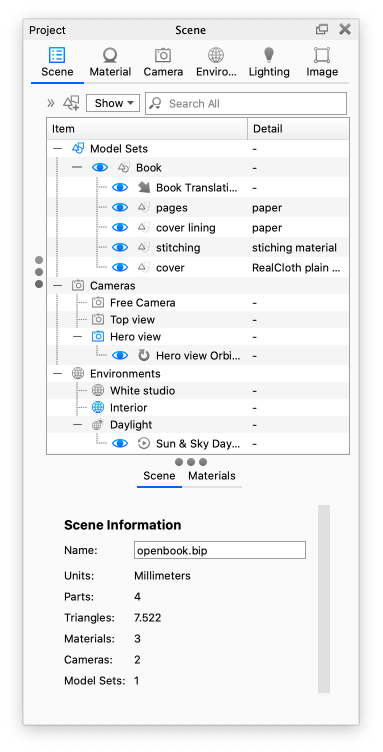
Collapse Scene Tree Collapse the Scene Tree hierarchy to make models with many parts easier to navigate. Click -/+ to collapse or expand a group or model. You can also right-click the section you want to collapse and select "Collapse". Select "Collapse All" to collapse the full hierarchy. |
Hide and show
Use the  icon next to a model or part's name to hide or show it. Use the icon next to an animation to disable or enable it. See Hiding and showing parts for details.
Lock
The  icon next to a model or part means its geometry is in the scene but you cannot move or edit it. To lock or unlock a model or part, right-click it and select lock/unlock. You can also click the lock/unlock icon in the properties tab below the Scene Tree.
Reorder
Drag and drop models and parts to reorder them in the Scene Tree.
Rename
Rename models and parts in the properties tab below the Scene Tree. The Properties section shows details for the selected model or part, including its name.