In KeyShot Studio, scene units control model scale, light intensity, colour density, and texture mapping.
Match scene units to your model's scale for physical accuracy and better control over materials and textures. For a car, use metres or feet. For a pair of sunglasses, use centimetres or inches.
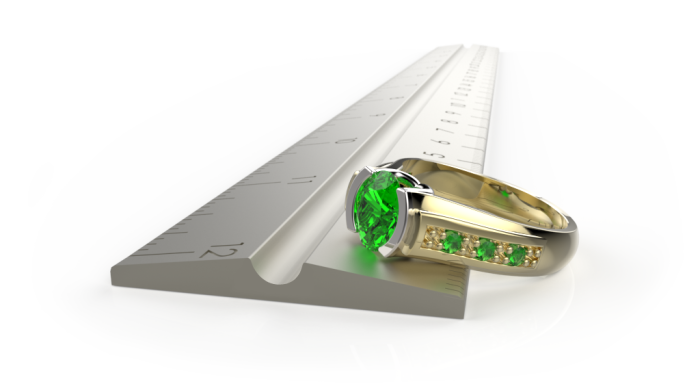
An empty scene in KeyShot Studio uses non-specific scene units. You set the units when you import a model or change the scene units manually.
Changing the scene units
1. To change the model units, go to Edit > Set Scene Units and choose the new unit.
2. Select one of the two options: Keep Scene Size or Scale Scene.
Keep Scene Size
This option applies a unit-conversion multiplier to your model and the KeyShot Studio environment. For example, changing from centimetres to millimetres converts a 1 centimetre model into a 10 millimetre model. These lengths are mathematically equivalent, but your model occupies ten times as much space in KeyShot Studio. Use this option to correct model size, light intensity, colour density in glass, or your camera distance slider.
Scale Scene
This option recalibrates texture mapping on your model. For example, changing from centimetres to millimetres tells texture maps to treat one centimetre along your model as one millimetre. Your model keeps its size, but texture images resize to match the new scale. Use this option to correct texture units.