Editing an Uploaded Material
After uploading a material you can edit its details. 3D Warehouse can even help you add texture maps to a material that doesn’t have any, or remove texture maps from a material. To edit a material follow these steps:In My Content, navigate to the My Materials tab and locate the material you want to edit.
Last updated 17 July 2026
After uploading a material you can edit its details. 3D Warehouse can even help you add texture maps to a material that doesn’t have any, or remove texture maps from a material. To edit a material follow these steps:
- In My Content, navigate to the My Materials tab and locate the material you want to edit.
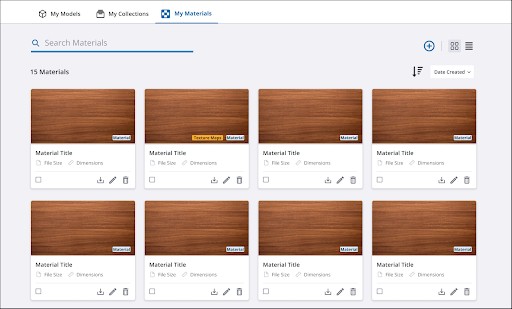
- Click Edit (
 ). The Material Overview page will open, allowing you to make changes to your material.
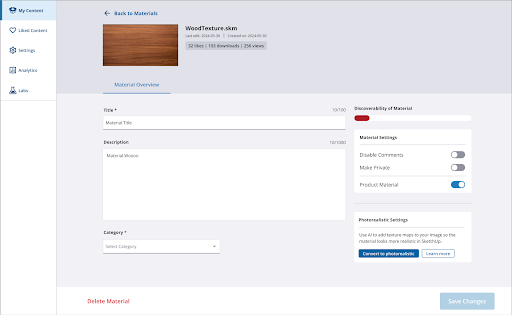
- You can now change the Title, Description, Category, or any of the Material Settings.
- If your material does not have texture maps, you can choose to have 3D Warehouse add them using AI by clicking Convert to Photorealistic .
- If you already used 3D Warehouse to convert your material, you can choose to remove the texture maps that were added by clicking Revert to Original . This option is only available for materials enhanced by 3D Warehouse’s AI.
- Click Save Changes when finished.
Still need help?
Technical support from our New Zealand team is available to customers with a current Procadsys SketchUp Plus subscription: Pro Plus, Pro Scan Plus, Pro Civil Contractor Plus, Advanced Workflows Plus or Studio Plus. Self-help articles are public.
Contact SketchUp support