AI Help
Help in AI Assistant enhances your workflow and saves you time by providing immediate in-app support. With Help, you can find advice on best practices, troubleshoot issues that come up, or even discover new ways to use SketchUp you haven’t thought of, all without interrupting your workflow.
Last updated 17 July 2026
Help in AI Assistant enhances your workflow and saves you time by providing immediate in-app support. With Help, you can find advice on best practices, troubleshoot issues that come up, or even discover new ways to use SketchUp you haven’t thought of, all without interrupting your workflow.
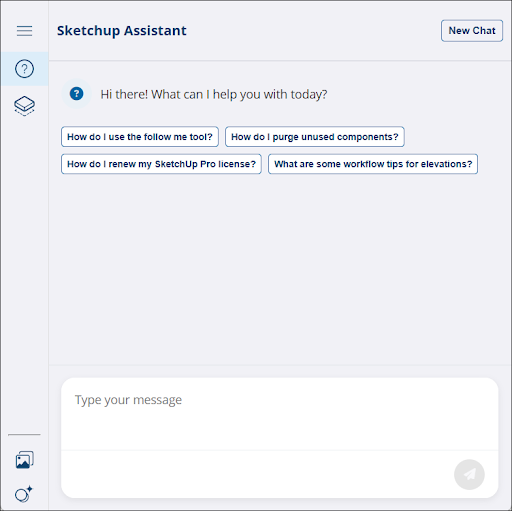
Help uses information from the SketchUp ecosystem, like the Help Center, to provide answers and guidance when you need it. The information Help provides isn’t just limited to modeling tips or workflows. You can also ask questions to help you get information about subscription renewal or where you can update your account information.
Using Help in AI Assistant is free and does not cost any SketchUp AI Credits .
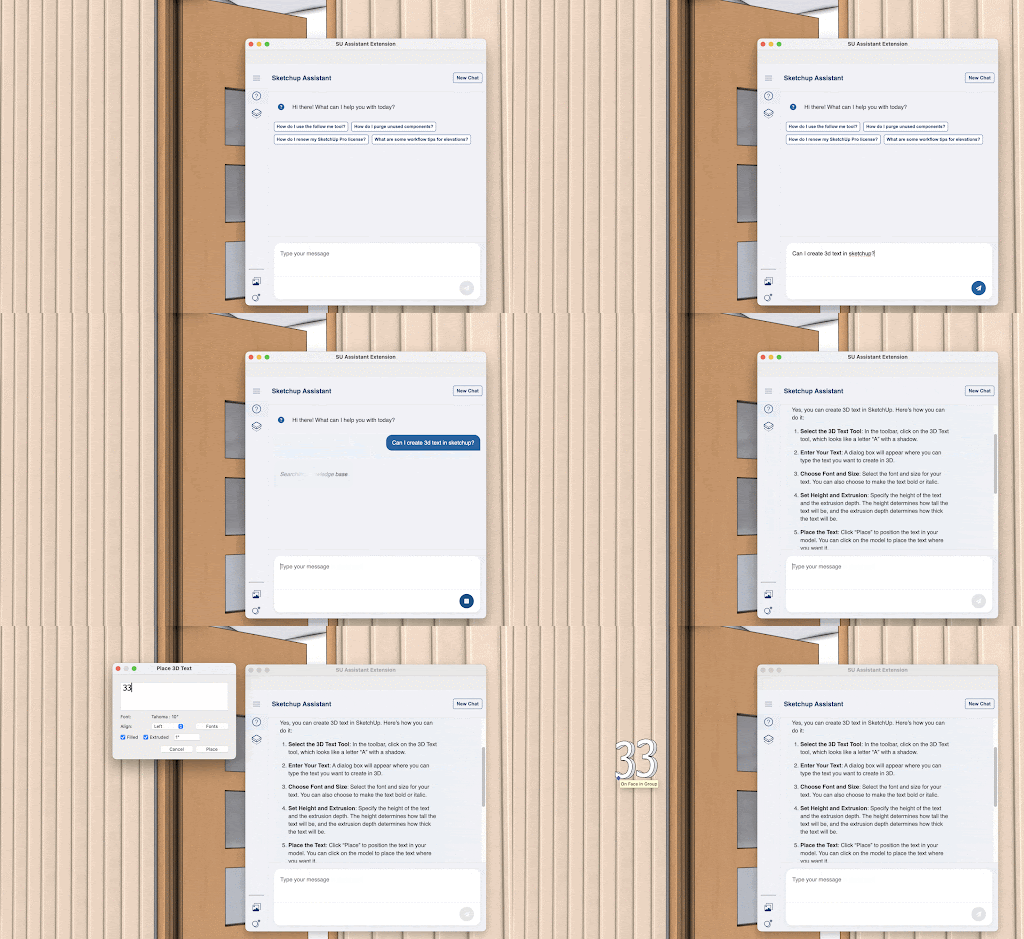
To get started:
- Open AI Assistant and select the Help (
 ) tab.
 - Type in your question and click Send (
 ) or press Enter.
 - After a few moments, Help will provide an answer.
Rating the answer with either a thumbs up (  ) or thumbs down (
  ) lets us know if the answer was helpful and helps us improve the answers Help provides.
To clear your chat history and start a fresh conversation with the Assistant, select New Chat in the upper right of the Assistant window.
Still need help?
Technical support from our New Zealand team is available to customers with a current Procadsys SketchUp Plus subscription: Pro Plus, Pro Scan Plus, Pro Civil Contractor Plus, Advanced Workflows Plus or Studio Plus. Self-help articles are public.
Contact SketchUp support