Use the Comment Tool (  ) to place 3D comment markers in a SketchUp model. Leave comments for yourself or share the model so collaborators can view and add comments. Use the Comments panel to view and manage comments. Model owners open it from the Collaboration Bar; viewers open it as a panel option.
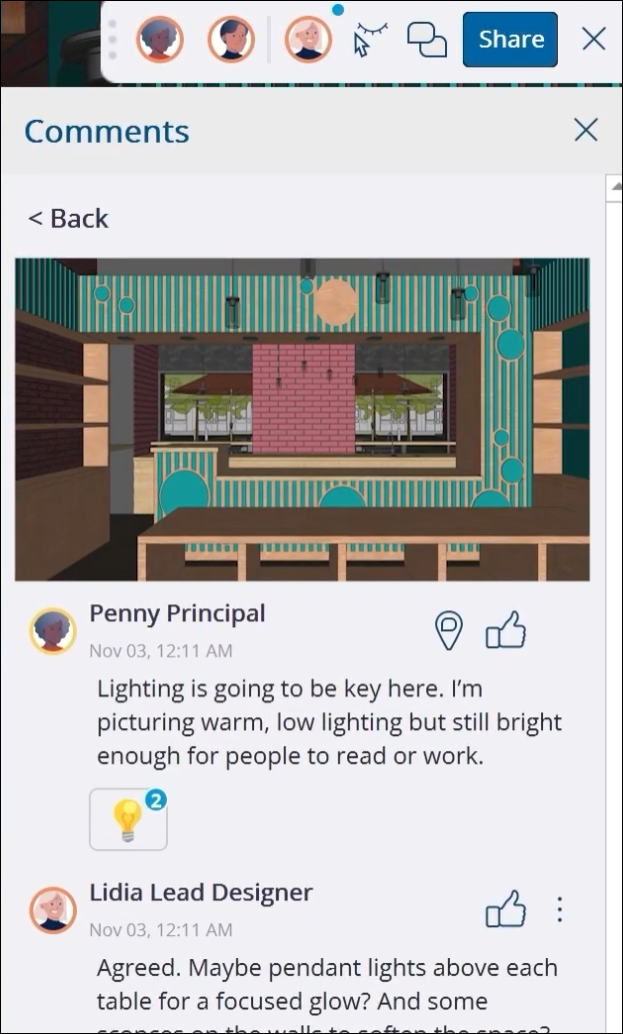
To comment on your own model, activate the Comment tool ( ) from the Large Tool Set or Getting Started toolbar, or open the Comments panel from the Collaboration bar. If you are a viewer with Comment access, activate the tool from the tools on the left of your interface or from the Comments panel.
With the tool active, navigate around your model and click the point where you want to place the comment. The Comments dialog opens.
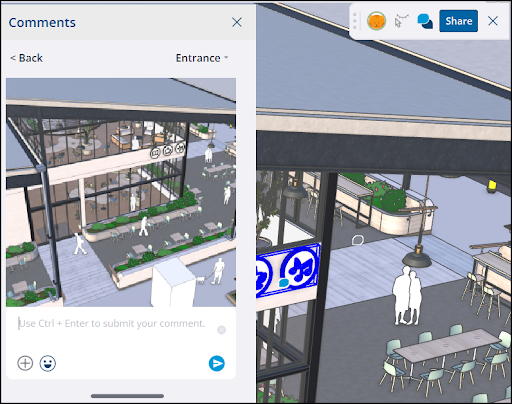
A snapshot shows the current viewport where you clicked to place the comment. If your model has scenes, the comment includes the most recently activated scene. Opening the comment restores all that scene's properties. To attach a different scene, use the dropdown in the upper right.
Type your comment. You can click the plus sign (  ) to add a photo or change the camera view, or add an emoji. When you are ready, click Submit or press Ctrl + Enter (Windows) or Cmd + Enter (Mac). Your comment appears in the model and the Comments panel.
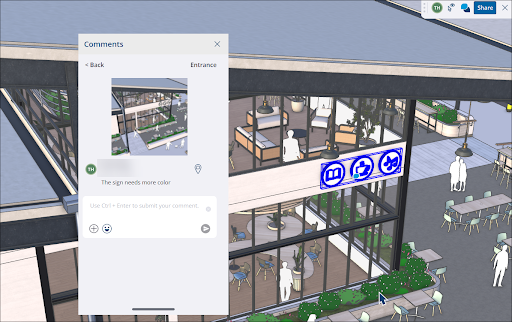
After someone adds a comment, use the Comments panel to:
- View Comment Image – Click an image in a comment to open it in a separate window and download it.
- Filter Comments – Filter comments by read or unread.
- Toggle Visibility (
 ) – Show or hide comment icons in your model.
- Fly to Location (
 ) – Click to go to the comment's camera view in the model.
- Reply / React – Reply with another comment. You can include photos and camera views, or react to a comment with an emoji.
- Mark Read/Unread – Use the context menu to mark your comments as read or unread.
- Archive/Delete Comments - Use the context menu to archive or delete comments from threads you create.