Analysis Mode
Analysis ModeWhich Analysis Mode you choose can affect the speed of a simulation. The dropdown menu at the top of the plugin provides four Analysis Mode options:
Last updated 17 July 2026
Analysis Mode
Which Analysis Mode you choose can affect the speed of a simulation. The dropdown menu at the top of the plugin provides four Analysis Mode options:
- Analysis Mode – A link to Sefaira’s support center with more information on the plugins analysis modes.
- Energy & Daylight – Combines information from both Energy and Daylight Analysis modes.
- Daylight Analysis
- Energy Analysis
A warning will appear if any changes have been made to the model or analysis mode since the last analysis. To update the analysis click Update Analysis . Updating analysis may take some time depending on what mode was chosen.
Location
To choose a location for analysis, first select from one of the following options:
- Office
- Residential
- School
- Healthcare
- Laboratory
- Retail
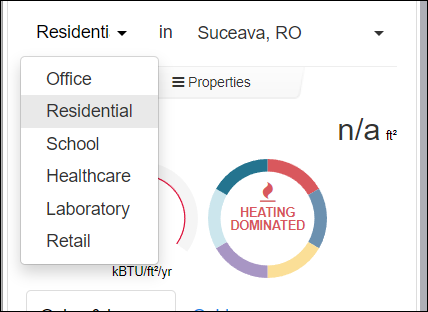
Next, choose a location. Click the location box, type the project's location in the text box provided, and click Set Location.
Properties
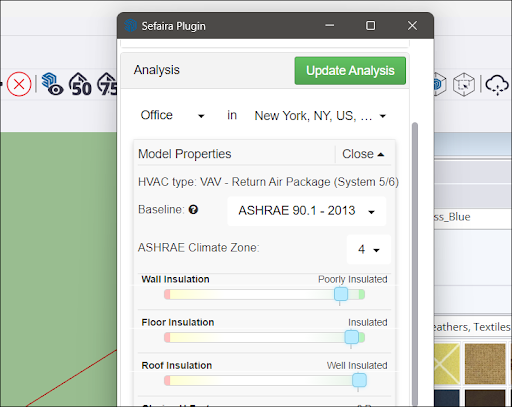
The Properties tab provides options to adjust the following properties for analysis:
- Wall Insulation
- Floor Insulation
- Roof Insulation
- Glazing U-Factor
- Visible Light Transmittance
- Solar Heat Gain Coefficient
- Infiltration Rate
- Ventilation Rate
- Equipment
- Lighting
Still need help?
Technical support from our New Zealand team is available to customers with a current Procadsys SketchUp Plus subscription: Pro Plus, Pro Scan Plus, Pro Civil Contractor Plus, Advanced Workflows Plus or Studio Plus. Self-help articles are public.
Contact SketchUp support