Image Object Generation
If you want to use an image to generate an object there are a few things to keep in mind:The image must be a .png, .jpg, .jpeg, or .heic file.The image must be 50MB or less.An image with a white background works best.To use an image to generate an object:Open SketchUp Assistant and select the Generate Object tab ().
Last updated 17 July 2026
If you want to use images to generate an object there are a few things to keep in mind:
- The image must be a .
png, .jpg, .jpeg, or .heicfile. - The image must be 50MB or less.
- An image with a white background works best.
- You can use up to four images
To use an image to generate an object:
- Open SketchUp Assistant and select the Generate Object tab.
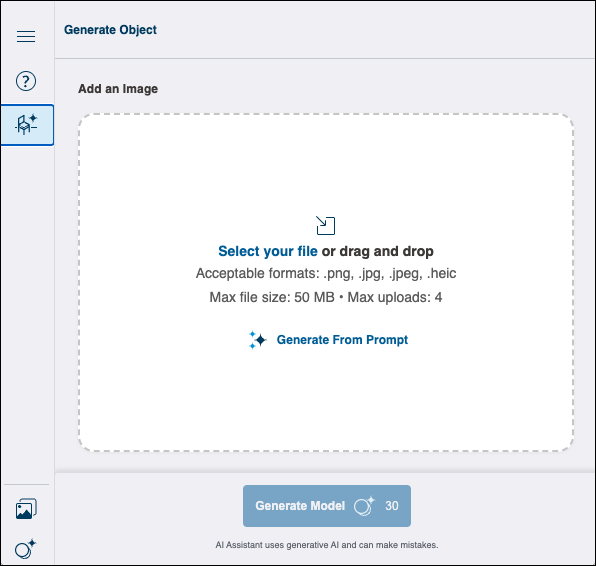
- Click Select Your File to open your file browser and select an image, or drag and drop an image file into the space. Repeat for up to four images.
- Under Prompt , enter in any additional text prompts you would like to add. If you need help with crafting a text prompt, see Best Practices for Custom Prompts .
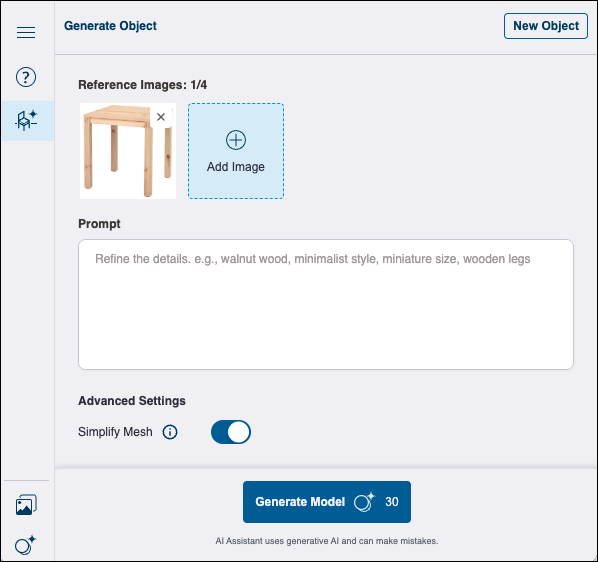
- Click Generate Model. SketchUp Assistant may take some time generating your model.
- When your model is ready, SketchUp Assistant shows you a preview of the generated model, along with the details it used to generate it.
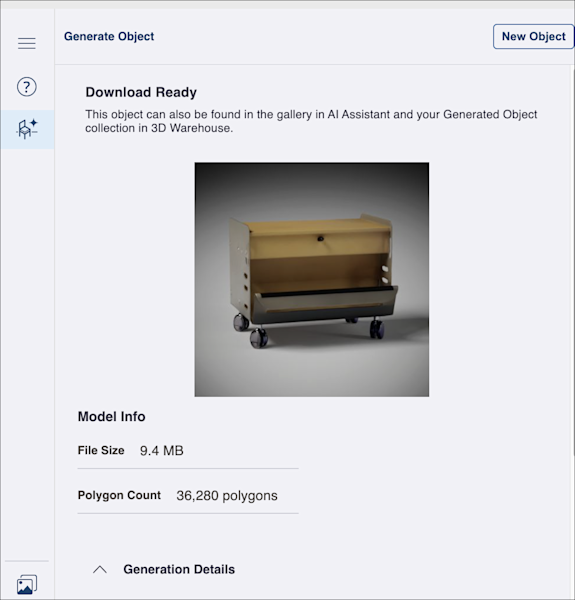
- Clicking Download returns you to the modeling window where you can now place the generated object. To generate another object, click New Object.
Still need help?
Technical support from our New Zealand team is available to customers with a current Procadsys SketchUp Plus subscription: Pro Plus, Pro Scan Plus, Pro Civil Contractor Plus, Advanced Workflows Plus or Studio Plus. Self-help articles are public.
Contact SketchUp support