Adjusting a Components Insertion Point
A component has its own axis origin point, which determines the component's insertion point, or the point that's loaded onto the Move cursor when you place a component in your model.If the component is box-shaped (such as a dresser or cabinet), the insertion point is typically the front, lower-left corner, as shown in
Last updated 17 July 2026
A component has its own axis origin point, which determines the component's insertion point, or the point that's loaded onto the Move cursor when you place a component in your model.
If the component is box-shaped (such as a dresser or cabinet), the insertion point is typically the front, lower-left corner, as shown in the figure. That placement works great - unless you need to place the component against other components or otherwise work around existing geometry.
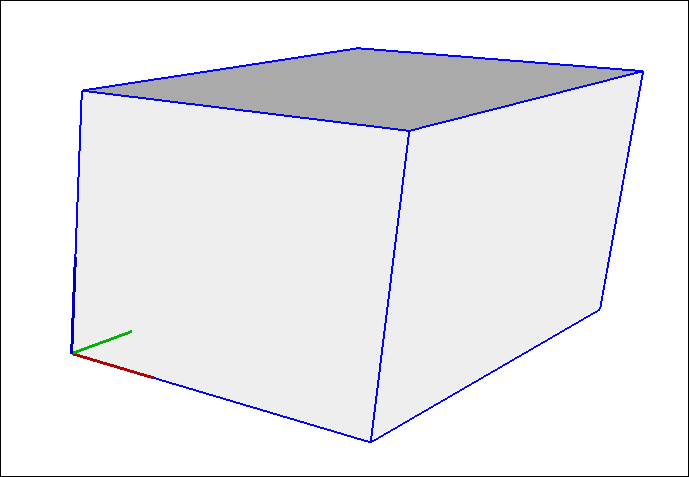
Whatever your reasons for moving the insertion point, here's how to reset a component's axis origin:
- Select the component in your model.
- Context-click the component and select Change Axes .
- With the Axes tool cursor that appears, reset the axis origin. See Adjusting the Drawing Axes for details about working with the Axes tool. The only difference is that you're setting the axis origin for a component, not the whole model.
Still need help?
Technical support from our New Zealand team is available to customers with a current Procadsys SketchUp Plus subscription: Pro Plus, Pro Scan Plus, Pro Civil Contractor Plus, Advanced Workflows Plus or Studio Plus. Self-help articles are public.
Contact SketchUp support