Generate Textures
With Generate Textures, SketchUp can help you create Physically Based Rendering (PBR) texture maps for materials that don’t have them. With the help of AI, SketchUp will analyze your material and create corresponding texture maps for Metalness, Roughness, Normal, and Ambient Occlusion.
Last updated 17 July 2026
With Generate Textures, SketchUp can help you create Physically Based Rendering (PBR) texture maps for materials that don’t have them. With the help of AI, SketchUp will analyze your material and create corresponding texture maps for Metalness, Roughness, Normal, and Ambient Occlusion.
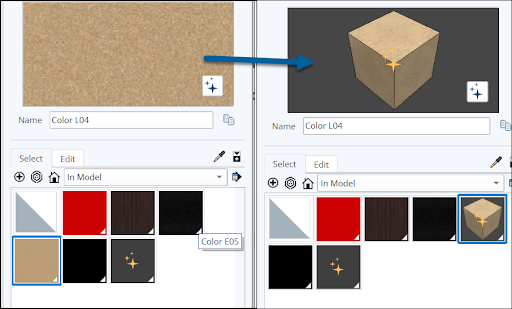
To generate texture maps for a material:
- Open the Materials panel and find the material you want to enhance or Sample (
 ) the material in your model.
 - In the Edit tab, a preview of the material appears with Generate Textures (
 ) in the lower right.
 - Click the icon to begin texture generation. This can take a few seconds.
- Once SketchUp assigns the material texture maps, the preview will change to a cube. A gold sparkle symbol will appear on the cube to show that Generate Textures feature was used.
After generating textures you can adjust the material’s appearance by editing the metalness, roughness, normal, or ambient occlusion values.
Still need help?
Technical support from our New Zealand team is available to customers with a current Procadsys SketchUp Plus subscription: Pro Plus, Pro Scan Plus, Pro Civil Contractor Plus, Advanced Workflows Plus or Studio Plus. Self-help articles are public.
Contact SketchUp support