Interacting with Dynamic Components
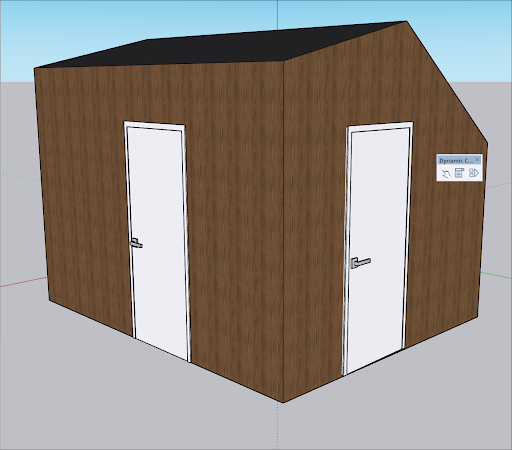
Your ability to interact with a dynamic component depends on its variables. To help you understand how this works, take a look at this basic building with two instances of a dynamic door component.
Last updated 17 July 2026
Your ability to interact with a dynamic component depends on its variables. To help you understand how this works, take a look at this basic building with two instances of a dynamic door component.
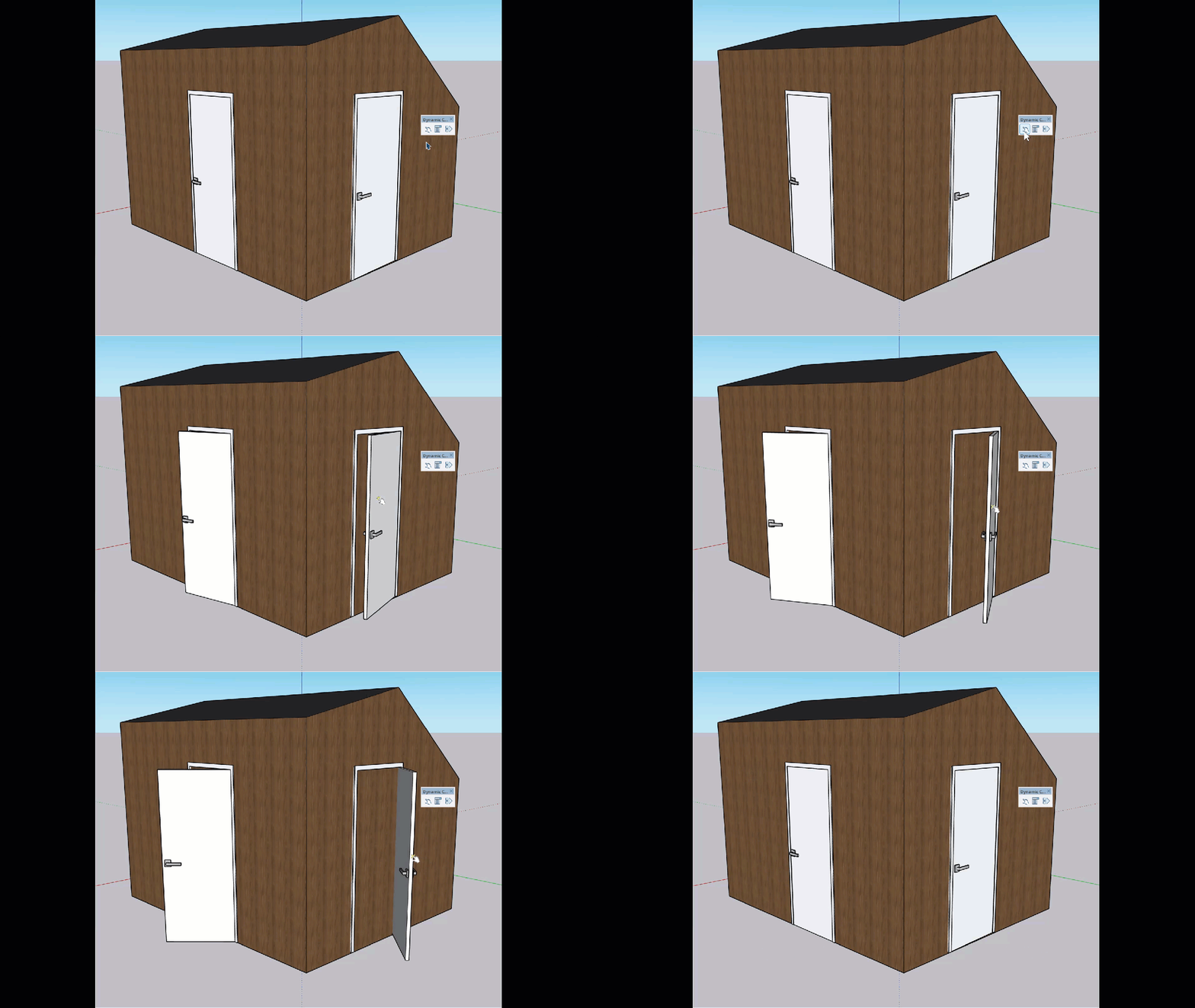
To activate the component's animation, select the Interact tool (  ) on the Dynamic Components toolbar or select Tools > Interact . When you click the door with the Interact tool cursor, the door opens, as shown in the following figure.
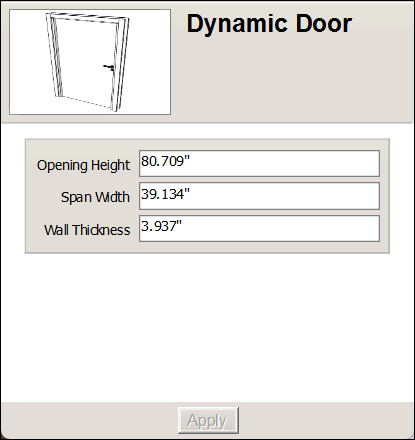
This dynamic component also has configurable values. To see these values, click the Component Options tool (  ) on the Dynamic Components toolbar or select Window > Component Options . In the Component Options window you can choose from a variety of preset options built into the component.
Still need help?
Technical support from our New Zealand team is available to customers with a current Procadsys SketchUp Plus subscription: Pro Plus, Pro Scan Plus, Pro Civil Contractor Plus, Advanced Workflows Plus or Studio Plus. Self-help articles are public.
Contact SketchUp support