Use the Outliner panel to find, organise and manage groups and components in your model.
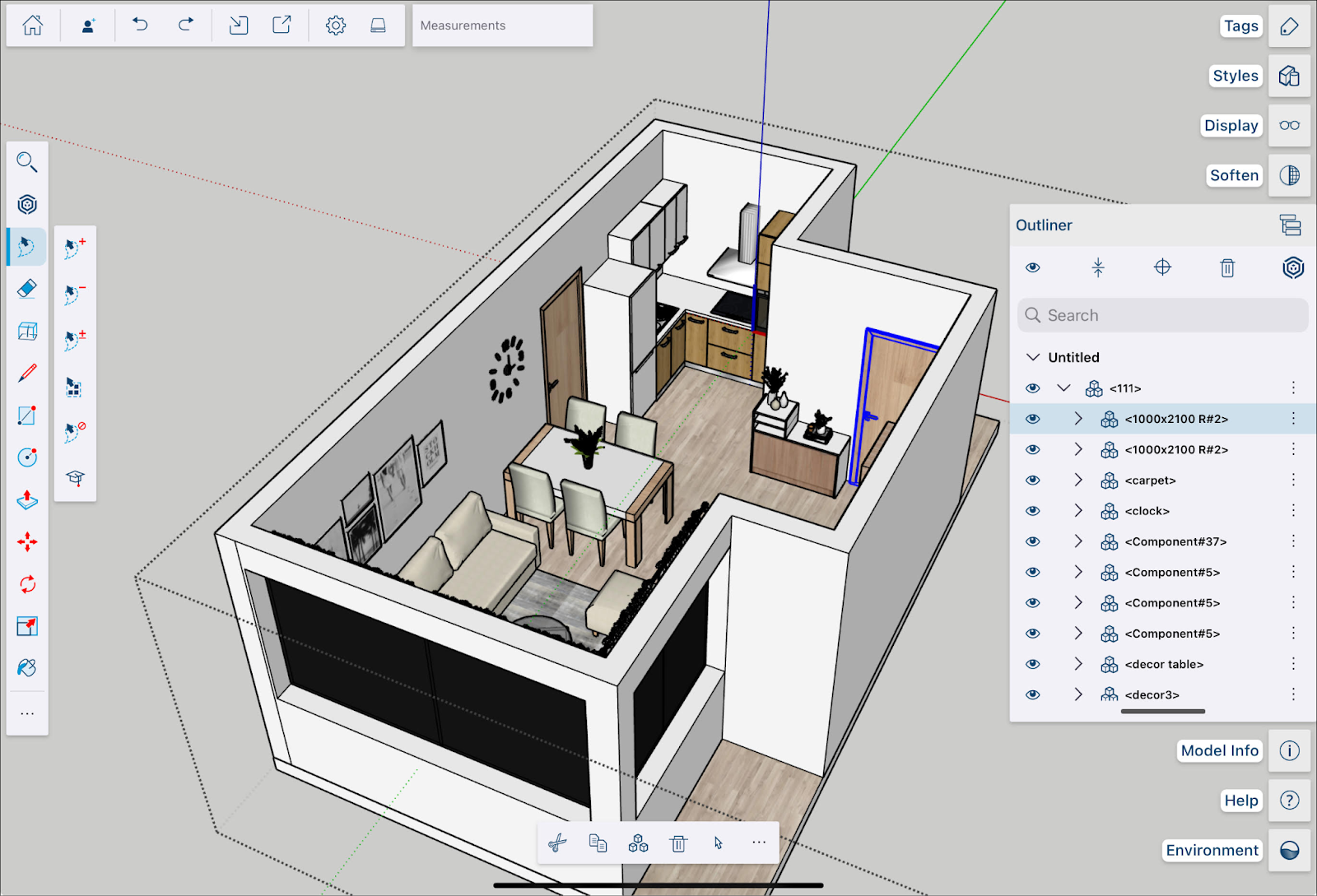
With Outliner you can:
- Find specific groups or components in your model.
- Name and identify all groups and components in your model.
- Manage your model's hierarchy.
- Control the visibility of groups and components in your model.
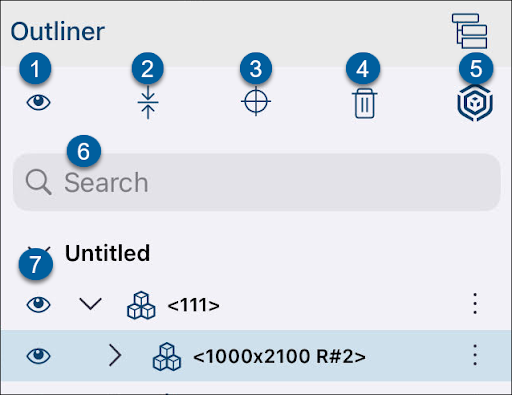
Use these options in the Outliner panel to manage your model:
- Use Visibility to turn visibility on or off for all entries in the hierarchy. Use the same option next to an entry to show or hide an individual component or group.
- Use Collapse/Expand to collapse or expand the entire hierarchy.
- After selecting an object in the hierarchy, click or tap Zoom Selected to zoom to it.
- Select an entry, then click or tap Delete to remove it from the model. Deleted entries stay in the Unused section at the bottom of the panel until purged.
- Use 3D Warehouse to open 3D Warehouse.
Click Menu ( ) next to an entry to see these options:
- Insert creates a copy of the object for you to place in your model.
- All Instances selects all instances of that object in the hierarchy.
- Edit opens the Edit Component Details modal.
- Save As saves the object locally or to Trimble Connect.
- Reload reloads the object from its last saved instance.
For more about Outliner, see Working with Hierarchies in the Outliner.