Settings Panel
The Settings panel () in SketchUp for iPad offers a few ways to customize the interface and how SketchUp works. The Settings panel contains four categories:
Last updated 17 July 2026
The Settings panel (  ) in SketchUp for iPad offers a few ways to customize the interface and how SketchUp works. The Settings panel contains four categories:
- Pencil & Multitouch
- General
- Scan-to-Design
- Graphics
Pencil & Multitouch
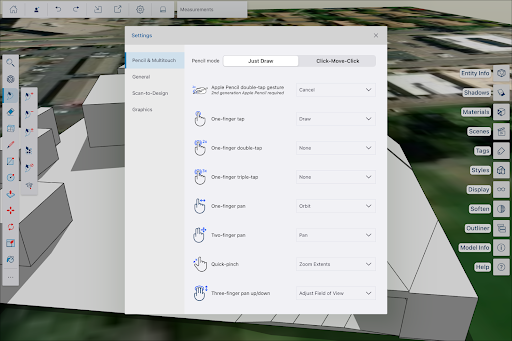
The Pencil & Multitouch category contains options to customize the way you draw and what specific actions and gestures do in Sketchup. The following options are available:
- Pencil Mode - Choose between Just Draw or Click-Move-Click . -
- Apple Pencil Double-Tap Gesture
- Off
- Cancel
- Previous Tool
- Select
- Eraser
- One-Finger Tap
- Draw
- Select
- None
- One-Finger Double-Tap
- None
- Selection
- Select
- One-Finger Triple-Tap
- None
- Selection
- Select
- Quick Pinch
- Zoom Extents
- None
General
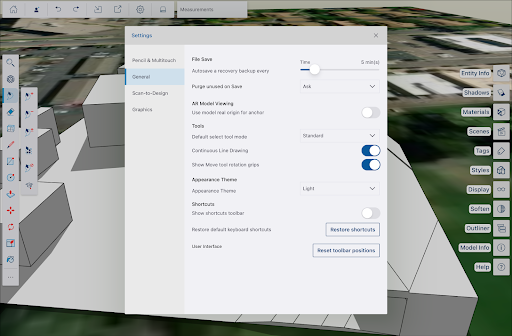
The General category contains the following sections:
- File Save - Here you'll see a slider allowing you to set the frequency SketchUp for iPad will autosave a recovery backup file of your current model. You can also set if you always want SketchUp to ask, or never want SketchUp to purge unused objects when saving,
- AR Model Viewing - Toggle on to use a model's real origin for the anchor when using AR.
- Tools - Allows you to choose between Standard or Lasso for the default Select tool mode.
- Appearance Theme – Choose between Light, Dark, or System.
- Shortcuts – Toggle visibility of the Shortcuts toolbar The toolbar appears in the upper right by default, but can be moved anywhere by dragging it.
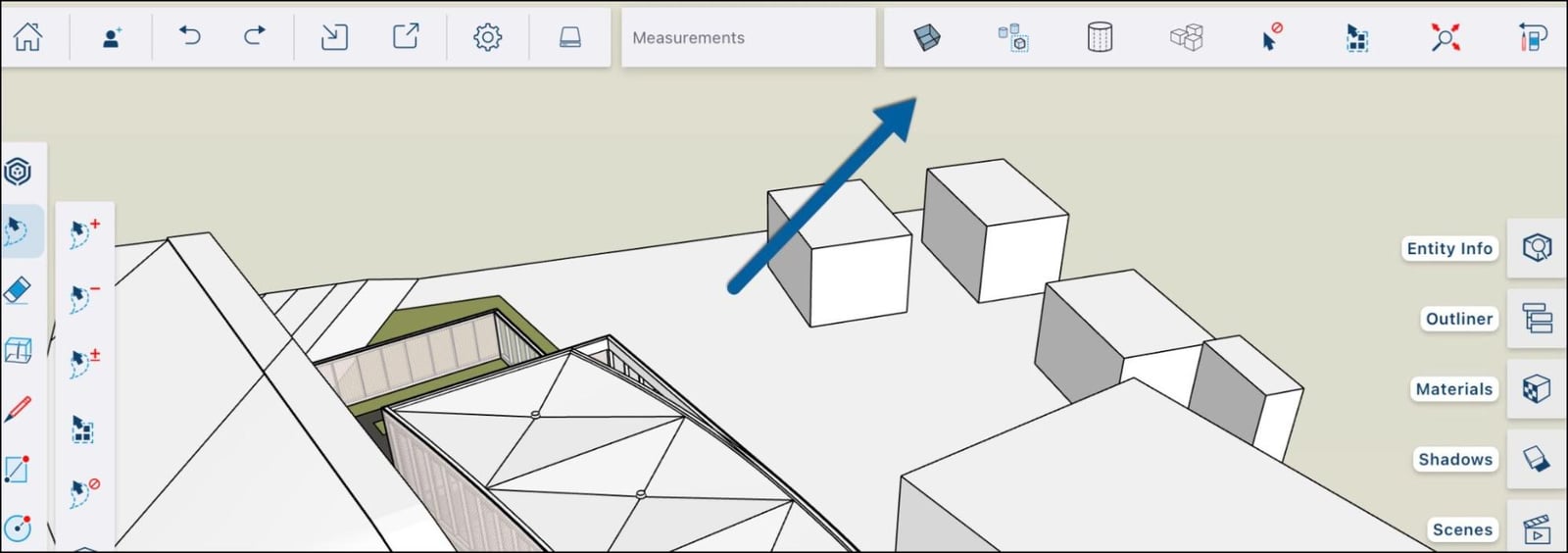
- The Shortcuts toolbar is customizable and contains the following options by default:
- X-Ray
- Hide Rest of Model
- Hidden Geometry
- Unhide All
- Select None
- Select All
- Zoom Extents
- Previous Tool
- Restore Shortcuts – Restore default keyboard shortcuts.
- Reset Toolbar Positions – Reset the user interface to their default settings.
Scan-to-Design
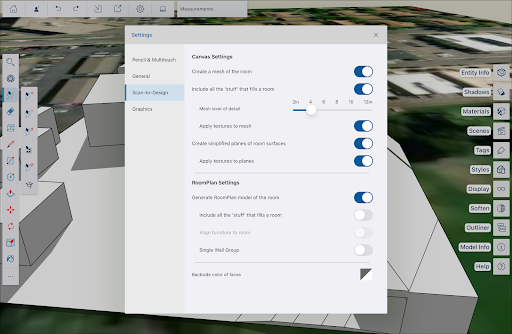
SketchUp’s Scan-to-Design uses LiDAR scanning in SketchUp for iPad to generate 3D models of existing spaces. For more information on this Sketchup Labs feature see Scan-to-Design (SketchUp Labs).
Graphics
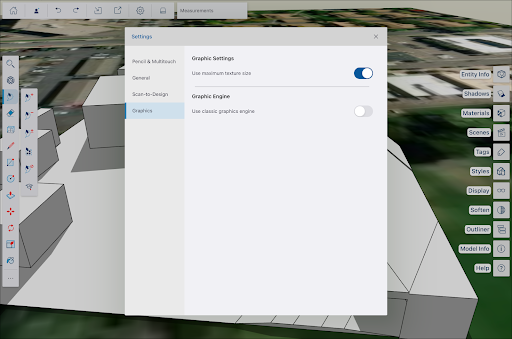
The Graphics section contains two options:
- A toggle to adjust texture size.
- A toggle to use the classic SketchUp graphics engine.
Still need help?
Technical support from our New Zealand team is available to customers with a current Procadsys SketchUp Plus subscription: Pro Plus, Pro Scan Plus, Pro Civil Contractor Plus, Advanced Workflows Plus or Studio Plus. Self-help articles are public.
Contact SketchUp support