In a 3D model, you can draw a larger or smaller version of a shape while keeping an equal distance between the two shapes. This is called offsetting a line.
Use an offset for these tasks:
- Drawing a floor plan usually involves showing interior and exterior walls. Draw one set of walls, then use the Offset tool to draw the second set.
- Drawing a profile helps you create a 3D model of a bowl or vase. Draw the lines and curves for the basic shape, then offset it to give the profile a uniform depth. Extrude the profile with Follow Me to complete your 3D model.
- Drawing an overhang starts with the exterior walls. A house's eaves are usually an equal distance from those walls. Use the Offset tool to draw the outline for the eaves.
You can find the Offset tool ( ) in these places in SketchUp:
- Edit toolbar
- Getting Started toolbar
- Large Tool Set toolbar
- Tools menu
- Tool palette (macOS only)
Watch the video for a demonstration and tips on using the Offset tool, or follow the steps below.
You can offset lines or faces. To offset lines, first select two or more connected lines in the same plane. Then follow these steps:
- Select the Offset tool () or press the F key.
- Click one of the selected line segments or the face you want to offset.
- Move the cursor to set the offset distance. The distance appears in the Measurements box.
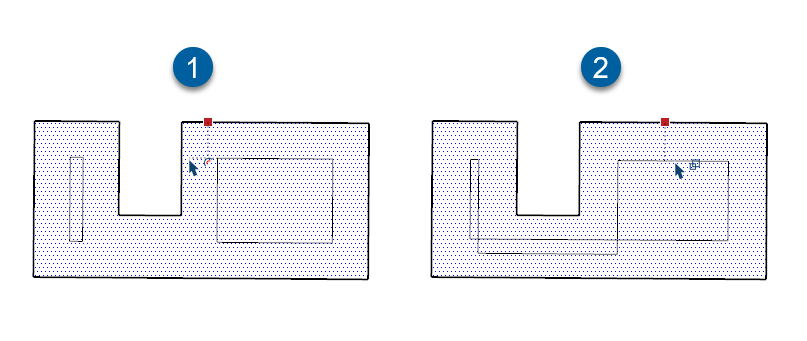
- Click to finish the offset.
- (Optional) To set an exact offset distance, type a number and the Imperial or metric units you want to use. Then press Enter (Microsoft Windows) or Return (macOS). You can reset the distance this way as often as you need until you change the drawing or select a different tool.