Use SketchUp's Components panel to organise the components in your model into collections.
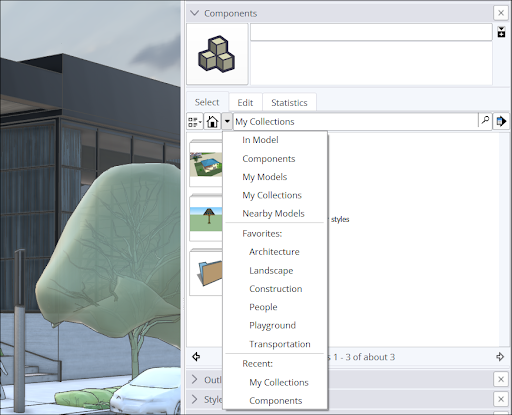
Use the dropdown near the top of the Components panel to access your component collections. Click Components in the dropdown to see your current collections in the primary selection window under the Select tab. SketchUp includes sample collections with basic components, live components and components for learning to use dynamic components.
After adding components to your model, you can group them into your own collections. To create a collection in the Components panel, follow these steps:
- Click Details (
 ) and select Open or Create a Local Collection.
- In the Explorer or Finder window, choose an existing folder for your collection, or click New Folder to create one. Your collection takes the name of the folder you choose.
- Click Select Folder. A blank collection appears on the Select tab of the Components panel.
- Click Display Secondary Selection Panel (
 ) at the top of the Components Panel.
- In the secondary selection pane, find the components you want to add to your collection.
- Click and drag a component into your new collection folder in the primary selection panel.
- Repeat for each component you want to add.
To add a collection to your favourites, follow these steps:
- Select the collection.
- Click Details (icon).
- Select Add Collection to Favorites under Details ().
Favourite collections appear in the Favorites section of the dropdown so you can find them easily. To remove a collection from your favourites, select Remove Collection from Favorites instead.