Use orbit, zoom and pan to view your 3D model from all sides as you draw in SketchUp.
- Orbit: Move around, above or below your model.
- Zoom: Zoom in to focus on an area as you draw. Zoom out to see more of your model.
- Pan: Move left, right, up or down.
SketchUp's Camera menu has standard top, bottom, left, right, front, back and iso views. Each shows your model from a different angle.
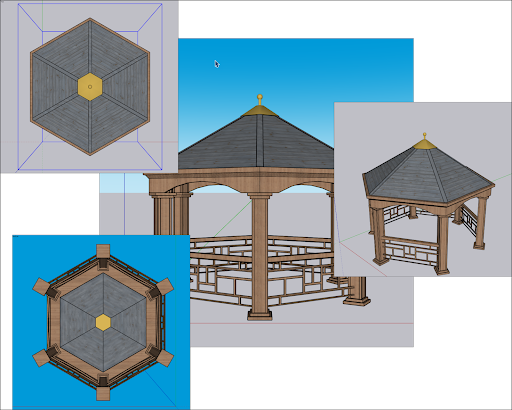
SketchUp's Camera menu also has three perspective options:
- Parallel Projection is an orthographic view. Lines appear parallel in both 3D and 2D space, and line lengths are at scale.
- Perspective is SketchUp's default view. Lines vanish as they approach the horizon. Some entities appear closer and others farther away. Entities are not to scale.
- Two-Point Perspective is often used for illustrations of 3D buildings and concept art. In SketchUp, this view aligns your perspective with two vanishing points.
SketchUp remembers your views as you move between them. Select Camera > Previous to return to the preceding view. After returning to a view, select Camera > Next to move to a later view.
Orbiting around a 3D model
Use the Orbit tool (  ) to rotate the camera around your model and view its geometry from the outside. You can find it in these places:
- Camera > Orbit on the menu bar
- Camera toolbar (Microsoft Windows)
- Getting Started toolbar
- Large Tool Set toolbar
- Tool palette (macOS)
You can temporarily activate the Orbit tool while using another tool. On a three-button mouse, click and hold the scroll wheel. On a one-button mouse, hold down Ctrl + CMD/Windows and click the mouse button.
To use the Orbit tool, follow these steps:
- Select the Orbit tool ( ) or press the O key.
- Click anywhere in the drawing area.
- Move your cursor in any direction to rotate around the centre of the drawing area.
You can also use the Orbit tool to centre your model or roll the camera:
- Double-click in the drawing area to centre your model.
- To roll the camera on its side as you orbit, hold down the Ctrl key (Microsoft Windows) or Option key (macOS). This suspends the Orbit tool's built-in sense of gravity, which normally keeps vertical edges pointed up and down.
Panning side to side and up and down
Panning moves your view vertically or horizontally. You can find the Pan tool (  ) in these places:
- Camera > Pan on the menu bar
- Camera toolbar (Microsoft Windows)
- Getting Started toolbar
- Large Tool Set toolbar
- Tool palette (macOS)
To temporarily switch to the Pan tool while using another tool:
- On a three-button scroll wheel mouse, hold down the scroll wheel and the left mouse button.
- On a one-button mouse or trackpad, hold down the Control, Command and Shift keys together while holding down the mouse button.
- On any mouse, hold down the Shift key while the Orbit tool is selected.
Select the Pan tool ( ) or press the H key. Click and drag in any direction in the drawing area.
Zooming in and out
Zoom in on your 3D model to align edges and faces more precisely. Zoom out to see the whole model or find another area to work on.
SketchUp also has two specialised zoom tools: Zoom Extents (  ) and Zoom Window (
 ).
You can find the Zoom tool (  ) in these places:
- Camera > Zoom on the menu bar
- Camera toolbar (Microsoft Windows)
- Getting Started toolbar
- Tool palette (macOS)
Use the scroll wheel on a three-button mouse to zoom while using another tool. Scroll up to zoom in or down to zoom out. SketchUp centres the zoom on your cursor.
Select the Zoom tool ( ) or press the Z key. Click and drag up to zoom in, or down to zoom out. With this method, SketchUp centres the zoom on the screen.
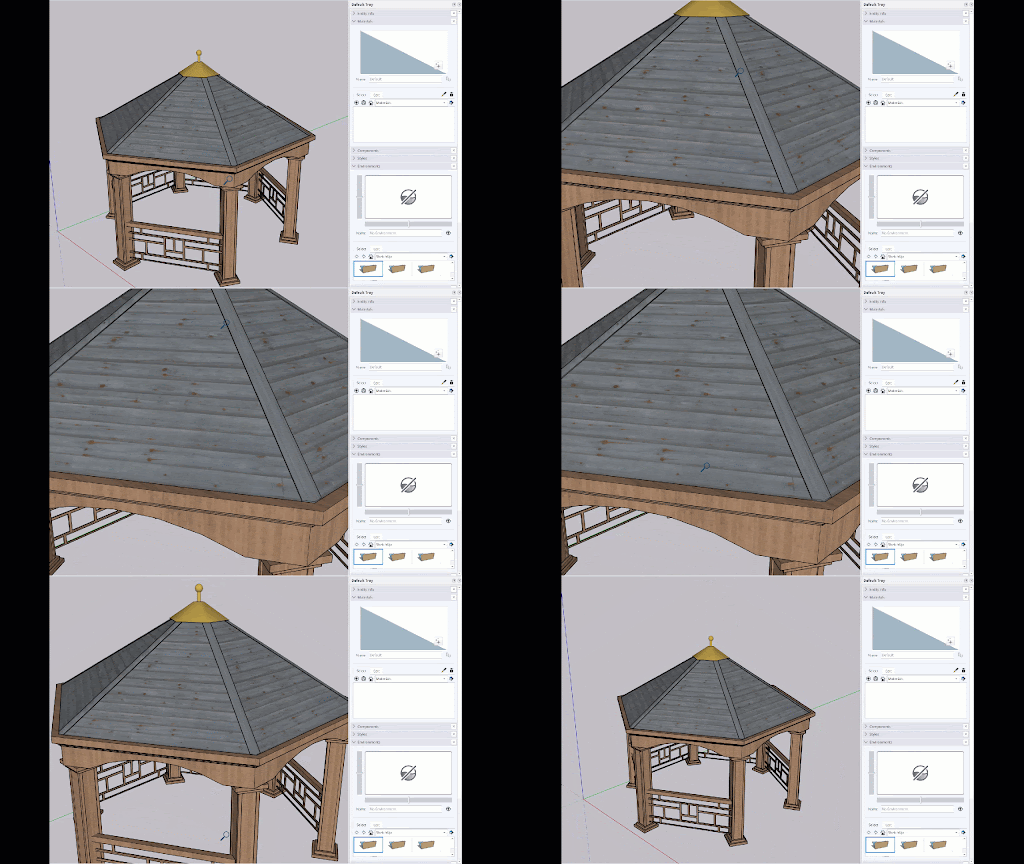
Click the Zoom Extents tool ( ) or press Shift+Z to show your whole model centred in the drawing area. You can also find Zoom Extents in these places:
- Camera > Zoom Extents on the menu bar
- The Camera toolbar (Microsoft Windows)
- The Getting Started toolbar
- The Large Tool Set toolbar
- The Tool palette (macOS)
Use Zoom Window to zoom in on a rectangular area of your model. You can find it in the same places as Zoom and Zoom Extents. Select the Zoom Window tool ( ). Click and drag a box around the area you want to see. Release the mouse button to make that area fill the drawing area.
Changing the field of view or focal length
Use the Zoom tool to change the field of view, which controls how much of your model you can see. Your SketchUp view works like a camera. You can adjust the field of view in degrees or the focal length in millimetres.
To adjust the field of view or focal length, follow these steps:
- Select the Zoom tool, press the Z key or select Camera > Field of View from the menu bar.
- Type a value in degrees or millimetres.
- To adjust the field of view manually, hold down the Shift key while dragging the Zoom tool.