What’s New in SketchUp 2026.0?
SketchUp 2026.0
Last updated 17 July 2026
SketchUp for Desktop
- Collaboration in SketchUp – You can now share SketchUp models through a private invite or by creating and sharing a public link. Those you share your model with can navigate your model, take measurements, leave comments, and even see updates in real-time.
- Visualization – SketchUp 26.0 introduces a Distance Multiplier and color controls for Ambient Occlusion, the ability to invert a material’s roughness map, and the much-requested ability to choose the thumbnail you prefer when viewing your materials.
- Performance – Sketchup 2026.0 improves both memory and working efficiency, making Sketchup more efficient, faster, and reliable. These performance updates are especially noticeable when working with large models.
- Live Components – SketchUp 2026.0 adds functionality to the Scale tool (
 ), adding grips allowing you to place and size Live Components by inference. Since you can now use the Paint Tool (
  ) to apply materials outside of a component’s predefined options, we’ve added several quality-of-life improvements to painting Live Components.
 - Modeling Workflows and Interface Updates – SketchUp 2026.0 includes several notable improvements across scaling, rotating, scenes, and inferencing.
- Managing Activations – You can now reset all activations and authorize your current device without leaving SketchUp for Desktop.
- Interoperability – SketchUp 2026.0 now offers several fidelity and efficiency improvements for importing and exporting DWG files. This includes hatch support and preserving section planes. The IFC export workflow has also been enhanced, consolidating IFC 2x3 and IFC 4 into a single file type with expanded Export Options.
- Scan Essentials – Scan Essentials includes two new point cloud modeling workflows, the Texture Projection and Mesh Generation tools. The new Scene Manager better controls the visibility of point clouds in both SketchUp and Layout. With this update, you can also easily revert to the original georeferenced coordinate system when exporting.
LayOut
- LayOut Interface and Performance Updates – The LayOut interface on Windows looks and operates more like SketchUp with updated iconography, tray and panel configurations, and toolbar customization.
- LayOut Drafting Tools – Four new drafting tools, Trim, Extend, Fillet, and Chamfer, are now available. These tools provide a more intuitive and effective way to create and manipulate 2D vectors.
- Scrapbook Improvements – LayOut’s default Scrapbooks now include 2D Windows, Doors, Furniture, Kitchen, Bath under the Architecture category and additional plan view People libraries.
- Importing and Exporting Improvements – LayOut 2026.0 brings multiple updates to DWG functionality, improving efficiency in how LayOut imports and exports your document using that file format including retaining SketchUp Tags and passing them as DWG layers.
Bug Fixes and Other Improvements
SketchUp
Collaborating in SketchUp
What We Did
You can now share SketchUp models through a private invite or by creating and sharing a public link. Those you share your model with can navigate your model, take measurements, leave comments, and even see updates in real-time.
The Details
SketchUp 2026.0 introduces several new features to help you share your models and collaborate with your peers and stakeholders. These features, found in the new Collaboration Bar, can help you share a model, control the level of access of those you’ve shared it with, and invite feedback from others.
Sharing with the Collaboration Bar
The Collaboration Bar (  ) is available in SketchUp’s default toolbars as well as in the Large Toolset. You can also click Window > Collaboration Bar .
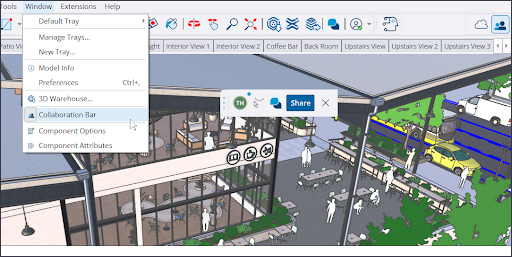
In the Collaboration Bar, click Share to invite others to view your model. If you haven’t already saved your model to Trimble Connect, a prompt appears asking you to save your model there.
To send private invitations, enter the email addresses and designate their access. An email will be sent containing a private link the viewer can use to access your model. If you set your model to General Access, clicking Copy Link generates a public link that allows anyone with the link to view your model.
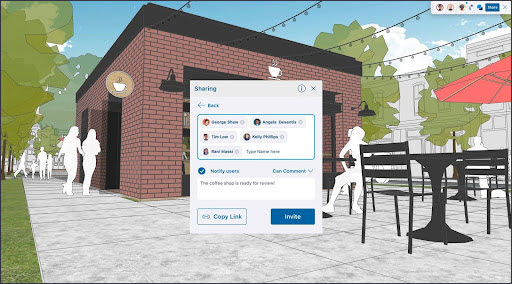
The links you share with others open your model in their web browser. Your viewers will have access to basic information, and a few other options depending on the access levels you have designated. You can set or alter viewers’ access at any time. Viewers who received a private invite have the following permissions:
- Owner – The model’s owner always has full access to all viewing features.
- View Scenes – Can view scenes in a model, but cannot navigate the model or leave comments.
- Comment – Can leave comments, use all the available camera tools, and access all viewer utilities.
General Access permissions define what happens when someone using your public link, or accessing without a private invite, attempts to view your model. General Access does not include the ability to comment on a model. A model’s General Access can be set to:
- No Access – When others attempt to access the model a prompt asks them to request access from you. You can then grant or deny the request, or even ignore it!
- View Scenes – Viewers accessing through your public link can only view scenes.
- View Model – Viewers accessing through your public link can navigate and take measurements.
All viewers can see the cursors of other viewers. Each viewer can hide those cursors using Hide Cursor (  ) in the Collaboration Bar.
Comments
The new Comment tool creates 3D comment markers in your model. To leave a comment in your own model, activate the Comment tool (  ) from the toolbar or the Collaboration Bar. Activating the Comment tool will open the Comments Panel. From the Comments panel, you can review comment threads, add replies, and hide comment markers.
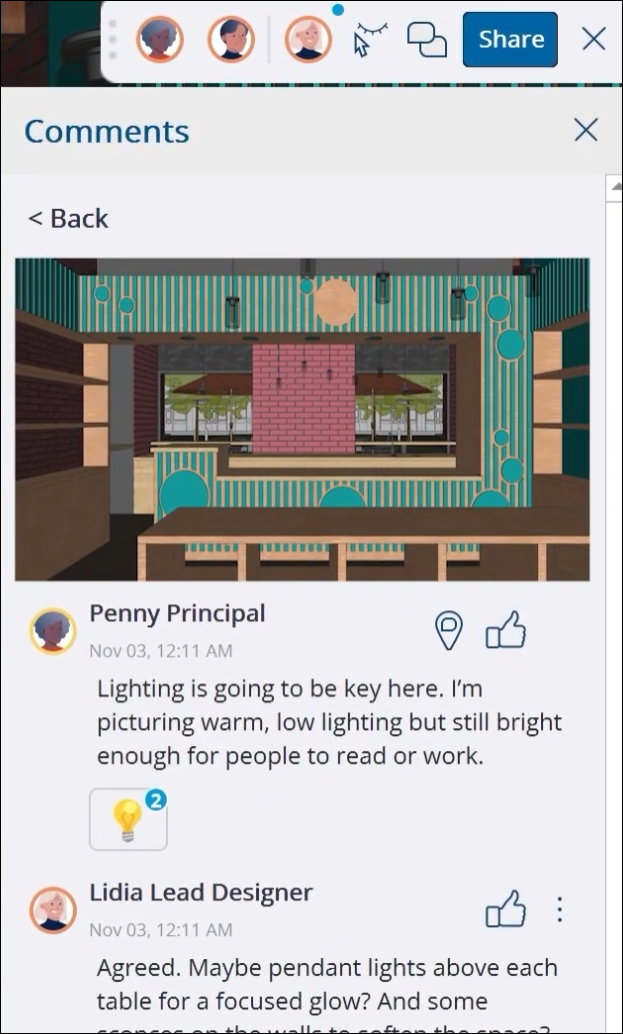
Viewers can leave comments with the Comment tool. When active, use the Comment tool to hover over objects and choose a precise spot to leave your comment. In addition to exchanging text-based comments, you can add images, links, and even different camera positions within a comment thread.
Each comment can be associated with a specific scene. That means whenever a viewer clicks a comment marker in the modeling window, SketchUp will display that comment thread, activate the last selected scene, and move to the camera position of the comment. You can also choose to associate your comment with another scene, or no scene at all.
Real Time Viewing and Camera Controls
By default, your viewers will see your modeling updates in real time. Any change you make will appear to anyone, and viewers can even see the tool you are using to make changes if cursors are visible. The navigation tools viewers are using, like the Tape Measure, Pan, or Rotate, are also visible to everyone.
If you want your viewers to see your model from a specific point of view, you can click your avatar in the Collaboration Bar. Each viewer’s point of view will shift to yours. If you want to see what another viewer is looking at, you can click their avatar instead.
Learn More
For more details on all of SketchUp’s new collaboration features, see Connect and Collaborate .
Visualization Improvements
What We Did
SketchUp 26.0 introduces a Distance Multiplier and color controls for Ambient Occlusion, the ability to invert a material’s roughness map, and the much-requested ability to choose the thumbnail you prefer when viewing your materials.
The Details
Ambient Occlusion
The Ambient Occlusion face style received two major improvements – a Distance Multiplier slider and color swatch control.
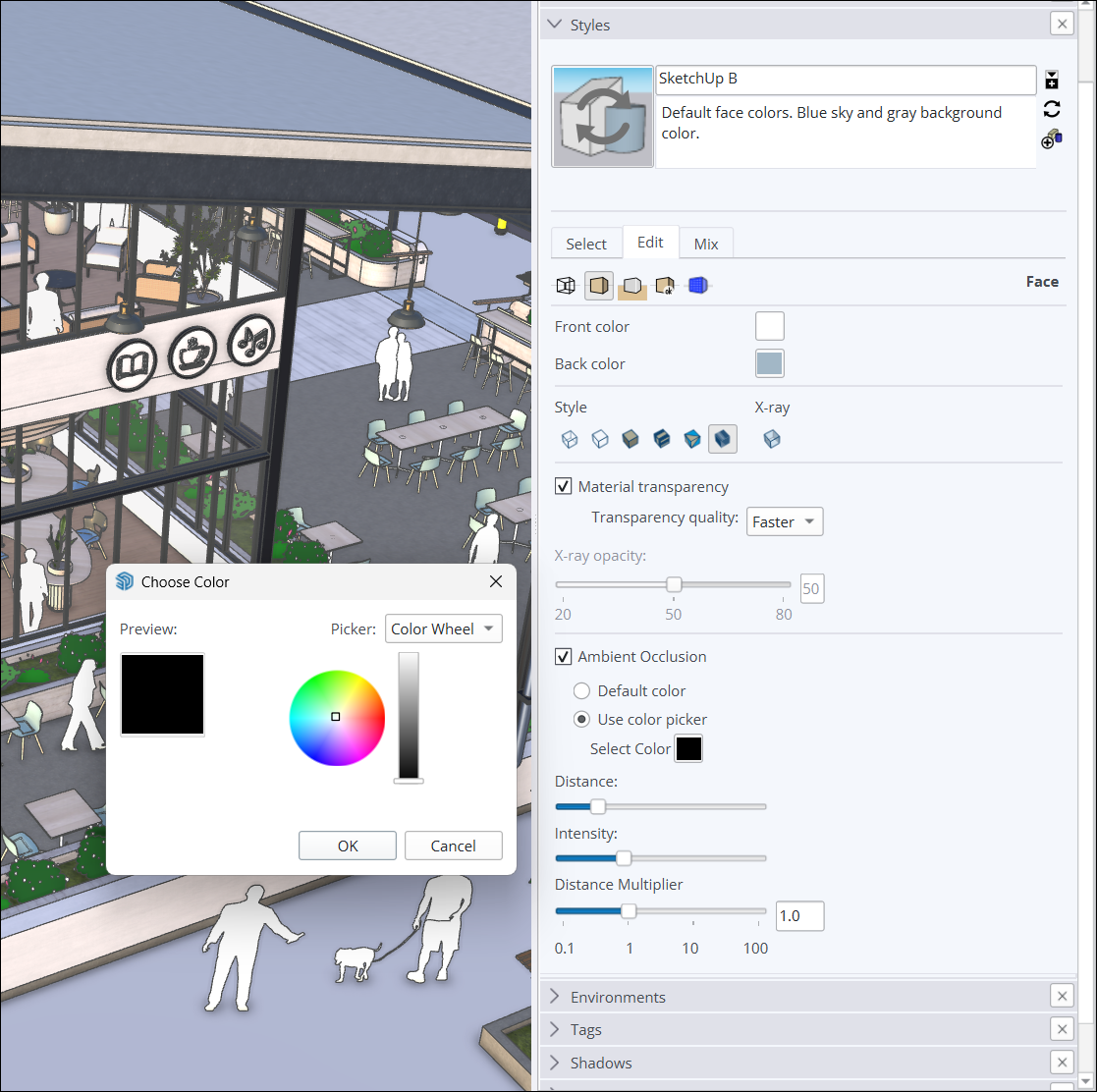
The Distance Multiplier slider helps control the distance at which occlusion effects appear in your models. A higher number means occlusion effects will still be visible even when zoomed out.
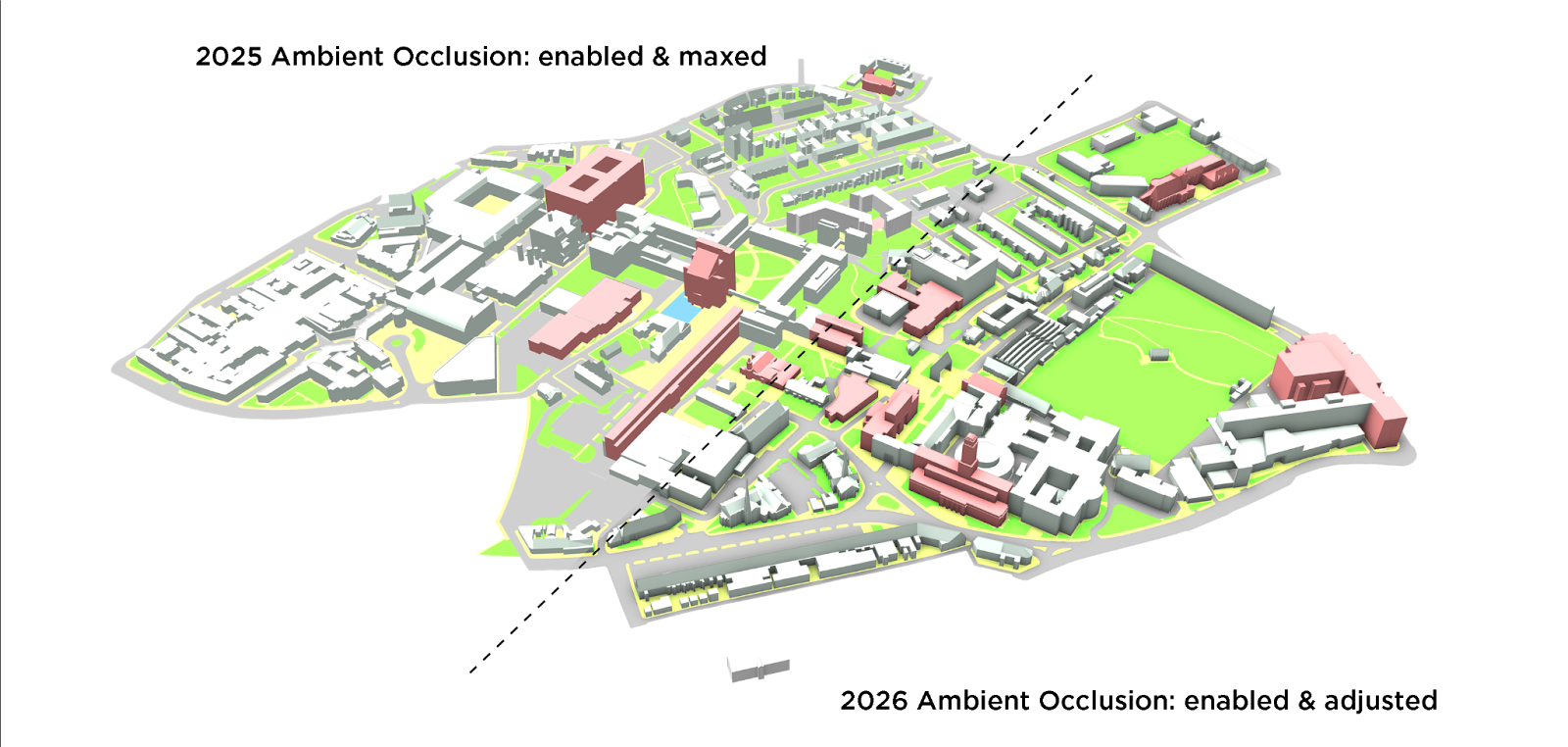
The new color swatch control allows for dynamic shading effects based on a color you choose. Color effects will display in the model as you adjust color using the color wheel, HLS, HSB, or RGB controls.
Invert Roughness
SketchUp’s Photoreal Materials offer a lot of ways to customize the look and feel of faces in your model. With the new Invert Roughness option, you can flip the black and white values in a material’s roughness map. Inverting roughness provides another option to better control how smooth or rough you want a surface to be.
Material Thumbnails (Windows Only)
By popular demand, material thumbnails are now customizable offering both a cube and flat 2D image.
When you context click a material’s preview, you can choose from Auto Thumbnail , Cube Thumbnail , or Flat Thumbnail . When selecting Auto Thumbnail, photorealistic textures appear as a cube. Cube Thumbnail forces the material to appear as a cube. Flat Thumbnail displays the thumbnail as the classic 2D image.
Learn More
See Materials, Textures, and Environments for more information about SketchUp’s visualization features.
Performance
What We Did
Sketchup 2026.0 improves both memory and working efficiency. These changes make Sketchup more efficient, faster, and increase reliability, especially when working with large models.
The Details
Memory Improvements
SketchUp now better manages memory, optimizing how the software allocates and uses memory for various elements and processes including:
- Model Loading – SketchUp now loads model data with more efficiency and reduces initial memory spikes.
- Lower Memory Overhead – SketchUp optimizes the amount of memory reserved for components, resulting in less wasted memory.
- Windows Graphics Efficiency – Windows users may notice an improvement in graphics resource handling, increasing memory usage efficiency.
With these memory improvements, SketchUp uses less memory overall. This means:
- Fewer crashes and freezes, especially for devices with less RAM working with large models.
- A more stable and responsive environment, allowing for extended work without interruptions.
- Better fluidity and responsiveness.
Working Efficiency
SketchUp 2026.0 improves the speed of frequently used operations, providing better fluidity with enhancements to:
- Selections and Inferences – An optimization of core selection and manipulation code resulting in higher speed for tasks like making selections, opening and closing components, and inferencing smaller targets.
- Scene Transitions – Enhanced scene transition logic resulting in smoother scene changes in larger models and an approximate 86% improvement in frames per second.
- Zoom Extents – An approximate 90% speed improvement when using Zoom Extents.
- Purge Unused – The time required to purge unused tags has been drastically reduced.
Still need help?
Technical support from our New Zealand team is available to customers with a current Procadsys SketchUp Plus subscription: Pro Plus, Pro Scan Plus, Pro Civil Contractor Plus, Advanced Workflows Plus or Studio Plus. Self-help articles are public.
Contact SketchUp support