Use the Chaos Cosmos AI Assets Generator to create 3D Models from a reference image.
Overview
The AI Assets Generator creates custom 3D Models from a single reference image in the Cosmos Browser. You can use the generated models directly in V-Ray, Corona, Vantage, Envision, and Enscape.
Workflow
1. Access the AI Assets Generator
Open the Chaos Cosmos Browser / Cosmos Asset Library in your host platform. Check that you are signed in to your account and have the latest version of Cosmos installed. On the Cosmos Browser home screen, go to AI Assets Generator > Generate > 3D Models.
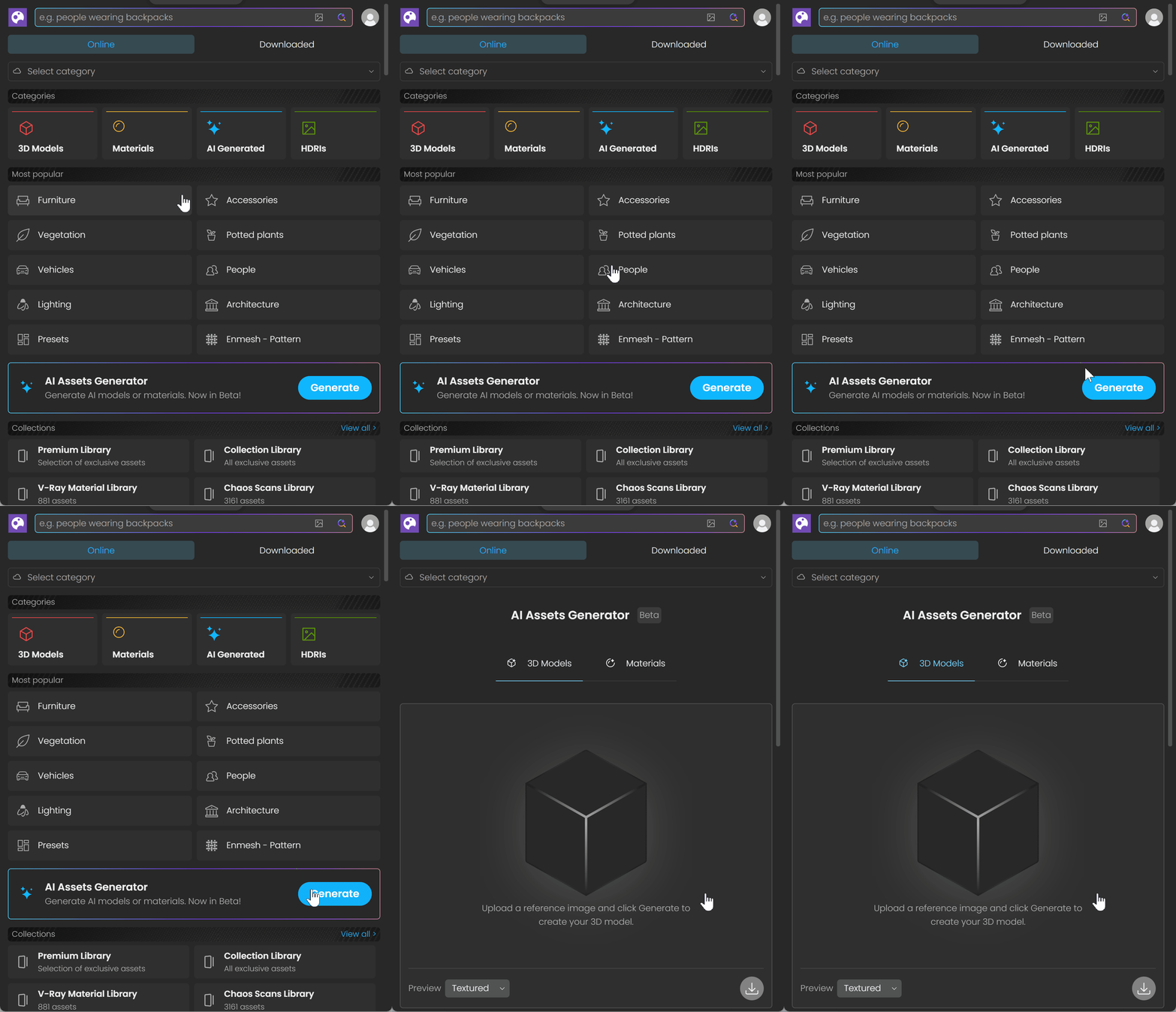
Chaos Cosmos Browser. AI Assets Generator. 3D Models.
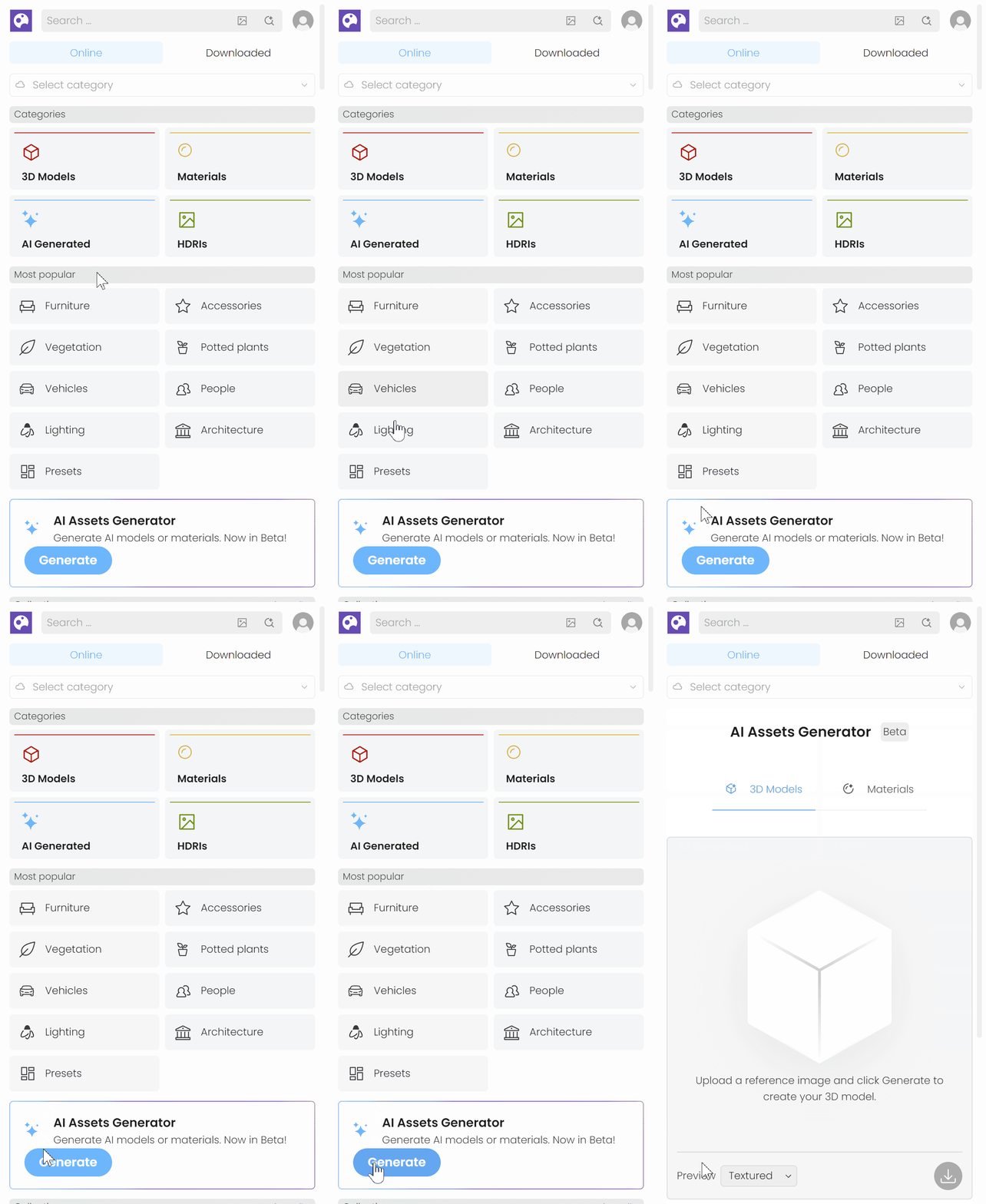
Envision Cosmos Asset Library. AI Assets Generator. 3D Models.
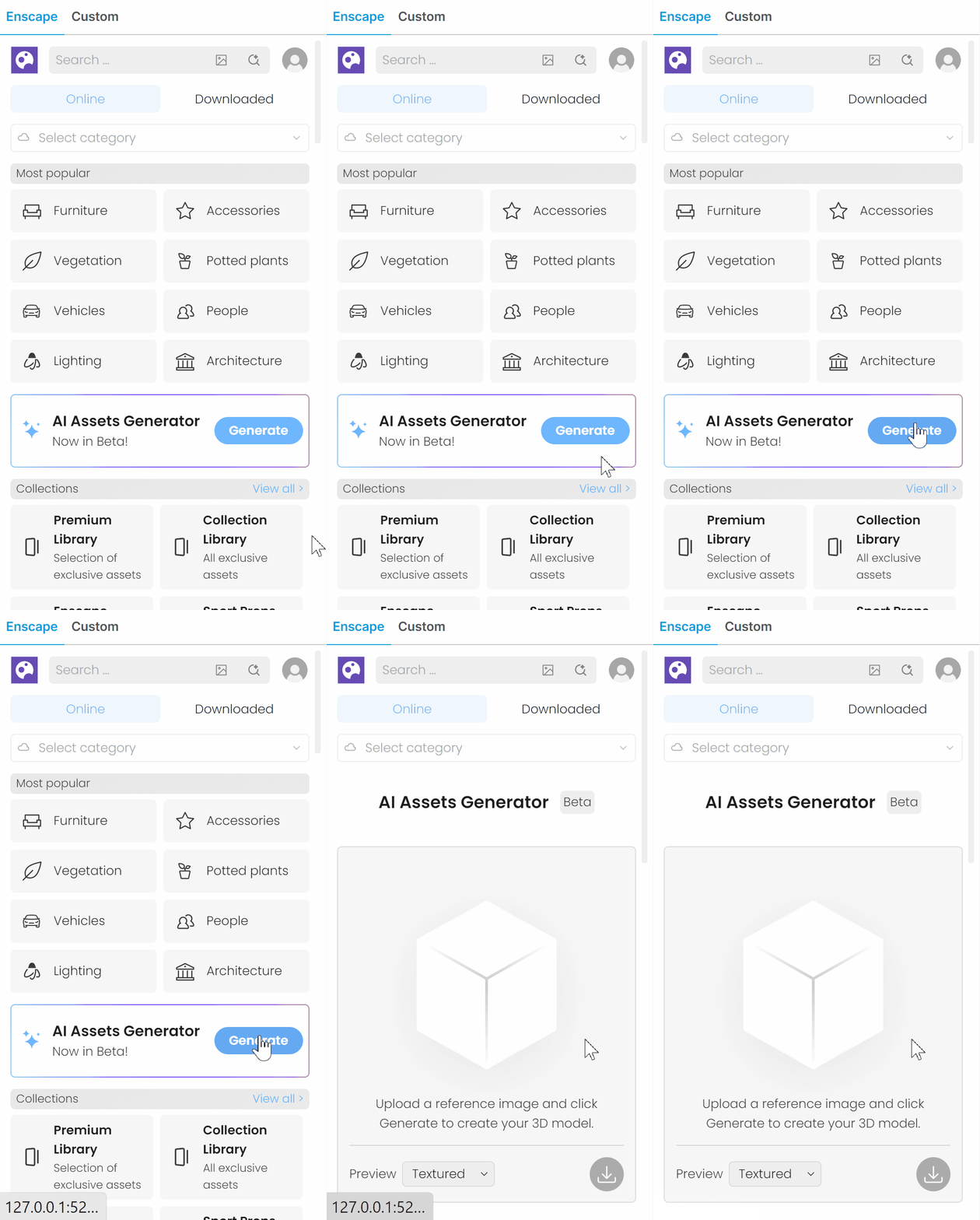
Enscape Cosmos Asset Library. AI Assets Generator.
2. Generate a 3D Model
Upload your image. Adjust the settings for your image type, then click Generate.
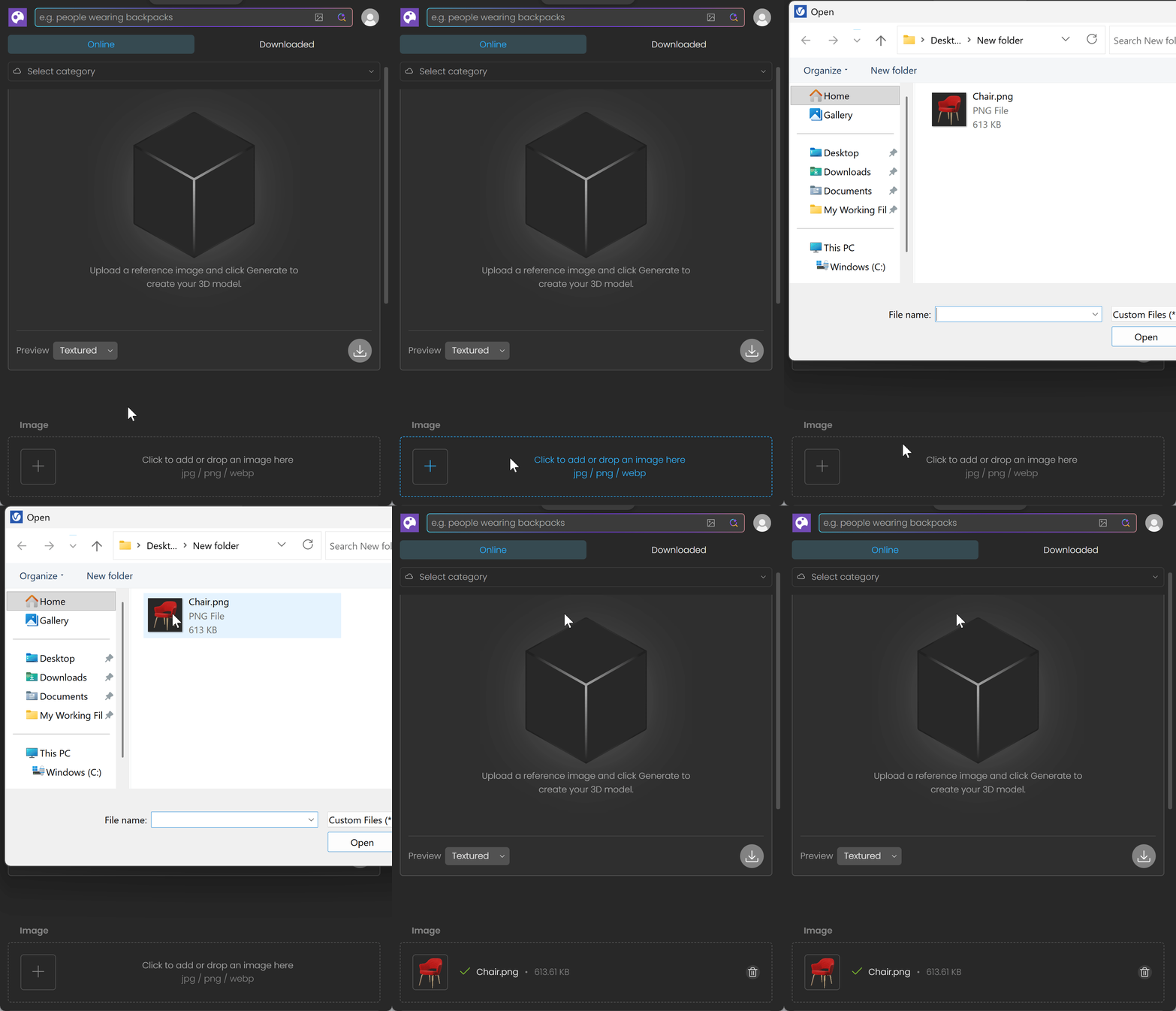
AI Assets Generator. 3D Models. Add Image.
Settings
Use the settings panel to control the quality, performance, and characteristics of the generated 3D asset.
Model sets the AI model used to generate the asset. Models may suit different tasks or produce different styles. Choose Microsoft TRELLIS.2 or Tencent HY3D.
Preset configures the balance between quality and speed. Choose Draft, Medium (default), or High. Each preset sets Resolution, Polycount, and Texture resolution together.
Resolution sets the voxel grid density used to build the shape. Higher values capture finer details but take longer.
Polycount sets the polycount of the exported mesh. It only affects file size. To add more detail, increase Resolution.
Texture resolution sets the size of the final textures.
Shape fidelity (Experimental) controls how closely the generated geometry matches your reference image. Lower values simplify small details. Higher values follow the reference more closely but may add unwanted detail.
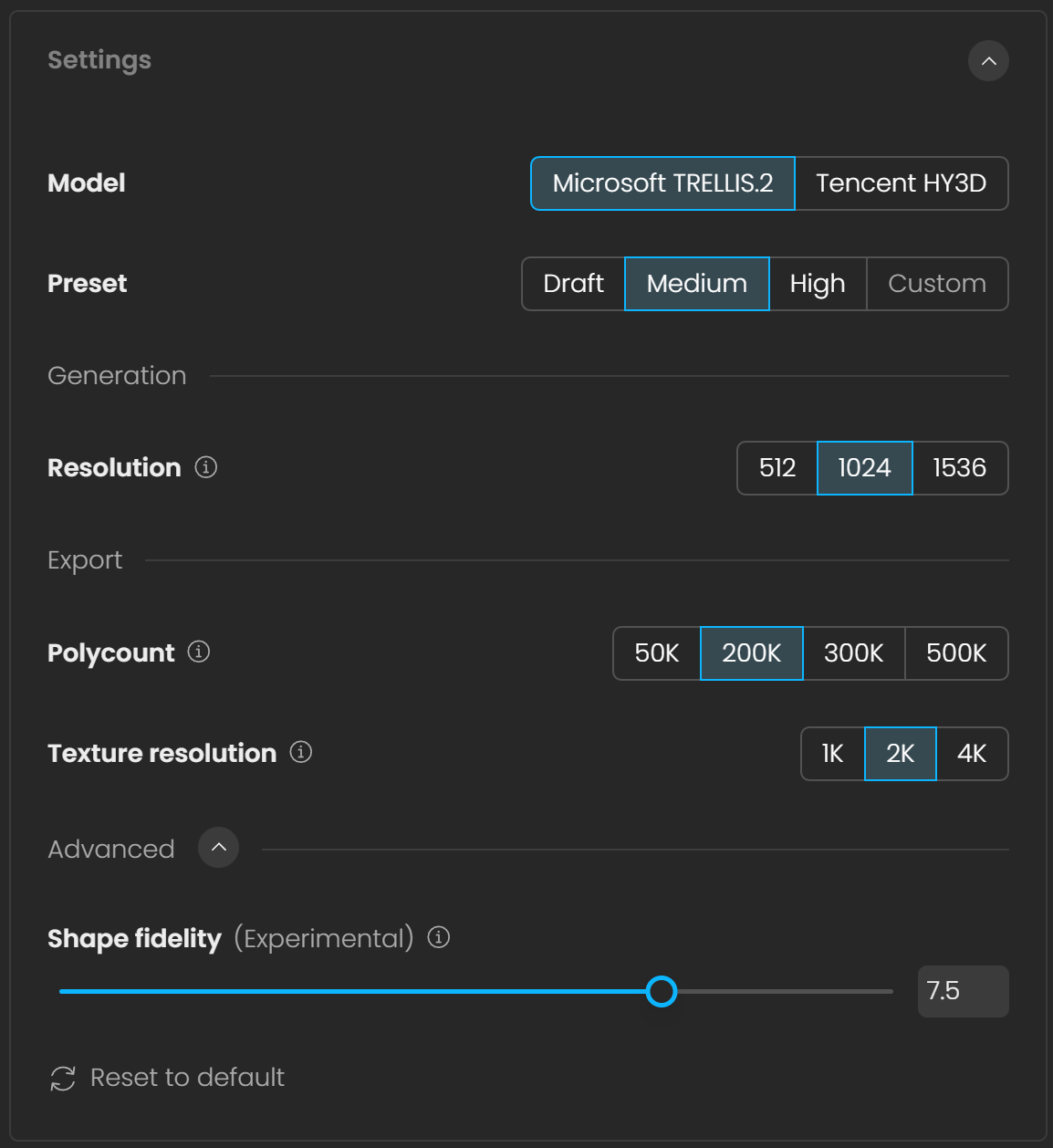
3D Models. Settings. Microsoft TRELLIS.2.
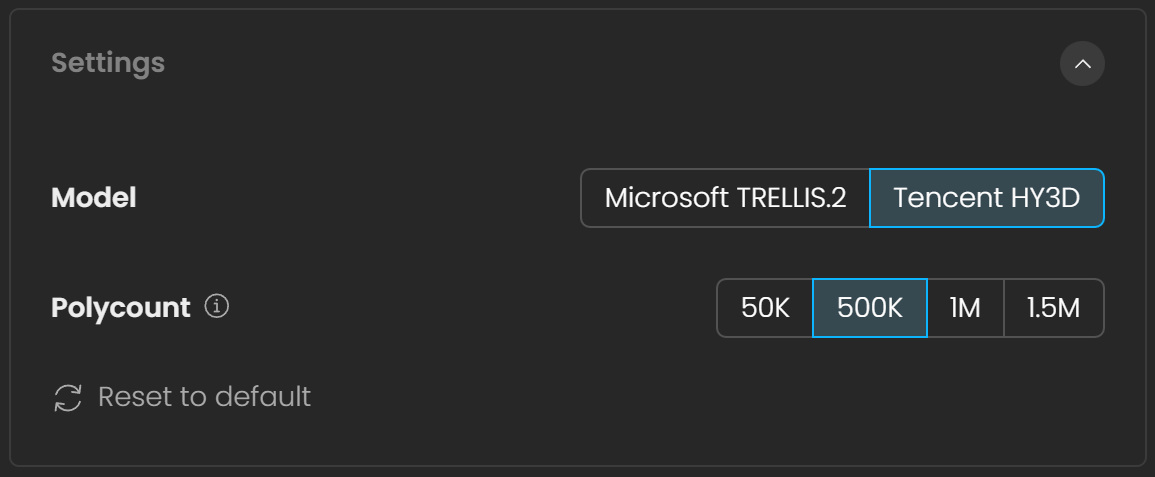
3D Models. Settings. Tencent HY3D.
3. 3D Model preview
There are two asset preview types: Texture and Geometry.
Textured shows the final model with textures applied.
Geometry shows a clay view so you can inspect the mesh shape.
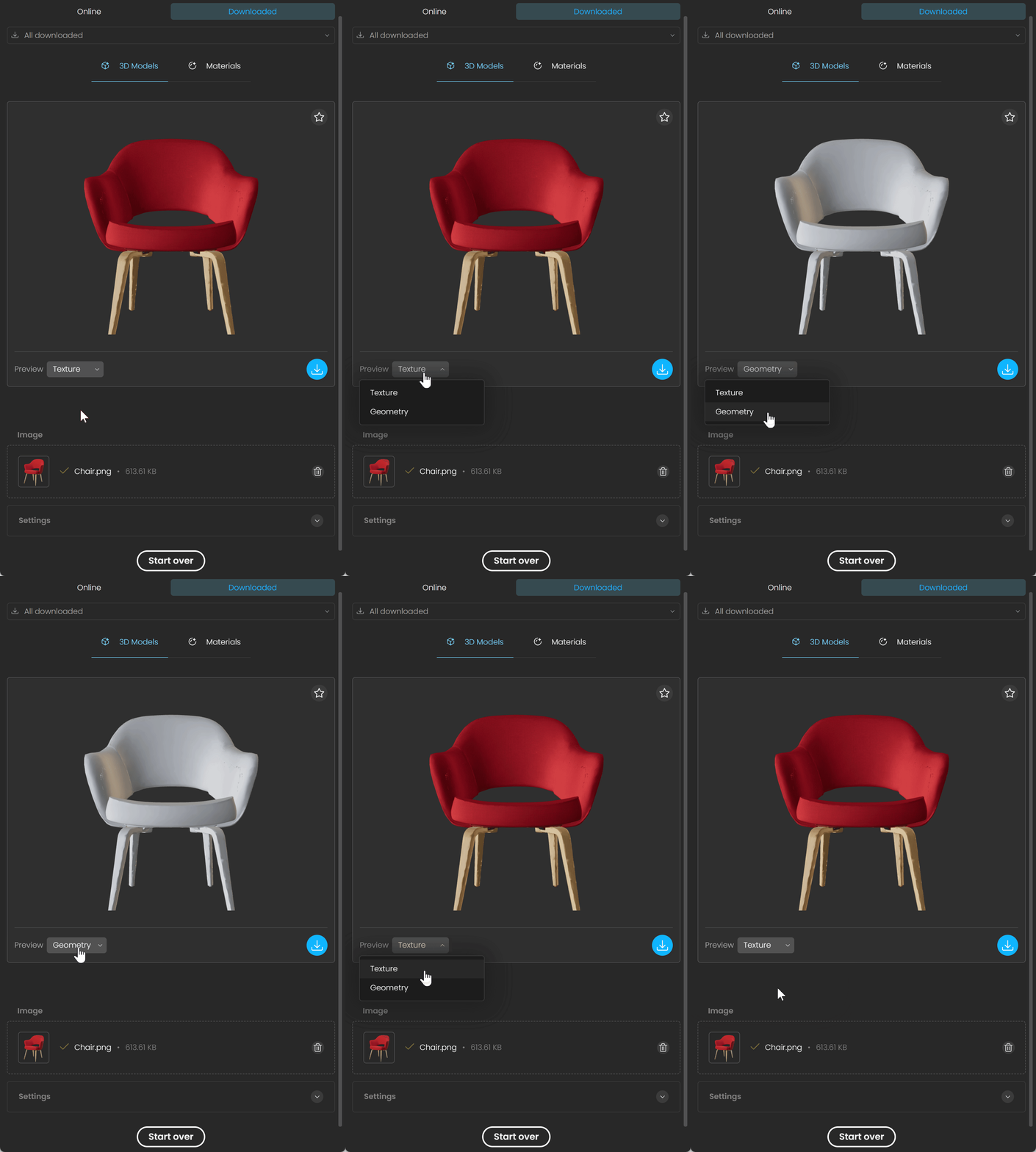
AI Assets Generator. 3D Models. Asset Preview.
4. Download and save a 3D Model
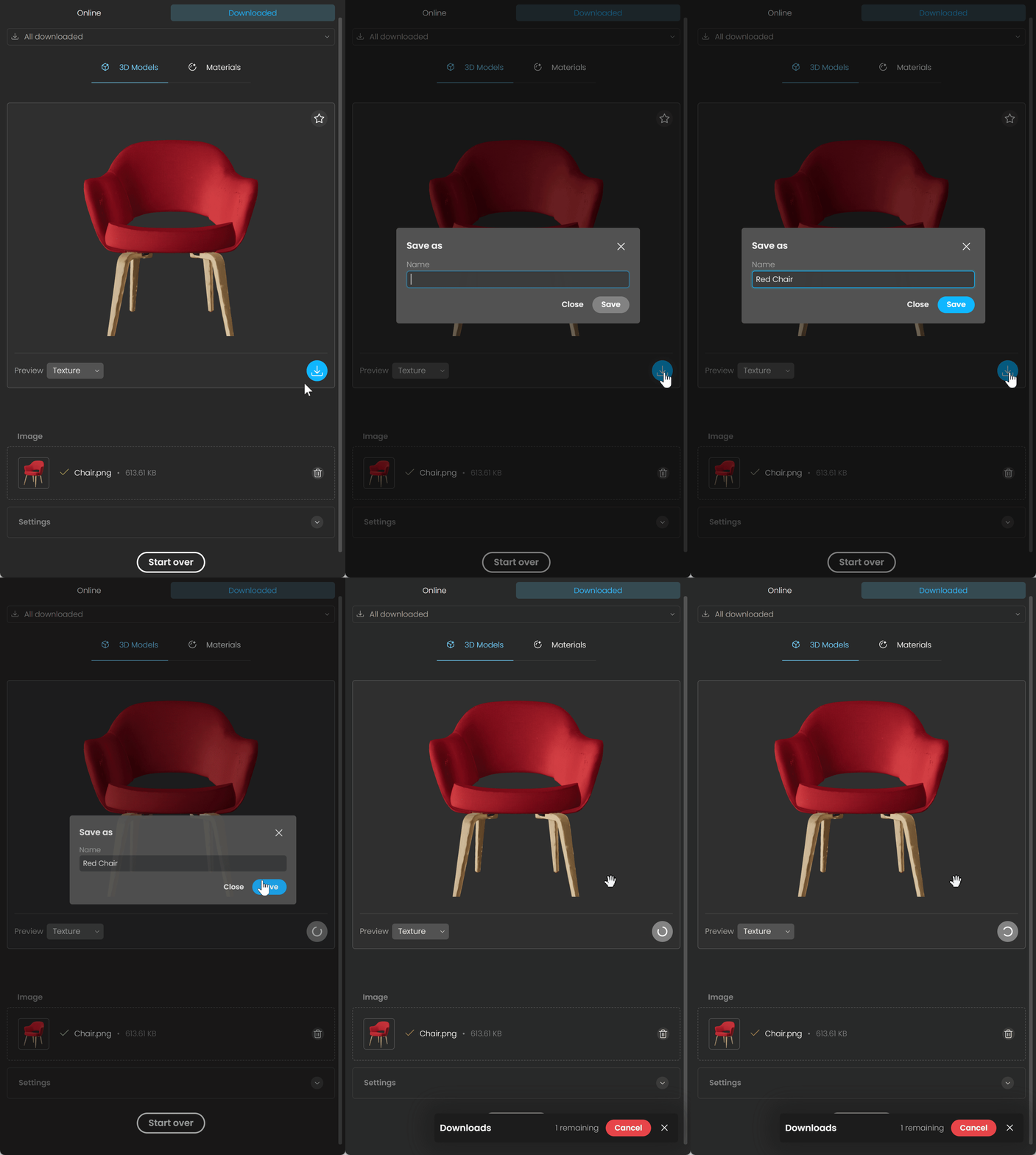
Once the AI Asset is generated, click Download. Enter a name for the Asset, then click Save.
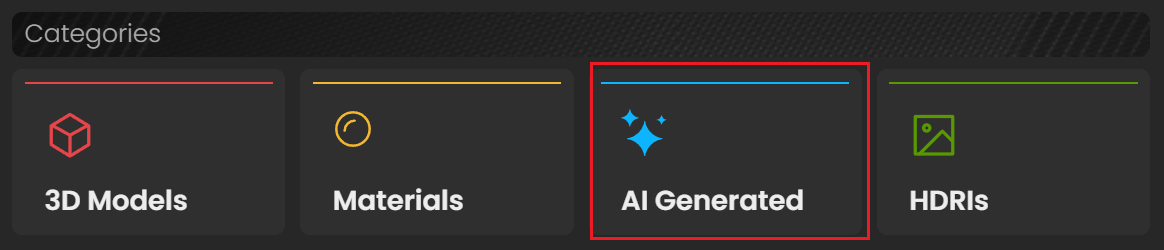
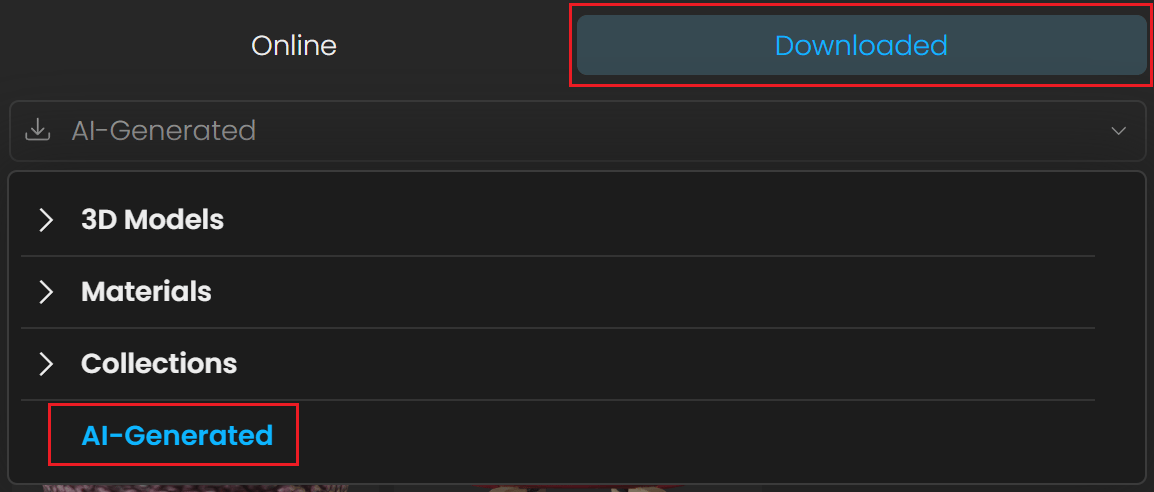
Downloaded 3D models created with the AI Assets Generator are in the AI Generated section. To find them, select the AI Generated category on the Cosmos homepage or select AI Generated from the Downloaded section dropdown menu.
Find downloaded AI Generated assets
AI Assets Generator. 3D Models. Asset Download.
Rate a generated 3D Model
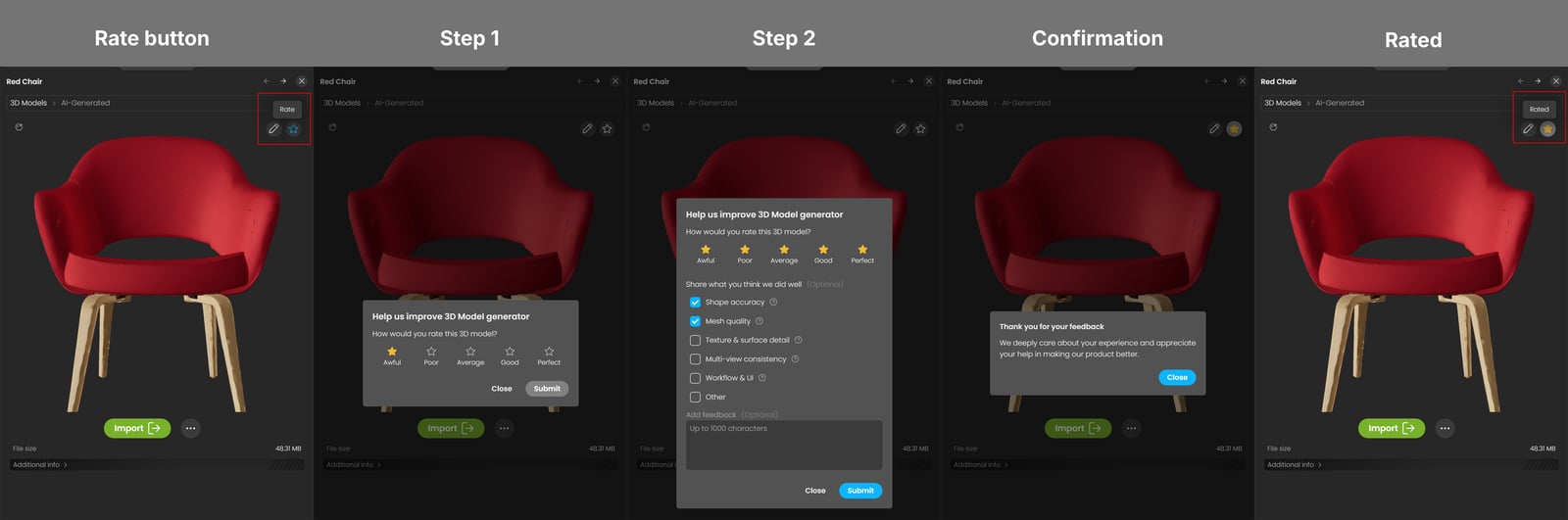
You can rate a model immediately after generating it in the AI Assets Generator or after downloading it. Find all downloaded generated models in Downloaded > 3D Models > AI-Generated. Click the star icon in the upper-right corner of the generated model to open the feedback form.
AI Assets Generator. 3D Models. Rate Models.
Notes
- Imported models may appear very small in the viewport. Scale them up to the correct size.
- Objects may appear mirrored when imported.