Chaos Cosmos
AI Materials
This page provides information about the Materials generated with the Chaos Cosmos AI Assets Generator.
Last updated 1 September 2026
This page provides information about the Materials generated with the Chaos Cosmos AI Assets Generator.
Overview
The AI Assets Generator is an innovative tool that enables you to seamlessly transform images into materials right within the Cosmos Browser.
Workflow
1. Access the AI Assets Generator
To access the AI Assets Generator, open the Chaos Cosmos Browser / Cosmos Asset Library in your host platform. Make sure you are logged into your account and have the latest version of Cosmos installed for optimal performance. Then, go to the Cosmos Browser home screen and navigate to AI Assets Generator > Generate > Materials.

Chaos Cosmos Browser - AI Assets Generator - Materials
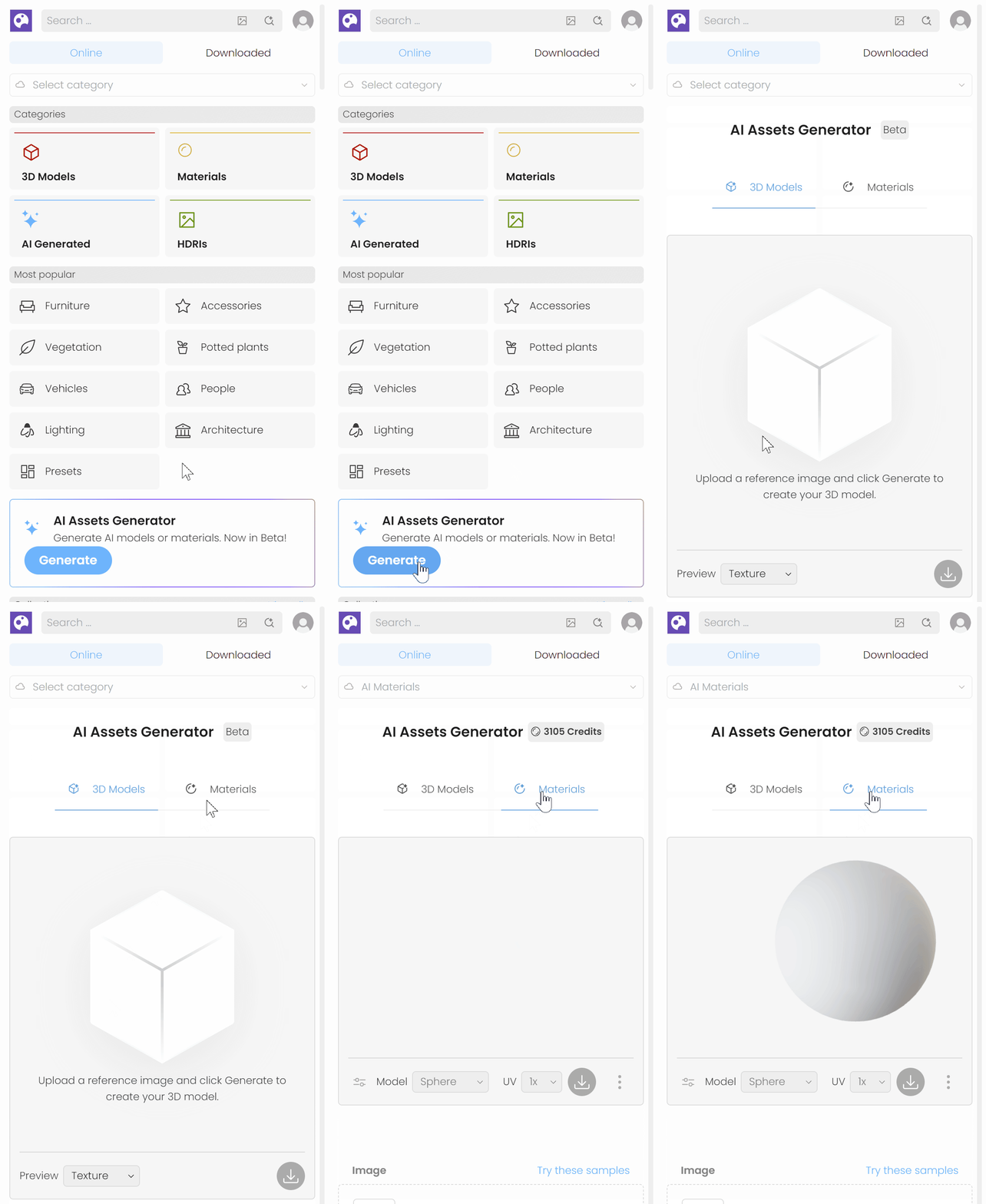
Envision Cosmos Asset Library - AI Assets Generator - Materials
2. Generate a Material
Upload your image and make the necessary adjustments depending on the image type before clicking Generate.
Tileable image – Go to Settings and disable the Make tileable option before clicking Generate. This keeps your input image as it is and only creates the Normal and Roughness textures.
Not tileable image – Use the Pattern utility to help Cosmos generate a tiling map.
AI Assets Generator - Materials - Add Image
Pattern Utility
To open the Pattern utility, click on the checker icon in the Image section.

Smart pattern – Detects patterns automatically. After the process is complete, a Ready confirmation will appear. You can then click Apply or adjust the suggested selection if needed before generating the material.
Manual pattern – To manually select a pattern, use the selection tool to specify the repeating pattern in the image.
Zoom – Allows you to zoom in the selected pattern for a finer control.
Rotate – Allows you to straighten the image.
Revert to original – Reverts any changes.

AI Assets Generator - Materials - Select Pattern
Settings
The settings allow you to customize the generated output.
Resolution – Specifies the output resolution for the generated textures.
Preserve colors – Preserves the colors of the original texture. Turning this off forces a de-lighting process, which may shift the colors. If your photo already has strong baked-in lighting, turning this off can improve the result.
Make tileable – Tiles the image. Note that this option requires a selection in the Pattern utility.
Reset to default – Resets all settings to their default values.
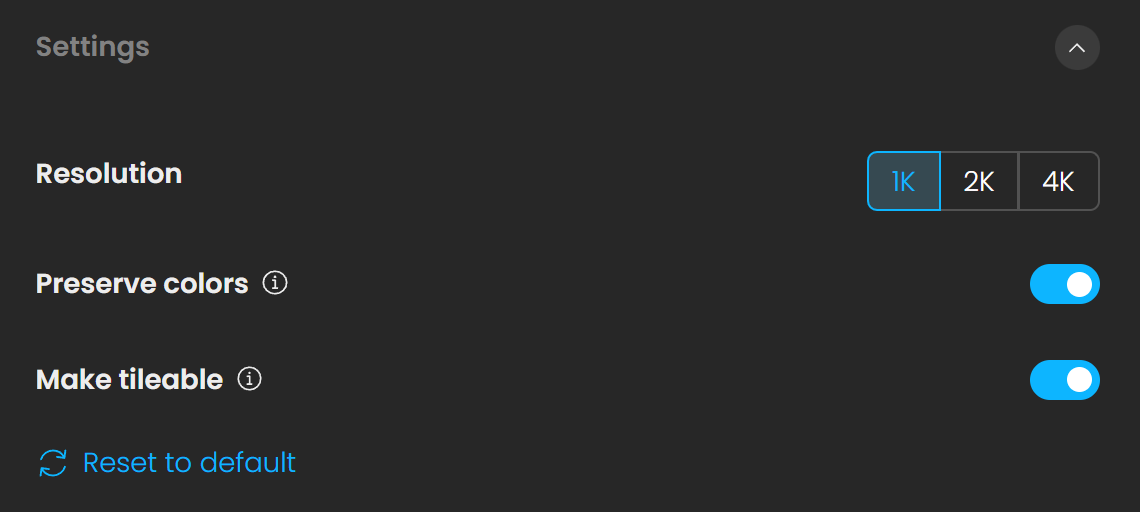
AI Assets Generator - Materials - Settings
Interactive settings
Further adjustment options become available after the generation process is completed.
Normal – Controls the strength of bumps and surface details. Higher values produce more pronounced details, while lower values produce subtler details.
Roughness – Controls how shiny or matte the surface looks. Higher values produce a matte surface, while lower values produce a shinier surface.

AI Assets Generator - Materials - Interactive Settings
Download and Import
Click Download to save the material so you can reuse it in your projects.
To find your AI-generated materials, go to the Downloaded section. Under the Materials category, you’ll find a new sub-category called AI-Generated, which stores all of your saved materials. From here you can add the material to your project following the standard Cosmos Material import procedure.
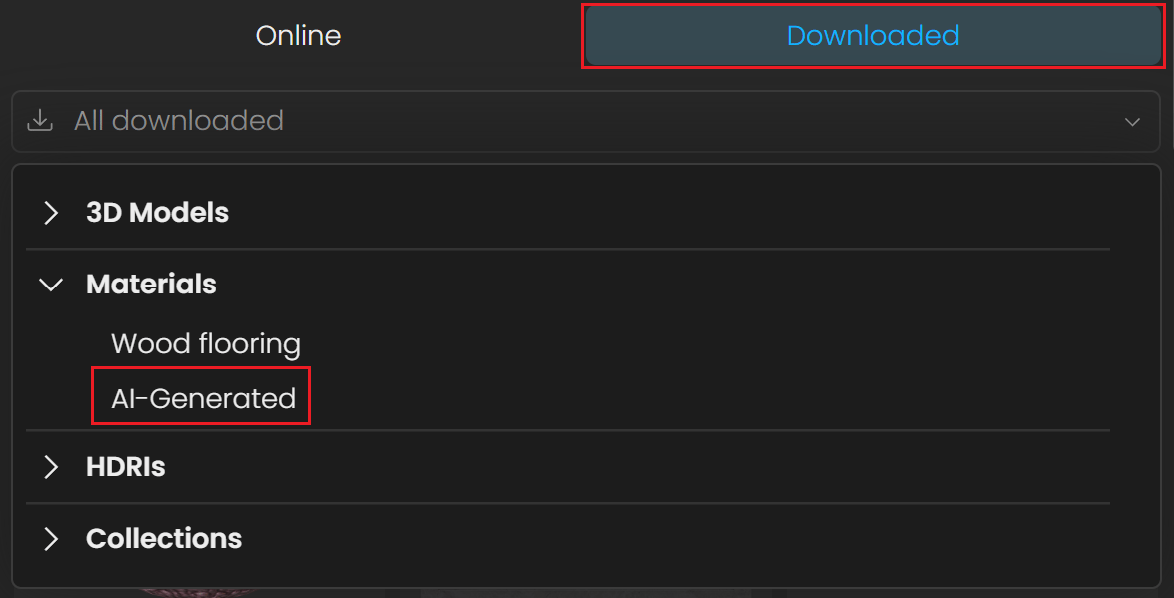

AI Assets Generator - Materials - Download
Edit Generated Material
Downloaded AI materials can be renamed and deleted. Additionally, a description can be added.
Open the material and click the Edit button. Then go to the three-dot menu and select Rename or Delete.
AI Assets Generator - Materials - Edit Material
Rate Generated Material
Rate the generated material immediately after creating it in the AI Assets Generator or after downloading it. All downloaded generated materials are located in the Downloaded section > Materials > AI-Generated. Click the star icon in the upper-right corner of the generated material to open the feedback form. Your feedback is invaluable in helping us shape and improve this feature.

AI Assets Generator - Materials - Rate Materials