Use Chaos Cosmos Browser to find, download and import assets for your projects.
Overview
Use the Chaos Cosmos Content System to browse, place and render 3D assets from your Chaos product. The 3D asset library includes Vegetation, Furniture, Accessories, People, Vehicles, Materials, HDRIs and more. All assets are render-ready and adapt to different Chaos renderers (V-Ray, V-Ray GPU, Corona for 3ds Max, Corona for Cinema 4D, Vision, Chaos Vantage, Enscape and Envision) and host apps (3ds Max, Cinema 4D, Revit, Rhino, SketchUp, Maya, Houdini and others).
Using the browser
You can browse the Content Library without an account. To download and use assets, you need to sign in. Open Chaos Cosmos Browser from your product integration or visit the Chaos Cosmos website. Open the Sign in menu and click the Sign in button. Enter your Chaos credentials on the Chaos sign-in webpage.

The browser has light and dark themes.
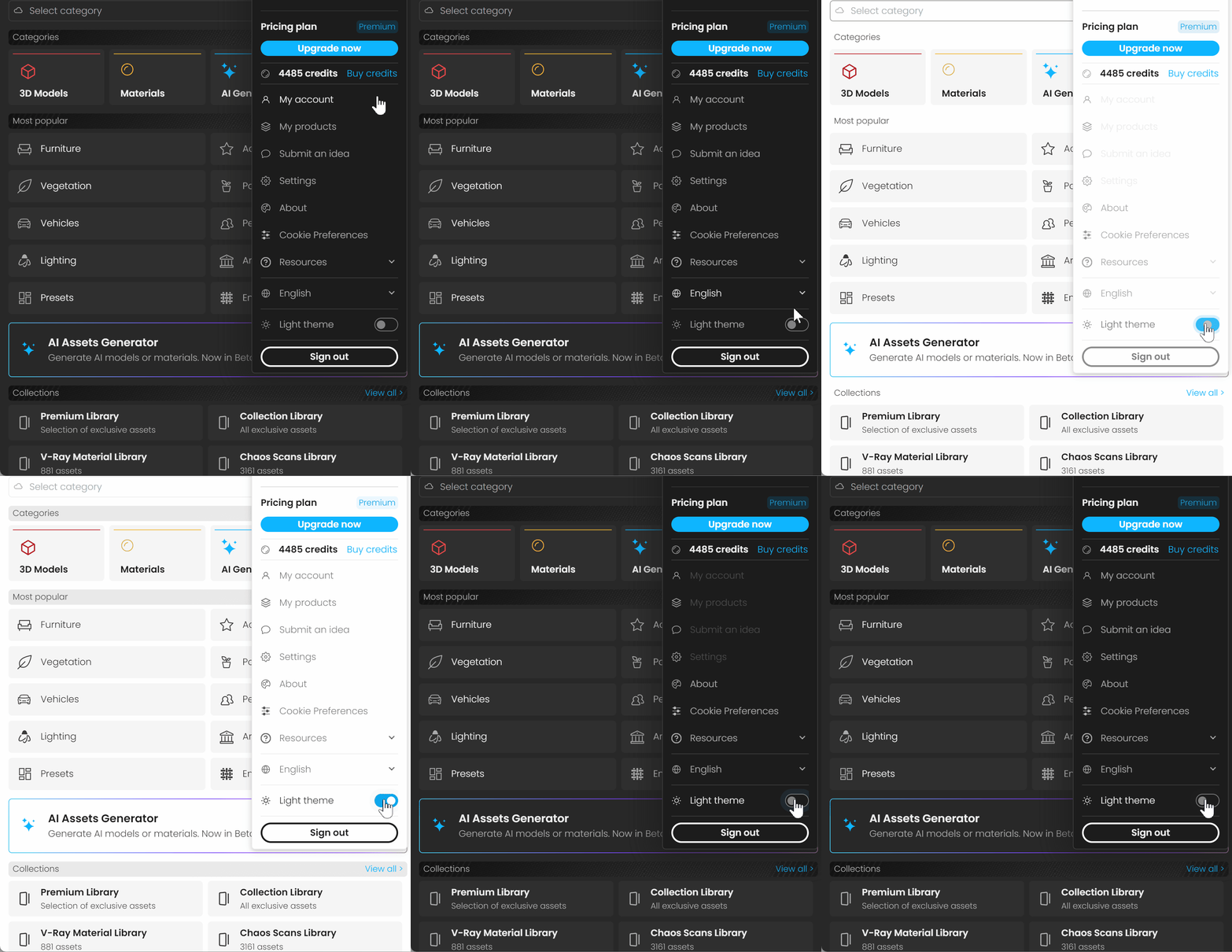
Resize the Cosmos Browser window width to switch between compact and wide views.
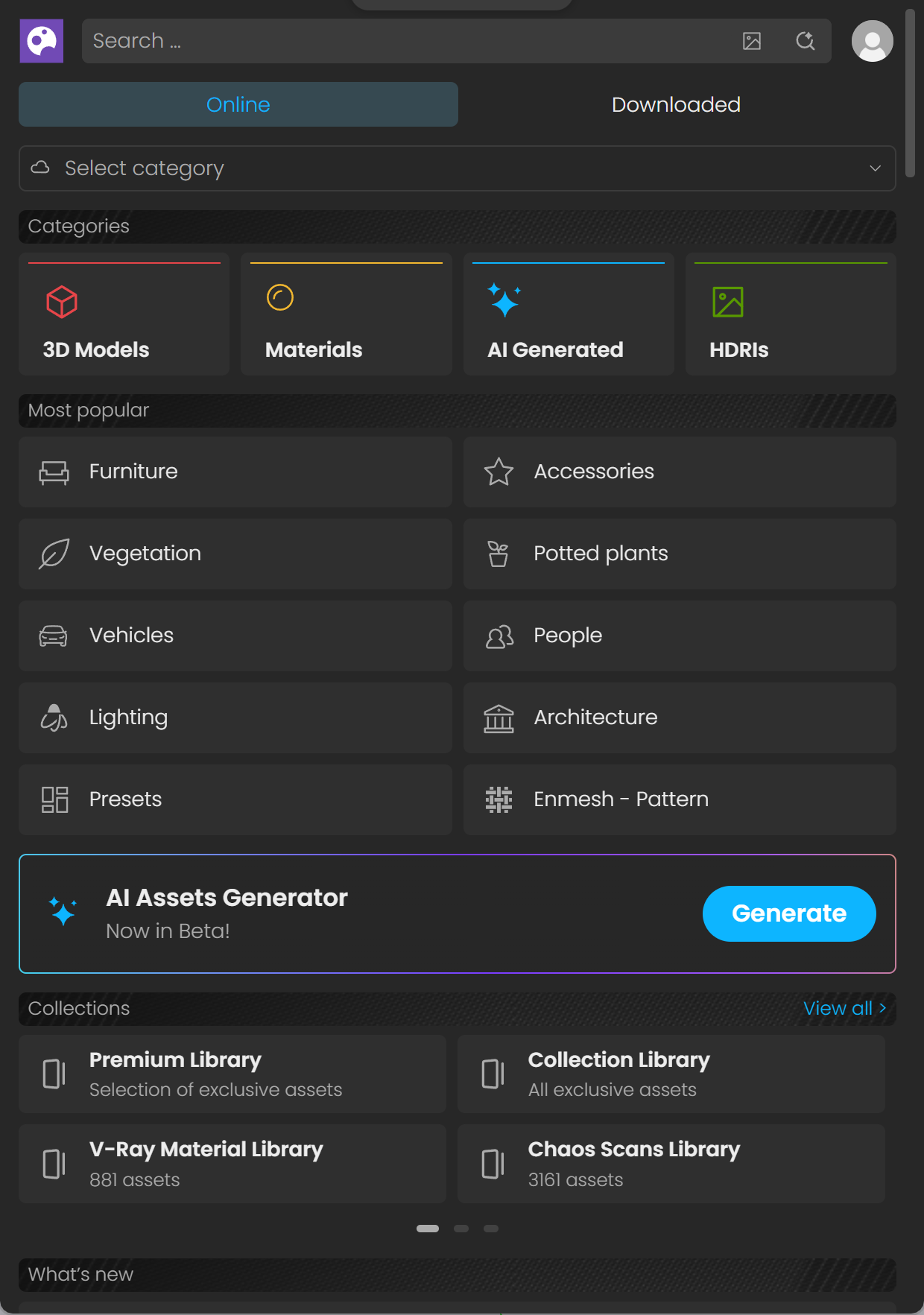
Cosmos Browser website window in compact mode
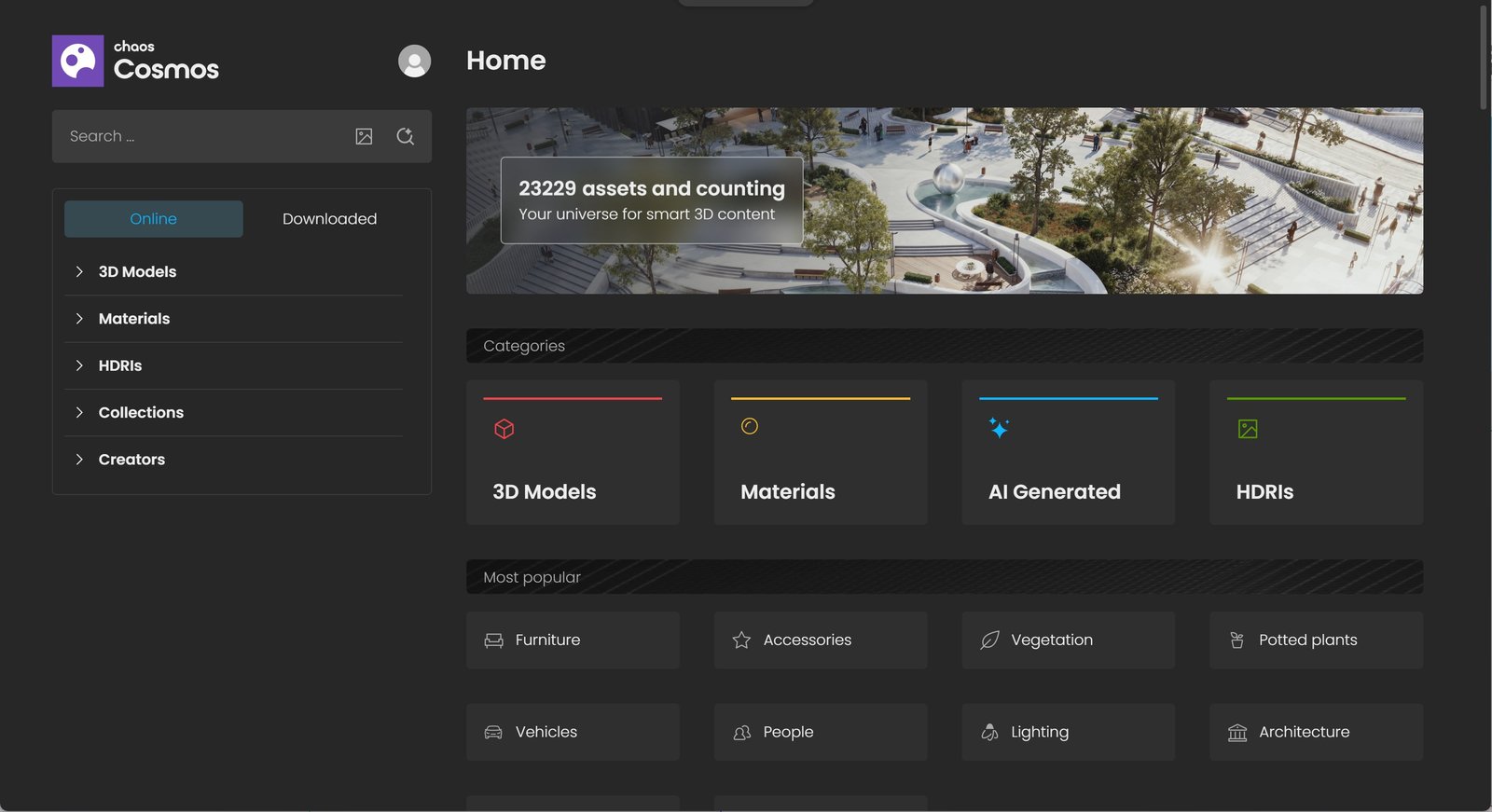
Cosmos Browser website window in wide mode
Search and filter
Choose standard search or AI Mode Search, which finds results using context and synonyms.
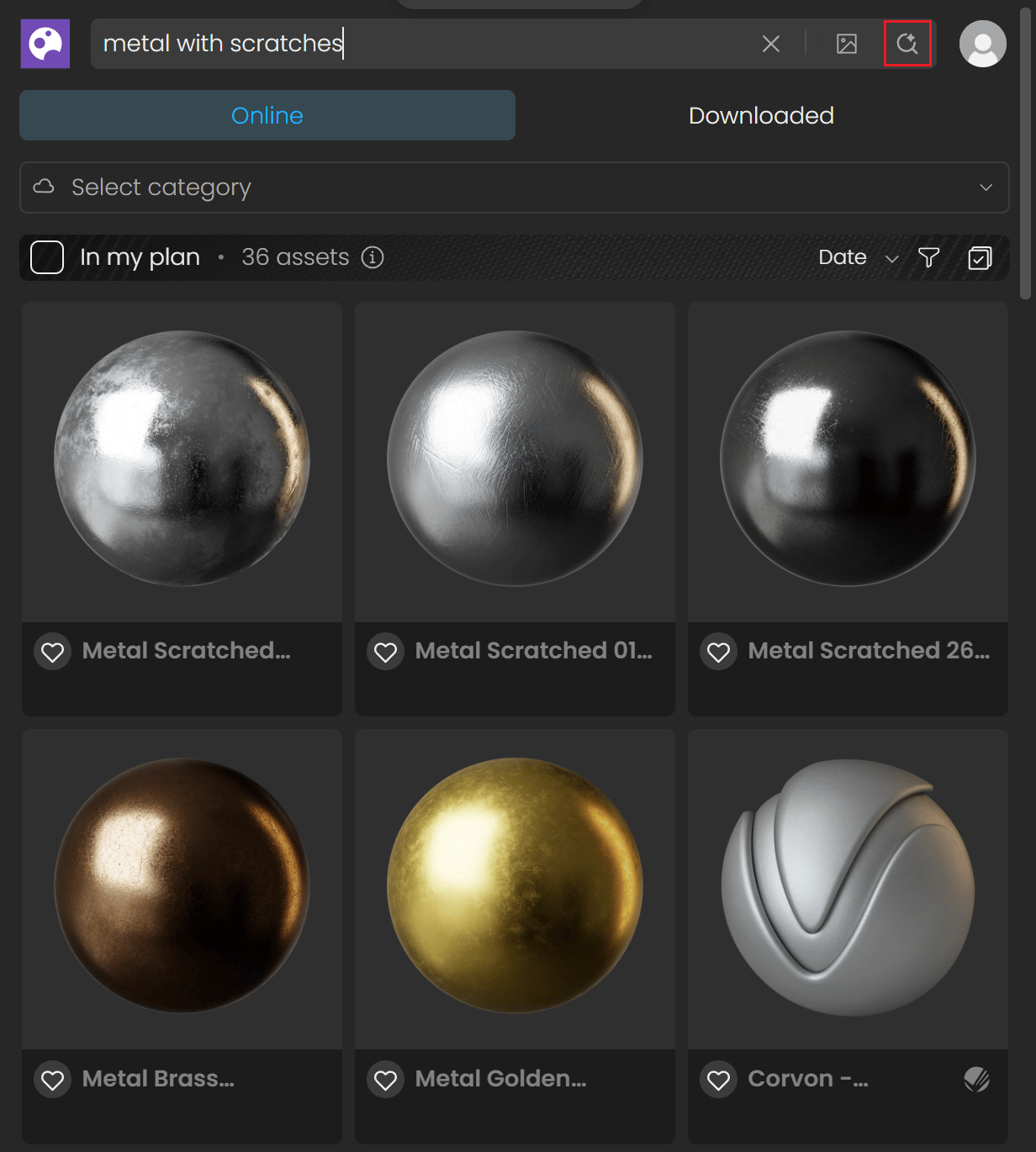
Chaos Cosmos Browser Default Search
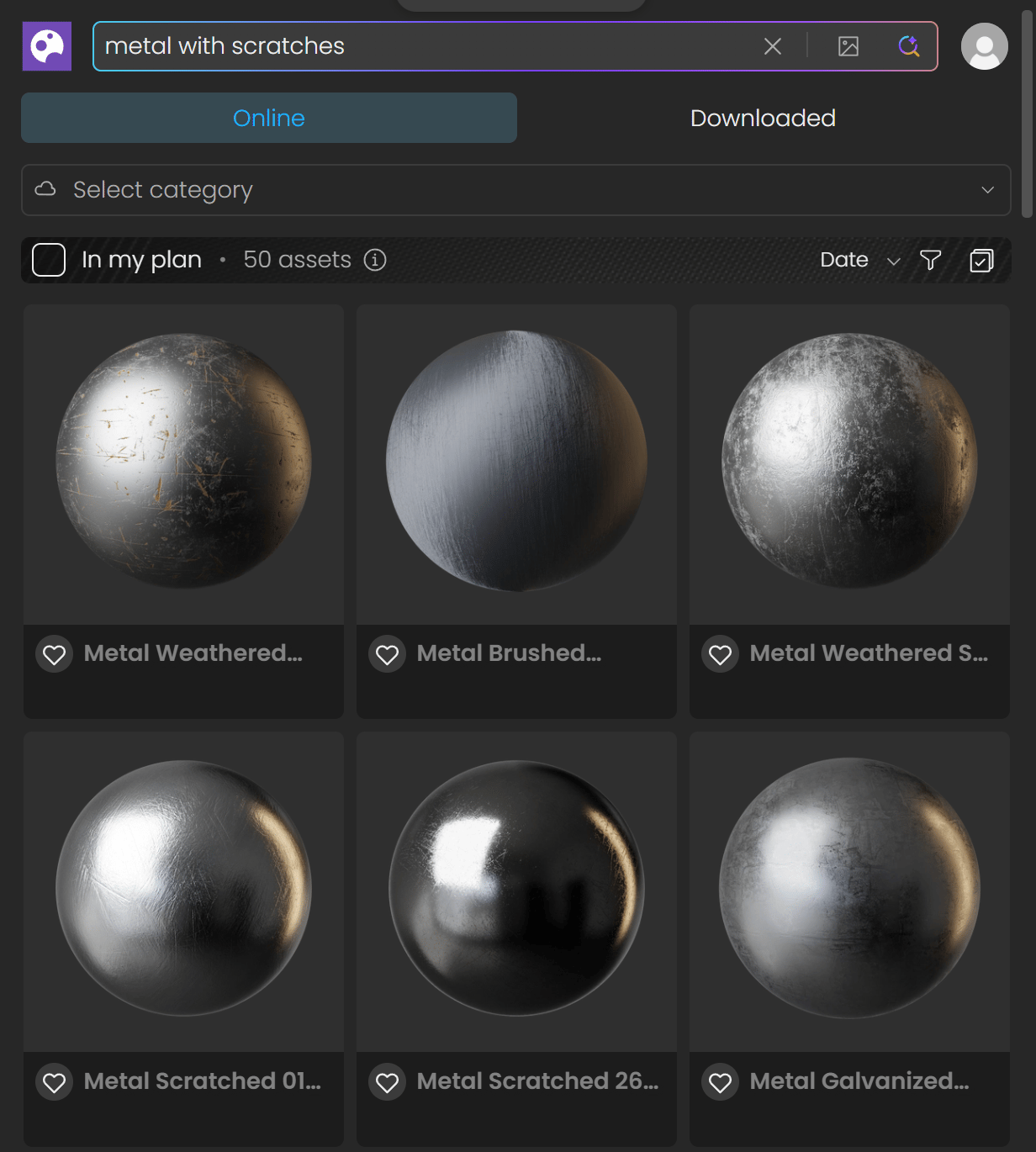
Chaos Cosmos Browser AI Mode Search
Use Search by image in Chaos Cosmos to find visually similar assets. Upload an image of the object or material you want to find.
After you upload an image, click Modify to select the object or material you want to find. Enter keywords in the search bar to narrow the results further.
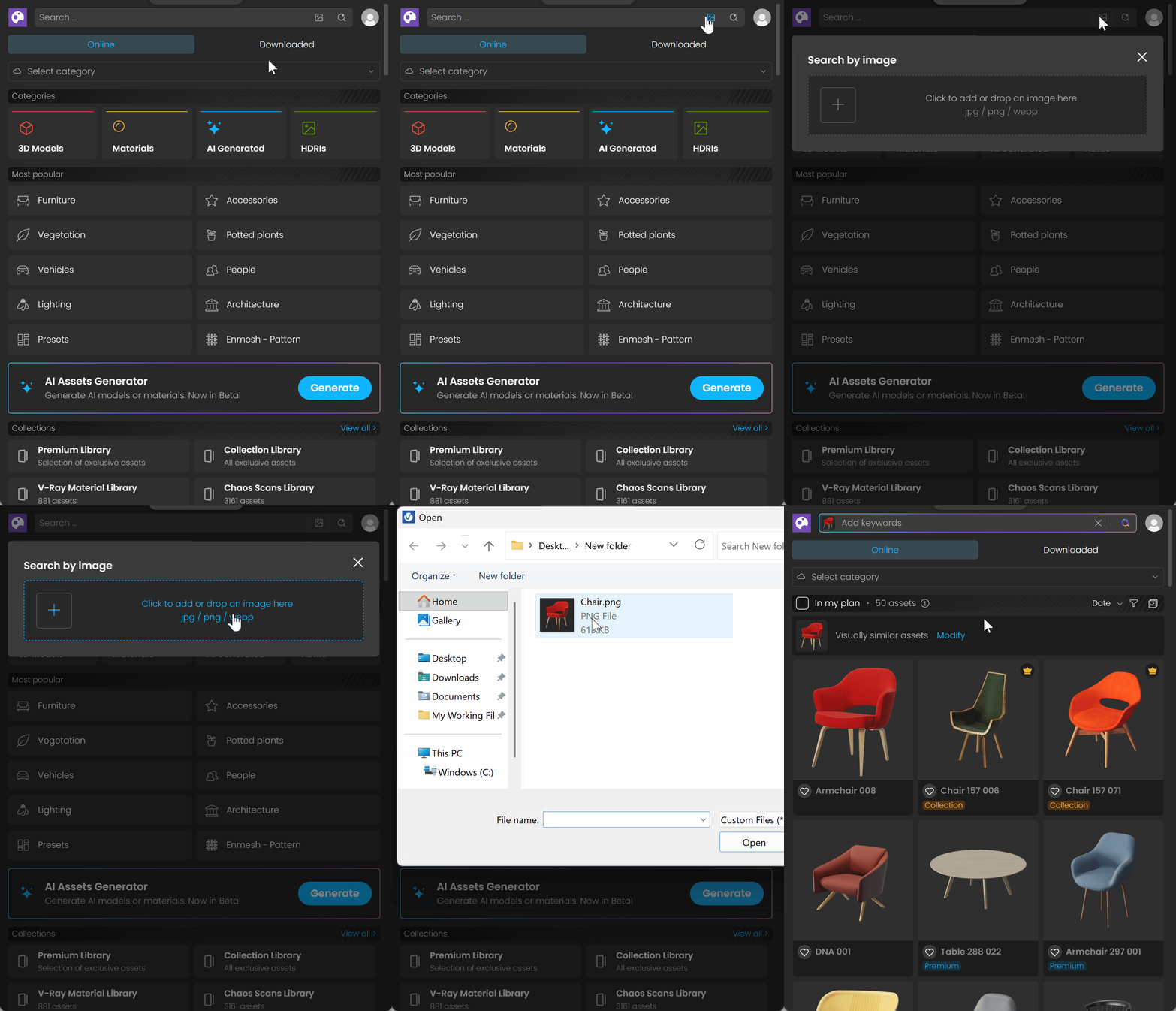
Chaos Cosmos Browser Image Search
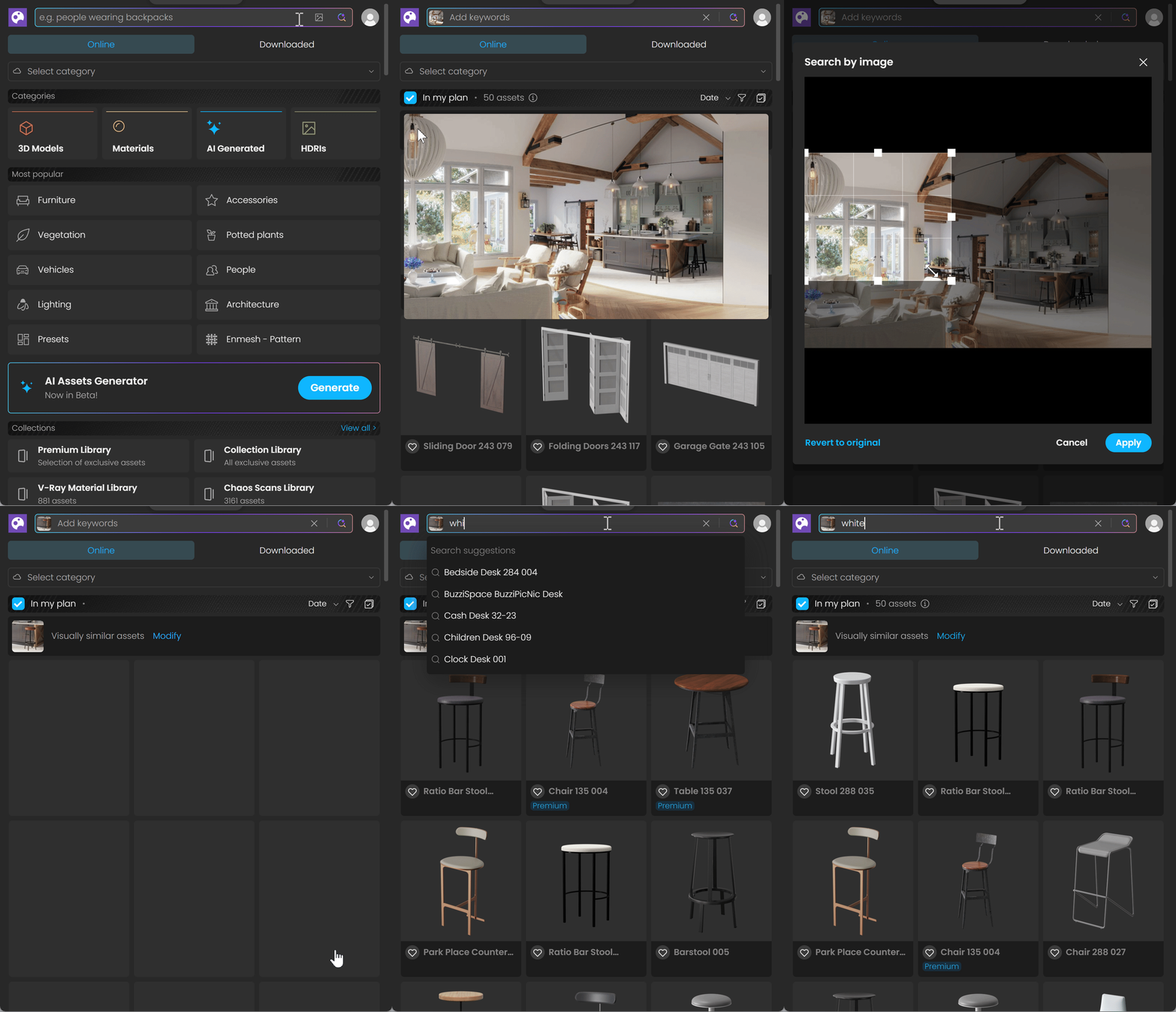
Chaos Cosmos Browser Image Search Modify
Search results show all available assets, regardless of your subscription plan.
Use the In my plan filter to show only assets included in your subscription plan.
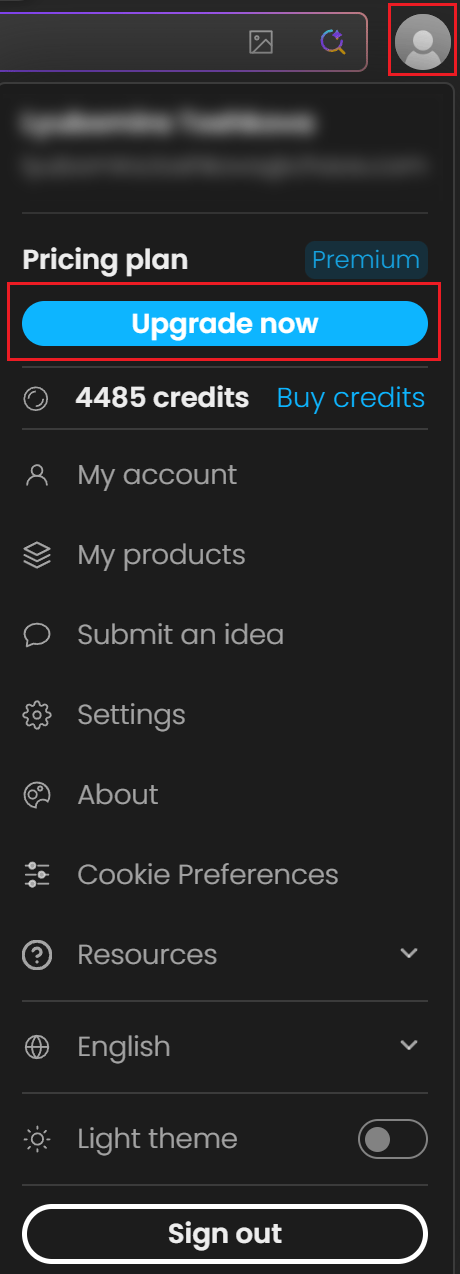
Contact Procadsys to upgrade your plan. The browser shows this option as Upgrade now.
To check your current subscription plan, open the user menu and look under Pricing plan.
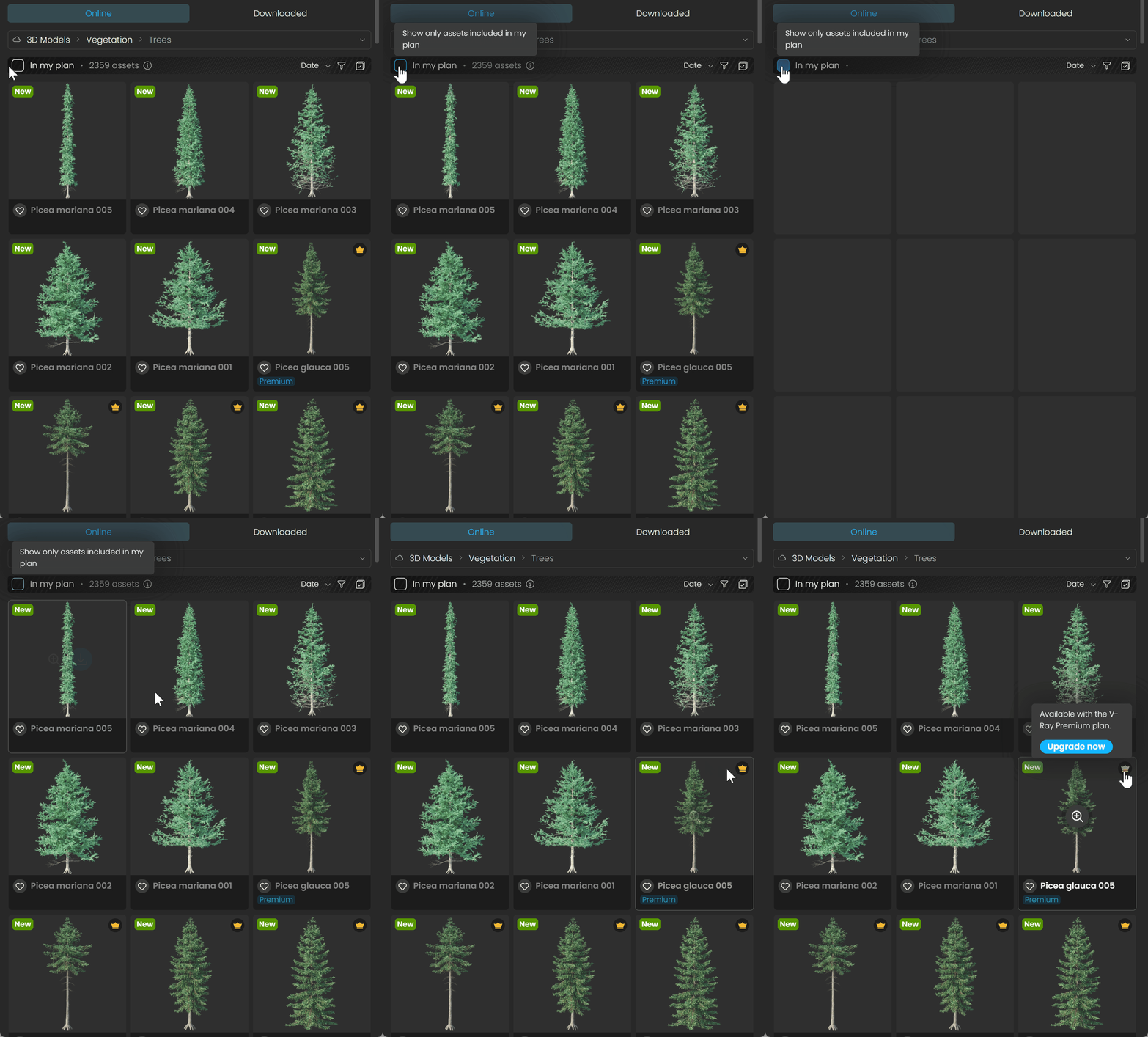

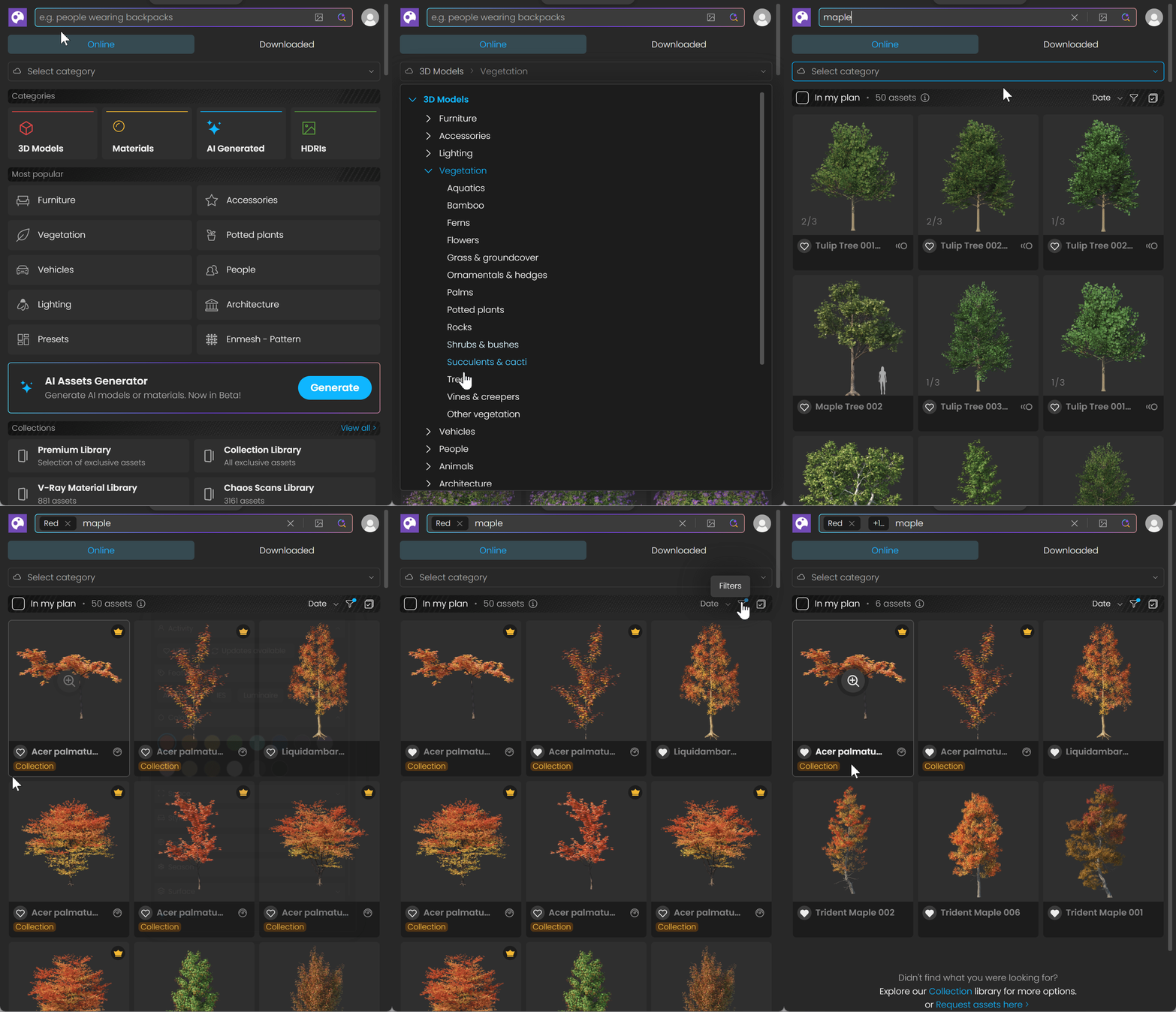
Use the categories menu to filter by asset type. You can also filter by a themed Collection or Creator.
Use the Filters menu to filter by Color, the Space where assets are typically found, the Surfaces they are often placed on, or preset Tags.
The Liked and Updates available filters are at the top of the menu.
Filters work together, so results match all selected filters. For example, selecting yellow and liked assets shows only liked assets that are yellow. Variants may have different filter tags based on their appearance. For example, vegetation may have a summer variant tagged summer and green, and an autumn variant tagged orange and autumn.
To remove all filters, click Clear all at the bottom of the Cosmos Browser.

Tags
Use the browser filter to select assets by tag. If a tag is missing, your platform does not support that asset type.
Animation
This tag filters animated assets. Animated vegetation plays in Chaos Vantage and appears static on other platforms. Animated people play in Envision and do not appear on other platforms.
IES
This tag filters light fixture models that contain an IES profile. These models represent real light fixtures and provide accurate lighting information.
Luminaire
This tag filters lights that use luminaire technology. The Chaos Luminaire light renders entire light fixtures by loading their precomputed light fields from .vlw files.
For more information, read the V-Ray Luminaires article on the Chaos blog.
Variants
This tag filters assets that include variants.

Material type
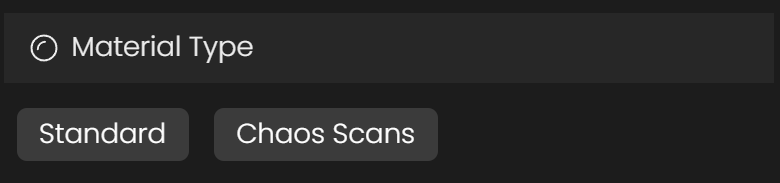
This tag filters material assets by type: Standard or Chaos Scans.
The Chaos Scans material type tag filters all Chaos Scans assets. You can render these materials in V-Ray and Corona through the Chaos Scans plugin without a separate licence.
Multiple asset selection

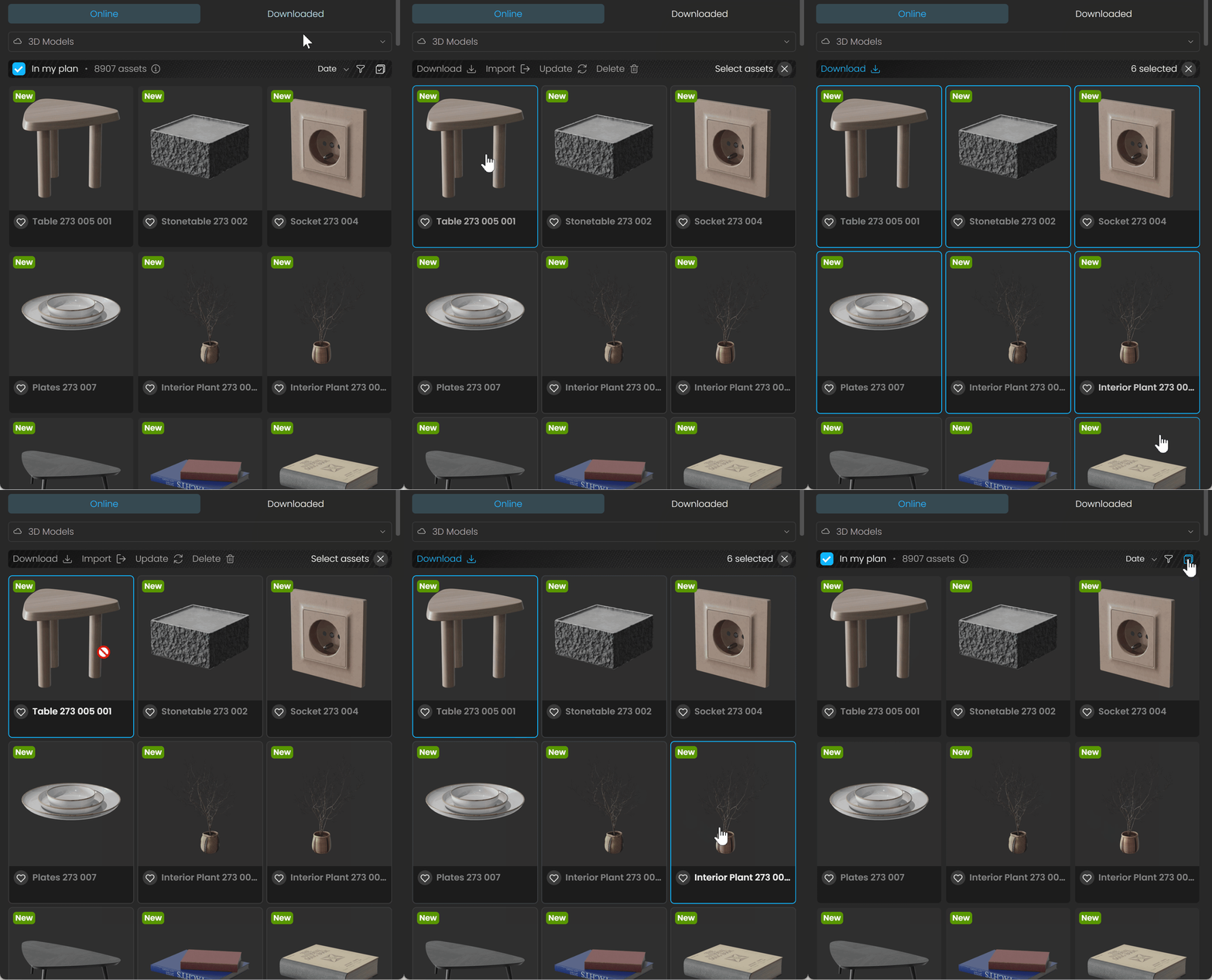
Open Chaos Cosmos Browser through a host platform to select multiple assets. Use the button for Multi-Selection Mode to enable it. You can then select several assets to download, update or delete at once.
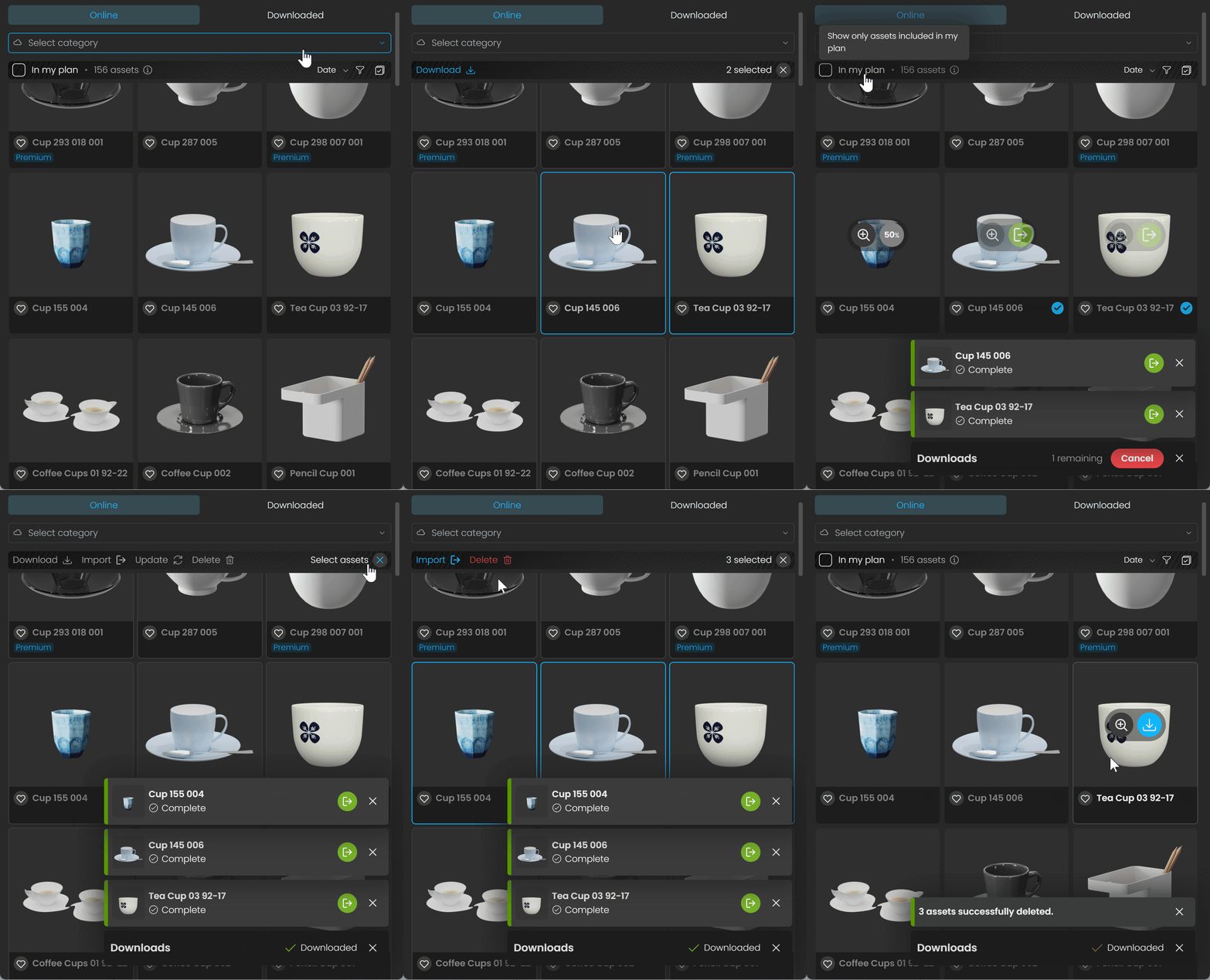
You can also use the Region or Shift + click Multi-Selection methods.
Region Multi-Selection
Enable Multi-Selection Mode.
Click an unselected asset in the asset grid and drag to draw a region. The region appears blue, and assets within it are added to the selection.
To deselect assets, hold Ctrl while drawing a region. The region appears red.
Shift + click Multi-Selection
Enable Multi-Selection Mode.
Click the first asset in the range.
Shift+click the last asset. All assets between the two are selected.
To add another range, click its first asset, then Shift+click its last asset.
Variants
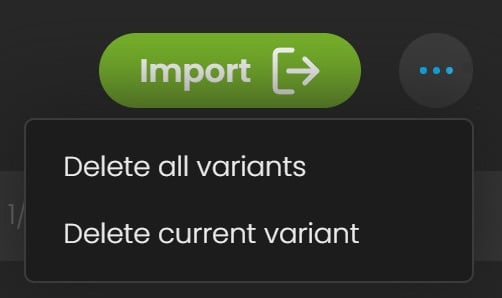
This tag filters assets that contain variants. Variants group different versions of the same asset into a single library item. There are two types: material variants and asset variants.
Material variants give an asset different material setups. They download together so you can change materials after import.
Asset variants provide different versions of an asset's geometry and materials. They download separately to save storage space.
When previewing an asset, use the three dots menu to delete one or all variants.
YouTube video
Download assets

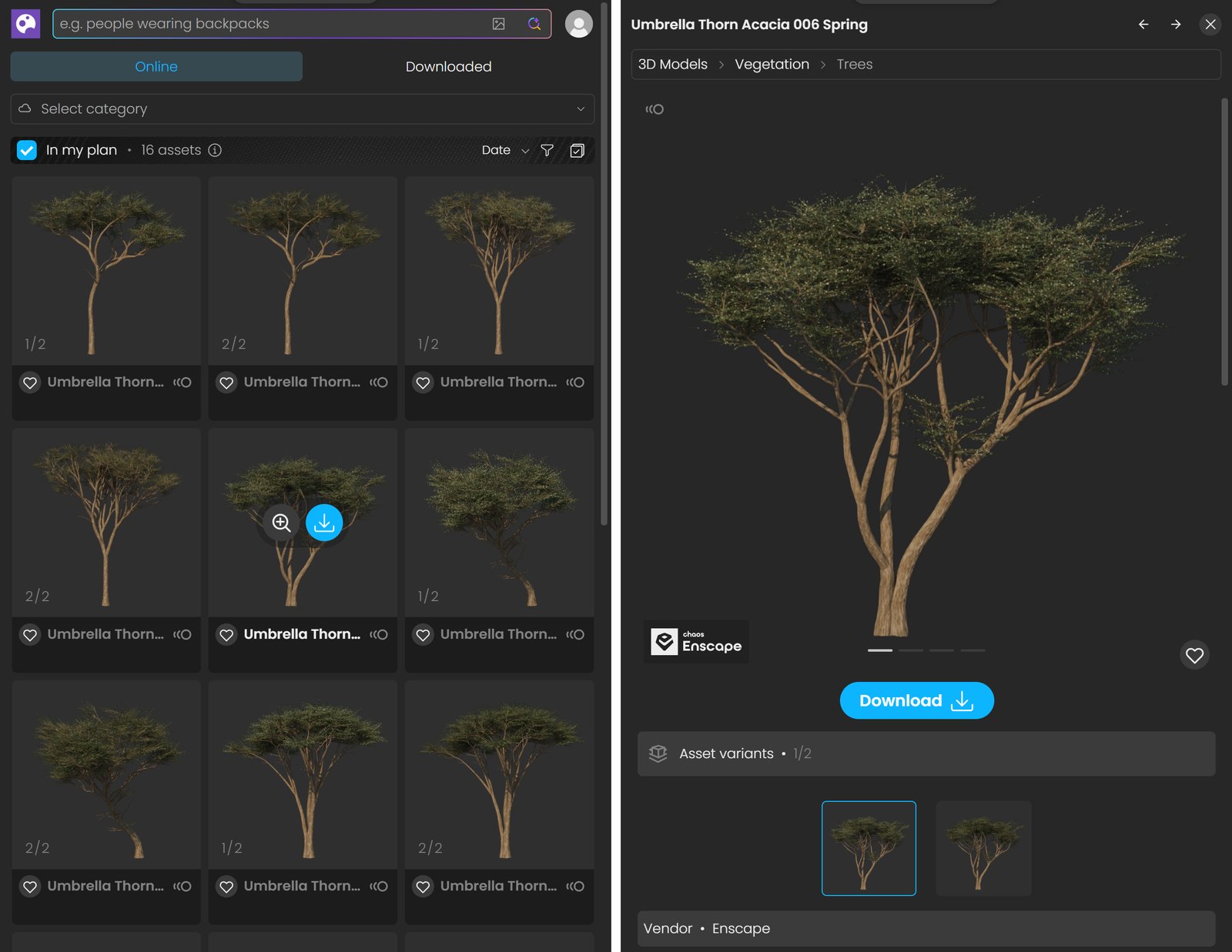
Open Chaos Cosmos Browser through a product platform, such as SketchUp, to download and import assets. Hover over your chosen asset and click Download.
You can also click an asset to open its preview and download it. The preview shows details such as creator, category, space and colour. Click these details to filter for related assets. Assets supplied by brand manufacturers, such as producers and distributors of furniture or bath fixtures, also show the vendor name. Click the name to learn about the company and visit its website or web shop.
Click Download to download the asset and all its variants.

Downloaded assets have a download status symbol and appear in the Downloaded category.


Import assets
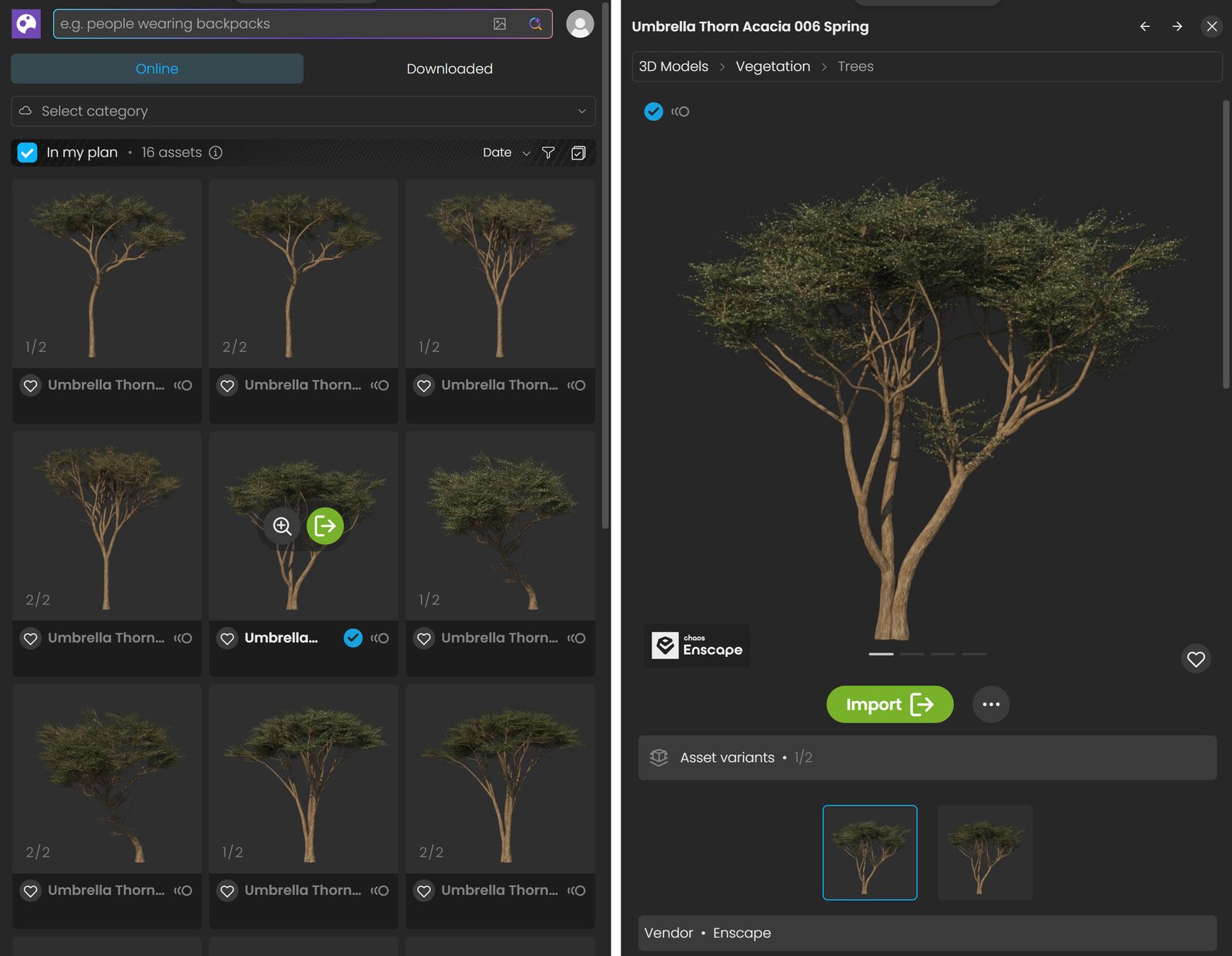
A pop-up message confirms when the asset has downloaded successfully.

Click Import to add downloaded assets to your scene.
You can reuse downloaded assets across host platforms. Assets are saved locally in C:\Users\[User]\Documents\Chaos Cosmos\Packages. You can change this location. See Configuring the Asset Download Directory for instructions.
Update assets

Cosmos assets receive updates over time. An update label appears when a new version is available. To download it in Chaos Cosmos Browser, click the labelled asset to open its pop-up window. Click Download now at the bottom.
