Chaos Cosmos
Recover Missing Assets
This page provides information on how to recover missing assets in Chaos Cosmos.
Last updated 14 April 2026
This page provides information on how to recover missing assets in Chaos Cosmos.
Overview
When opening an older project that contains missing Cosmos assets, there is a way for these to be recovered. The Recover missing assets option available in Chaos Cosmos works for deleted, moved, shared or otherwise lost assets.
By using the exact name and hash of the asset from the file path, Cosmos downloads the correct version of the asset used previously in the project. This guarantees the missing assets are recovered and rendered the way they were initially.
Steps in V-Ray for Autodesk 3ds Max and Maya
- 1Open the scene in the 3D host application.In 3ds Max, a pop-up message appears notifying that there are missing Cosmos Assets and their expected file paths. Copy the file paths.In Maya, you can find the list of missing assets' paths in Windows > General Editors > File Path Editor.You can use a screen-grabbing tool that recognizes text to take a screenshot and copy the paths.
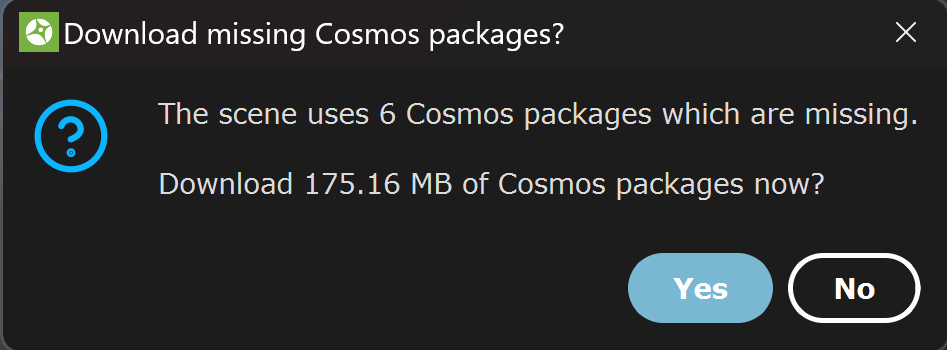
- 2V-RayIn newer versions of V-Ray a notification window may appear, suggesting to download the missing or mislocated Cosmos assets. Press Yes to download the missing assets.Alternatively, press No and open the Cosmos Browser to use the the built-in recovery option. CoronaUpon starting a render, the missing assets are also listed in the Error Messaging window.
- 3Open the Chaos Cosmos Browser and go to Settings.Under Recover missing assets option, press the Download old versions button.
- 4Paste the missing assets' file paths in this window. Then press Download. The paths are analyzed for asset name and hash and the missing revisions are downloaded from the Cosmos database.Once the download is complete, the project renders as expected. You can download up to 50 assets at once. In case you have a larger set of missing assets, split them in batches.
Steps in V-Ray for SketchUp and Rhino
- 1In SketchUp and Rhino, missing Cosmos assets are visible in the V-Ray Asset Editor.Press the download button next to the missing asset and it will download and replace it in the project.
- 2Alternatively, open the Chaos Cosmos Browser, go to Settings and press the Download old versions button.Put the missing assets' file paths in the window and press Download. You can download up to 50 assets at once. In case you have a larger set of missing assets, split them in batches.
Steps in V-Ray for Revit
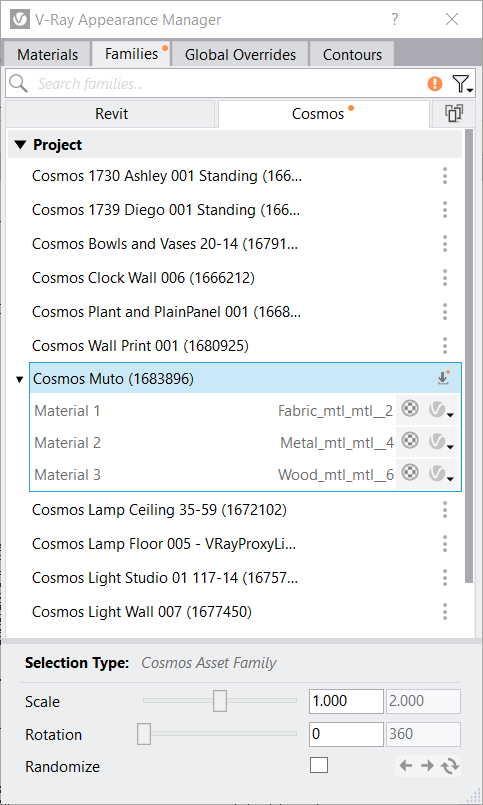
In Revit, the missing Cosmos assets are visible in the V-Ray Appearance Manager under the Families tab > Cosmos.
Press the download button next to the name of the asset to recover it in the current project.
Alternatively, open the Chaos Cosmos Browser, go to Settings and press the Download old versions button.
Put the missing assets' file paths in the window and press Download.
Steps in Houdini
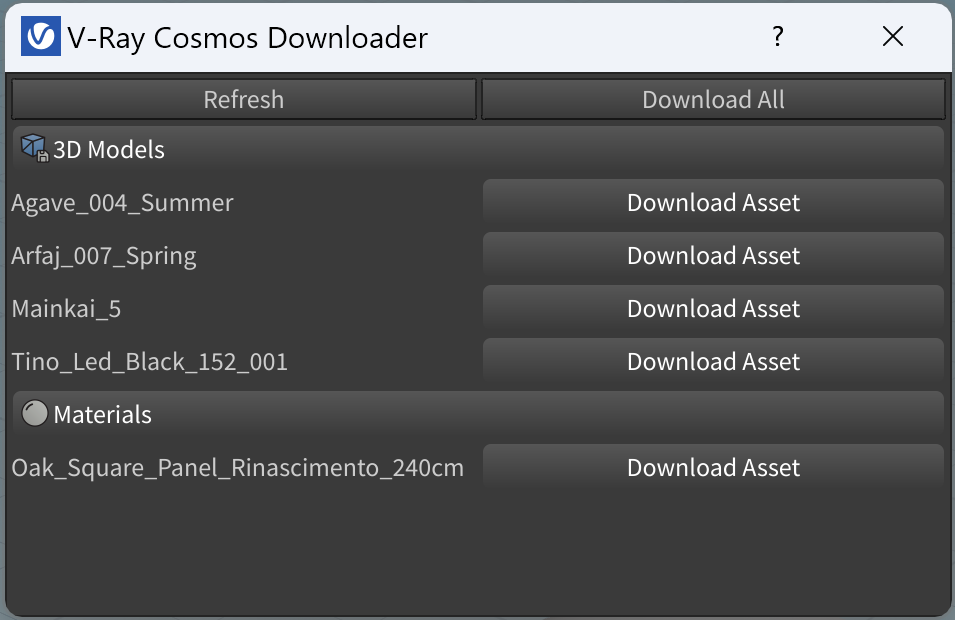
If you open a scene that contains Cosmos assets which are no longer present on the local machine, you can download them from the V-Ray Cosmos Downloader.
The V-Ray Cosmos Downloader is available from the V-Ray menu > Cosmos Downloader.
You can either download all missing Cosmos assets at once from the Download All button or download them one by one from their respective Download Asset button.
For an alternative method of downloading missing assets in V-Ray for Houdini, see the steps below.
- 1Upon opening the project in Houdini, all missing Cosmos assets are listed in a pop-up window with a warning. Copy the file paths.You can use a screen-grabbing tool that recognizes text to take a screenshot and copy the paths.
- 2Open the Chaos Cosmos Browser and go to Settings.Under Recover missing assets option, press the Download old versions button.Paste the missing assets' file paths in this window. Then press Download. You can download up to 50 assets at once. In case you have a larger set of missing assets, split them in batches.The paths are analyzed for asset name and hash and the missing revisions are downloaded from the Cosmos database.Once the download is complete, the project renders as expected.
Steps in Cinema 4D
V-Ray for C4D
When loading a scene in Cinema 4D that has some missing Cosmos assets, they are still listed in the Object's list with a missing asset icon.
Select the asset and go to the Cosmos tab of the Attributes. Press the Relink Cosmos Asset button to rectify the missing asset.
Alternatively, open the Chaos Cosmos Browser, go to Settings and press the Download old versions button.
Put the missing assets' file paths in the window and press Download.

Corona for C4D
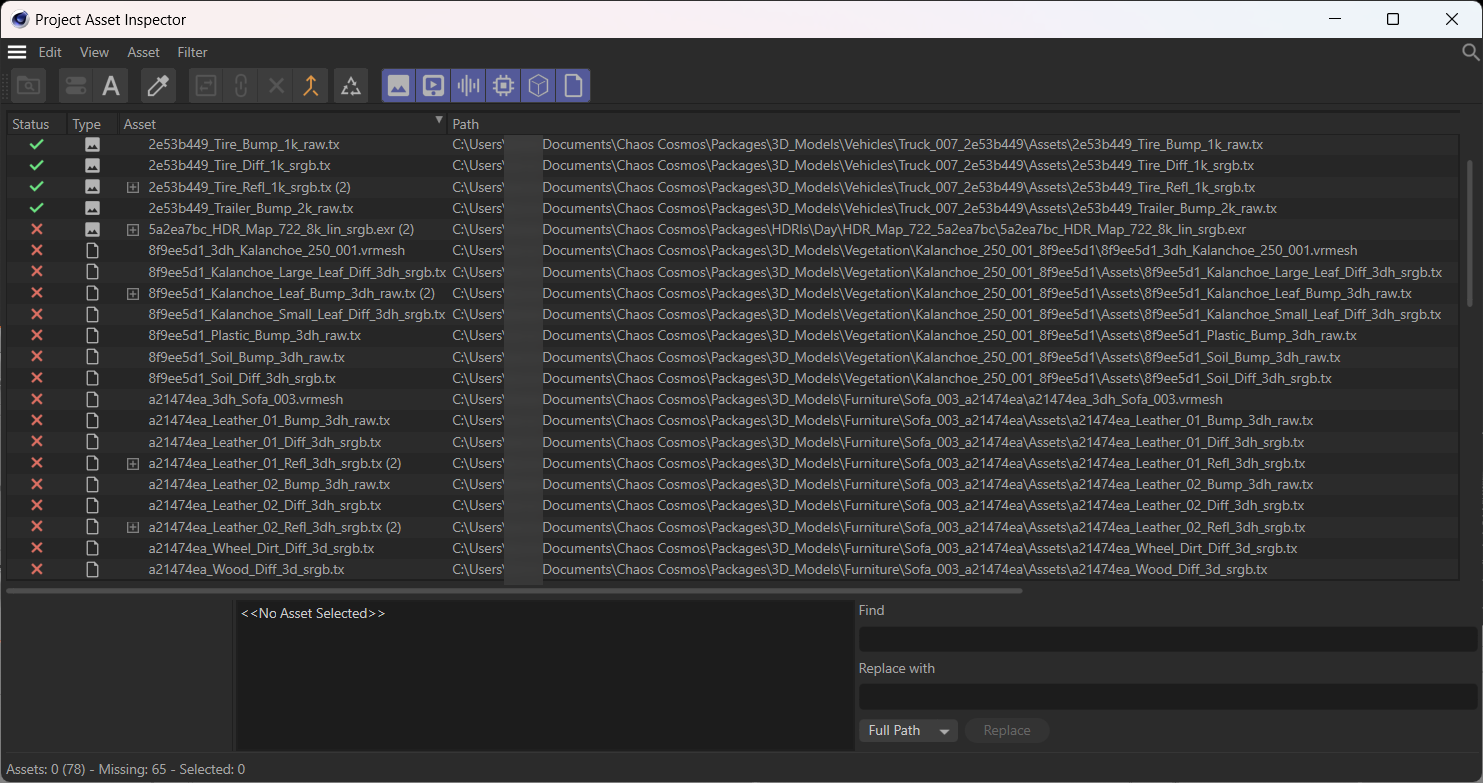
Use the Project Asset Inspector (Window > Project Asset Inspector) to find a list of all missing Cosmos assets. Copy the paths.
Open the Chaos Cosmos Browser, go to Settings and press the Download old versions button.
Put the missing assets' file paths in the window and press Download.
Steps in V-Ray for Blender
If assets are missing, they will be visible in the viewport but will not render in the VFB.
1. To retrieve them, go to the V-Ray menu > Download Cosmos Assets
2. A Window pops up, asking for confirmation. Confirm the download or relinking. Wait for the process to complete, and your Cosmos assets will appear in your next render.
Steps in Chaos Vantage
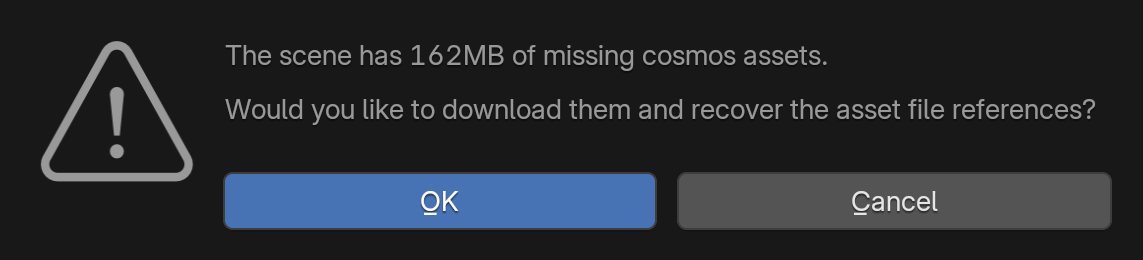
When loading a scene in Vantage that has some missing Cosmos assets, a prompt window will help you download the missing packages.