Chaos Licensing
Borrowing Licenses for Offline Use
This page gives details on how to borrow licenses when you're temporarily unable to access the online licensing system.
Last updated 20 January 2026
This page gives details on how to borrow licenses when you're temporarily unable to access the online licensing system.
Overview
The Chaos licensing system is designed for online use, but it also allows for the temporary "borrow" of licenses for offline use, for a period of up to two weeks. Borrowing a license means you can still have access to your Chaos software without the need for a stable Internet connection. You can use your borrowed licenses for up to 14 days without an Internet connection. Their renewal happens automatically. However, the renewal requires an Internet connection at least once in the last 3 days of the borrowing period. No additional steps are required for renewal; only an Internet connection is needed. From the moment you renew the license, an additional 14-day borrow period begins. Therefore, if you borrowed the license on June 1st and renewed it on June 11th, you can use the offline license until June 25th.
Borrowing Licenses for Machines With Internet Connection
This is the default method for borrowing a Chaos License. Follow these steps or watch the video tutorial. After successfully borrowing a license, you can disconnect from the Internet and freely use those Chaos products for up to two weeks.
youtu.be
Open the localhost:30304 page in a browser. It is recommended to use Google Chrome, Mozilla Firefox, or Opera browser for the localhost. Then, click on the Online licensing menu > Use licenses offline button.

Screenshot from the localhost Interface page
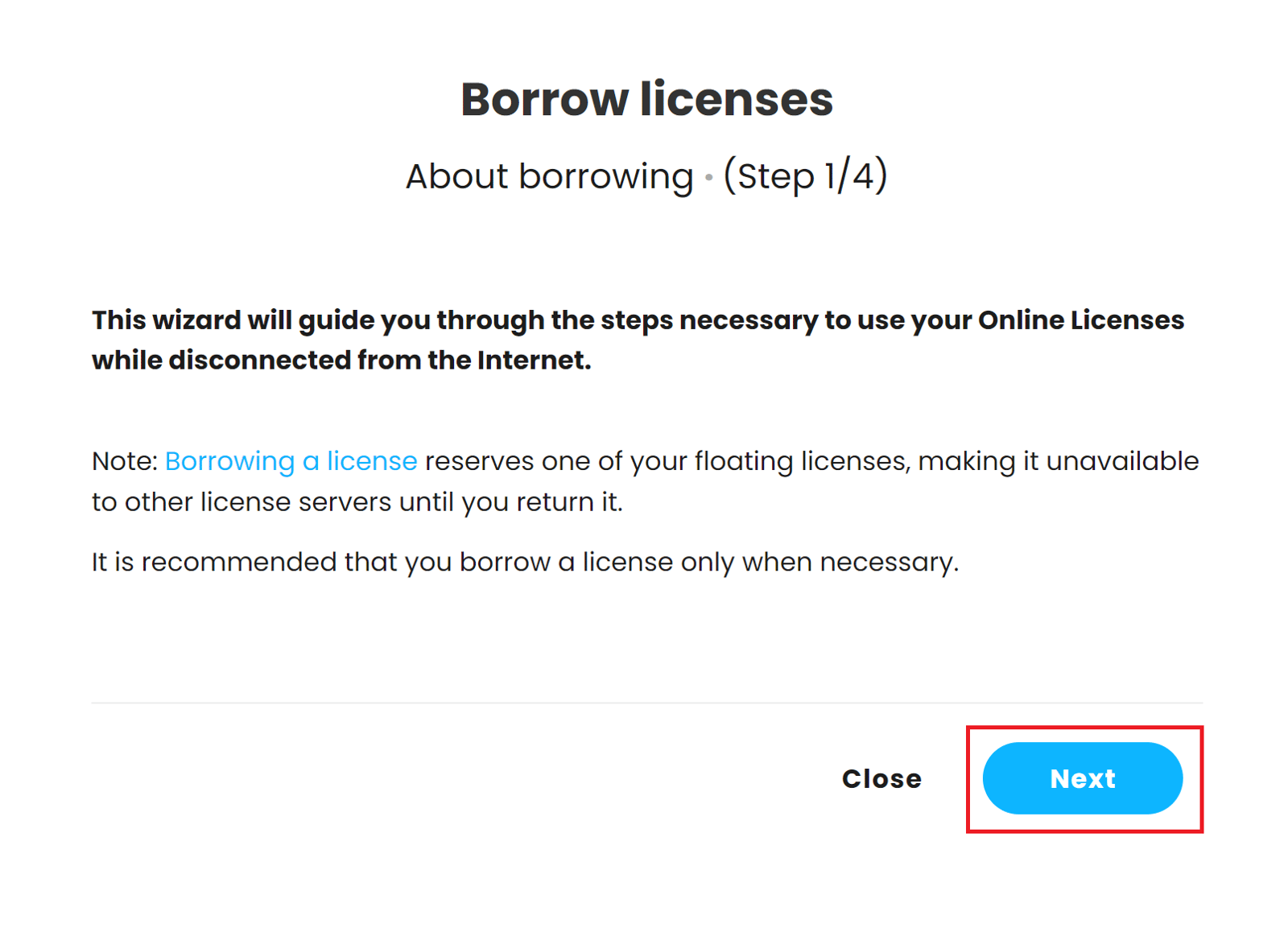
Click Next in the wizard to start.
Screenshot from the localhost Interface page
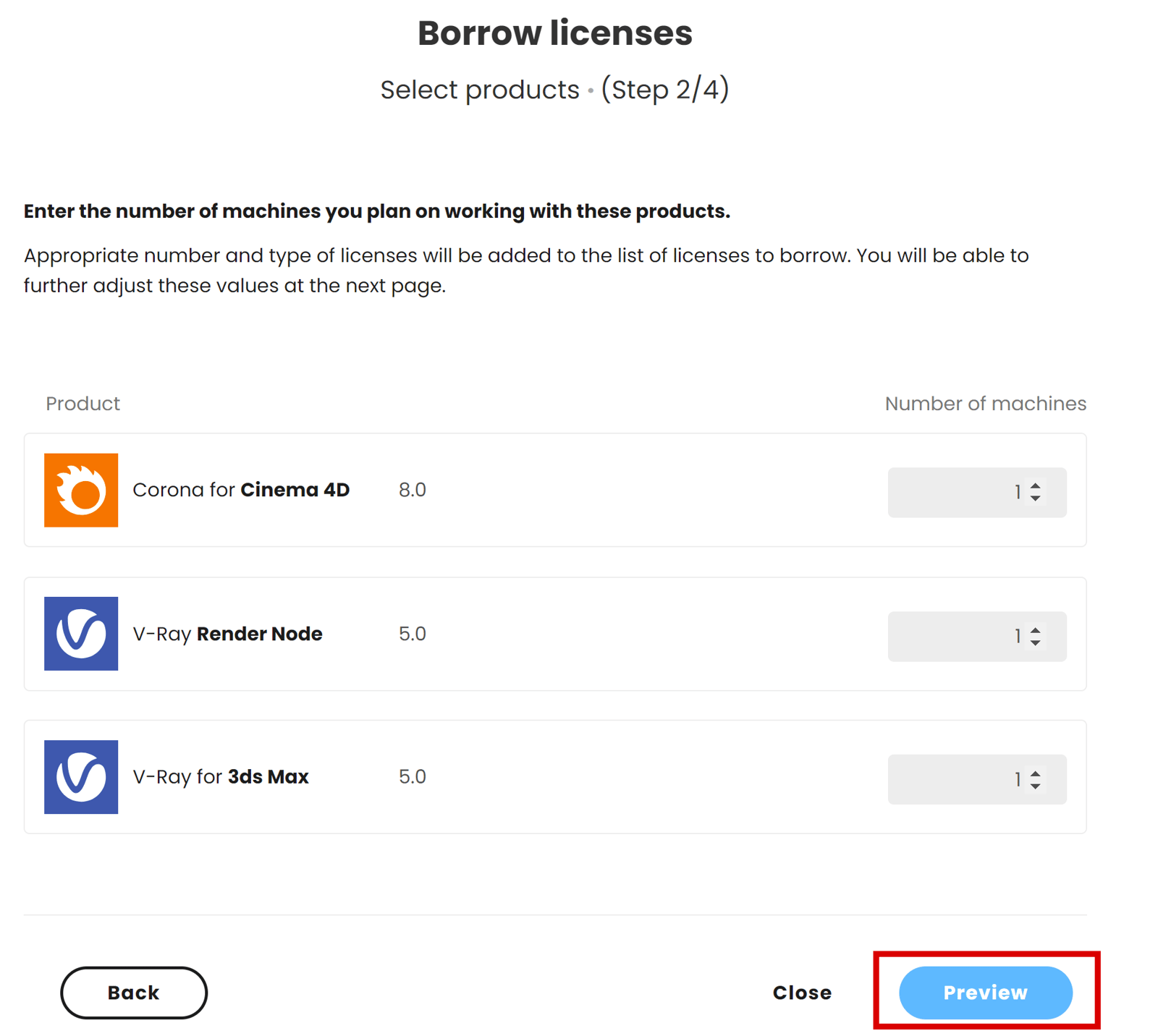
Select the products you want to use. Enter the number of machines you plan to use with these products and click Preview.
Screenshot from the localhost Interface page
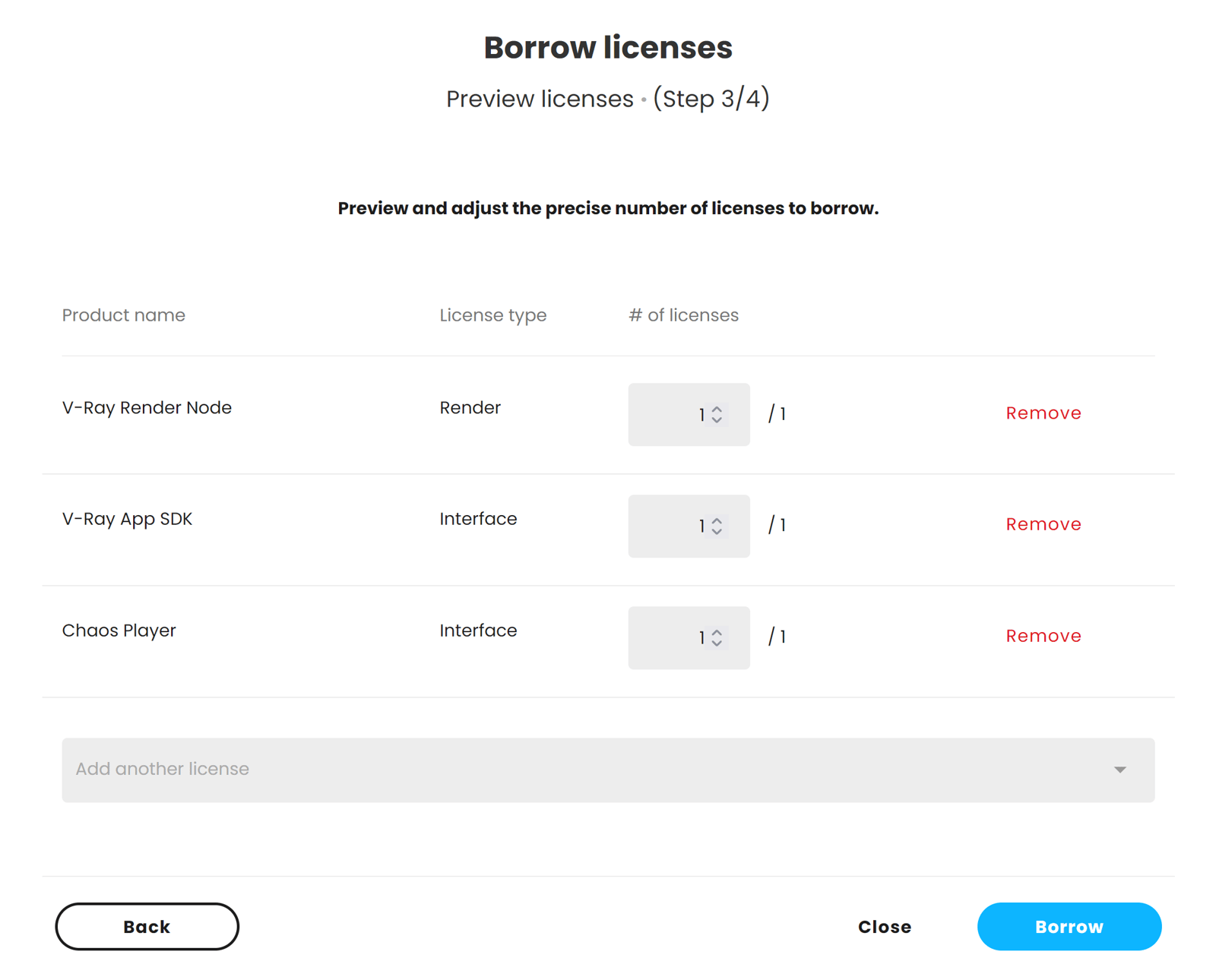
Preview and adjust the precise number of licenses to borrow. Click the Borrow button to borrow the selected number of licenses.
Screenshot from the localhost Interface page
Finally, you can see your borrowed licenses and their expiration dates. Click the Close button to return to the main menu.

Screenshot from the localhost Interface page
Borrowing Licenses for Machines Without Internet Connection
You can borrow licenses even if the machine running the license server does not have an Internet connection. Note that you will need access to a device with an Internet connection to activate the License Server and download the offline activation files. This device does not need to be the same as the one running the license locally. Watch the video or follow the steps to activate and then borrow licenses on a machine without an internet connection.
youtu.be
Activating the License Server
Before you can borrow a license, you need to activate your Chaos License Server. The process is slightly different than the one for machines with a (stable) Internet connection. Please follow these steps before approaching the Borrowing process.
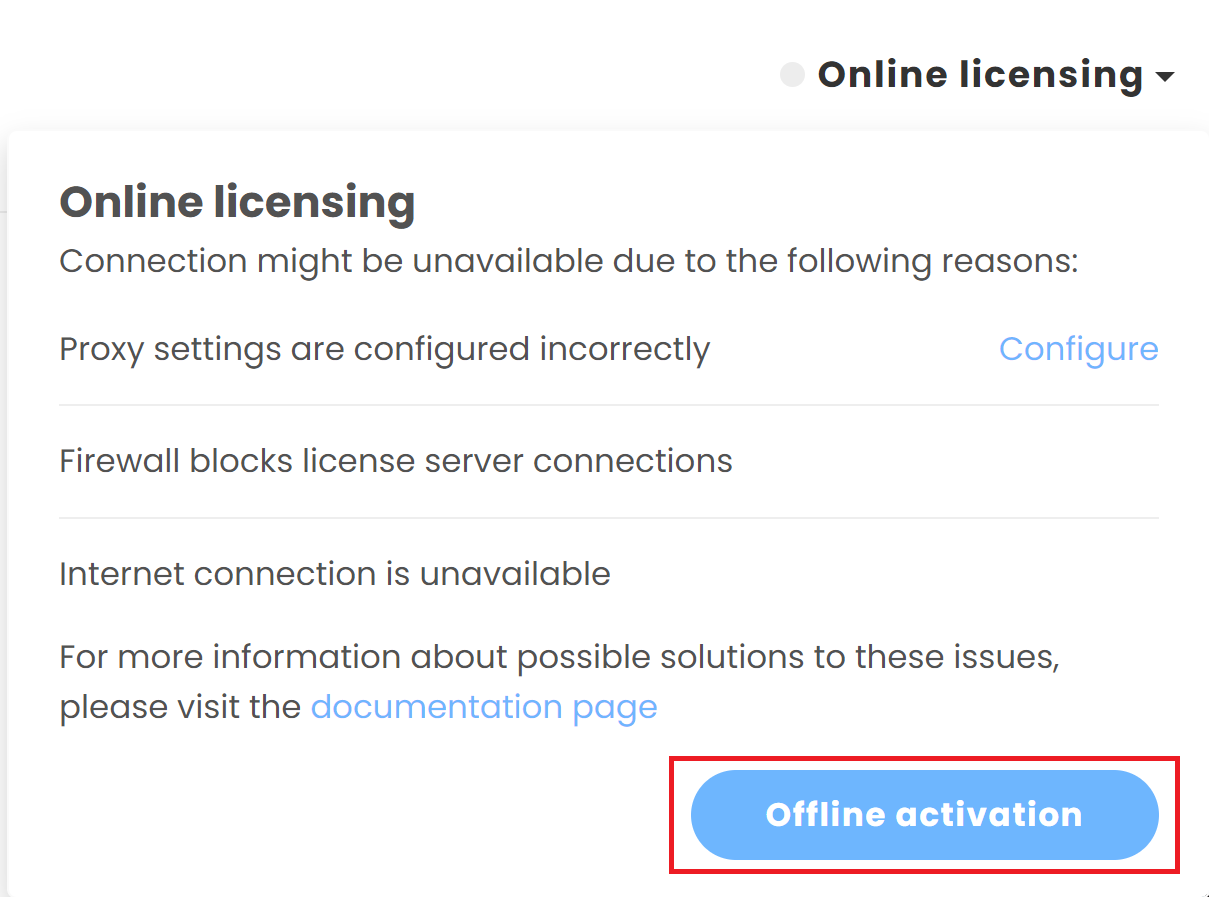
On the machine without an Internet connection, open the localhost:30304 page in a browser. It is recommended to use Google Chrome, Mozilla Firefox, or Opera browser for the localhost. From the expandable menu of Online licensing, go to Offline activation.
Screenshot from the localhost Interface page
Click the Activate offline button.

Screenshot from the localhost Interface page
Download your activation request file (cert.csr) by clicking inside the gray box. When the download finishes, click Next.

Screenshot from the localhost Interface page
Now, you will need access to a device that is connected to the Internet. Transfer the cert.csr file you just downloaded to the device with an Internet connection.
Log into my.chaos.com with the Chaos credentials associated with your License. Go to Licensing > License Servers and click Activate License Server.

Screenshot from the my.chaos page
Name your license server and upload the cert.csr file. Click Activate.

Screenshot from the my.chaos page
Then, the Download button appears. Click it to get your activation file (cert.crt).

Screenshot from the my.chaos page
Transfer the cert.crt file to the offline machine. Go to your localhost:30304 interface page and upload the activation file (cert.crt). Click Upload.
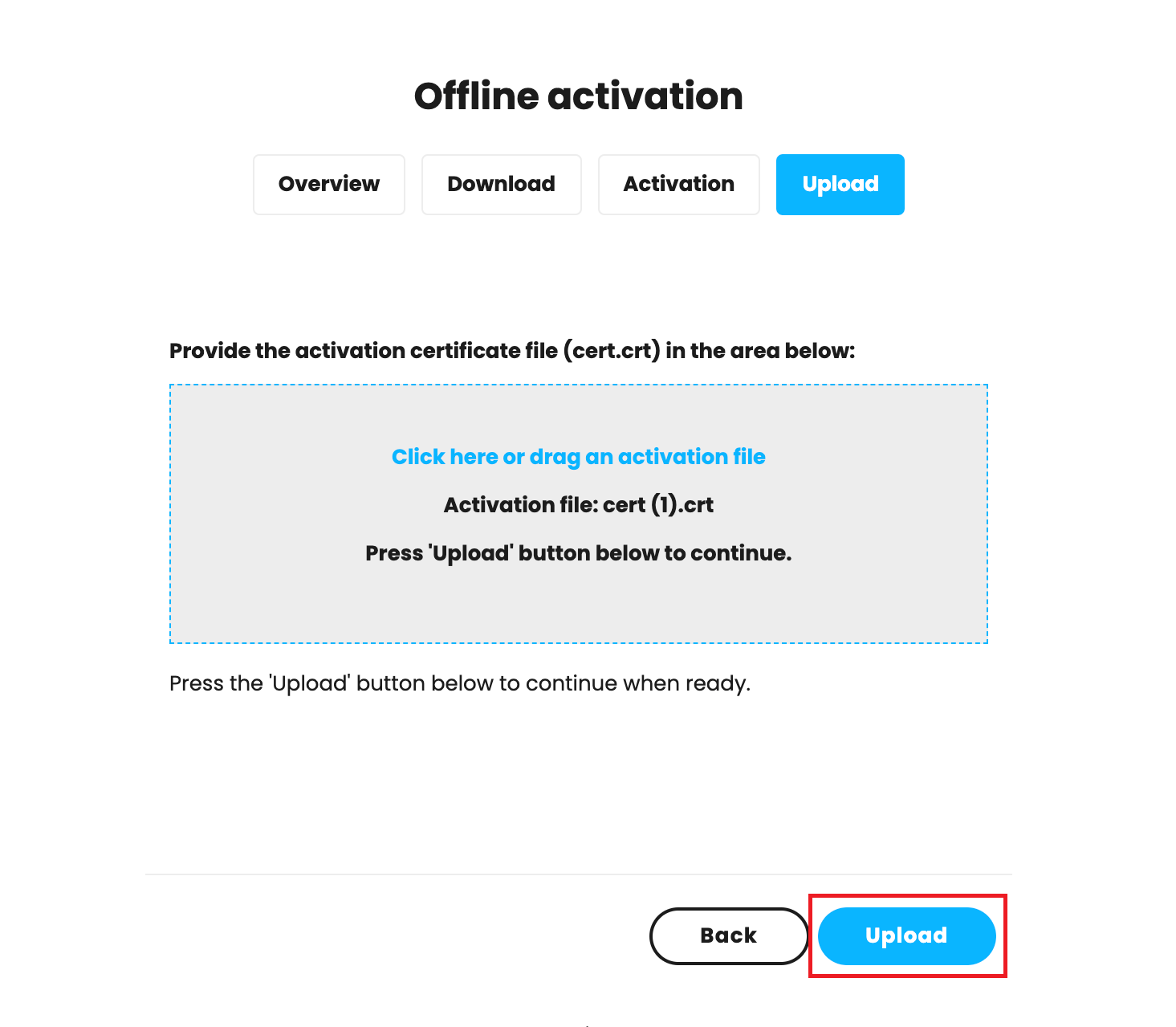
Screenshot from the localhost Interface page
Your License Server is now successfully activated on your offline machine.


Screenshot from the localhost Interface page
Borrowing the Licenses
Borrowing licenses on a machine without a connection to the Internet requires a separate device with at least brief access to the my.chaos.com website. From there, you need to borrow the licenses and download the offline.bin file. When you upload the .bin file on the license-holder machine, your offline license is activated. Follow the steps for more information.
On the device with an Internet connection, log into my.chaos.com with your Chaos credentials. On the License Servers tab of the page, choose a workstation from the list, for which you wish to reserve offline licenses.
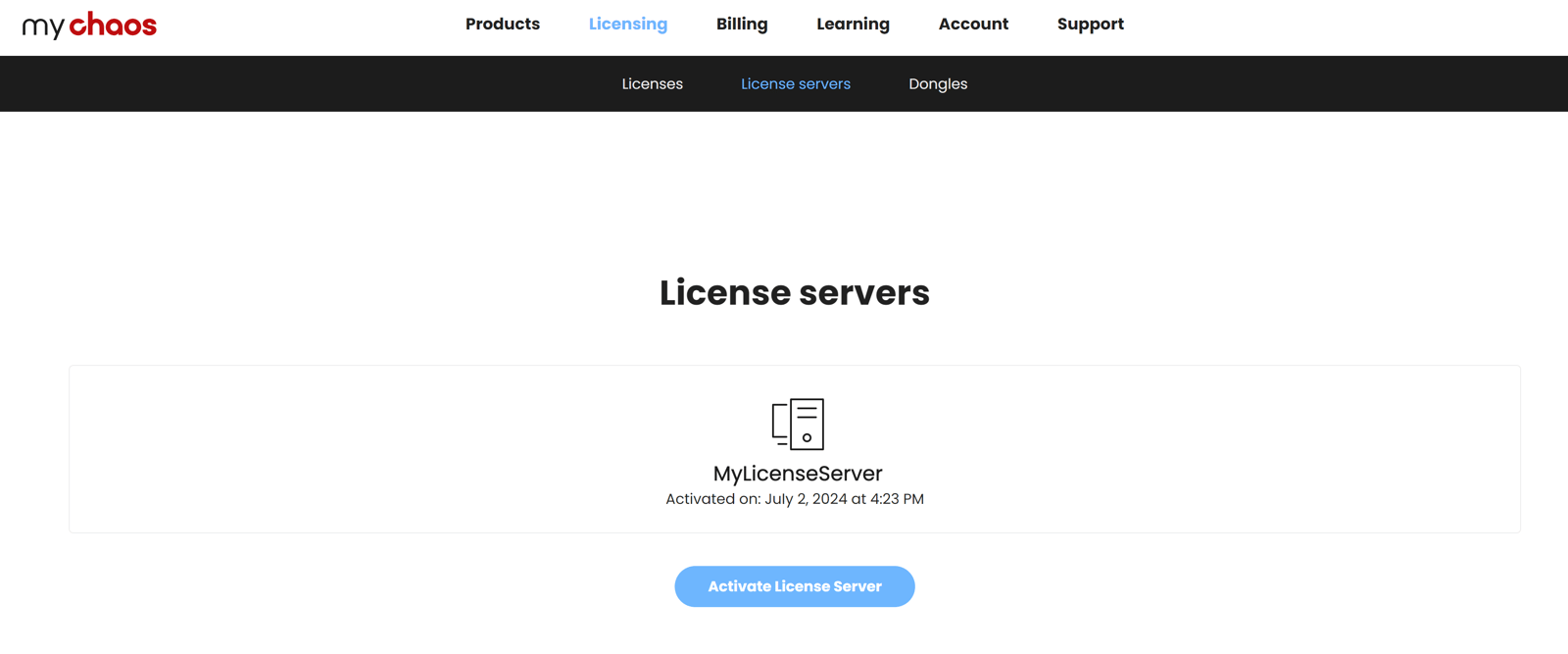
Screenshot from the my.chaos page
Click Borrow license in the Borrowed licenses section.
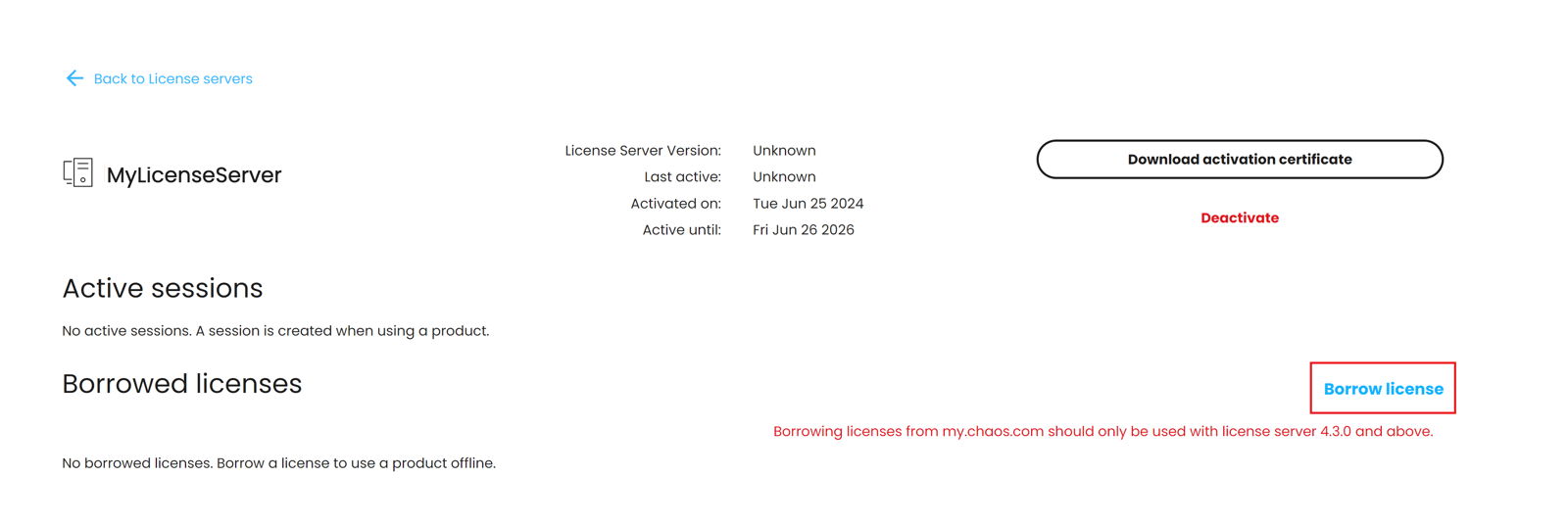
Screenshot from the my.chaos page
Select the products you want to use. Enter the number of machines you plan to use with these products and click Next.

Screenshot from the my.chaos page
Preview and adjust the precise number of licenses to borrow. Click the Borrow button to borrow the selected number of licenses.

Screenshot from the my.chaos page
Click on the Download offline license file button.

Screenshot from the my.chaos page
On the machine that is running the license server, which cannot connect to the Internet, open localhost:30304 in a browser and click on the Online Licensing menu > Use licenses offline.

Screenshot from the localhost Interface page
Upload the offline license .bin file and click the Upload button.

Screenshot from the localhost Interface page
Once the file is validated, your borrowed licenses are also listed on your license server's home page.

Screenshot from the localhost Interface page
Editing Borrowed Licenses
Online
To add new licenses, log into my.chaos.com with your Chaos credentials from a machine with an Internet connection. From the Licensing tab, go to License Servers, click on your license server, and then click Edit Borrowed Licenses.
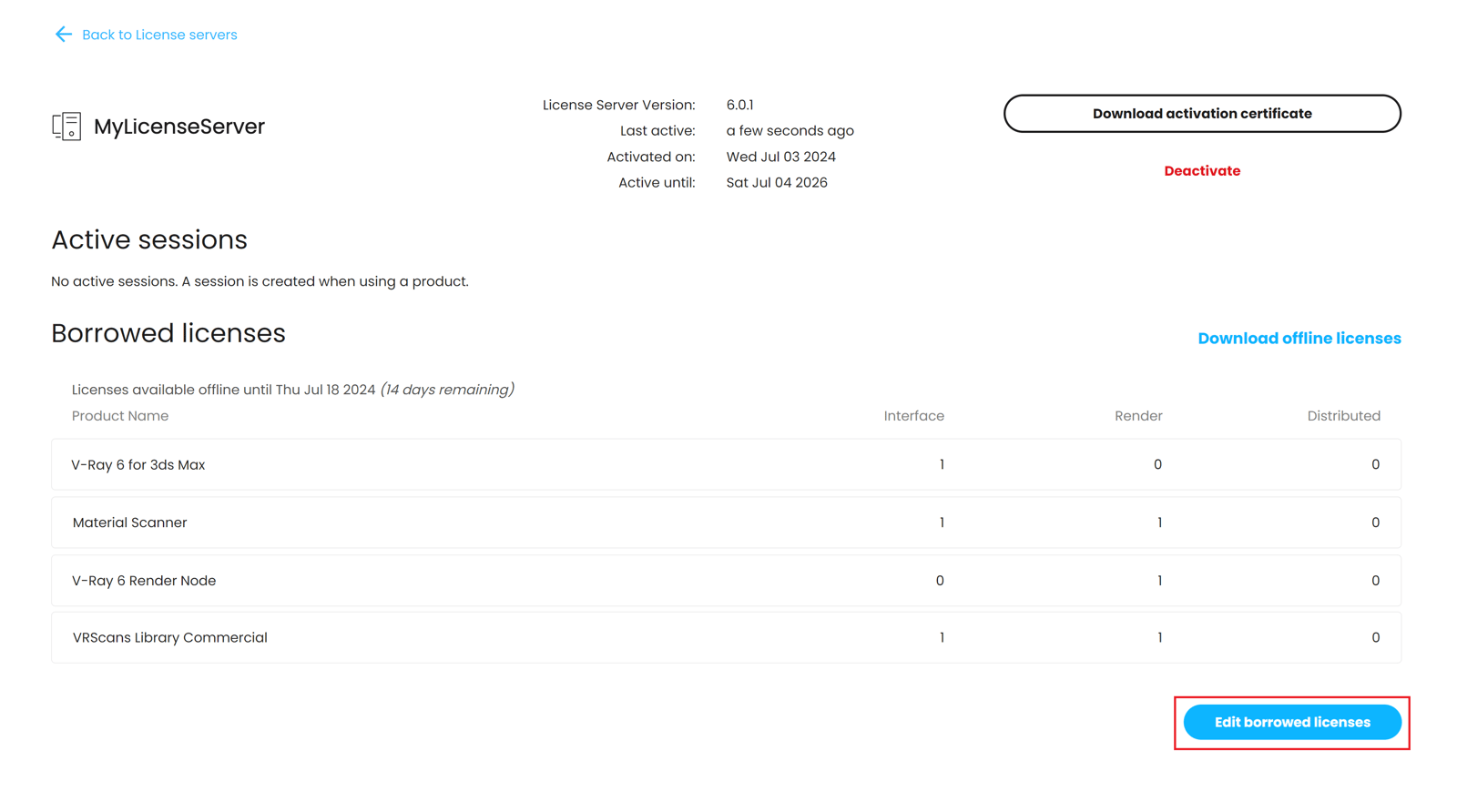
Screenshot from the my.chaos page
If you want to increase the number of borrowed licenses, click the up arrows. If you want to borrow licenses for new products, you can use the Add more licenses dropdown menu. When you are ready, click Borrow.

Screenshot from the my.chaos page
Offline
If you want to change the number of borrowed licenses, you have to upload a new offline.bin file. Note that you do not need to release the licenses you already have to borrow new ones. Repeat the Offline Borrow process, but change the licenses you wish to borrow with the new selection. When you upload the certificate file, the borrowed licenses will update to the new selection. See the Borrowing Licenses on the Offline Machine section for the steps.
Release Licenses
Releasing licenses is useful in a few cases. For example, when you borrow licenses on one license server instance, but actually need them on another one. Or if you need fewer borrowed licenses than the ones you currently have. Or if your borrowed licenses get stuck on the backend of a certain FLP instance due to a broken certificate.
To release a borrowed license, open the Chaos License Interface in a browser and click on the Online Licensing menu. Then click the RELEASE button to release any borrowed licenses.

Screenshot from the localhost Interface page