Overview
This article explains how to download and install the WIBU-KEY drivers for version 5.0 of the Chaos License Server. Install the drivers on the computer connected to the dongle.
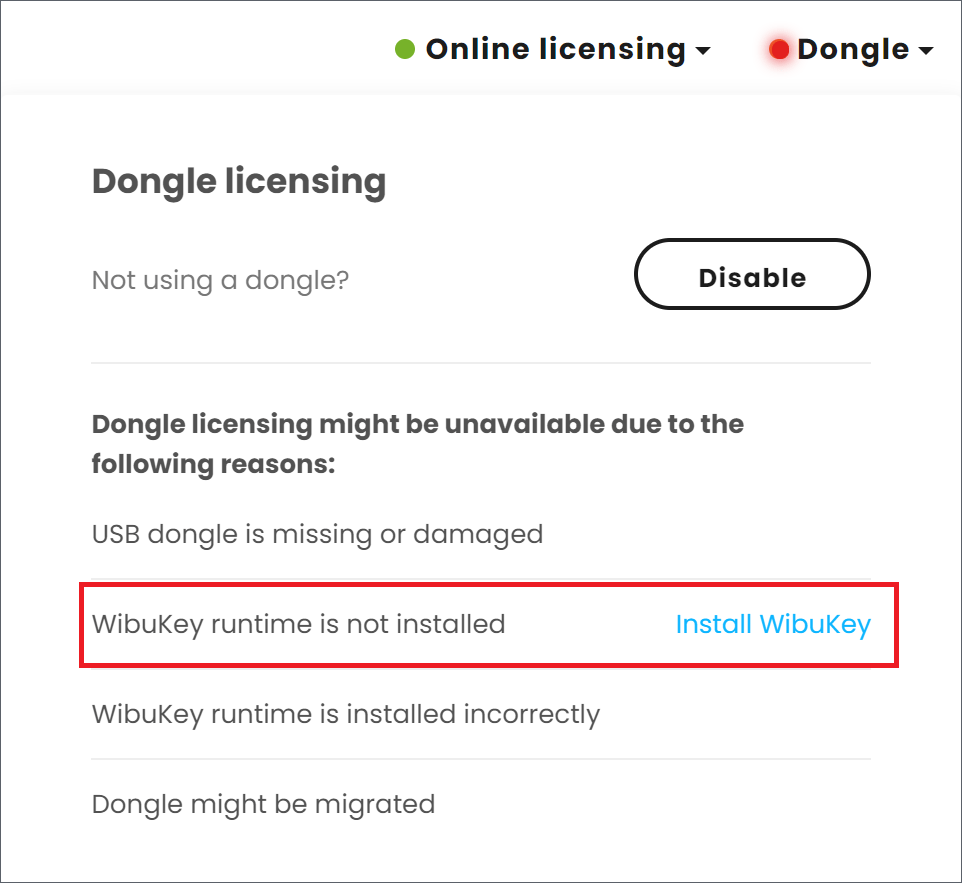
If dongle usage is enabled in the License Server but the WIBU-KEY drivers are missing, a message appears with a link to download them from WIBU Systems.
Click INSTALL WIBUKEY to open the WIBU Systems website and download the drivers for your operating system.
After downloading the drivers for your operating system, run the installer and follow its instructions.
The sections below explain how to download and install the WIBUKEY drivers.
If you need a newer version of the WIBUKEY drivers, or the drivers are installed incorrectly or causing problems, see Re-installing the Dongle Drivers.
Downloading the dongle drivers
Download the WIBUKEY drivers for your operating system from the WIBU Systems website. Install them on the computer connected to the dongle.
Download the drivers for your operating system.
Installing the dongle drivers
Follow the instructions below for your operating system.
Windows
- Make sure the USB dongle is unplugged.
- Using an account with administrative privileges, run WkRuntime.exe downloaded from the WIBU Systems website.
- Follow the installer instructions. You do not need to install the WIBU-KEY network server and monitor.
- Connect the dongle to your computer, open the License Server interface and enable Dongle usage.
macOS
Make sure the USB dongle is unplugged.
Extract WkRuntimeUser_6.20.500.dmg and run WkInstall.pkg.

Click Continue.

Read the Read Me section, then click Continue.

On the next screen, click Install to install the drivers.

When prompted, enter your password and click Install Software.

The installer installs the drivers. When installation is complete, click Close.
Connect the dongle to your computer, open the License Server interface and enable Dongle usage.

Linux
Install the WIBU-KEY drivers using the command below for your Linux distribution. The Linux drivers come in two package versions, .rpm and .deb. Use .rpm files for Red Hat/Fedora/CentOS or .deb files for Debian/Ubuntu.
Operating system | Driver installation file | Command | Example |
Operating system | Driver installation file | Command | Example |
64-bit, with .rpm support | WkRt-Lin-6.40.2402-500.x86_64.rpm | rpm -ivh <filename> | rpm -ivh WkRt-Lin-6.40.2402-500.x86_64.rpm |
64-bit, with .deb support | wkrt-lin_6.40.2402.500_amd64.deb | dpkg -i <filename> | dpkg -i wkrt-lin_6.40.2402.500_amd64.deb |