Set up Corporate Sign In to Chaos services with Okta.
Overview
Connect your Okta identity provider to Chaos so your employees can use Corporate Sign In.
Prerequisites
Before you start, contact Chaos to request the Corporate Sign In feature.
To configure SSO through Okta, you need:
- Administrative access to an Okta tenant.
- A Chaos account with an active commercial subscription.
Supported features
Chaos supports the following Single Sign-On feature through OpenID Connect:
- SP-initiated SSO (Single Sign-On).
Chaos supports the following automated user provisioning features through SCIM:
- Create users.
- Update user attributes.
- Deactivate users.
- Import users.
These features have limited support:
- Deleting a user in Okta currently does not delete their Chaos account.
- Changing a user's primary email (login email) provisions a new user in Chaos.
For details about these features, see the Okta Glossary.
Add the Chaos application to Okta
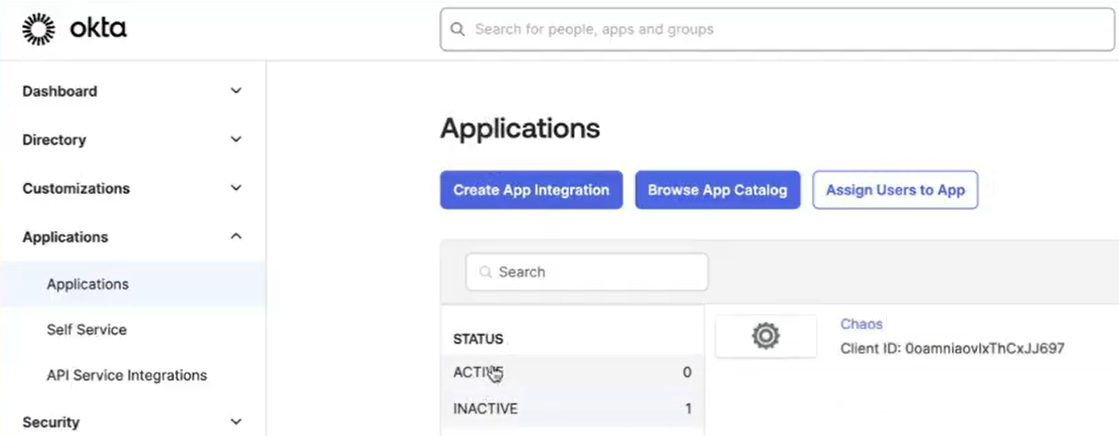
- Sign in to your Okta portal and open the Applications page.
- Select Browse App Catalog.
- Search for the Chaos application and select it.
- On the Chaos app page, select ➕App Integration.
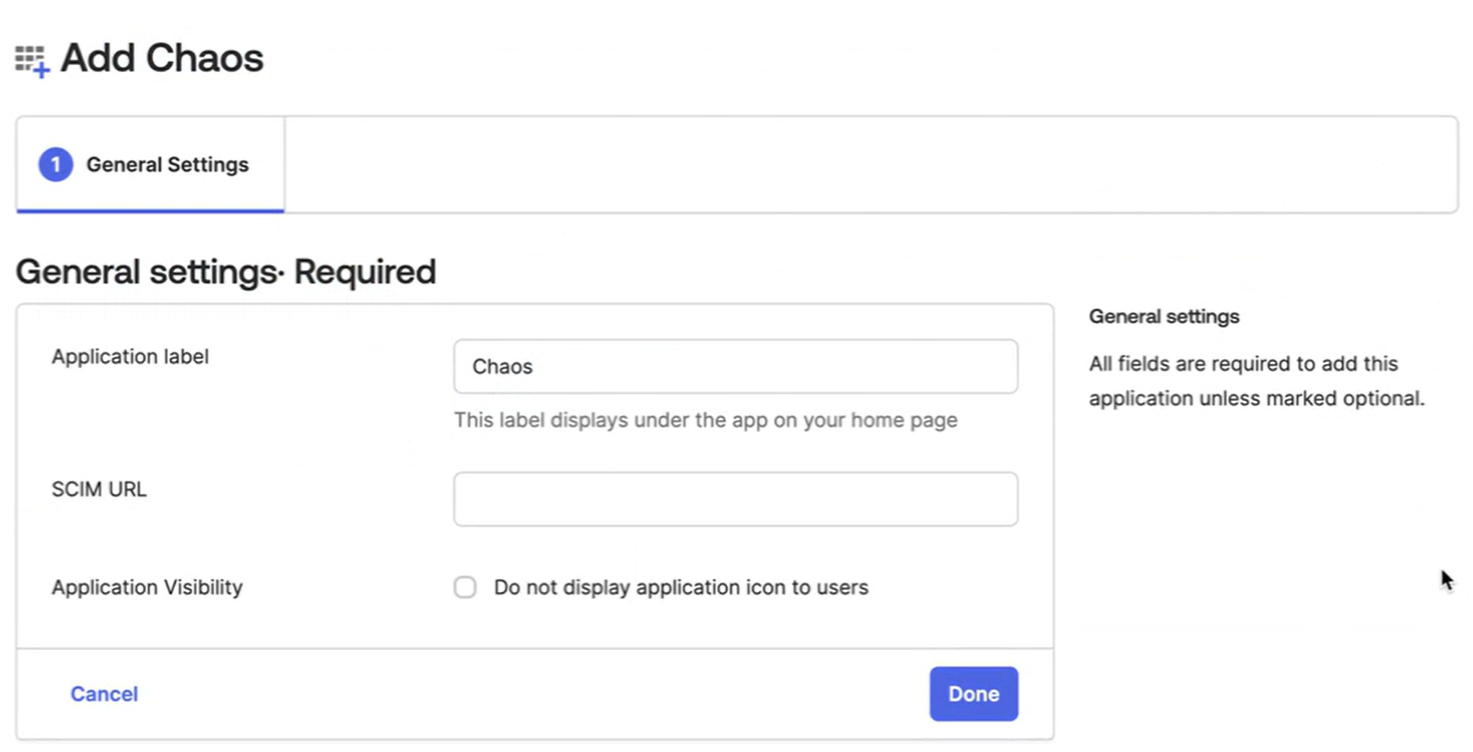
- Enter Chaos as the Application label, then click Done.
Configuration by Chaos Support
Chaos Support asks for configuration details as part of your initial request.
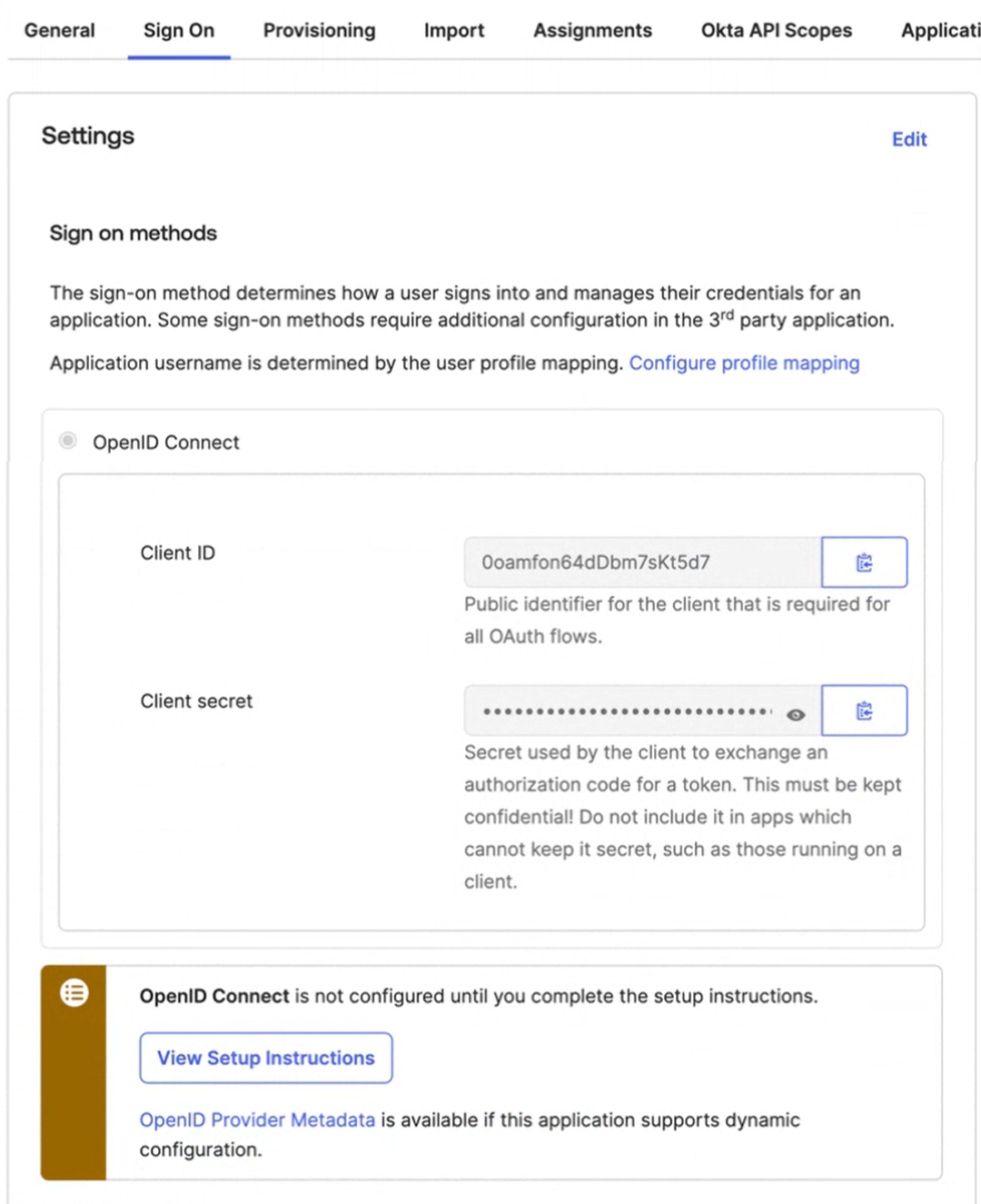
- On the Sign On tab, under Settings, copy the Client ID and Client Secret.
- Open the OpenID Provider Metadata link and copy the Issuer URL.
- Send the Issuer URL, Client ID, Client Secret, Domain name and Chaos administrator account to Chaos Support.
- Wait for Chaos Support to complete the initial configuration before you continue.
Configure Okta for Single Sign-on to Chaos (OpenID Connect)
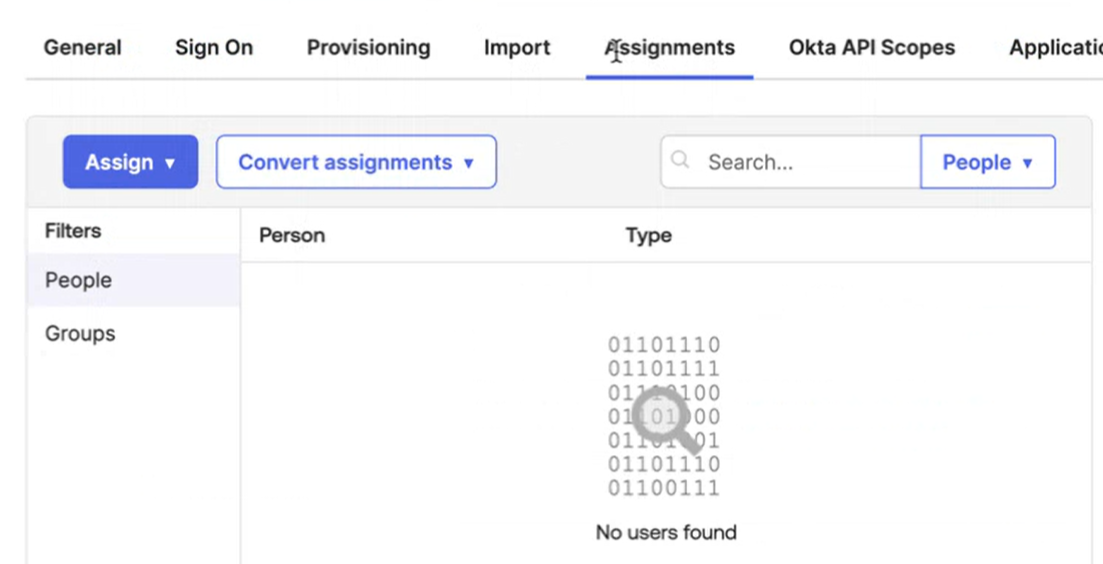
On the application page, open the Assignments tab. Use the Assign menu to assign people and groups to the application.
Configure Okta for automatic user provisioning (SCIM)
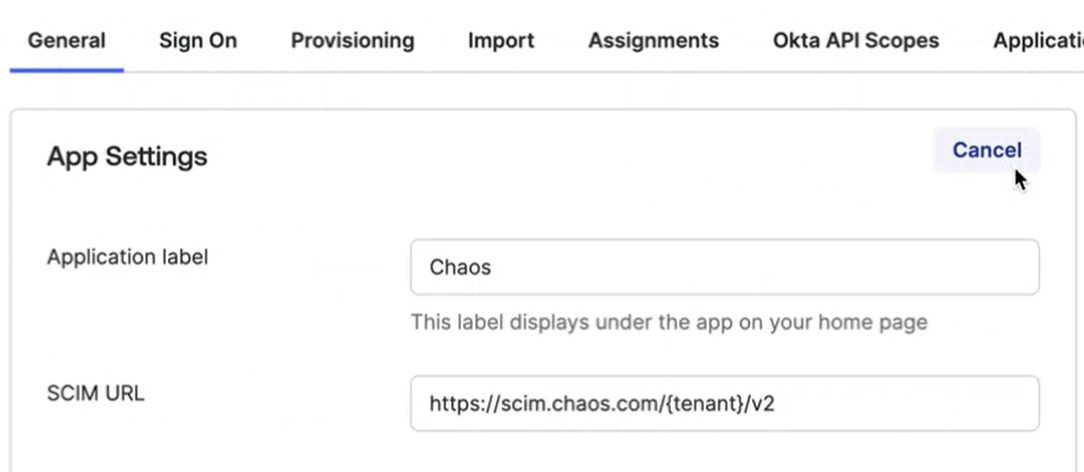
- On the application page, open the General tab and click Edit in the App Settings section.
- Enter the SCIM URL provided by Chaos Support.
- Click Save.
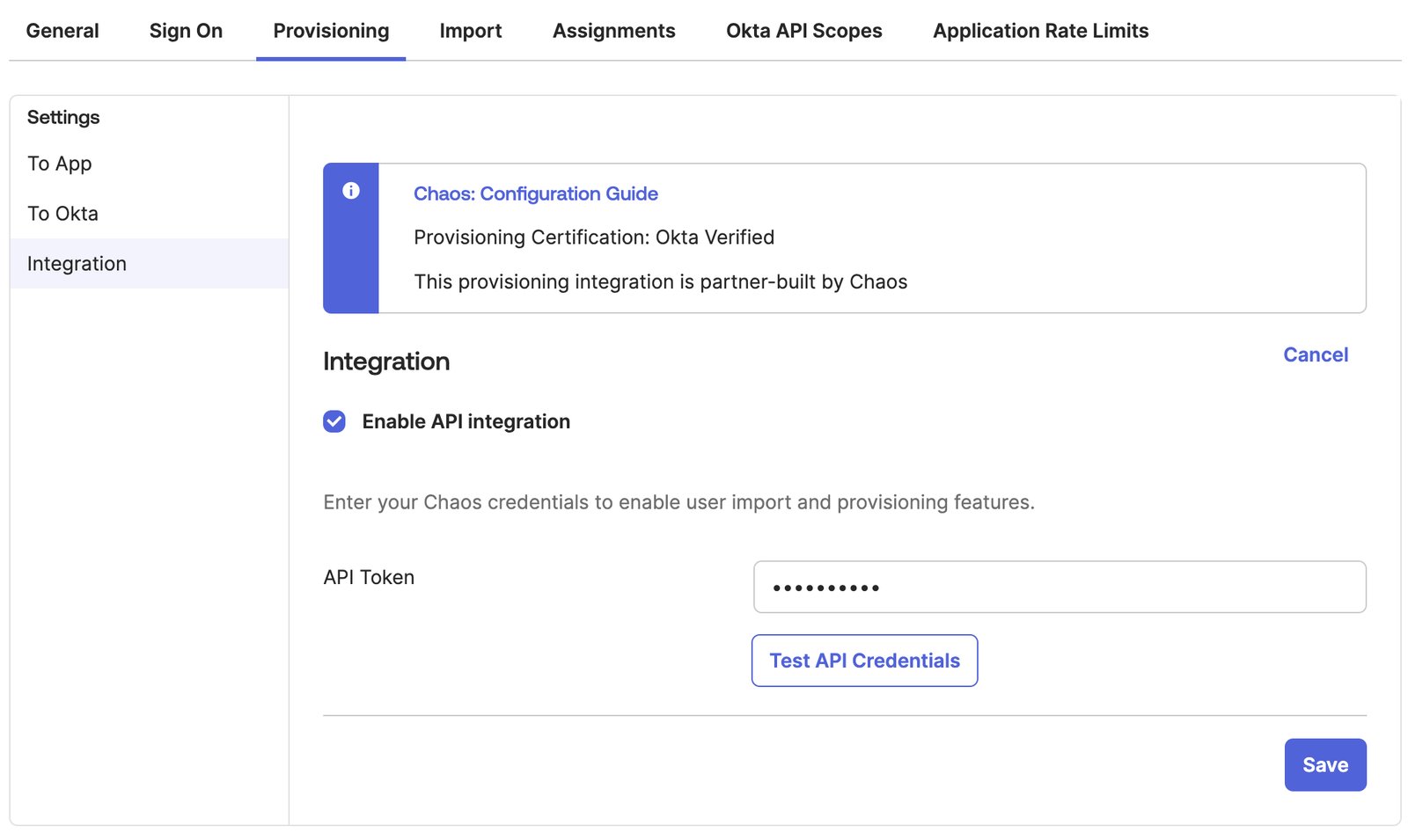
- Open the Provisioning tab and click Configure API Integration.
- Select Enable API Integration.
- Set API Token to the value provided by Chaos Support.
- Click Test API Credentials to check that the credentials work.
- Click Save.
- Edit the Provisioning to App section.
- Enable Create Users, Update User Attributes and Deactivate Users.
- Click Save.
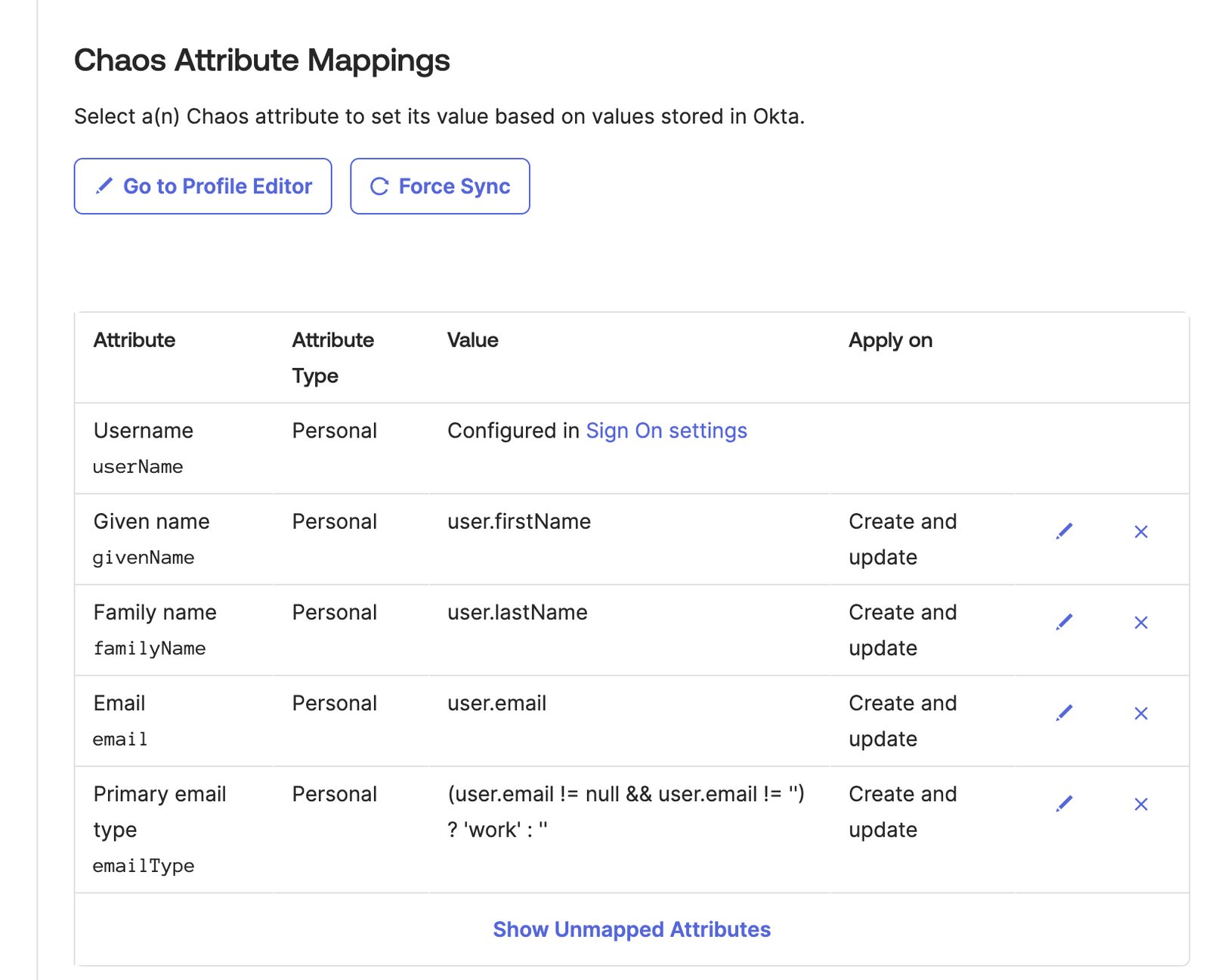
- Check the Attribute Mappings against the screenshot. At a minimum, the following attribute mappings must be defined:
- Username, Given Name, Family Name, Email, Primary Email Type
Use Single Sign-on (SP-initiated SSO)
Once the Chaos application is configured, users can sign in to Chaos with their corporate credentials.
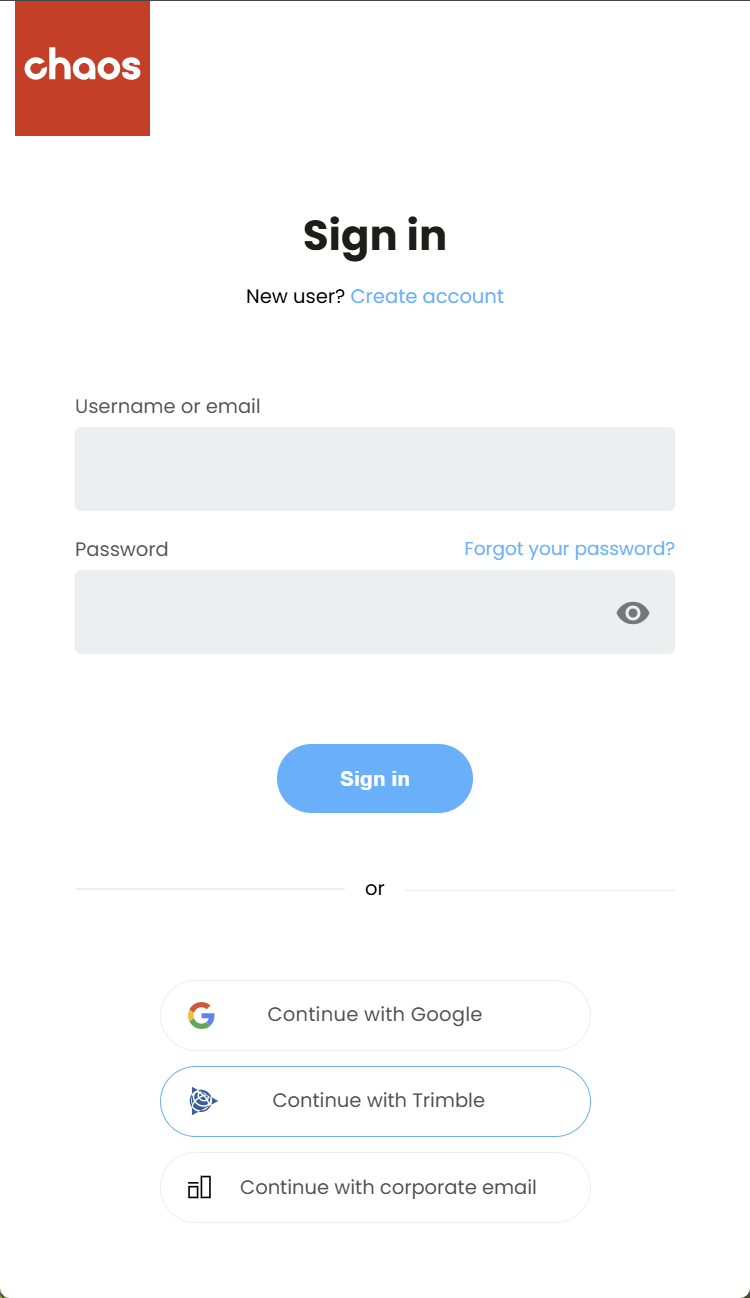
- On the Chaos Sign-in screen, select Continue with corporate email.
- Enter your corporate email and click Next.
- On the Okta sign in page that opens, sign in with your corporate credentials.
- If your credentials are valid, Chaos signs you in.
Troubleshooting
If you have problems during setup, contact Chaos Support.