Chaos Licensing
Floating Licenses
This page guides users who have opted for Chaos plans with a floating license.
Last updated 20 January 2026
This page guides users who have opted for Chaos plans with a floating license.
If you don’t own a Chaos license yet, you can browse our product catalog.
What are Floating Licenses
Floating Licenses can be shared between multiple users on a first-come, first-served basis and don’t need to be assigned to an individual user.
They are are ideal for creating a pool of licenses that can be used by multiple users, who do not need to have dedicated access to our products.
Sharing can be done in one of two ways:
- Cloud Licensing (recommended): The administrator shares a pool of Floating licenses with the Organization's Users, and when they log in with their Chaos accounts, they can use the floating licenses through the cloud from any location. See how to set it up in the next section.
- Remote Licensing: The administrator installs the Chaos License Server on a centrally accessible machine within the company network. The users will need to configure their Chaos product to connect to this License Server to access a license. This method is explained in the Installing the Product for Network Floating Licensing page.
Using Floating Licenses via the Cloud
Your organization’s Administrator needs to add you to the Оrganization in My Chaos. Once added, you will receive an email confirmation. If you do not yet have a Chaos Account, you can create one by following the link in the email invitation.
Once Floating License Sharing is enabled for the Organization, any user in the Organization can use the shared licenses by installing their Chaos product with all the default installation options and signing in to the product with their Chaos Account.
See the full setup details for Administrators on the Cloud Licensing page.
Install the Chaos product(s) your Organization has a license for.
Proceed with a default installation.

Install your Chaos product with the default installation options
Your Chaos product will ask you to log in when this is required to activate the product.
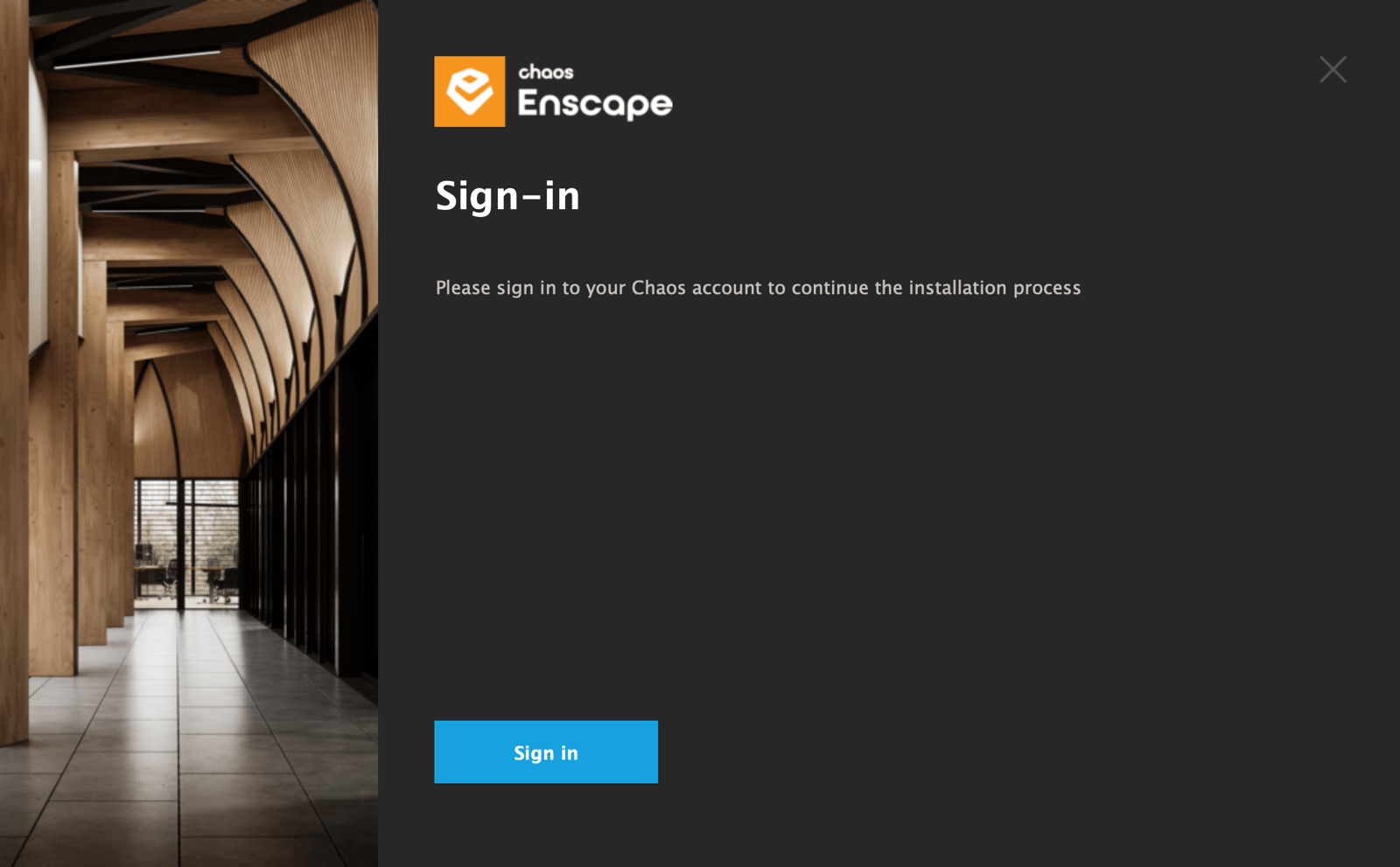
Example: Sign in at the end of installation
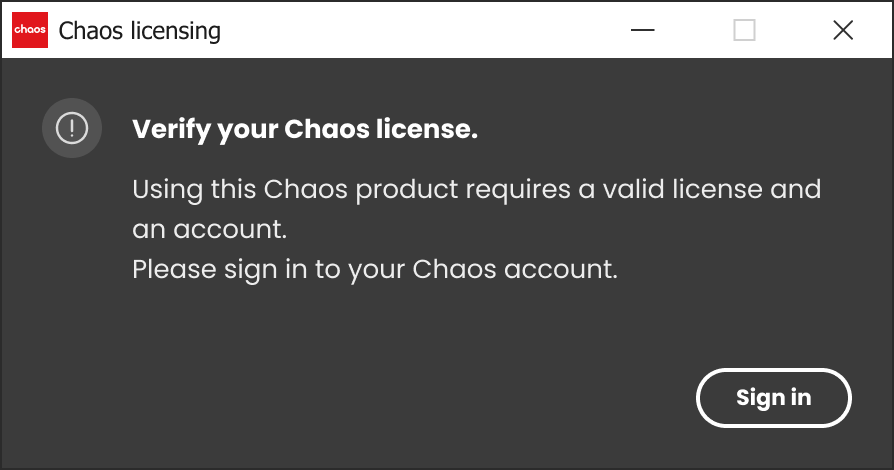
Example: Sign in required in the product
- Enter your Chaos credentials.

Chaos Single Sign-On Page
- You can close the login page after seeing the confirmation for a successful login.
- You can now start using your Chaos product.

Sign in confirmation
Re-configuring your License
If you have upgraded your Chaos License plan, or if you misconfigured your license settings, here is how you can re-configure your Chaos license setup:
- One option is to change your Chaos product's license setup. See the Changing the Product License Setup page for mode details.
- Alternatively, you can re-install your current Chaos product. At the Licensing step of the installation, you can change your license settings according your Chaos License plan. See the Installing the Product for Network Floating Licensing page for details.