Download and install the Chaos License Server for Chaos products.
Overview
All Chaos products install the License Server automatically. Follow the installation process below if you need to download and install it separately.
For a silent installation of the License Server, follow the Silent Installation guide.
Installation process
Download the installer
Log in to the Chaos website and go to the Downloads section. Download the latest version of the Chaos License Server installer and open the file.

Run the installer and accept the EULA
Read the End User License Agreement and the Global Consumer Privacy Policy carefully, then accept them.
Click Install. To change the installation settings first, click Advanced.

Advanced options
The Advanced installation has these additional options:
Use Destination directory to enter a custom installation directory for the licence server.
Enable Add firewall exception to allow the default licensing port (TCP 30304) through the firewall. If you disable it here, you need to add firewall exceptions manually later.
Check your settings, then click Install to begin installation. Click Help to open this documentation.

The default Windows installation path is C:\Program Files\Chaos\VRLService.
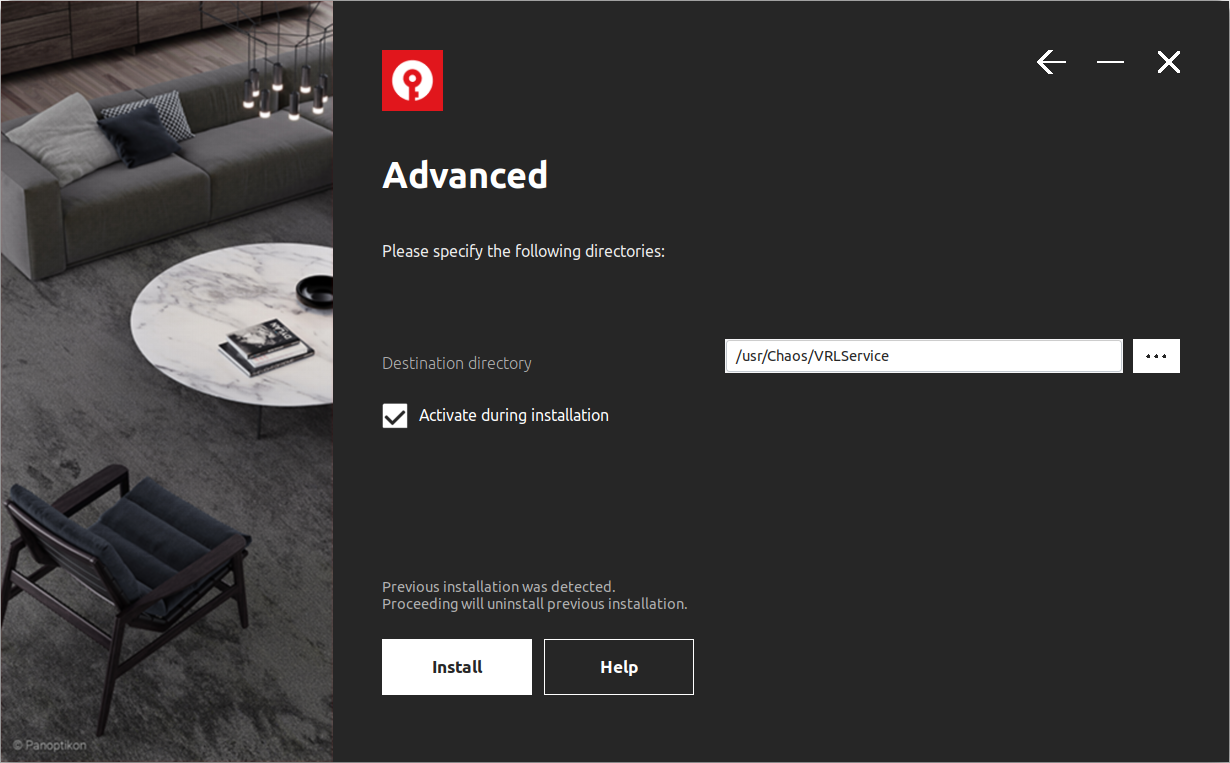
The default Linux installation path is /usr/Chaos/VRLService.

The default macOS installation path is /Applications/Chaos/VRLService.

This button cancels the installation.

This button returns you to the previous installation step.

This button opens the Chaos Licensing page for Chaos products.
Complete the installation
The installation wizard closes any open applications associated with the License Server before it attempts installation. Wait for this to finish. It may take a few minutes.
The wizard then completes the installation. Click Finish.

The application is now registered as a service on your computer. You can start, stop and manage Chaos License Server using these system tools:
- On Windows, use the shortcuts under Start Menu > All Apps > Chaos.
- On Linux, open Terminal and go to the directory containing
vrlservice.service. The default directory is/usr/Chaos/VRLService/bin. To start the licence server, runsudo systemctl start vrlservice.service. To stop the service or check its status, replacestartwithstoporstatus. - On macOS, open Terminal. Run
sudo launchctl load /Library/LaunchAgents/com.chaos_group.vrol.plistto start the service, orsudo launchctl unload /Library/LaunchAgents/com.chaos_group.vrol.plistto stop it. These commands prompt you to enter your macOS user password.
Activate the licence
The wizard automatically prompts you to activate the licence. Enter your Chaos credentials. If you have forgotten your password, click Forgot your password? to open a page where you can create a new password. Click Other Sign in options to open the Chaos login page. You can sign in there with a Google account, a Trimble account or a corporate email.
To activate the licence later through your browser, click Skip. You cannot access Chaos products without an active licence.
Click Help to open this documentation.

If this is your first installation and you deselected Activate during installation, the Chaos License Server interface opens in a browser window. Click Sign in in the Online licensing menu. Enter your username/email and password when prompted. After activation succeeds, the Chaos License Server home page shows your available licences.
To open the License Server activation page at any time, enter 127.0.0.1:30304 in your web browser. You can also open the Manage Chaos License Server application from your installed service functions, such as the Windows Start Menu.

Share the licence
Admin workflow
After you install and activate the licence locally, your computer acts as the server for the rest of your group. Use this computer's IP address as the group's connection point when following the Premium User workflow.
Run the Chaos License Server installer safely on macOS Catalina and later
On macOS Catalina and later, an app may fail to install because it has not been notarised or comes from an unidentified developer. When this happens, the app appears in System Preferences > Security & Privacy, under the General tab.
Click Open Anyway to confirm that you want to open or install the app.

When the warning appears again, click Open.

macOS saves the app as an exception in your security settings. You can now open it by double-clicking it, as you would any authorised app.
For more information, read Apple's guide to opening an app that has not been notarised or comes from an unidentified developer.
Troubleshooting
If you have trouble installing or running the Chaos License Server, follow the Troubleshooting guide.