Set up the Chaos licence system across multiple machines to keep floating licences available. This guide is for medium to large networks using Chaos products.
Overview
Consider a redundant licence setup if you use floating licences on a local network and need to run hundreds or thousands of Chaos product instances.
You can deploy up to 3 instances of the Chaos License Server on a local network to serve the same floating licence pool. Licences remain available if a machine running the Chaos License Server loses power or its network connection.
To set up redundancy, complete the following:
- Install the Chaos License Server on up to 3 machines that are centrally accessible on your local network.
- Authenticate each Chaos License Server instance with the Chaos account that holds the floating licence pool. This is usually the Administrator's account.
- Configure each artist's Chaos product instance to use the IP addresses of the machines running the Chaos License Server. Chaos products can try up to 3 Chaos License Server instances. If a product cannot obtain a licence from a server, it tries the next server in the list.
The sections below explain each part of the setup.
Installation
Download and install the Chaos License Server on up to 3 machines on your local network.
You can authenticate each instance with the Administrator account for your Chaos licences.
For installation instructions, see Installing the License Server.
Chaos product licence configuration
Configure your Chaos products for remote licensing. Add up to 3 IP addresses where each product can reach a Chaos License Server.
When installing a Chaos product, choose the Advanced installation path. Select Remote on the Licensing screen. Enter up to 3 different IP addresses for machines on your network running the Chaos License Server. For instructions, see Installing the Product for Network Floating Licensing.
You can also change the product's licensing configuration without reinstalling it. Use the Change License Settings utility included with the product. For instructions, see Changing the Product License Setup.
Deployment examples
Use the following examples to choose a licence server setup for your network.
Small studio office
For a small office or studio with, for example, 10 workstations, install a single Chaos License Server instance. Activate it with the Chaos account that holds your floating licences.
Configure the Chaos products on every workstation to use that Chaos License Server's IP address as their primary server.
The Chaos License Server should be accessible on your local network by default. To check, open Settings > Expert mode and confirm that Network Visibility is set to Visible to Local Network.
To make configuration changes easier, all office machines that need a licence can load a single vrlclient.xml file from a shared network drive. For instructions, see Sharing a License Configuration in a Network.

Large studio office
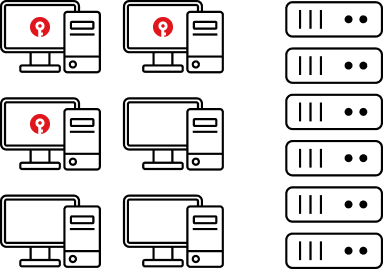
For a larger office or studio with many workstations and a render farm, install up to 3 Chaos License Server instances on different network machines for redundancy. You can authenticate each instance with the Administrator account that holds your Chaos floating licences. Configure the Chaos products on every workstation to use those machines' IP addresses as their primary and alternate servers.
Multiple regional or global locations
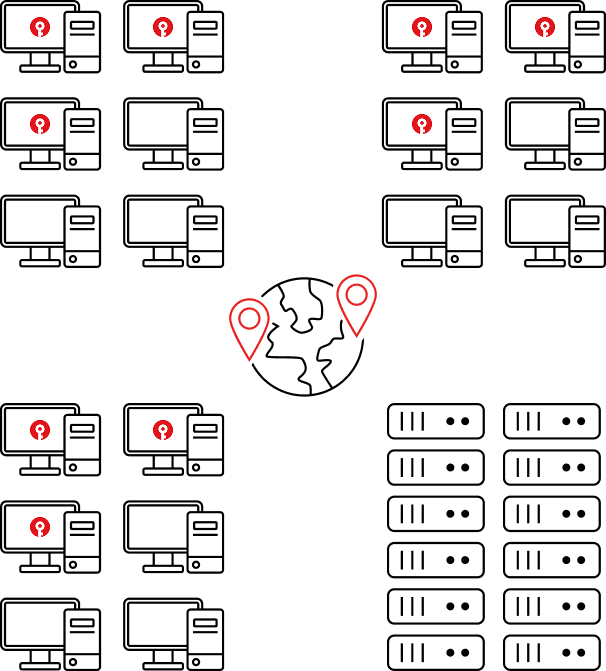
For offices or studios with multiple regional or global locations, install up to three Chaos License Server instances at each location. Activate them all with the same account to provide redundancy at each office. Configure the Chaos products on every workstation to use the IP addresses of the Chaos License Server instances on its own office network as primary and alternate servers.
Example: Redundant licence settings
This example uses the Change License Settings utility included with your product installation.
The product is configured to look for 3 Chaos License Server instances running on 3 different machines on the same local network.
If the product cannot obtain a licence from the first address, it tries the second, then the third. It cycles through the list a few times until it obtains a licence or stops after several attempts. If all attempts fail, the Chaos License Server instances may be unreachable or have no licences available.
For instructions on changing the product's licensing configuration, see Changing the Product License Setup.
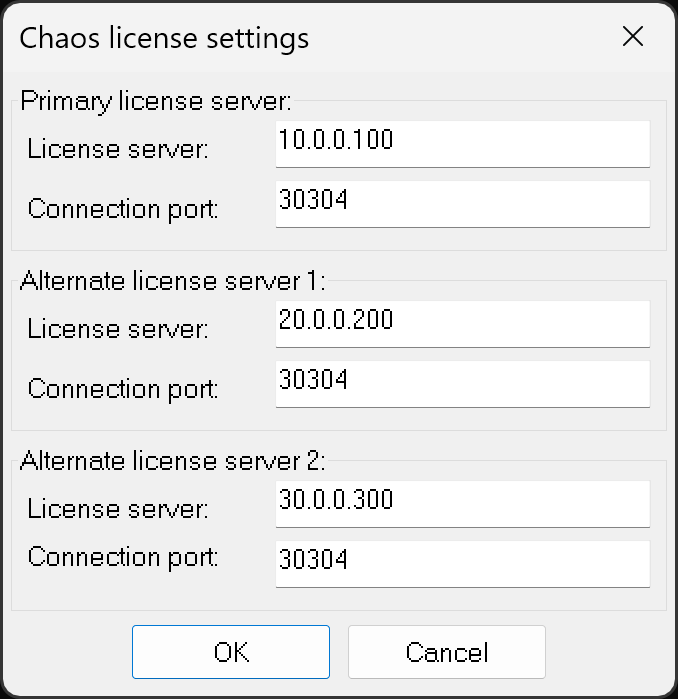
These example licence settings show a workstation using three Chaos License Server instances for redundancy. The two alternate servers are in different locations, as in a multi-office organisation.
Too many Chaos License Server instances
Installing more Chaos License Server instances than you need is unnecessary, but it does not cause network or licensing issues.
A default Chaos product installation also installs the Chaos License Server. This setup is intended for individual users who do not share floating licences on a local network.
If you share floating licences on a local network, use the Chaos installer's Advanced installation options. Select Remote on the Licensing screen. Enter up to 3 IP addresses for machines running the Chaos License Server on your local network. This avoids installing unnecessary Chaos License Server instances and makes your licensing setup easier to understand.
Using many licences on a Linux machine
If you use many licences at the same time on Linux machines, licence errors may appear at random. The cause is the "open files" limit, also called the file descriptor limit, which defaults to 1024. Increase the limit to 10,000 or more.
Check the current open files limit
<code data-v-9a340a76=""><span data-v-9a340a76="" class="line">ulimit -a </span></code>
Increase the open files limit to 10000
<code data-v-9a340a76=""><span data-v-9a340a76="" class="line">ulimit -n 10000 </span></code>