Chaos Licensing
Sharing a License Configuration in a Network
This page provides details on using the .vrlclient.xml file from a central location on your network.
Last updated 20 January 2026
This page provides details on using the .vrlclient.xml file from a central location on your network.
Overview
An instance of the Chaos License Server that uses the same user account may be installed more than once on different workstations or servers in the same internal network to act as a redundancy measure.
For V-Ray users, you can use the environment variable VRAY_AUTH_CLIENT_FILE_PATH.
In this case, the vrlclient.xml file could be stored in a centrally accessible location. The variable should look like:
VRAY_AUTH_CLIENT_FILE_PATH=//SERVER/path/to/directory/
vrlclient_example.xml
<code><span class="line"><span><VRLClient></span></span>
<span class="line"><span>	<LicServer></span></span>
<span class="line"><span>		<Host>IP address or FQDN of the primary license server</Host></span></span>
<span class="line"><span>		<Port>30304</Port></span></span>
<span class="line"><span>		<Host1>IP address or FQDN of the secondary license server if exists</Host1></span></span>
<span class="line"><span>		<Port1>30304</Port1></span></span>
<span class="line"><span>		<Host2>IP address or FQDN of the third license server if exists</Host2></span></span>
<span class="line"><span>		<Port2>30304</Port2></span></span>
<span class="line"><span>		<User></User></span></span>
<span class="line"><span>		<Pass></Pass></span></span>
<span class="line"><span>	</LicServer></span></span>
<span class="line"><span></VRLClient></span></span></code>
Windows
By default, the vrlclient.xml location is C:\Program Files\Common Files\ChaosGroup
Setting the path and variables in Windows 8, Windows 10 and Windows 11
- From the Start menu search for "environment variables". Choose the Edit the system environment variables option.
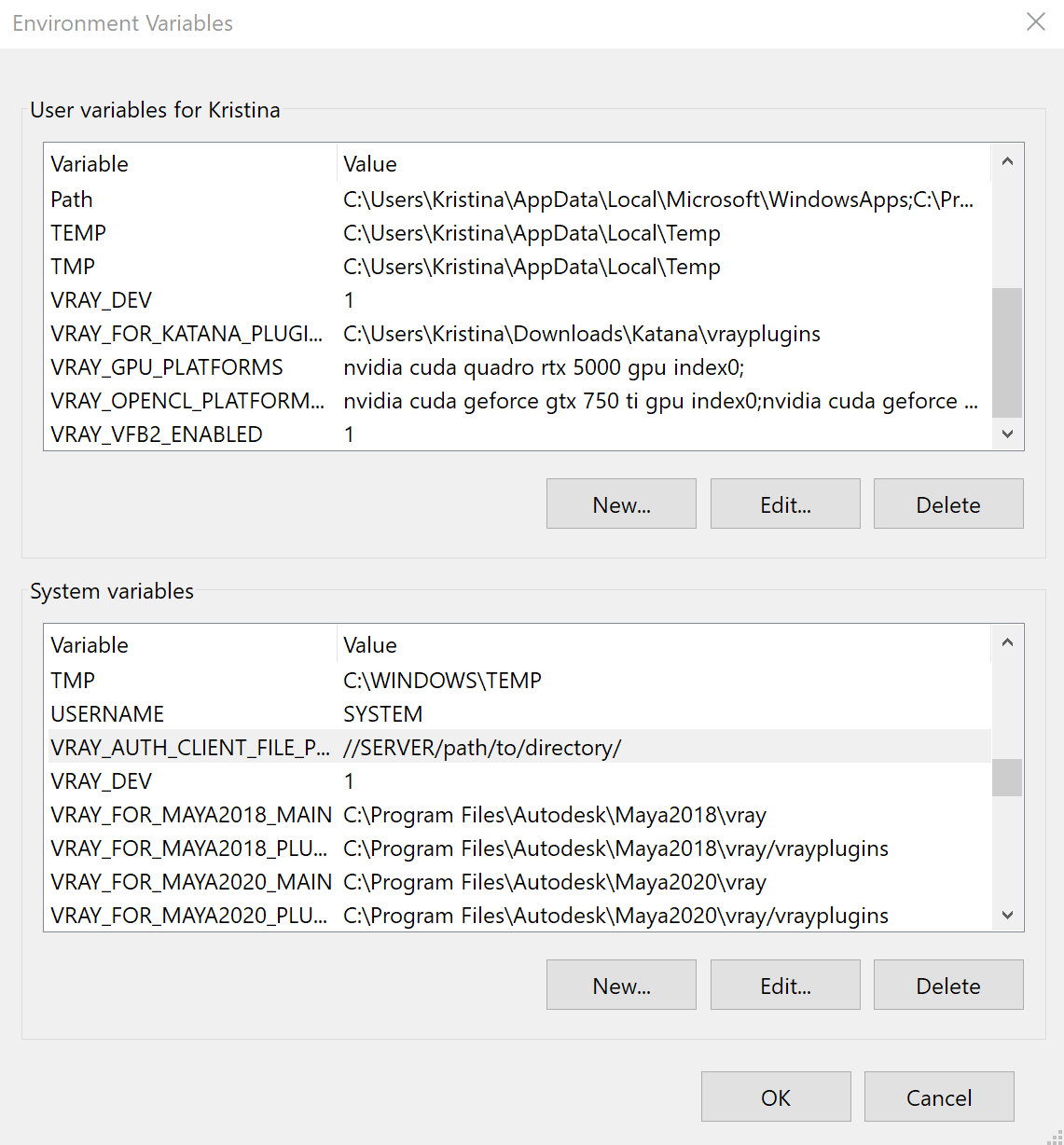
Alternatively, go to Settings (Control Panel) > System > About > Advanced system settings > Environment variables. - In the Environment Variables window (pictured below), highlight the Path variable in the "System variables" section and click the Edit button. Add or modify the path lines with the paths you want the computer to access. Each different directory is separated with a semicolon as shown below.
Setting the path and variables in Windows 7
- From the Desktop, right-click the Computer icon and select Properties. If you don't have a Computer icon on your desktop, click the Start button, right-click the Computer option in the Start Menu, and select Properties.
- Click the Advanced System Settings link in the left column.
- In the System Properties window, click on the Advanced tab, then click the Environment Variables button near the bottom of that tab.
- In the Environment Variables window (pictured below), click on New.. in the "System variables" section.
- Add the Variable name - VRAY_AUTH_CLIENT_FILE_PATH
- Add the Variable value - //SERVER/path/to/directory/
macOS
By default the vrlclient.xml location is /Users/YourUsername/.ChaosGroup folder.
In order for the variable to be valid for both terminal and GUI, you need to set it using either enviroment.plist or launchctl depending on your macOS version.
If you are running OS X Yosemite or newer, you should add the variable using an environment.plist file.
- Download the attached setenv.chaos_group.VRAY_AUTH_CLIENT_FILE_PATH.plist example file and edit the location of vrlclient.xml file using a text editor.
- Place the edited file in /Library/LaunchAgents/ directory.
If you are running OS X Mavericks or older you should add the variable in the launchd.conf file.
Open the file using super-user privileges: sudo vi /etc/launchd.conf
Next, add the variable as follows: setenv VRAY_AUTH_CLIENT_FILE_PATH //SERVER/path/to/directory
Then save the file.
You can check the web for more details on setting environment variables for your Mac version.
Linux
By default the vrlclient.xml location is /home/YourUsername/.ChaosGroup folder.
Set the VRAY_AUTH_CLIENT_FILE_PATH environment variable to point to the vrlclient.xml file.
For bash/ksh: export VRAY_AUTH_CLIENT_FILE_PATH=//SERVER/path/to/directory/
For csh/tcsh: setenv VRAY_AUTH_CLIENT_FILE_PATH=//SERVER/path/to/directory/
To set the variable system wide create a custom.sh shell script in /etc/profile.d/