Chaos Vantage
Initiate Live Link to Chaos Vantage from Maya
This page provides information about the Initiate a Live-Link to Chaos Vantage tool in Maya.
Last updated 11 June 2026
This page provides information about the Initiate a Live-Link to Chaos Vantage tool in Maya.
Overview
The Initiate a Live-Link to Chaos Vantage tool helps you send your Maya scene to Chaos Vantage with a click of a button. Any changes you make in the scene will be sent instantly to Vantage without the need to reexport the scene.
The Chaos Vantage Live-Link Settings tool sets specific settings for performance.
If you are initiating Live-Link from Maya running on macOS or Linux, note the following:
- Chaos Vantage has to be loaded on the host Windows machine before the Live-Link is initiated.
- The port number for the Live-Link is 20703.
UI Path
To start the Initiate a Live-Link to Chaos Vantage tool:
In Maya, either click on the Vantage icon in the V-Ray Shelf, or right-click the Vantage icon and select Initiate a Live-Link to Chaos Vantage.
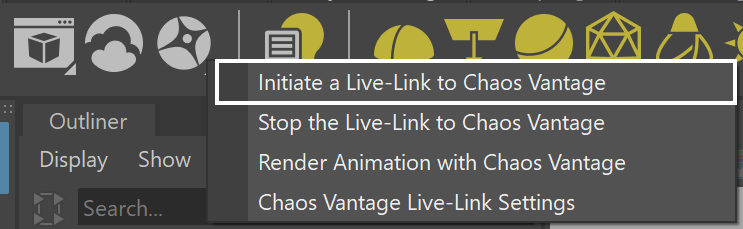
V-Ray menu > Live-Link to Chaos Vantage > Initiate a Live-Link to Chaos Vantage

To start the Chaos Vantage Live-Link Settings tool:
In Maya, right-click the Vantage icon and select Chaos Vantage Live-Link Settings
In Maya, go to V-Ray menu > Live-Link to Chaos Vantage > Chaos Vantage Live-Link Settings
Vantage Live-Link Settings
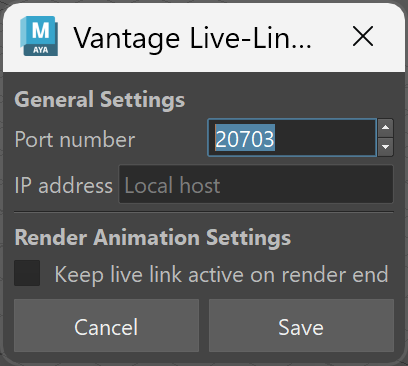
The Vantage Live-Link Settings dialog allows you to specify а port number. The dialog is available by clicking the Chaos Vantage Live-Link Settings button.
Port number – Sets the port for the Live Link server. Always make sure you are using the same port in both Maya and Chaos Vantage.
Keep live link active on render end – When enabled, after the animation is finished (rendering and saving the frames), the Live Link between Maya and Vantage remains active. If disabled, once the animation is done, the Live Link is stopped.
Usage
To use the tool, just click the Initiate a Live-Link to Chaos Vantage button and a Live Link session will be initialized between Maya and Chaos Vantage.
The tool automatically:
- Starts Chaos Vantage if it is not already running.
- Sends the scene to Chaos Vantage on 20703 port.
To stop a Live Link session, click the Stop the Live-Link to Chaos Vantage button.
Live Link Supported Features
The following changes made in the V-Ray compatible DCC are propagated through Live Link:
- Editing, creating and deleting of:
- Camera
- Geometries
- Lights
- Materials
- Textures
- Environment
Known Limitations
The following actions can be done inside Chaos Vantage during Live Link:
- create cameras;
- create camera animation in the animation editor;
- edit environment and fog;
- add color correction effects;
- Render:
- snapshots;
- HQ still image;
- HQ sequence;
- save .vantage file with the changes from above.
The following actions cannot be done inside Chaos Vantage during Live Link:
- transform objects;
- hide/unhide objects;
- reassign materials;
- edit lights;
- import external(including cosmos assets) files;
- animation playback.
The following requires a restart of the Live Link session in order to be updated properly.
- Updating of:
- animated V-Ray Proxy files (.vrmesh)
During Live Link session the UI in Chaos Vantage adapts to the limitations mentioned in the Known limitations section. The following is hidden from the Top Toolbar and Side panels:
- Select, Move, Rotate, Scale, Move Pivot tools;
- Chaos Cosmos Browser;
- Create Scatter, Fur, Decal, Lights, Camera and Scene State tools;
- Lights and Object tabs;
- Material lister in Material tab;
- Sun properties in the Environment tab if there is a Sun light already existing in the Host application.