Chaos Vantage
Initiate Live Link to Vantage from V-Ray
This page provides information about the Initiate a Live-Link to Chaos Vantage tool in V-Ray for 3ds Max.
Last updated 11 June 2026
This page provides information about the Initiate a Live-Link to Chaos Vantage tool in V-Ray for 3ds Max.
Overview
The Initiate a Live-Link to Chaos Vantage tool helps you send your 3ds Max scene to Chaos Vantage with a click of a button. Any changes you make in the scene will be sent instantly to Vantage without the need to reexport the scene. You need to have V-Ray for 3ds Max installed, to access the tool.
The Chaos Vantage Live Link settings tool sets specific settings for performance.
www.youtube.com
Installation
The installation of the Initiate a Live-Link to Chaos Vantage and Chaos Vantage Live Link settings tools comes with the installation of V-Ray 5 for 3ds Max, update 1 and later.
For detailed instructions on installing and setting up Live Link from 3ds Max to Chaos Vantage, see the Live Link tutorial.
UI Path
To access the tools, in 3ds Max go to:

||Vantage toolbar|| > Initiate a Live-Link to Chaos Vantage ()

||Vantage toolbar|| > Chaos Vantage Live Link settings ()
Vantage Live Link settings
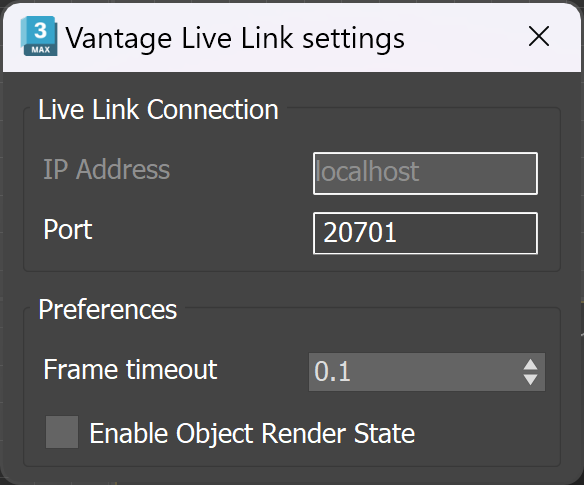
The Vantage Live Link settings dialog, available by clicking the Chaos Vantage Live Link settings button, allows you to specify port, frame timeout, as well as object render state.
IP Address – Shows the IP address that the Live Link connection connects to.
Port – Specifies the port at which the Live Link connection is started. Standard port for DR is 20701, and for DR2 is 20703.
Frame timeout – Sets a specified time in seconds between frames to ensure data transfer for the next frame has begun.
Enable Object Render State – When enabled, uses Render states/counts/iterations/modes instead of their viewport representation. Anima 4D assets require this option to be enabled to be rendered properly. Enabling this option саn affect the interactivity of Live Link updates.
Usage
To use the tool, just click the Initiate a Live-Link to Chaos Vantage button and a Live Link session will be initialized between 3ds Max and Chaos Vantage. The tool automatically:
- Detects if you are using V-Ray 5 GPU as a renderer and asks if you would like to switch to it.
- Starts Chaos Vantage if it is not already running.
- Sends the scene to Chaos Vantage on 20701 port, or on 20703 if using V-Ray 7.3 with DR2.
To stop a Live Link session, click again the Initiate a Live-Link to Chaos Vantage button.
Live Link Supported Features
The following changes made in the V-Ray compatible DCC are propagated through Live Link:
- Editing, creating and deleting of:
- Camera
- Geometries
- Lights
- Materials
- Textures
- Environment
Known Limitations
The following actions can be done inside Chaos Vantage during Live Link:
- create cameras;
- create camera animation in the animation editor;
- edit environment and fog;
- add color correction effects;
- Render:
- snapshots;
- HQ still image;
- HQ sequence;
- save .vantage file with the changes from above.
The following actions cannot be done inside Chaos Vantage during Live Link:
- transform objects;
- hide/unhide objects;
- reassign materials;
- edit lights;
- import external(including cosmos assets) files;
- animation playback.
The following requires a restart of the Live Link session in order to be updated properly.
- Updating of:
- animated V-Ray Proxy files (.vrmesh)
During Live Link session the UI in Chaos Vantage adapts to the limitations mentioned in the Known limitations section. The following is hidden from the Top Toolbar and Side panels:
- Select, Move, Rotate, Scale, Move Pivot tools;
- Chaos Cosmos Browser;
- Create Scatter, Fur, Decal, Lights, Camera and Scene State tools;
- Lights and Object tabs;
- Material lister in Material tab;
- Sun properties in the Environment tab if there is a Sun light already existing in the Host application.