Chaos Vantage
Render Animation with Chaos Vantage
This page provides information about the Render animation with Chaos Vantage tool in V-Ray for 3ds Max and the Vantage Animation Export tool in Corona for 3ds Max.
Last updated 1 September 2026
This page provides information about the Render animation with Chaos Vantage tool in V-Ray for 3ds Max and the Vantage Animation Export tool in Corona for 3ds Max.
Overview
In V-Ray, the Render animation with Chaos Vantage tool helps you send and render your animated 3ds Max scene to Chaos Vantage with a click of a button. You need to have V-Ray for 3ds Max installed, to access the tool.
In Corona, the Vantage Animation Export tool helps you send and render your animated 3ds Max scene to Chaos Vantage with a click of a button. You need to have Corona for 3ds Max installed, to access the tool.
Installation
V-Ray
The installation of the Render animation with Chaos Vantage tool comes with the installation of V-Ray 5 for 3ds Max, update 2 and later. For detailed instructions on setting up the Render animation with Chaos Vantage tool, see the Live Link from 3ds Max tutorial.
Corona
The installation of the Vantage Animation Export tool comes with the installation of Corona 13 for 3ds Max and later.
UI Path
V-Ray

To access the Render animation with Chaos Vantage tool, in 3ds Max go to ||Vantage toolbar|| > Render animation with Chaos Vantage ().
Note that V-Ray must be selected as Renderer.
Corona
To access the Vantage Animation Export tool, in 3ds Max go to ||Render Setup|| > System >Vantage Anim. Export
Note that Corona must be selected as Renderer.
Settings
V-Ray
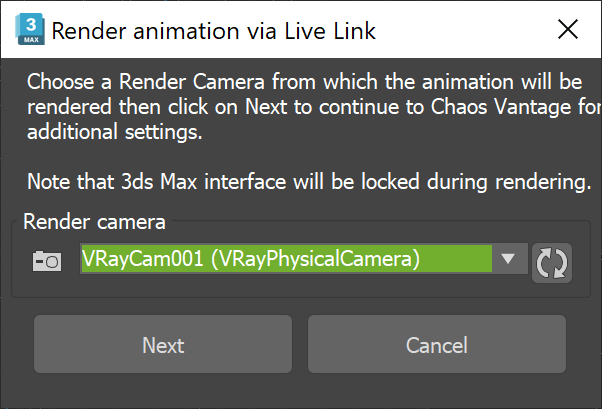
When clicking the Render animation with Chaos Vantage () button, the following dialog appears:
Render camera – Specifies from which camera to render the animation. Only VRayPhysical and Max Physical cameras are supported. The field cannot be empty.
Refresh – Refreshes the list of available cameras. Must be pressed to update the list if a camera has been added to the scene while the dialog is opened.
Next – Continues to Chaos Vantage for additional settings.
Cancel – Closes the dialog.
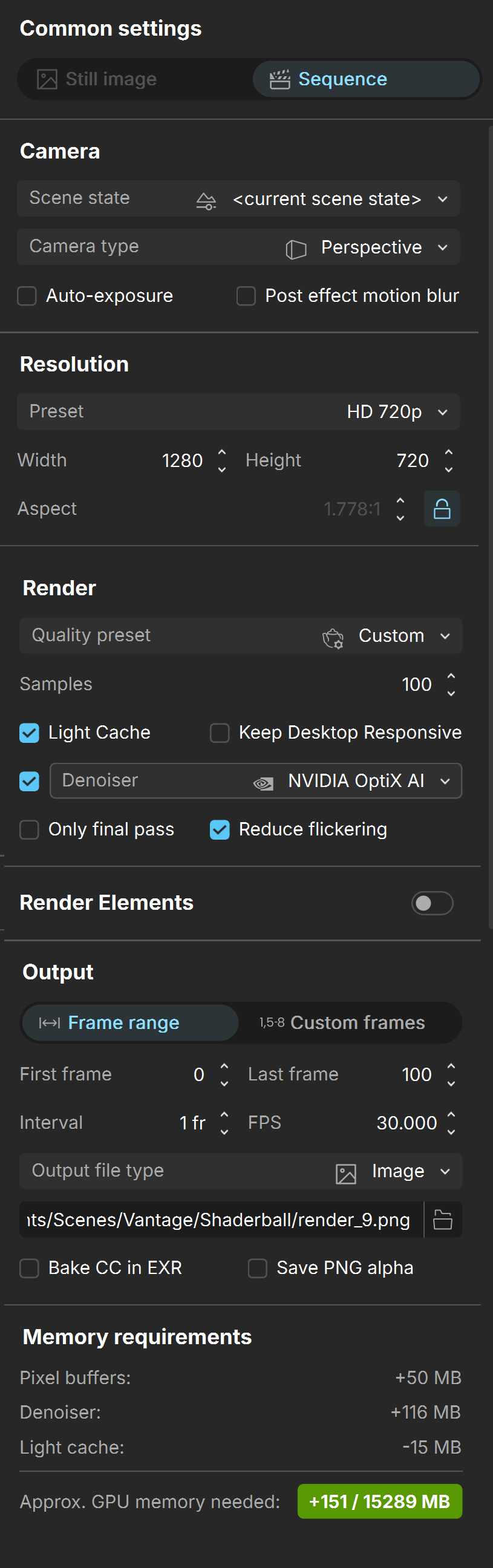
When clicking Next, the Common settings dialog appears in Chaos Vantage.
For detailed information on each parameter from the Common settings dialog, see the Sequence section of the Rendering Mode page.
Corona
When clicking the Vantage Anim. Export, the Common settings dialog appears in Chaos Vantage.
For detailed information on each parameter from the Common settings dialog, see the Sequence section of the Rendering Mode page.
Usage
V-Ray Usage
To use the tool, click the Render animation with Chaos Vantage button. This also initializes a Live Link session between 3ds Max and Chaos Vantage.
The tool automatically:
- Detects if you are using V-Ray 5 GPU as a renderer and asks if you would like to switch to it.
- Sends the scene to Chaos Vantage on 20701 port for DR or on 20703 for DR2 with the specified settings.
- Renders each frame from the specified range in the specified location.
To stop a Live Link session, click the Initiate Live Link to Vantage button.
Corona Usage
For detailed instructions on setting up the Vantage Animation Export tool, see the How to Render Corona for 3ds Max Animations in Vantage tutorial.
To use the tool, go to the Render Setup > System and click the Vantage Anim. Export button. This allows Vantage to render the animation using the live-linked data from 3ds Max.
To stop a Live Link session, click the Stop Animation Export button.