Chaos Vantage
Troubleshooting
This page gives an outline of how to troubleshoot and report issues with Chaos Vantage.
Last updated 28 February 2026
This page gives an outline of how to troubleshoot and report issues with Chaos Vantage.
Overview
All processes and events executing in Chaos Vantage are exported to the Debug Log.
UI Paths
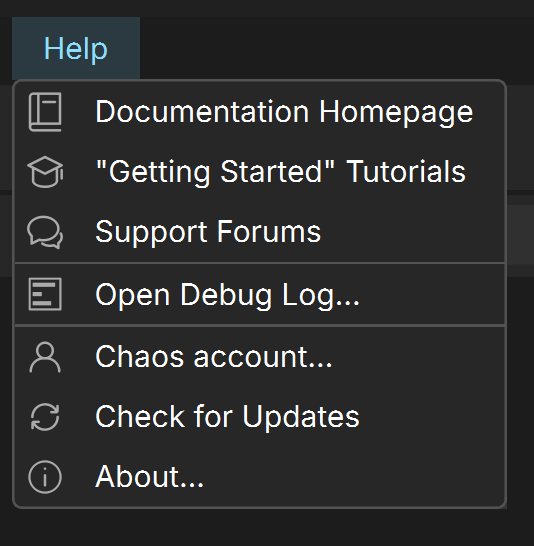
||Help|| > Open Debug Log
Click here to expand for a screenshot...

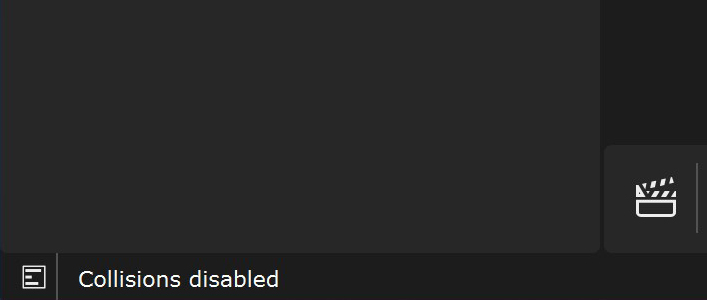
||Status bar|| >
Click here to expand for a screenshot...
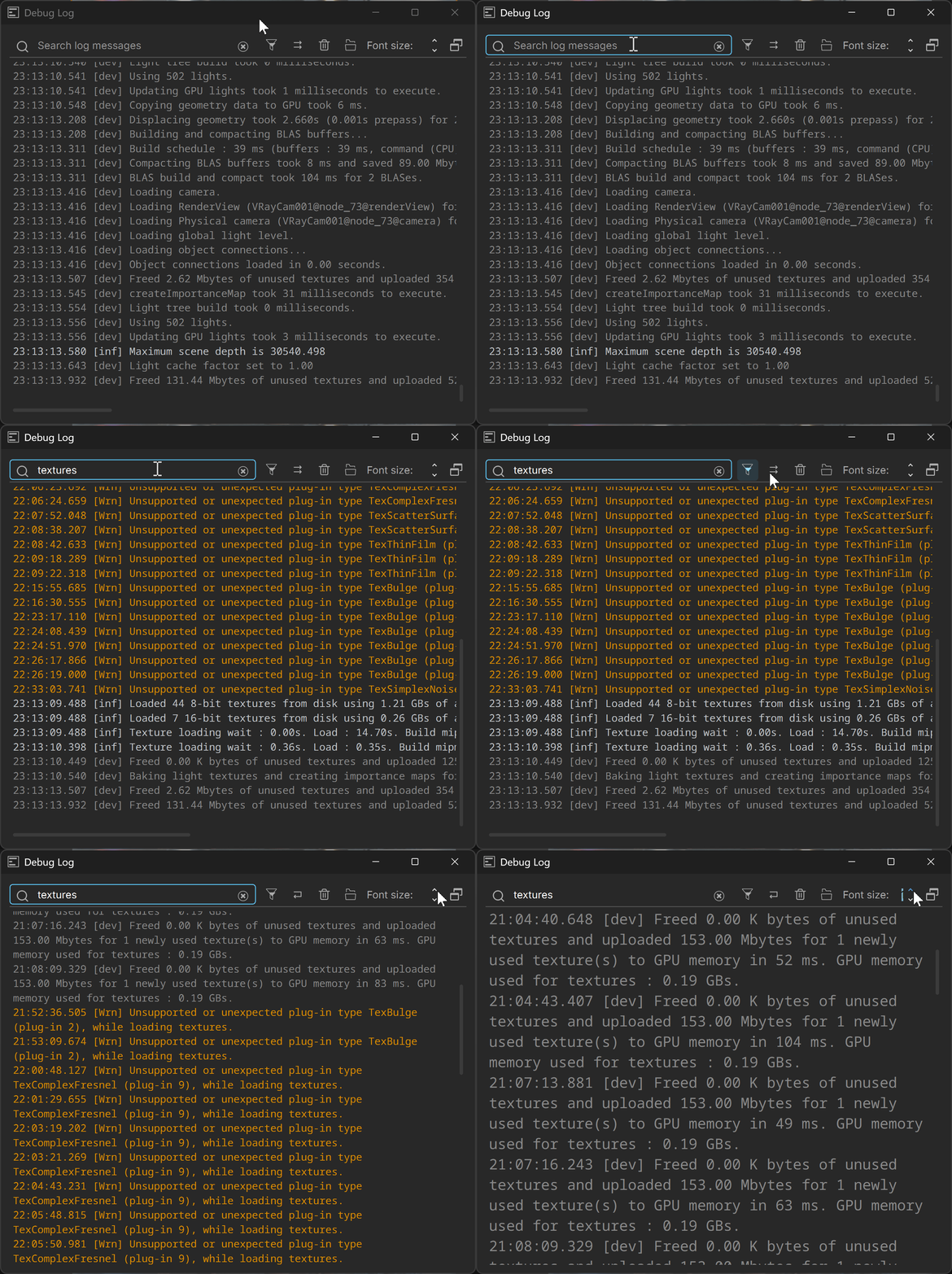
Debug Log
You can see all messages and events in the Debug log. You can apply a filter string to display only the relevant messages.
Issue Reporting Guide
When reporting issues, provide as much information regarding the problem as possible.
Listed below are the files and the required additional information that will be useful:
- Steps or a video to reproduce the problem.
- The log from the Debug log (||Help|| > Open Debug Log), located in %AppData%\Chaos\Vantage.
- Vantage_########_######.dmp located in %temp% (may not exist).
- Test scene that reproduces the problem.
- Render settings (from Render tab and/or Common settings dialog).
- Screenshot(s) of Vantage UI.
- Screenshot(s) of any other UI that is appropriate for the issue.
- Hardware and system specs of your workstation.
To report an issue or send scenes and related resources, you can do the following:
- Visit the Chaos Help Center.
- Post in the Issues section in the Chaos Vantage forum.
Starting Vantage
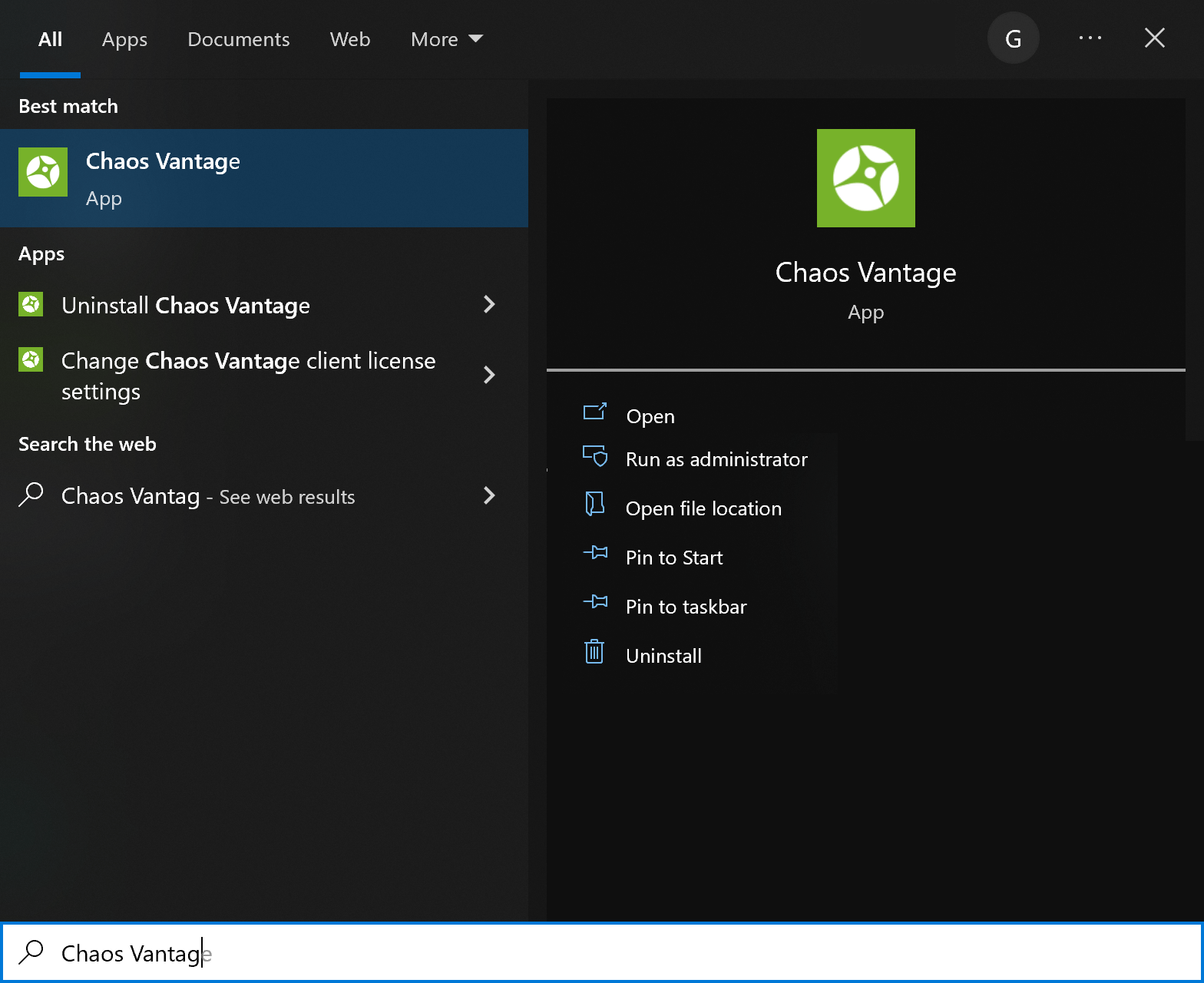
If you do not find the Windows Desktop shortcut for Vantage:
- You can start it from the Windows Start menu > Chaos Vantage > Start Chaos Vantage or search it directly in the Start menu.
- You can also start it from its installation directory. The default directory is C:\Program Files\Chaos\Vantage where you can find and execute the vantage.exe file.