Corona for Cinema 4D
Activating Corona Trial
This page provides information on activating and using your Corona Free Trial.
Last updated 20 January 2026
This page provides information on activating and using your Corona Free Trial.
Overview
Chaos offers a free trial of Corona for Cinema 4D. The trial period has no restrictions within the software such as watermarks. This means that what you see in the trial is exactly what you will get if you have a paid subscription.
The Corona Free Trial activation consists of the following steps:
- Go to the trial page and start your free trial
- Complete the checkout process
- Download Corona
- Install Corona
- Activate your trial license
The steps below guide you as a first-timer on how to activate the trial license.
Steps
1 Visit the Free Trial Page
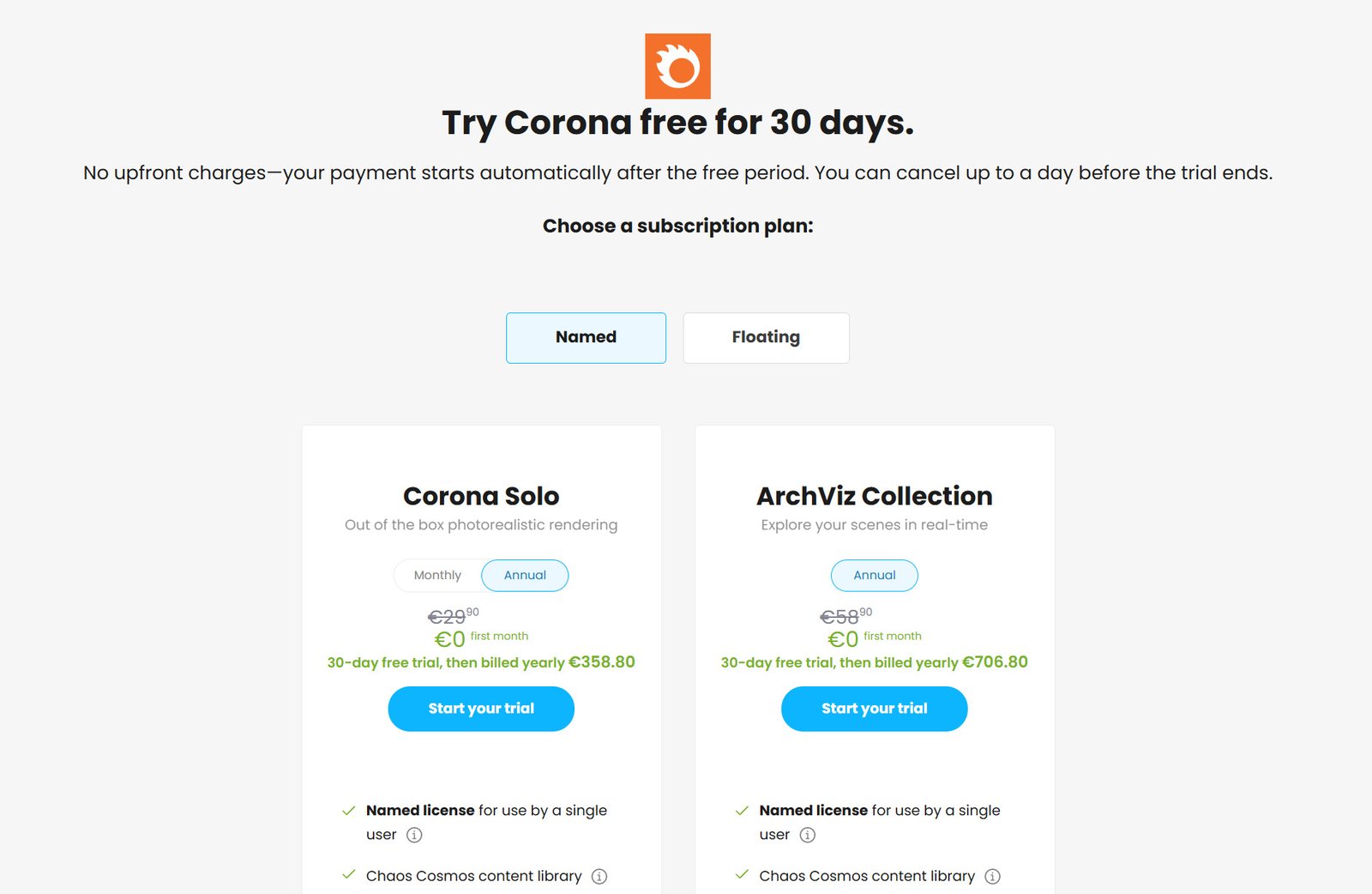
Go to the Corona Trial Page and click Start your trial under the product you would like to try. You can choose whether your license is Named or Floating, whether you want the Solo or Collection product bundle, and if you would like the subscription to be monthly or annual. To learn more, see Chaos Suite offerings.
2 Complete the Checkout Process
Enter your email address and billing details, and complete the checkout process.

3 Activate your Chaos Account (non-registered users)
After completing the checkout process, you will receive an account setup email from Chaos. Use the link in the email to set a password and activate your account.
4 Download and Install Corona
See the steps on the Installation Process page.
5 Log in To Use the Product
When you open up Cinema 4D and set the renderer to Corona, a pop-up window appears. Click Sign in. Once you are signed in, you can use Corona with your trial license, and the pop-up window in Cinema 4D disappears.

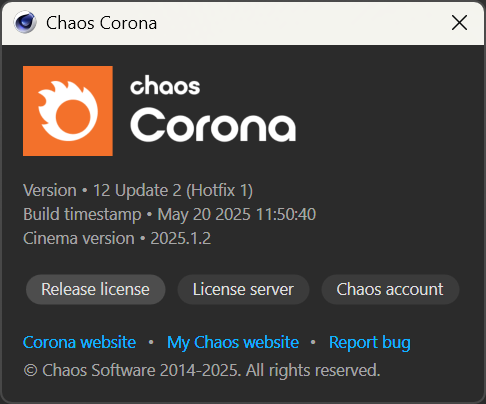
You can now use Chaos Corona for Cinema 4D on your system. You can confirm this from the Corona > About window.
A successful activation switches the Activate license button to the Release license button.
Alternatively, you can also check the status of your license in the Chaos License Server.
Cancelling the Subscription
If you wish to cancel the subscription, you can do so from the Active Products page of the my.chaos website. The Cancel subscription link is located next to the Auto renewal status.
Click on the link, fill out the questionnaire, and you will disable the auto-renewal. You can continue using the trial until its expiration date, but it will be removed from your account and will not renew after that.
