Corona for Cinema 4D
Installation Process
This page serves as a guide for installing Corona for Cinema 4D. If you would like to try Corona for Cinema 4D or Cinema 4D, download and run the installer.
Last updated 15 May 2026
Overview
This page serves as a guide for installing Corona for Cinema 4D. If you would like to try Corona for Cinema 4D or Cinema 4D, download and run the installer.
Trial users should refer to the Trial Installation of Corona for Cinema 4D article, as the process differs from the one shown here.
Please check the system requirements before installation. The Corona installer will automatically remove any previous versions for a seamless update. If you experience problems, you can manually uninstall the previous versions to perform a clean install.
Get the latest Chaos Corona:
Running the Installer
Before running the installation, make sure your Windows account has administrative privileges.
Run the installer. Windows may ask you for permission to run the installer with administrator privileges. Please confirm.
1. Welcome
Carefully read and accept the End User License Agreement and the Global Consumer Privacy Policy.
Then, click Continue. If you need to customize your installation, click Advanced .
If you need to create a custom deployment of Corona, click Unpack and select a location to unpack the Corona installation files. This option is useful for running multiple versions of Corona with the same version of Cinema 4D.

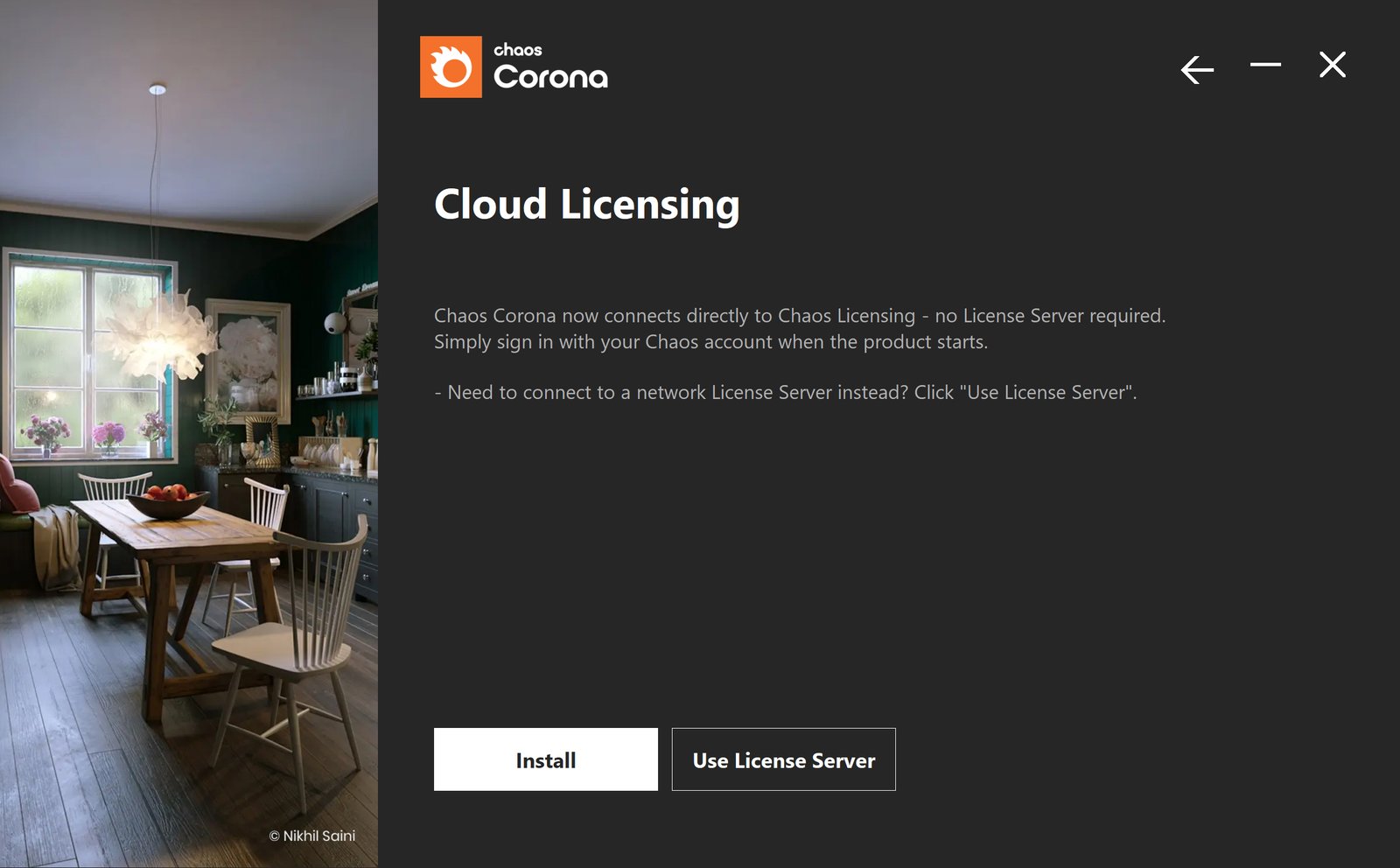
2. Cloud Licensing
When installing for the first time, Corona uses Cloud Licensing by default.
Click Install to continue with Cloud Licensing. If you need to connect to a network License Server, click Use License Server.
Chaos products use two licensing models: Cloud Licensing and the License Server. Cloud Licensing offers maximum flexibility, allowing users to sign in with their Chaos Account and use products from any location with an Internet connection. The License Server allows to set up centralized network setups and requires you to be on the same local network or connect through a VPN.
3. Chaos Telemetry
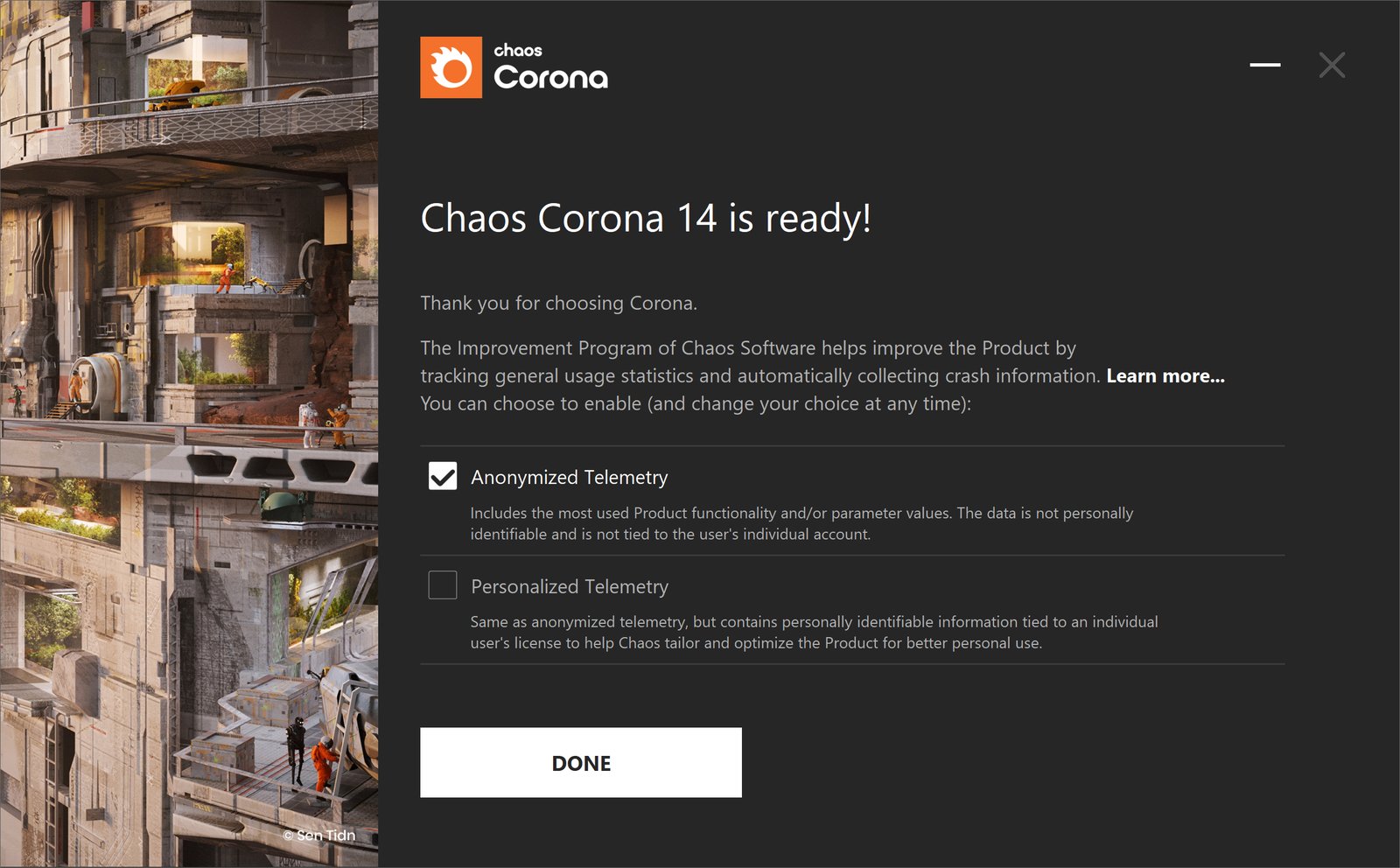
Corona installation is successful.
Participate in the improvement decisions for future versions of Corona. No intellectual property is violated when agreeing to participate in the improvement program. Chaos does not collect scenes, assets, materials, etc. This preference can be changed anytime from the Preferences window > Renderer > Corona > Product Usage Data. For more information, see the Chaos Telemetry page.
Anonymized Telemetry – Includes the most used product functionality and/or parameter values. The data is not personally identifiable and is not tied to the user's individual account.
Personalized Telemetry – Includes the most used product functionality, parameter values, but also contains personally identifiable information tied to an individual user's license. This helps Chaos tailor and optimize the product for better personal use.
Advanced Installation Settings
After reading and accepting the End User License Agreement and the Global Consumer Privacy Policy, you can customize the installation by clicking Advanced. Read this section for more details on what settings you can customize.
1. Advanced
You can specify for which version of Cinema 4D to install Corona. You can also select components you wish to install:
Click Continue to proceed.

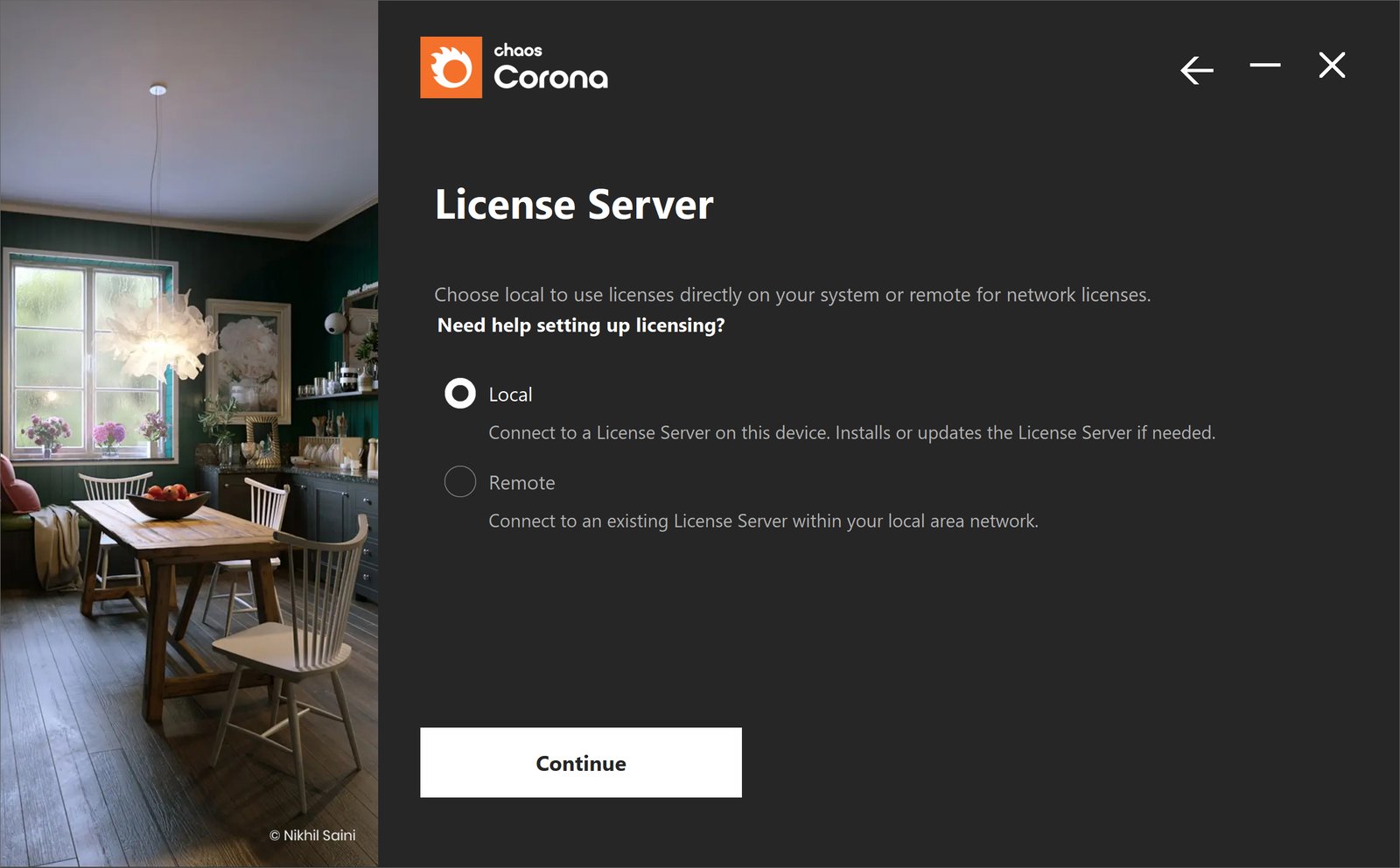
2. Licensing
In this step, you can specify whether Corona uses Cloud Licensing - a direct connection to the Chaos Licensing Service, or the Chaos License Server.
Cloud Licensing allows you to use your product from any location with an Internet connection by signing in with your Chaos Account.
The License Server is an additional application that can be used to set up centralized network licensing and / or use offline licenses. The License Server can be installed locally on the same device as the product, or remotely - on a centrally accessible network machine within your local network.

Local – This option installs the License Server on your machine. For a walkthrough, see the Product Activation page.
Remote – This option allows you to configure your Chaos product for floating licenses in a local network. Fill in the IP address of the Chaos License Server in your network in the Primary License Server field. Please leave the port 30304 unchanged. For more details on this setup, see the License Server Deployment page
3. Chaos License Server Options
At this step, you can choose where to install the Chaos License Server.
Migrate data during installation – When enabled, it transfers all of your settings made with older versions of the License Server, such as proxy settings, etc. Disabling this option makes a clean install of License Server with any custom settings from previous installations reset to their defaults.
Add firewall exception – Allows the default licensing port (TCP 30304) in the firewall. If you disable it at this step, you must manually add firewall exceptions later.
