Corona for Cinema 4D
Corona Sky Shader
This article explains the settings and values for the Corona Sky shader in Cinema 4D.
Last updated 20 March 2026
This article explains the settings and values for the Corona Sky shader in Cinema 4D.
Overview
The Corona Sky shader is a procedural shader that can be used to illuminate your scene with a realistic skylight. By default, it is visible directly, in reflections and in refractions; it casts light onto the scene objects and bounces around, producing global illumination, just like in real life.
Once a combination of Corona Sky and Corona Sun is used, the sky's appearance will be automatically updated based on the sun's position, for example, casting warmer light when the sun is closer to the horizon and cooler light if the sun is in the zenith position.
Tutorial: Sun and Sky with Chaos Corona for Cinema 4D
Shader Properties
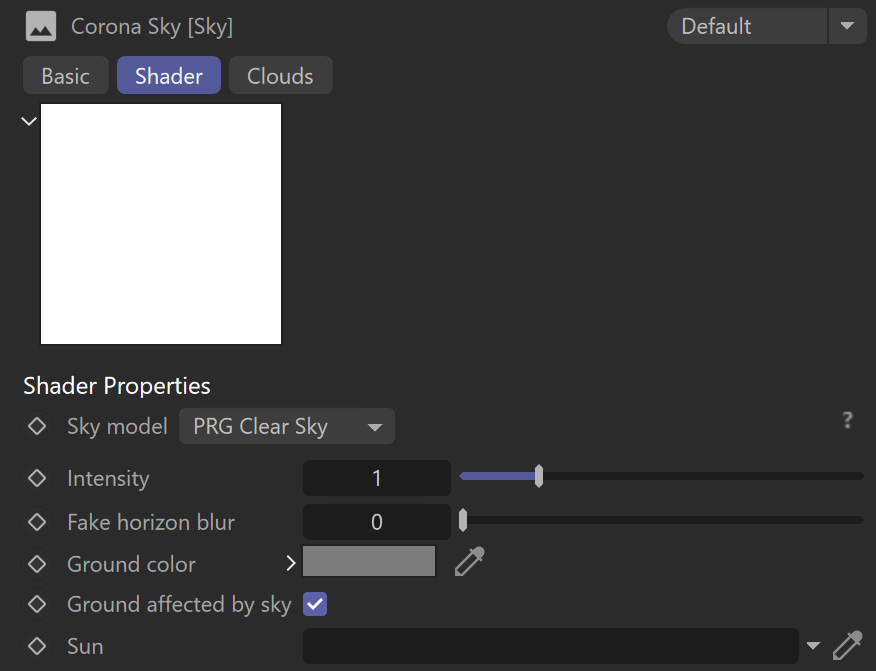
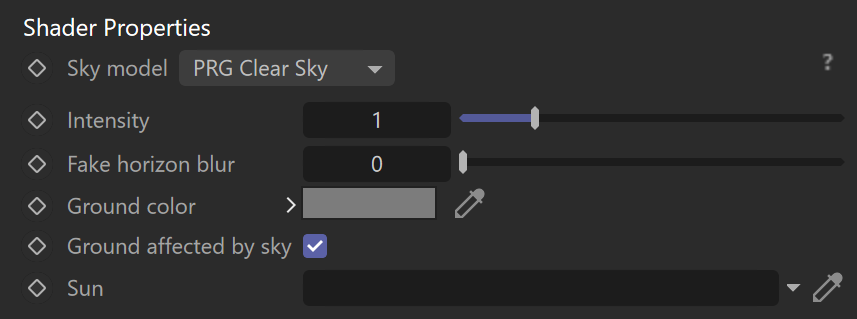
Sky model – This parameter sets the sky model used in the render.
Rawa-fake – This is a "fake" (non-physical) sky model, which allows for easier customization (the Zenith color, Horizon color, Sundisk glow, and Sun color bleed values can be changed under "Rawafake model parameters" once this model is selected).
Hosek & Wilkie – Previously, this was the most recommended and realistic sky model (in Corona Renderer 5 and older). It produces realistic results; however, it has some disadvantages compared to the PRG Clear Sky Model - for example, it does not allow rendering of the sun disk below the horizon and casts a greenish hue into the scene.
PRG Clear Sky – This model was introduced in Corona Renderer 6. It provides greater accuracy, and most importantly, the sky continues to be accurately illuminated when the sun is below the horizon, down to as low as -2.85 degrees (or approximately 5.4 sun diameters below the horizon), which enables dawn and twilight effects.
Intensity – This value sets the intensity of the skylight.
Fake horizon blur – This parameter defines how much the horizon blurs in the render.
Ground color – This parameter defines the color of the ground below the horizon.
Ground affected by Sky – When enabled, the virtual ground is affected by the skylight.
Sun – This parameter defines the Corona Sun object in the scene used to affect the sky color when the Sun position changes.

Preetham et.al.

Rawa-Fake

Hosek & Wilkie
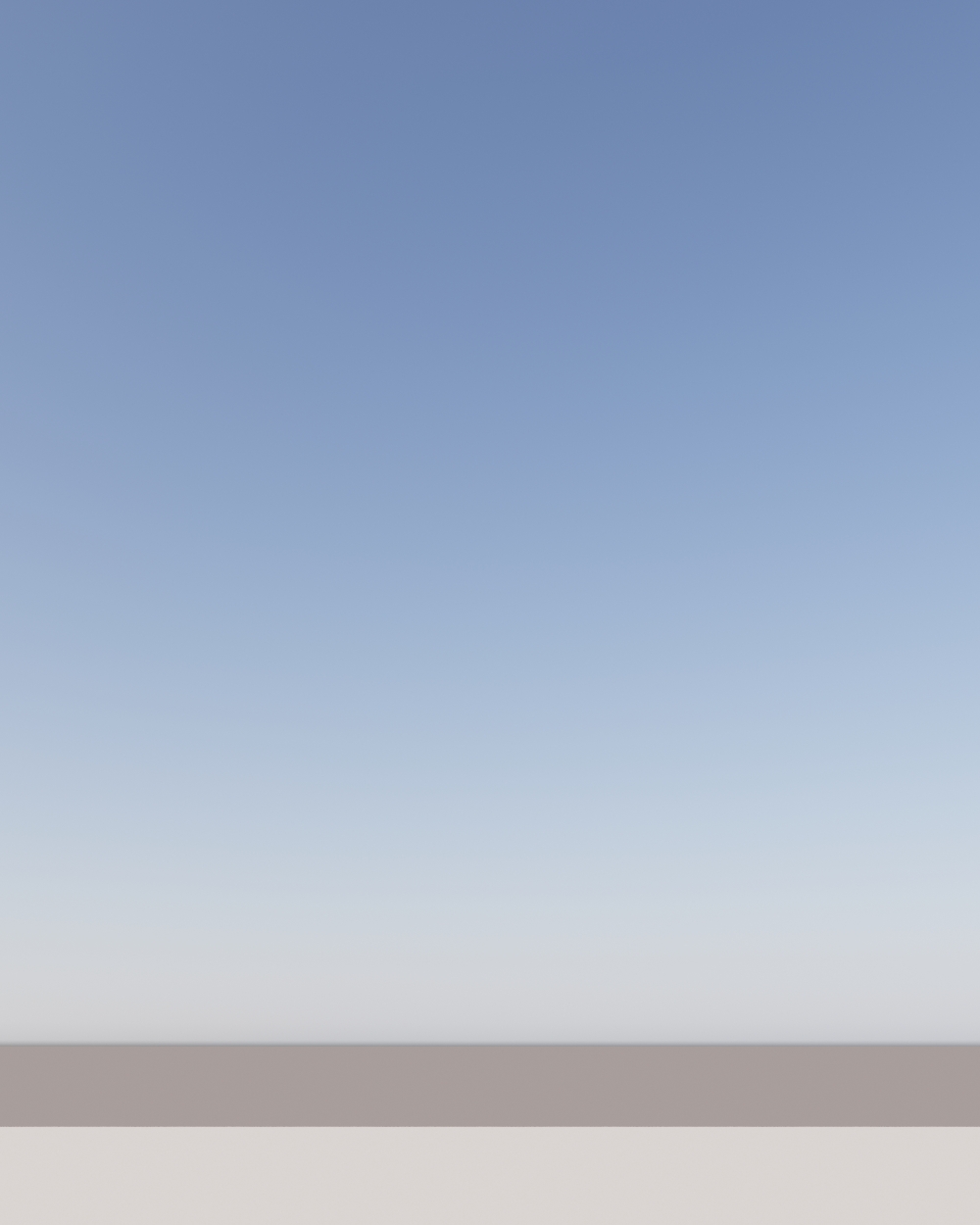
PRG Clear Sky
PRG Clear Sky - Intensity

Intensity = 0.1
Intensity = 1

Intensity = 5
PRG Clear Sky - Fake Horisont Blur

Fake Horisont Blur = 0

Fake Horisont Blur = 0.01
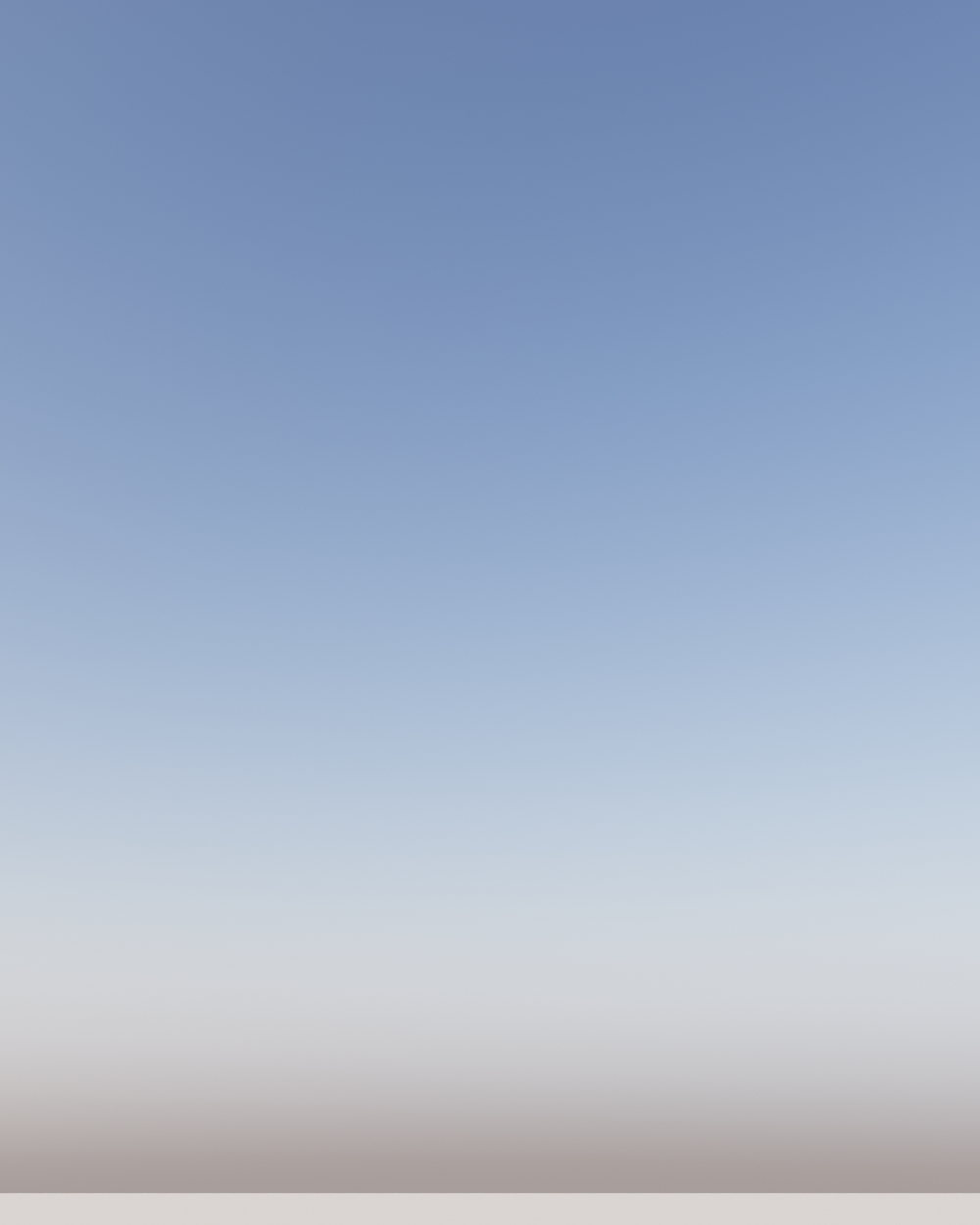
Fake Horisont Blur = 0.1

Fake Horisont Blur = 0.25
Sky model PRG Clear Sky
Turbidity – This value defines the number of pollutants (smog) in the atmosphere. Increasing the value makes the sky hazier, while decreasing it makes the sky clearer.
Altitude [m] – This parameter sets the altitude at where the viewer is located. With higher values, the sky gets clearer and the horizon line less sharp.

PRG Clear Sky - Turbidity

Trubidity = 2.5

Turbidity = 7.5
PRG Clear Sky - Altitude [m]
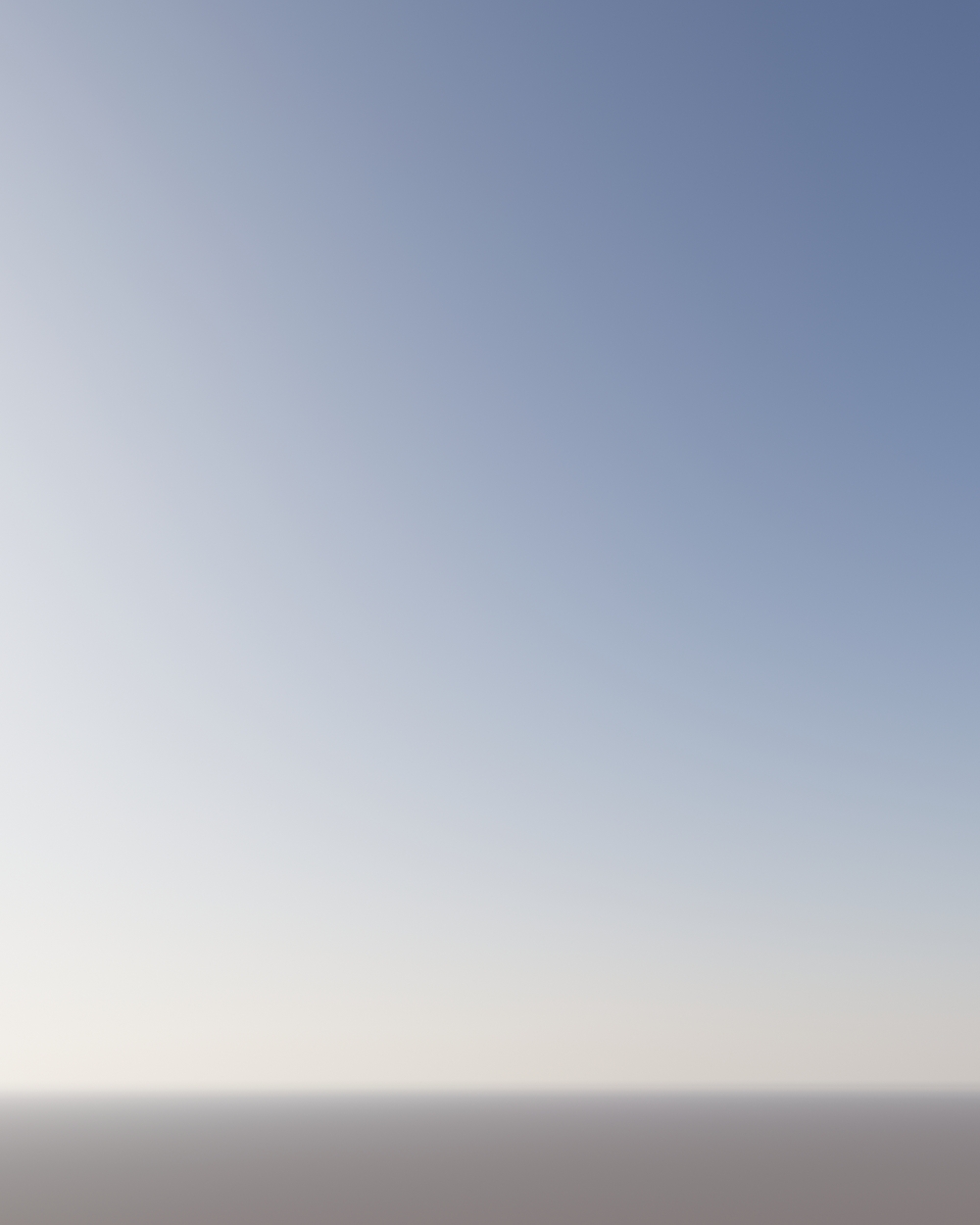
Altitude = 100m

Altitude = 1500m
PRG Clear Sky - Volume effect
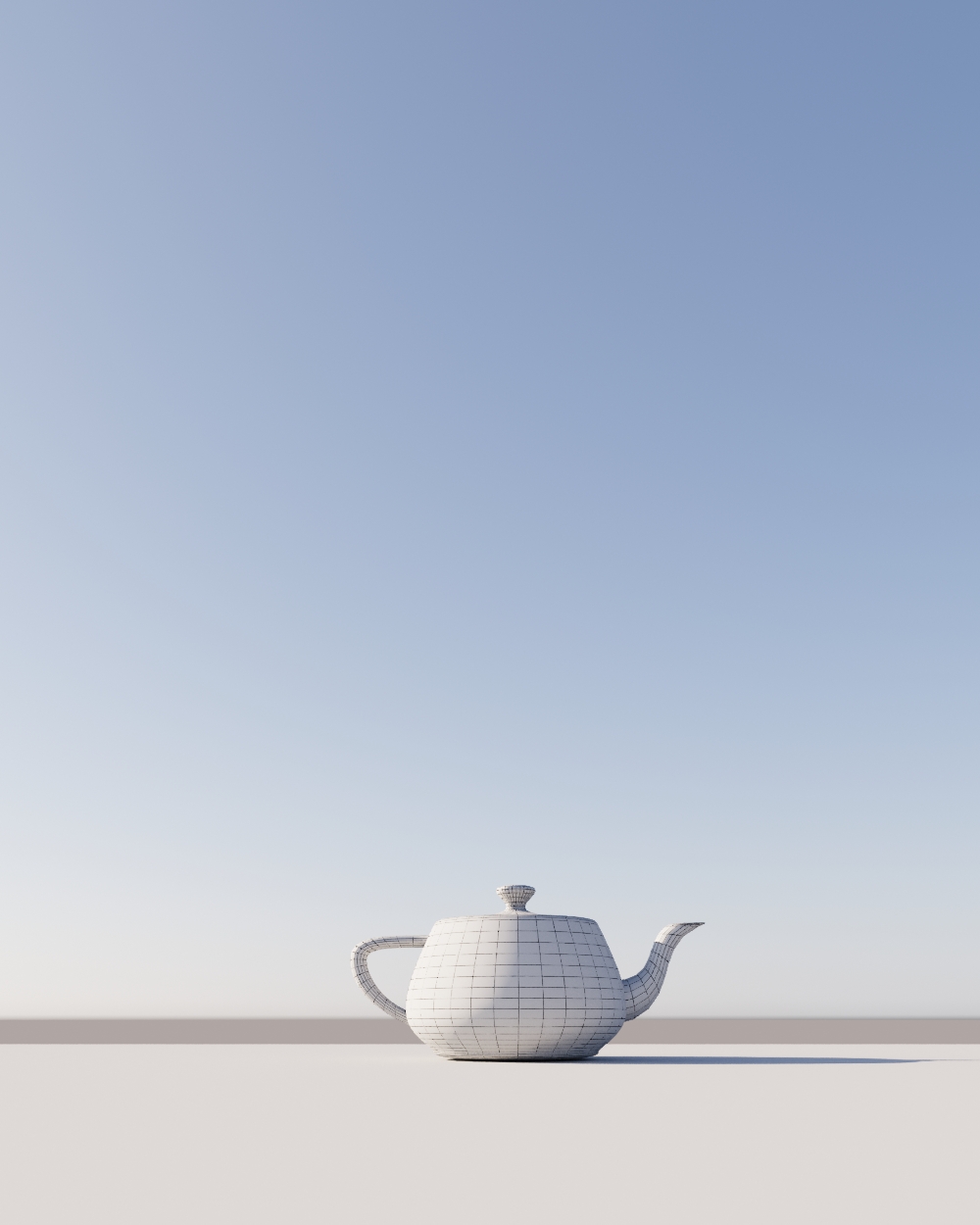
Volume effect = off
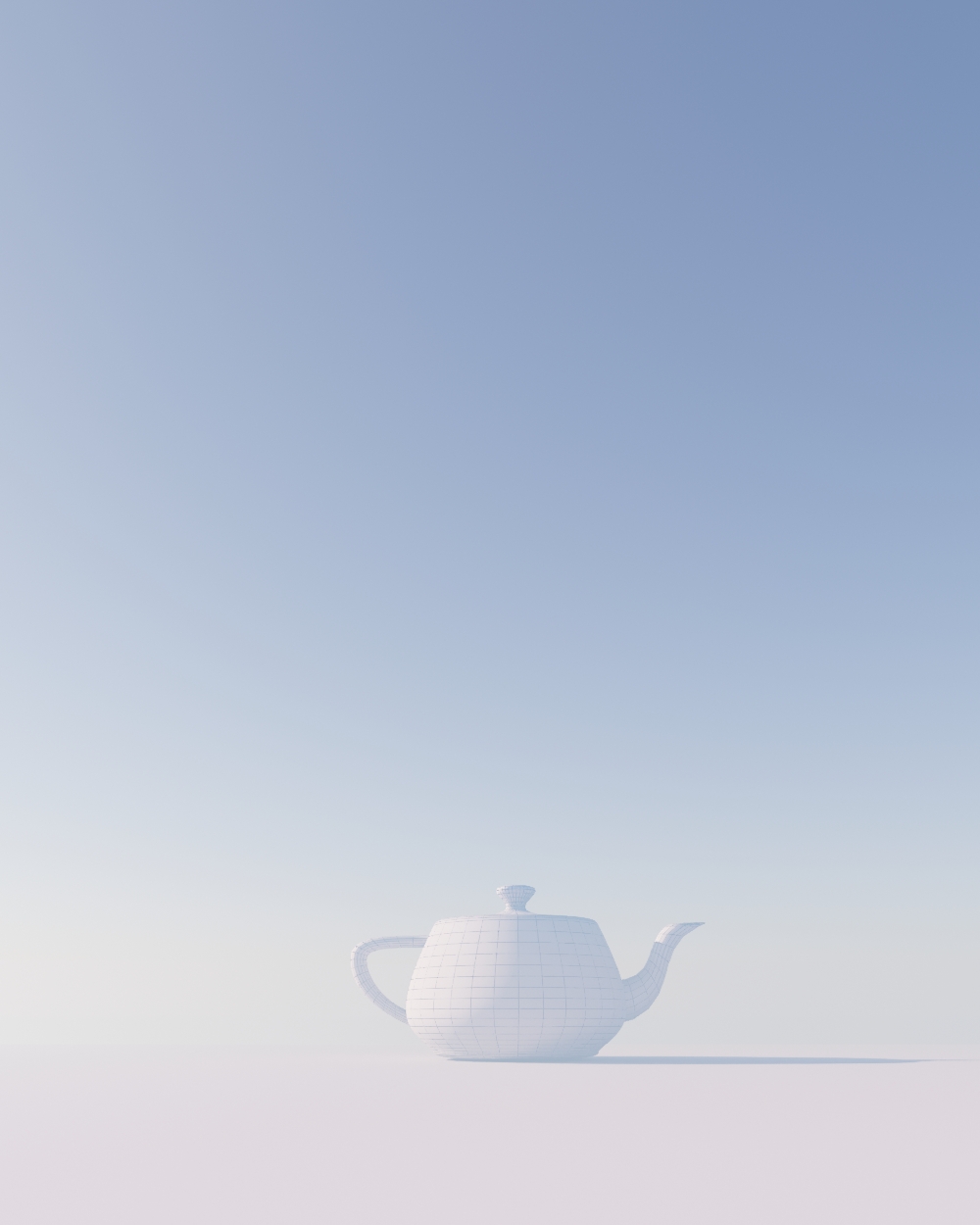
Volume effect = on
PRG Clear Sky - Scale
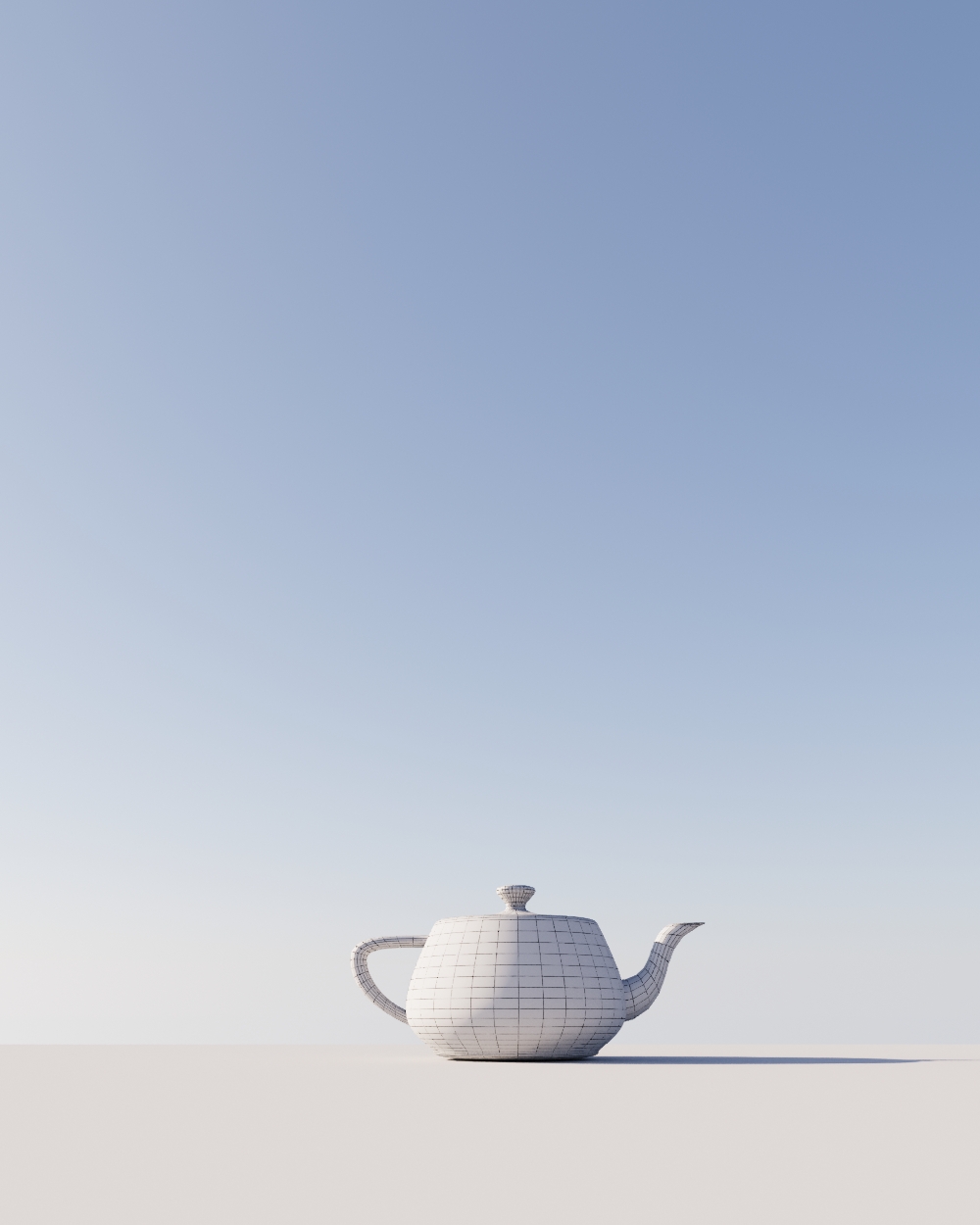
Scale = 0
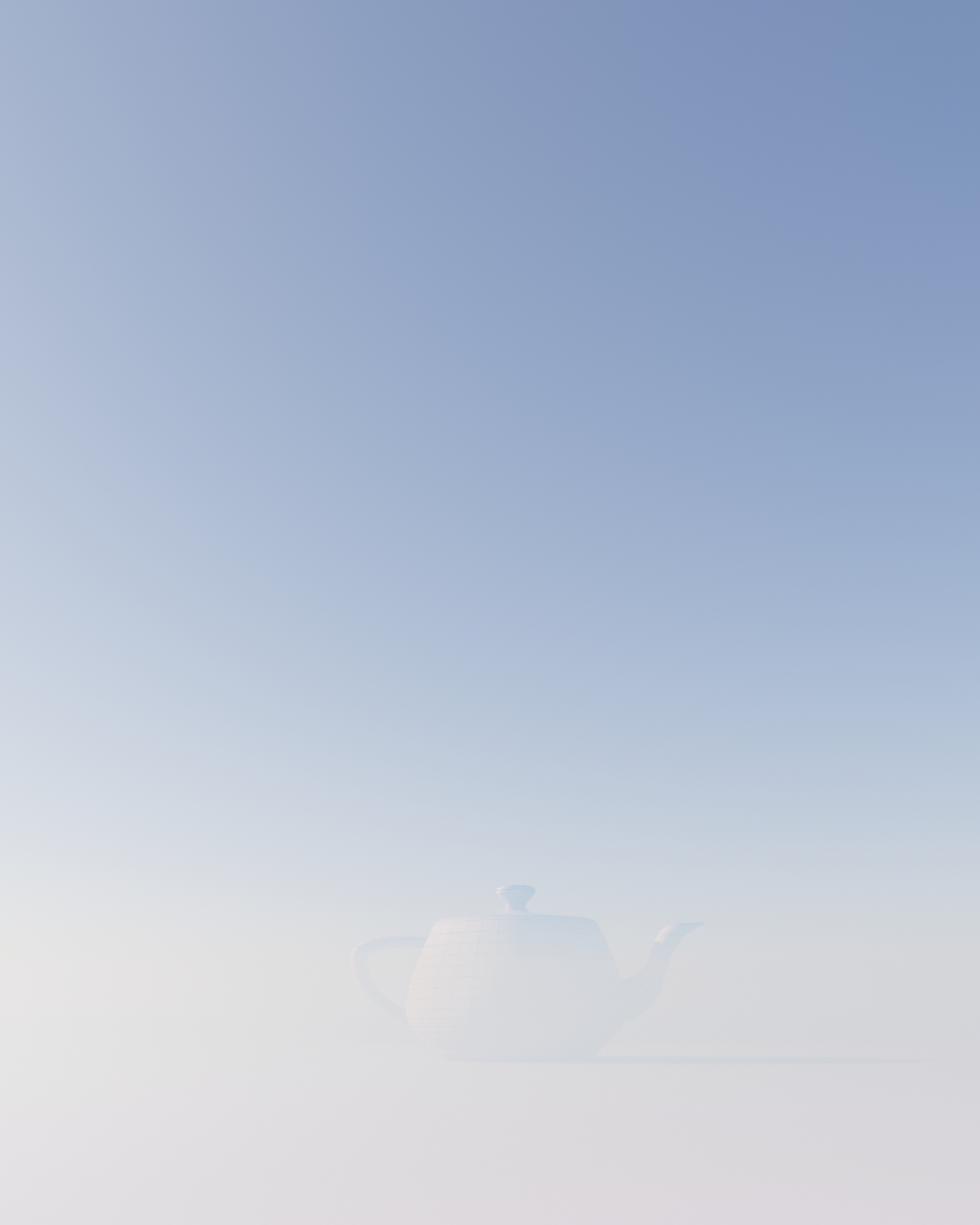
Scale = 50
Sky model Rawa-fake
Zenith color – This parameter sets the overall sky color.
Horizon color – This parameter defines the overall horizon color.
Sundisk glow – This value sets the amount of glowing from the Sundisk.
Sunside glow – This value sets the amount of overall ambiance glowing depending on where the Sun is located.
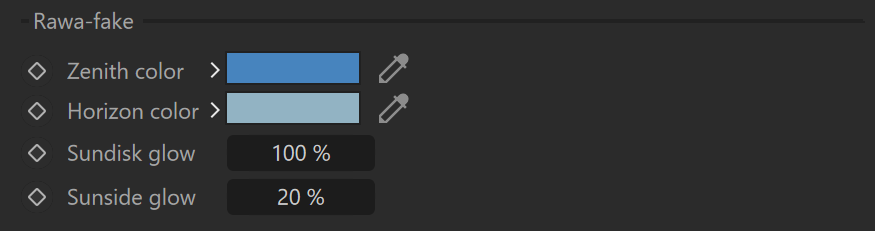
Rawa-fake - Horizon color

Horizon color= light blue

Horizon color = light pink
Rawa-fake - Zenith color

Zenith color = dark blue

Zenith color = purple
Rawa-fake - Sunside glow

Sunside glow = 20%

Sunside glow = 100%
Rawa-fake - Sundisk glow

Sundisk glow = 20%

Sundisk glow = 100%
Sky model Hosek & Wilkie
Turbidity – This value defines the number of pollutants (smog) in the atmosphere. Increasing the value makes the sky hazier, while decreasing it makes the sky clearer.

Turbidity = 2.5

Turbidity = 5

Turbidity = 10
Clouds
Enable – This checkbox enables the Cloud system for the Sky.
Amount – This value is the amount of the main clouds (stratus, cumulus, cumulonimbus). A value equal to zero means there are no such clouds in the sky, while a value equal to 1 means the sky is full of these clouds.
Variety – This value randomly changes the appearance of the main clouds.
Cirrus amount – This value sets the amount of cirrus clouds (clouds high in the sky). A value equal to zero means that no cirrus clouds are visible, while a value equal to one means the maximum amount of cirrus clouds in the sky.
Phase – This value determines minor perturbation of the clouds to simulate their change in time.
Seed –Generates new clouds when the value is changed.
Density scale –Controls the density appearance of the main clouds. A value of 1 means no additional scaling; increasing the value leads to denser clouds while decreasing the value results in lower-density clouds.

Tutorial: Procedural Clouds with Chaos Corona for Cinema 4D
Clouds - Amount
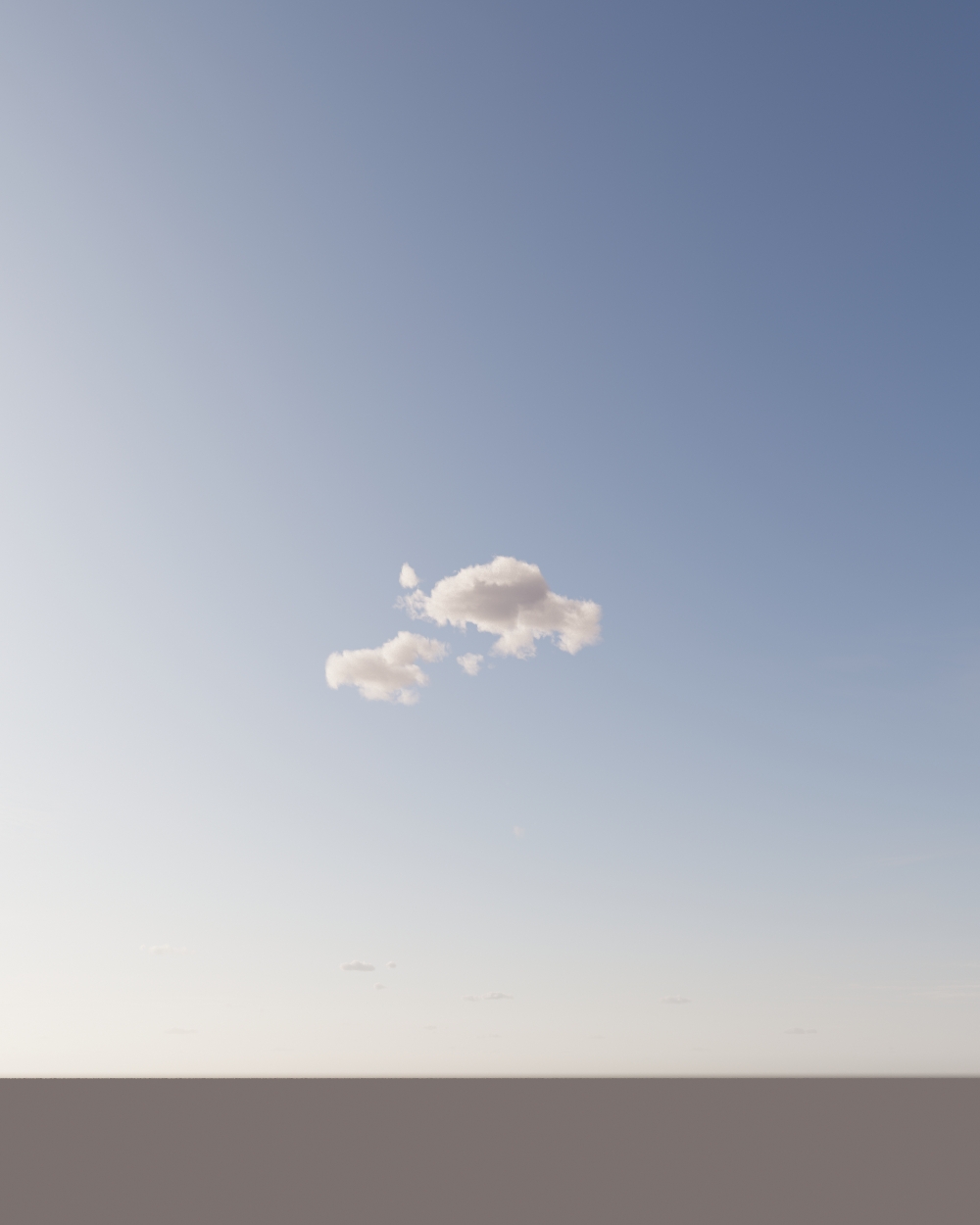
Amount = 25%

Amount = 75%
Clouds - Variety

Variety = 25%

Variety = 75%
Cirrus Amount
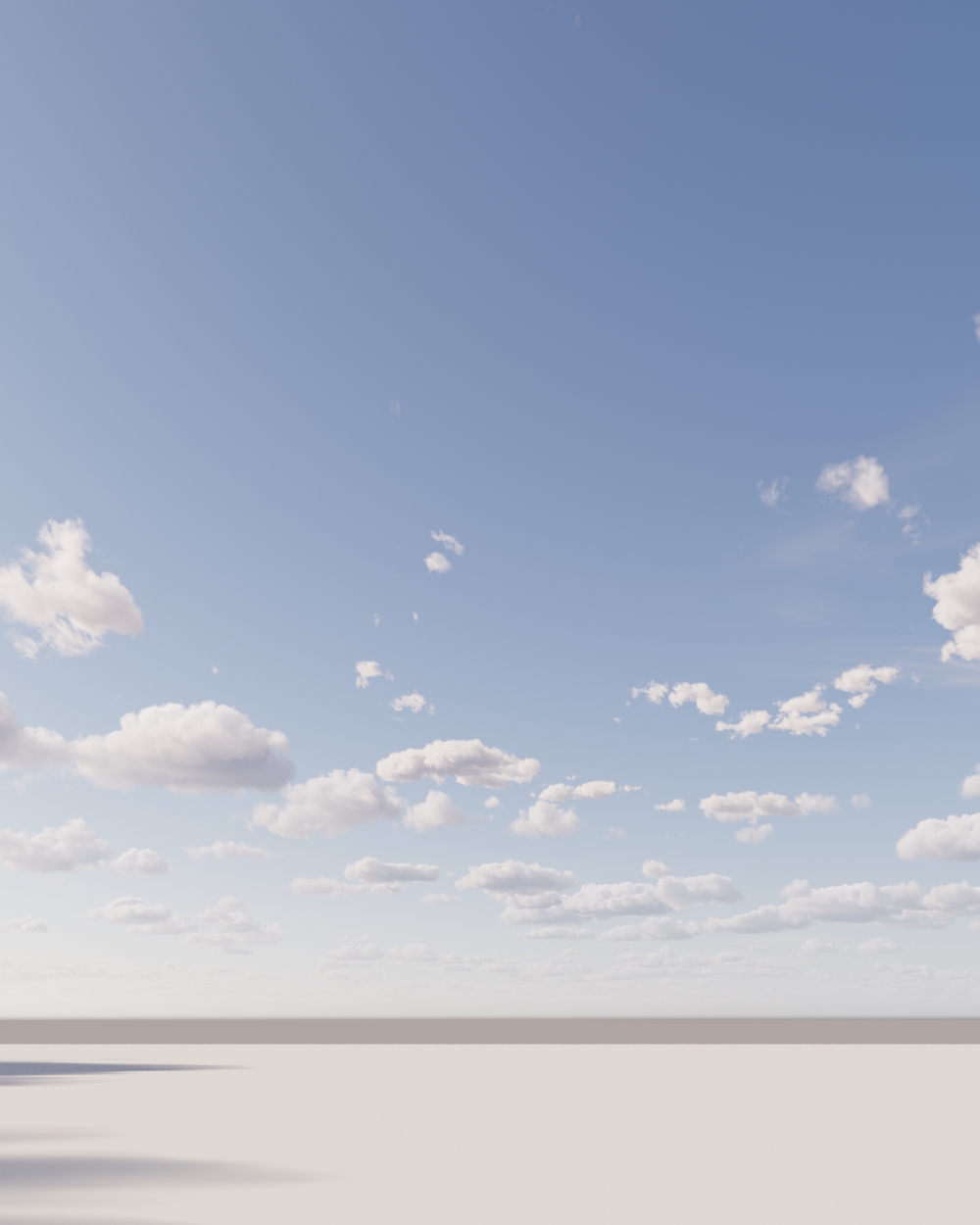
Cirrus Amount = 0.25

Cirrus Amount = 0.5

Cirrus Amount = 0.75
Clouds Phase

Phase = 0%

Phase = 50%
Clouds Density Scale

Clouds Density Scale = 0.1

Clouds Density Scale = 0.5

Clouds Density Scale = 1

Clouds Density Scale = 10
Clouds Seed

Cloud Seed = 0

Cloud Seed = 5

Cloud Seed = 10

Cloud Seed = 50
Clouds Position
Altitude [m] – This value controls the altitude (measured from the ground) at which the main cloud starts. Measured in meters.
Height [m] – This value controls the height (thickness) of the main clouds. Increasing this value lead to heavier clouds while decreasing it results in lighter (more transparent). Measured in meters.
Offset X [m] – This value offsets clouds on the X-axis. Measured in meters.
Offset Z [m] – This value offsets clouds on the Z-axis. Measured in meters.

Clouds Position - Height [m]

Clouds Height = 500

Clouds Height = 1000
Clouds Position - Altitude [m]

Clouds Altitude = 1000

Clouds Altitude = 5000
Clouds Position - Offset X [m]

Clouds Offset X = 500

Clouds Offset X = 1000
Clouds Position - Offset Z [m]

Clouds Offset Z = 500

Clouds Offset Z = 1000
Contrails
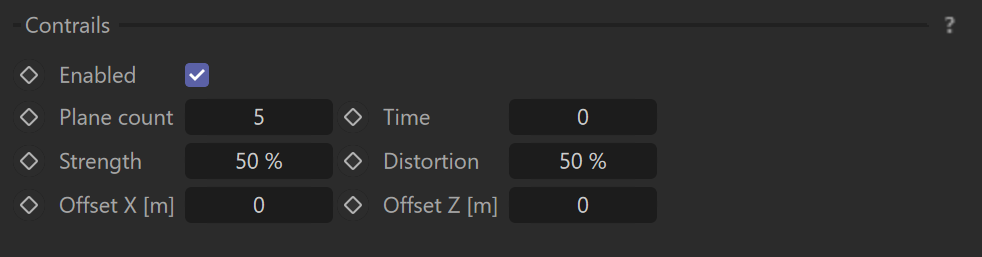
Enabled – This enables the use of contrails for the sky.
Plane count – Controls how many planes are simulated to create contrails.
Time – Controls the simulation of time - increasing time moves planes along their travel direction. Increasing this property by larger values can be used as a random seeding of the planes positions.
Strength – Determines how many contrails are visible in the sky.
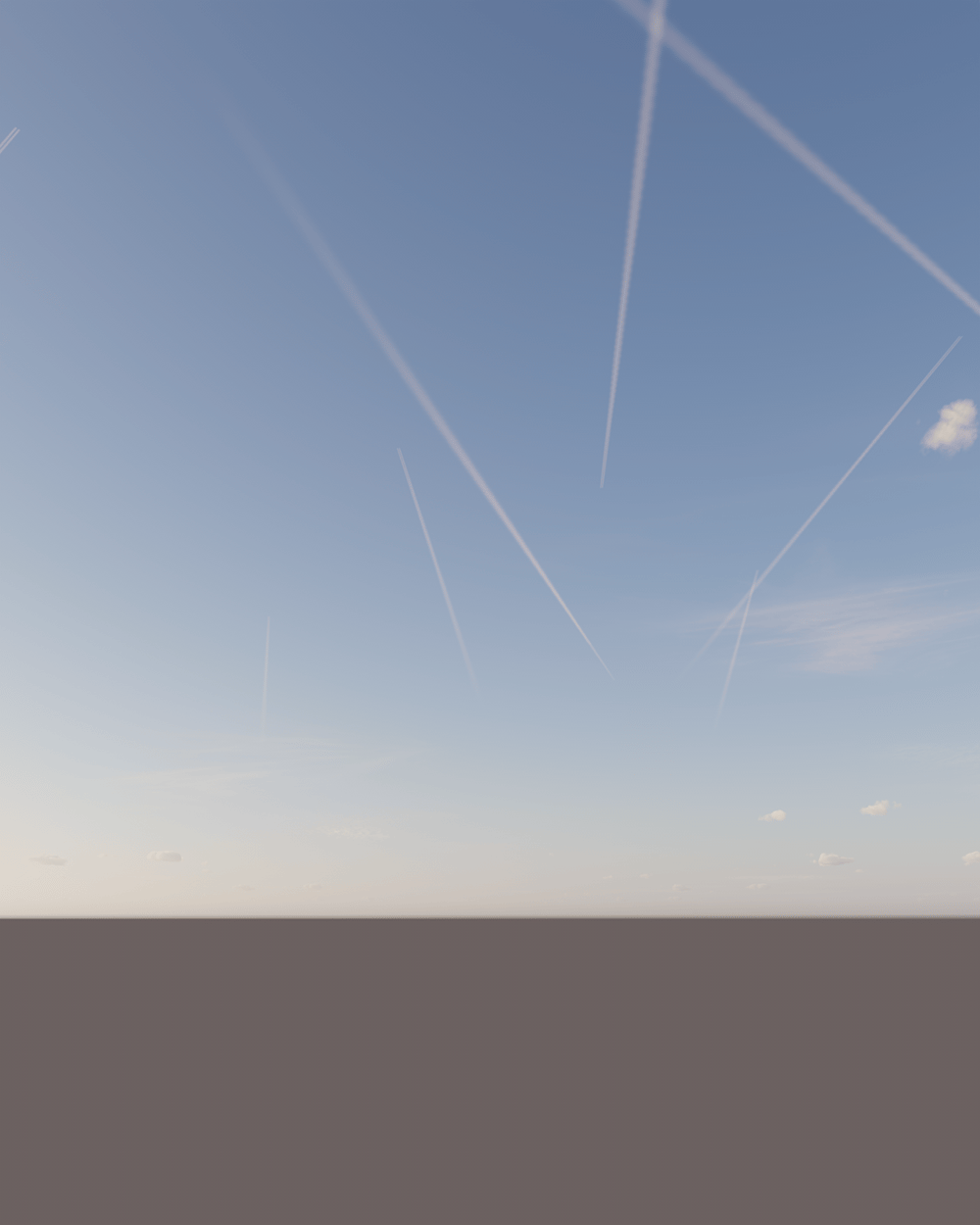
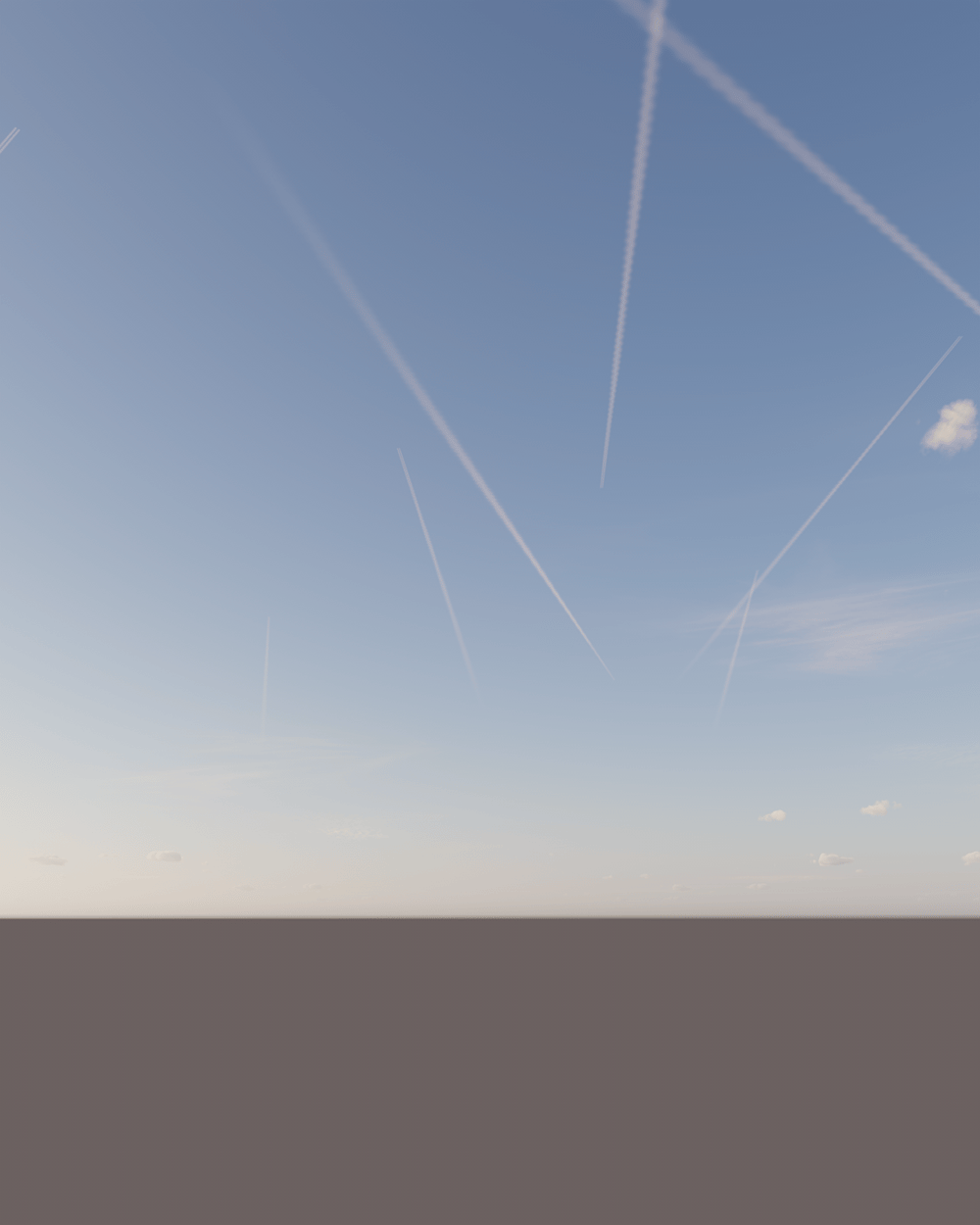
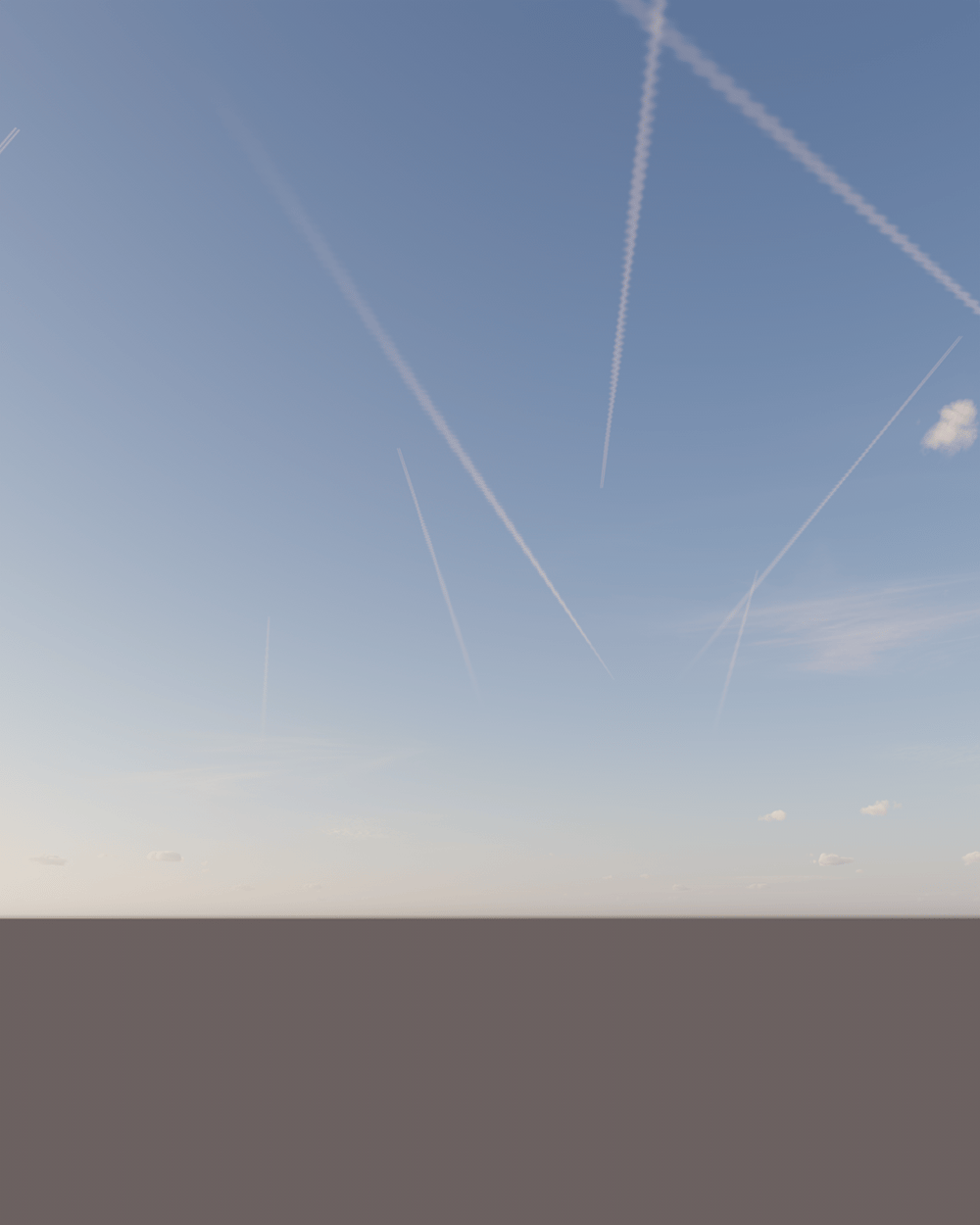
Distortion – Determines how much contrails are distorted. A value of 0% gives contrail lines without any distortions, while a value of 100% results in a maximum amount of distortion.
Offset X [m] – This value offsets contrails on the X-axis. Measured in meters.
Offset Z [m] – This value offsets contrails on the Z-axis. Measured in meters.
Clouds Contrails - Plane count
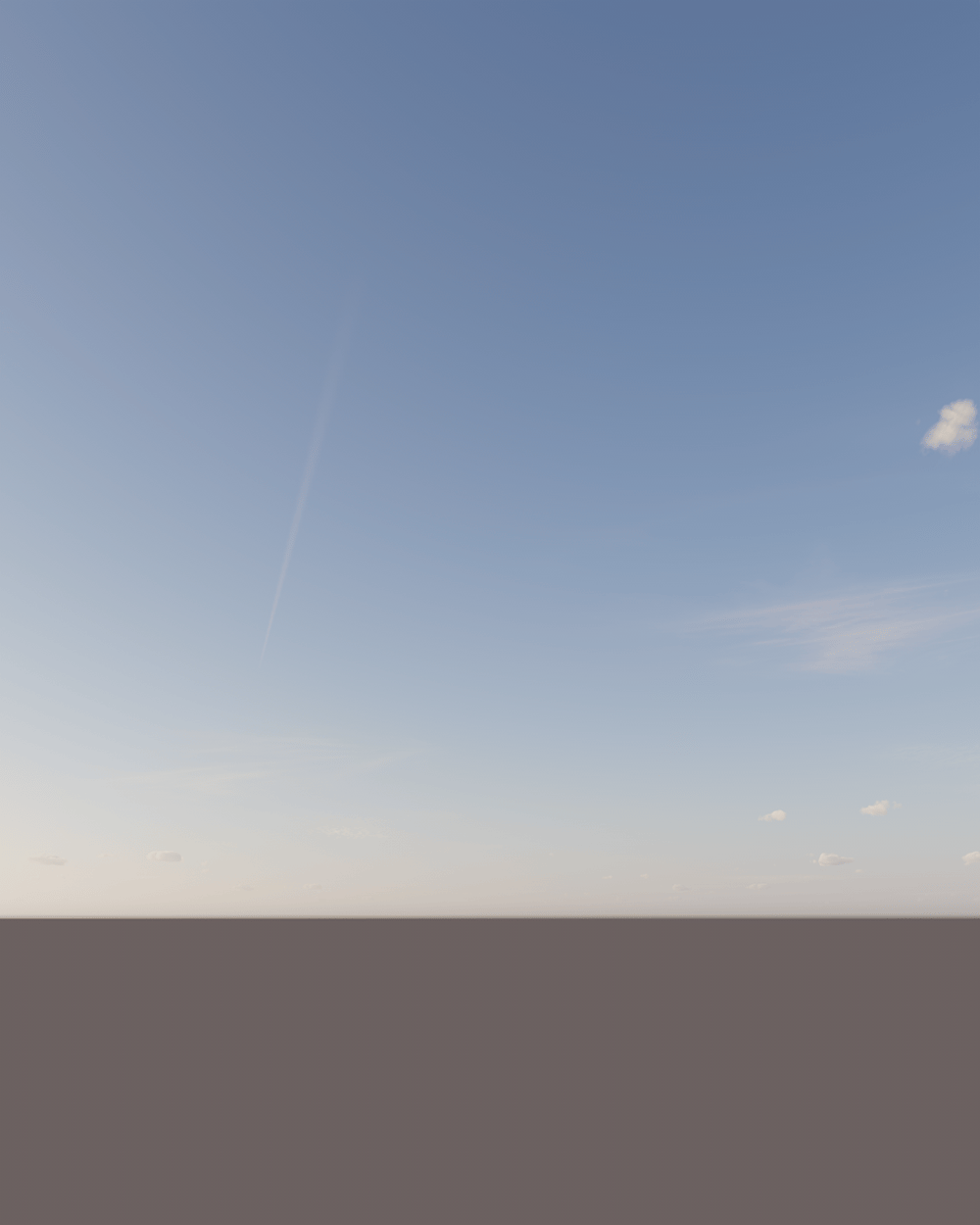
Plane count = 5
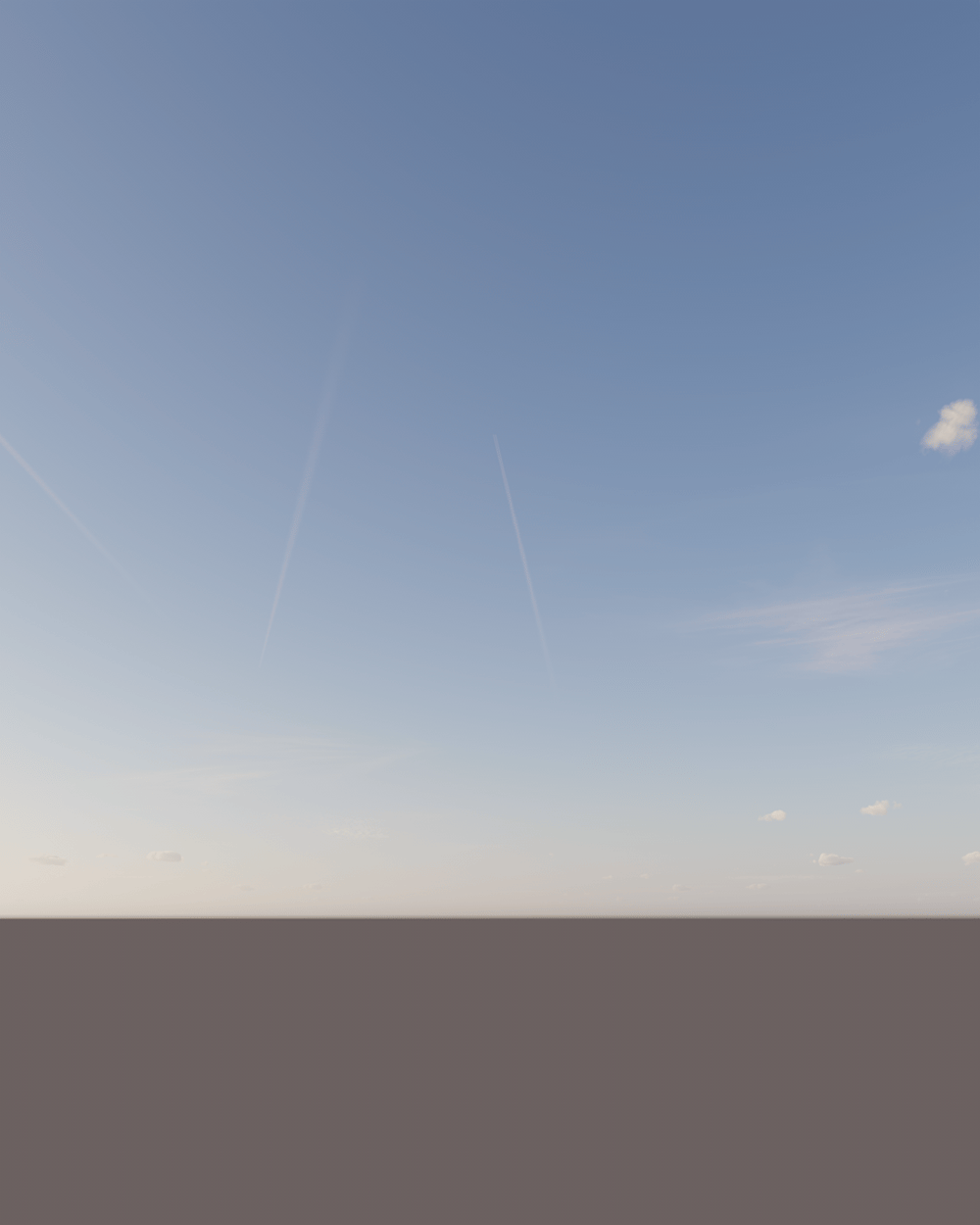
Plane count = 20
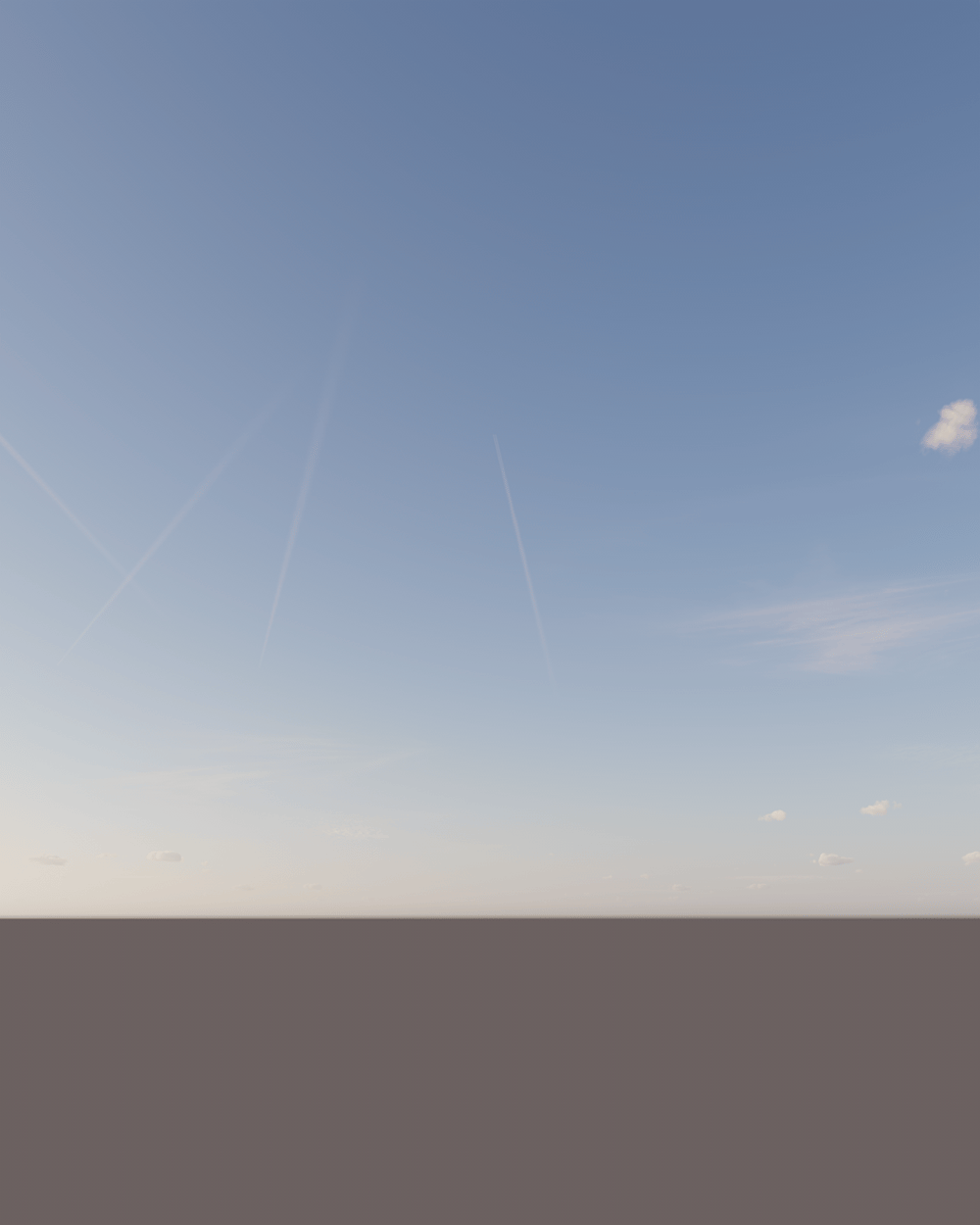
Plane count = 50
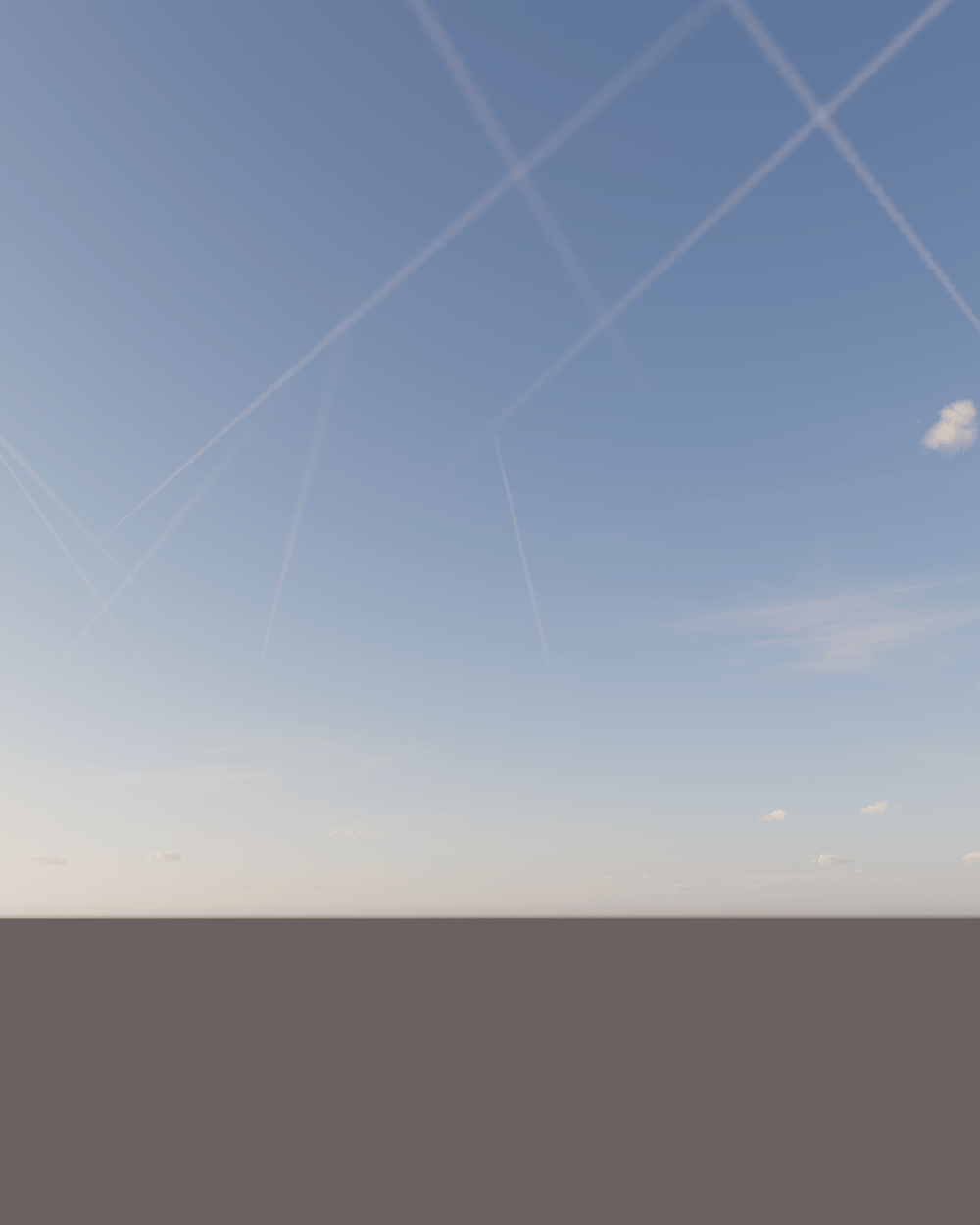
Plane count = 100
Clouds Contrails - Time
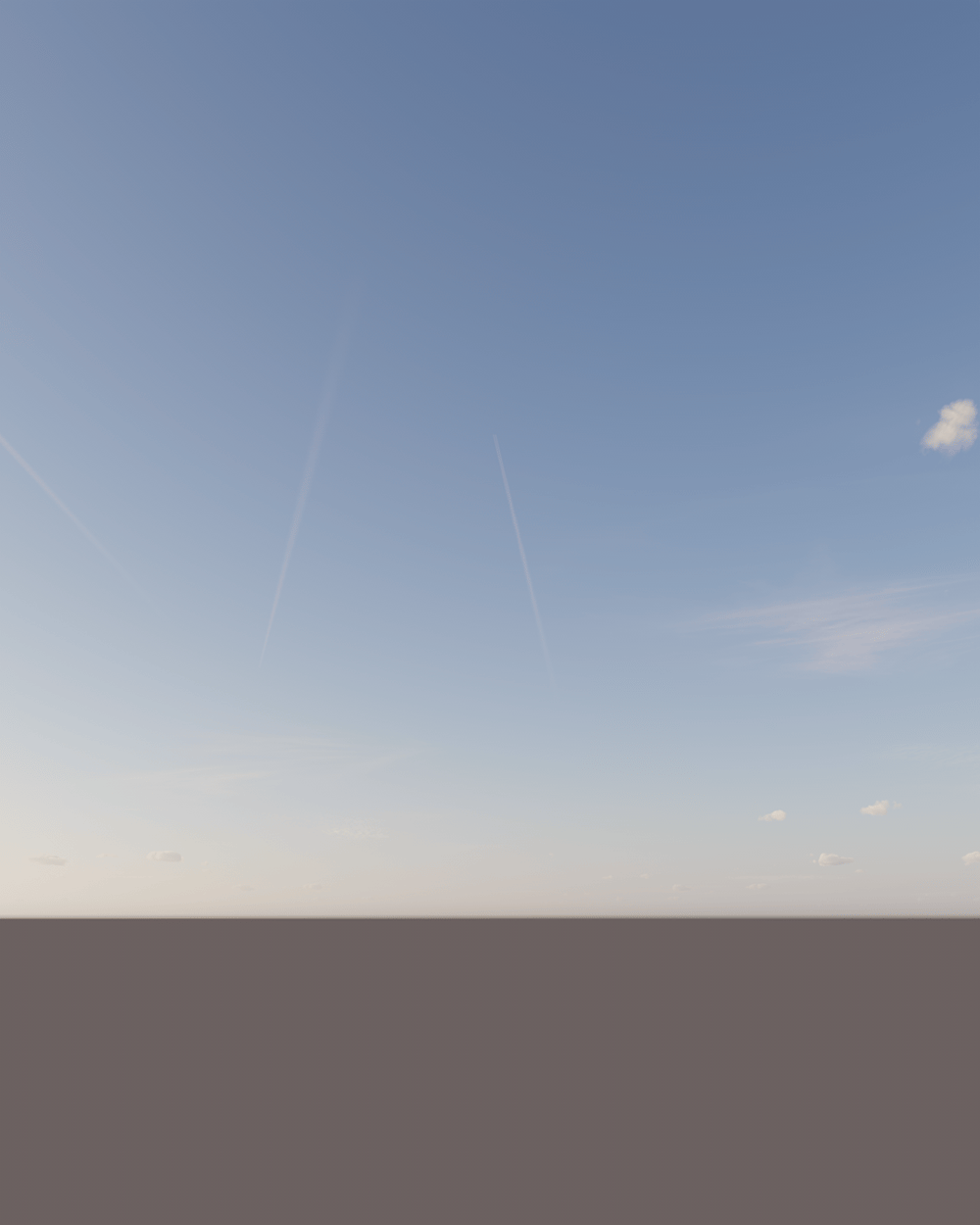
Time = 0
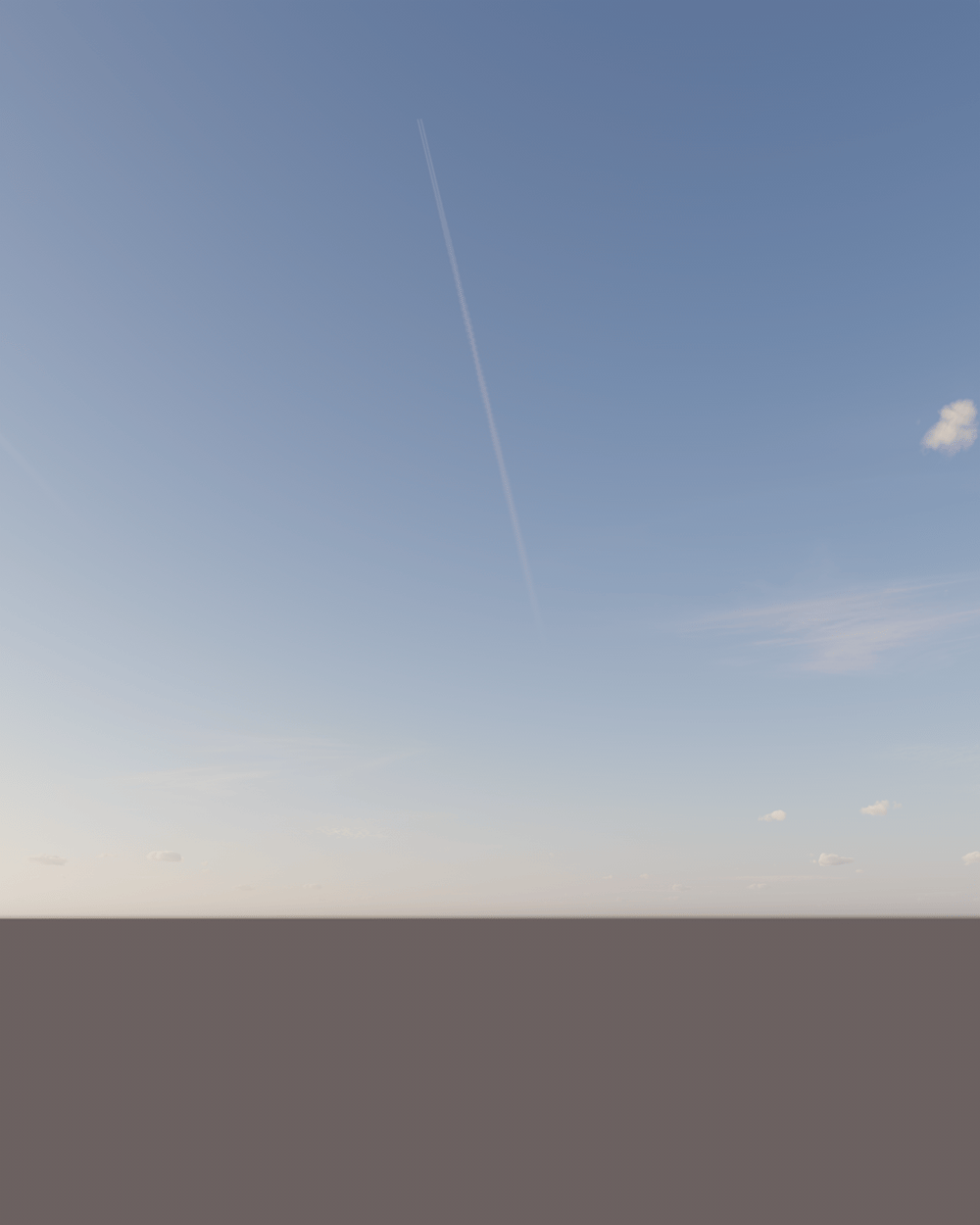
Time = 1

Time = 2
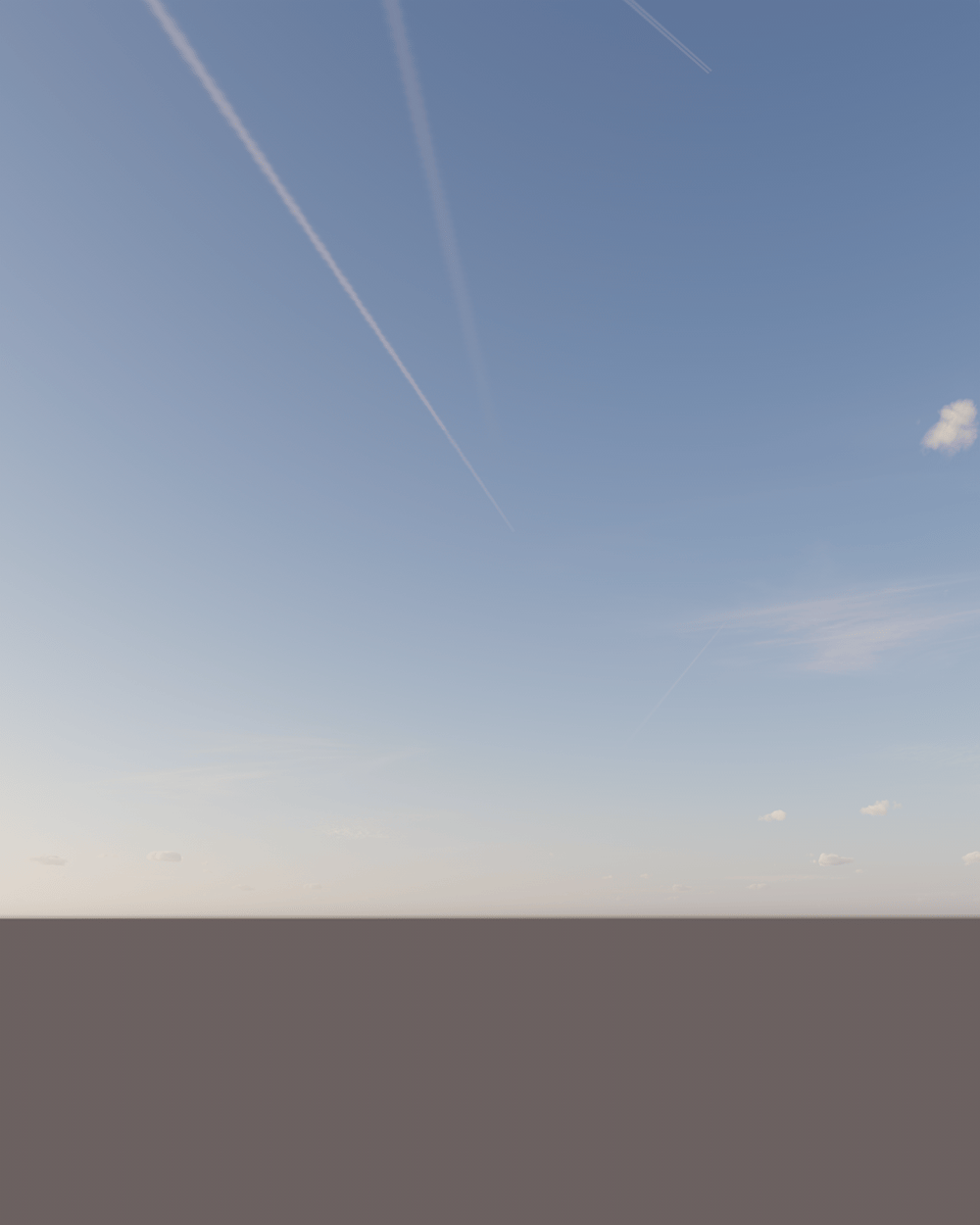
Time = 3
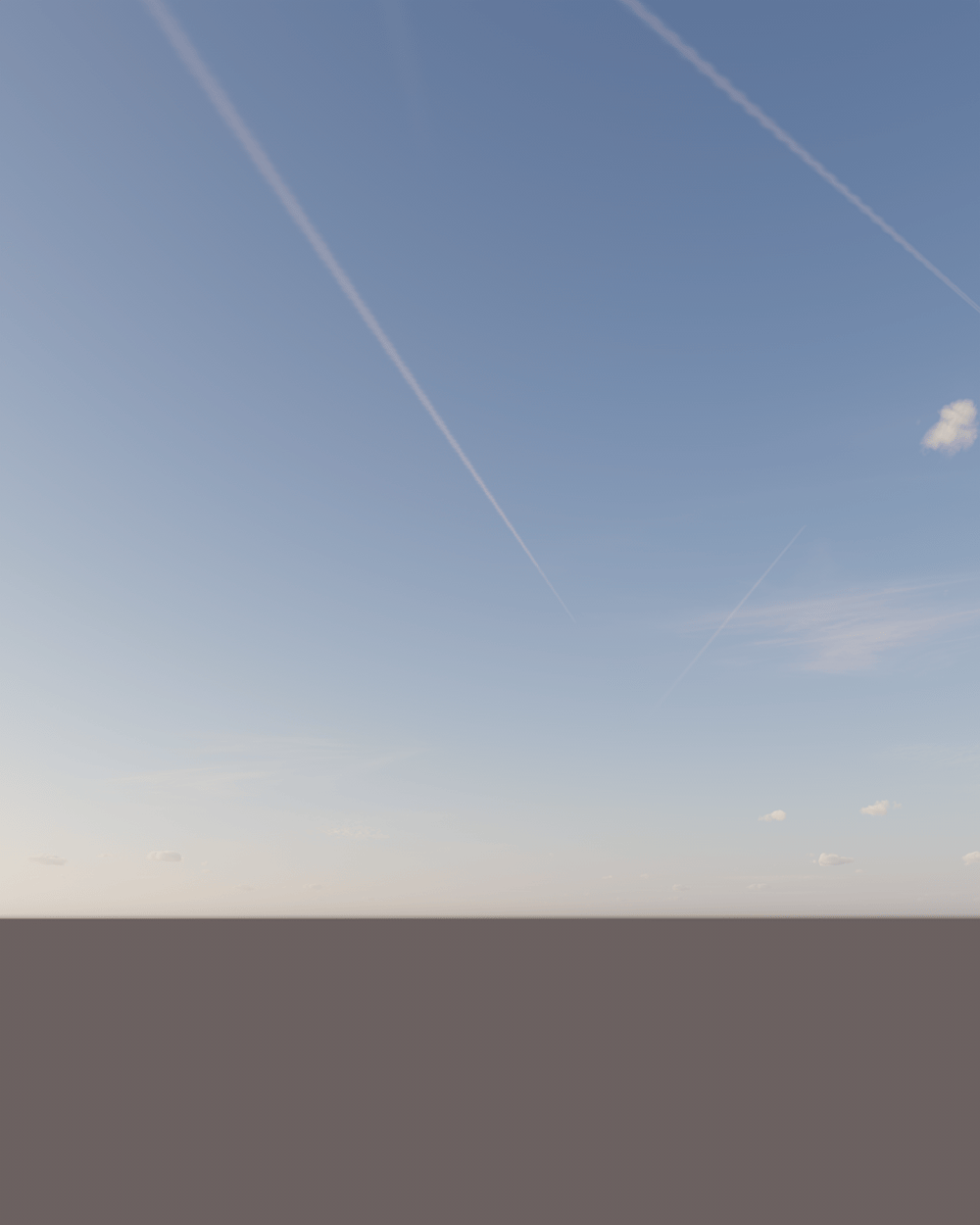
Time = 4
Clouds Contrails - Strength
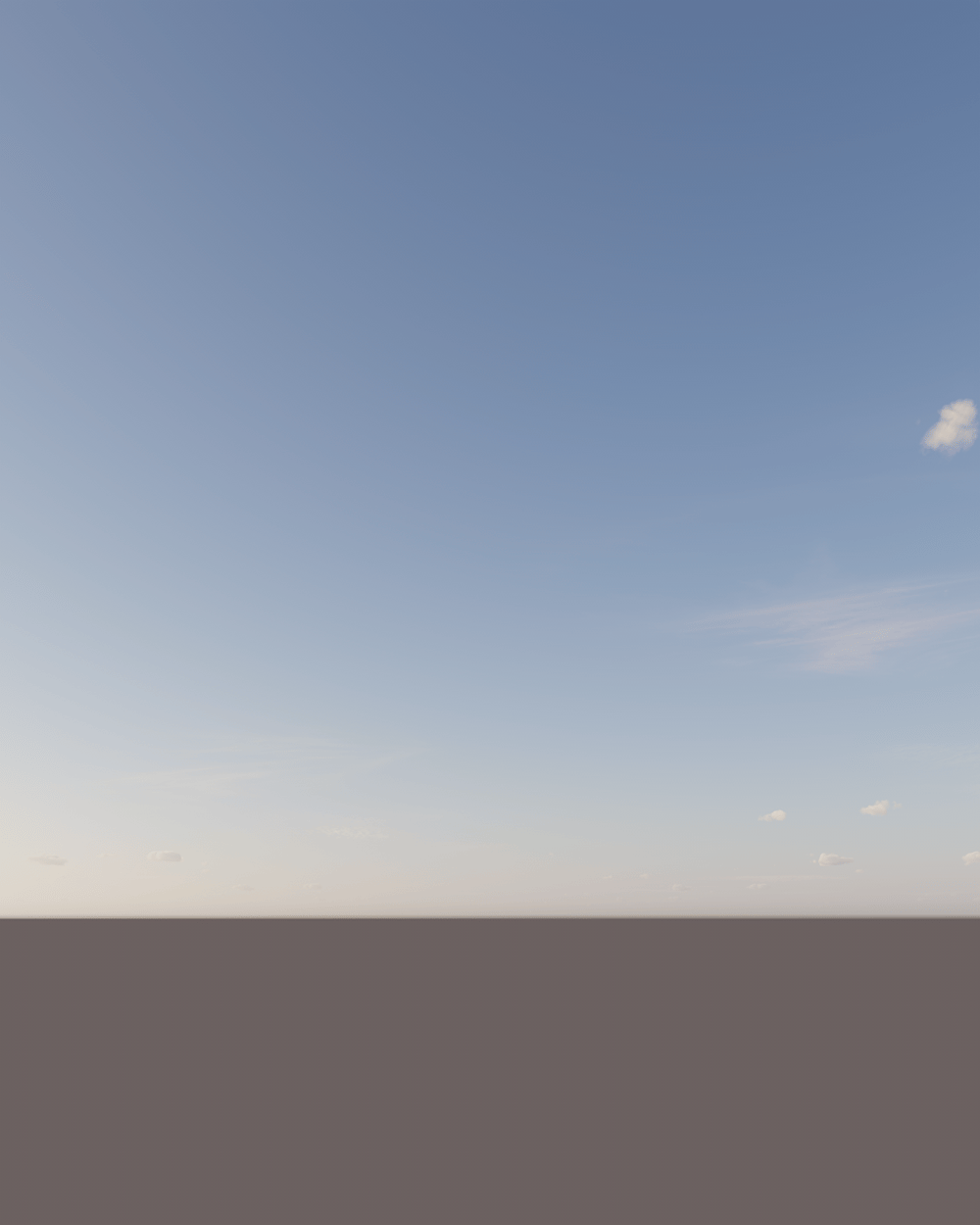
Strength = 0%
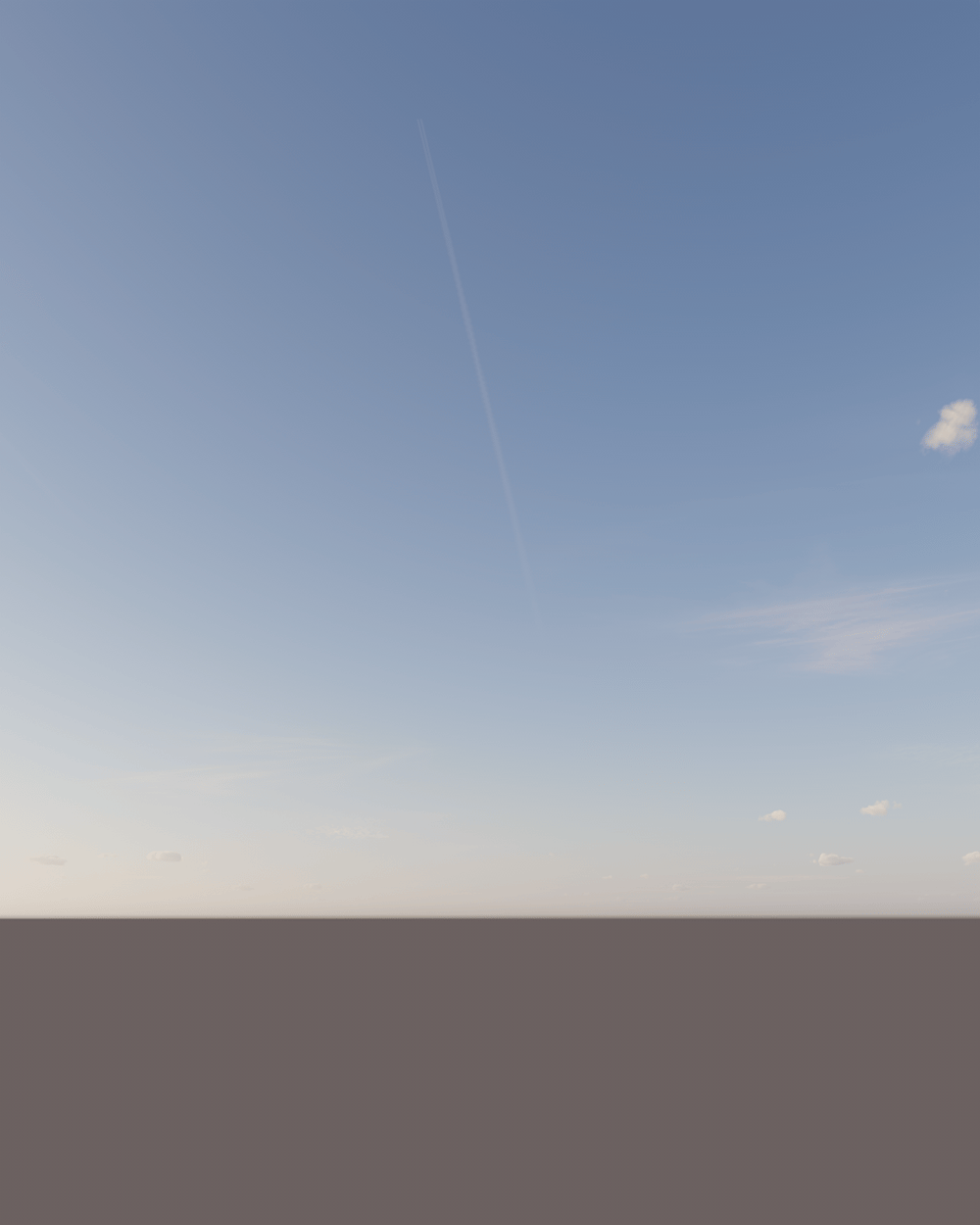
Strength = 25%

Strength = 50%
Strength = 100%
Clouds Contrails - Distortion
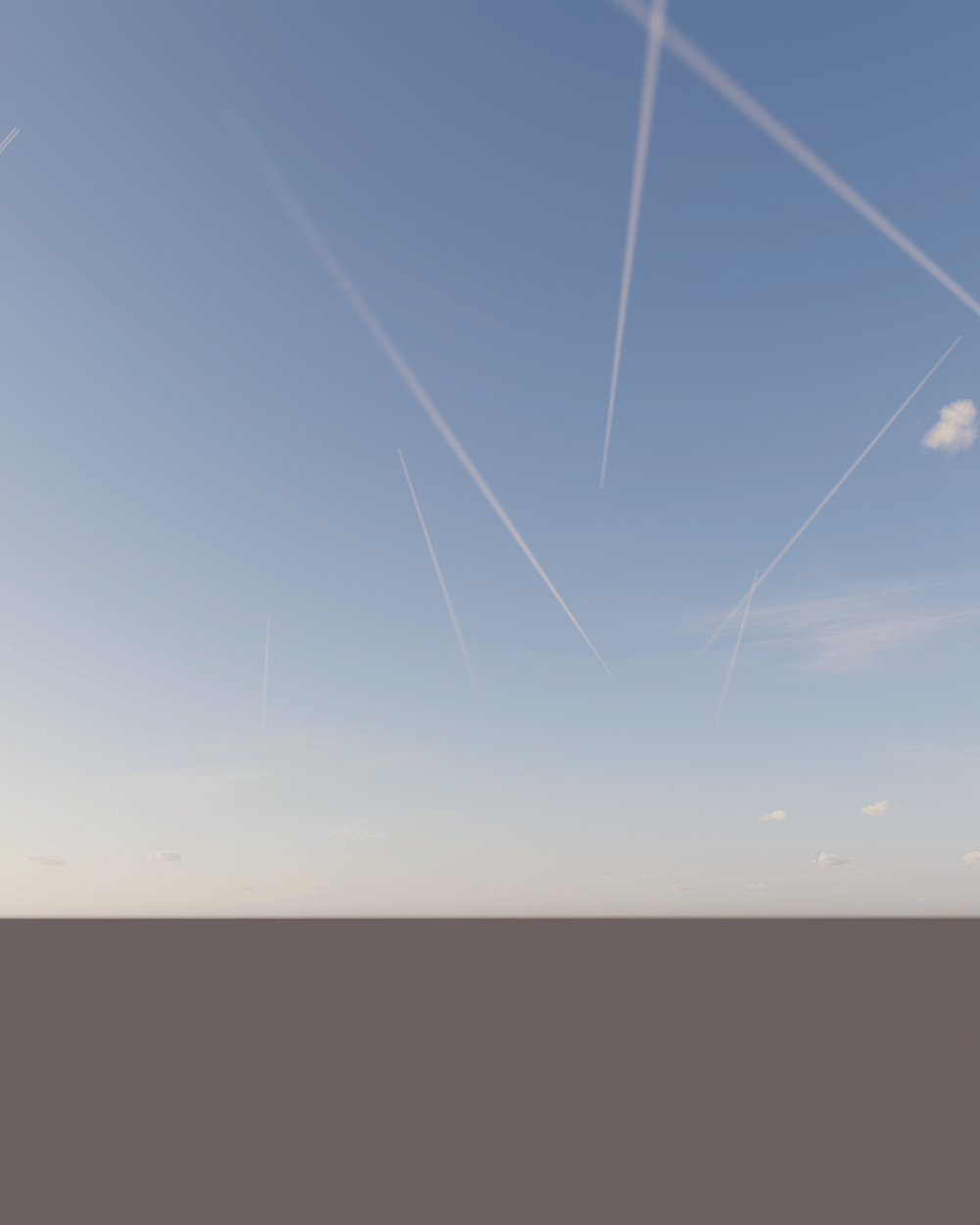
Distortion = 0%
Distortion = 25%
Distortion = 50%
Distortion = 100%
Stars
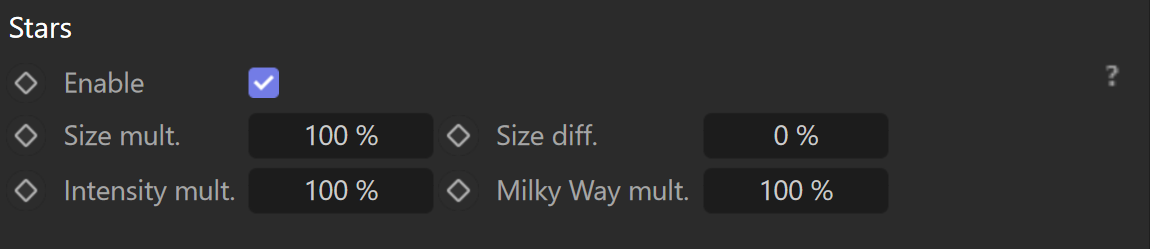
Enable – Enable to render stars in the sky.
Size mult. – Size multiplier for the stars.
Size diff. – Determines how much faint stars will differ from bright stars in size.
Intensity mult. – A multiplier for the stars' intensity.
Milky Way mult. – A multiplier for the Milky Way galaxy intensity.
Stars Examples

Stars are disabled
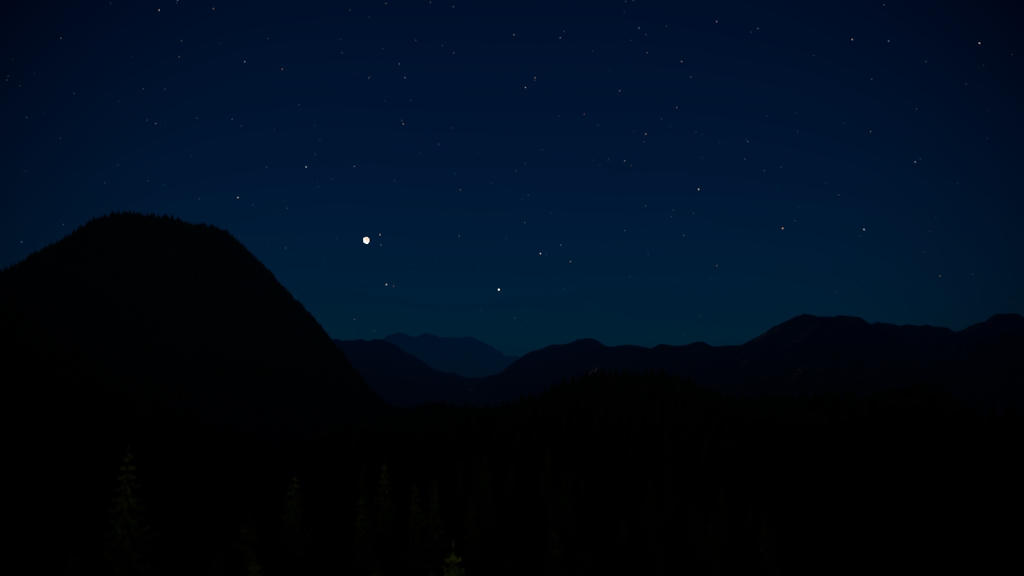
Stars are enabled
Size Mult.

Size mult. = 100% (default)
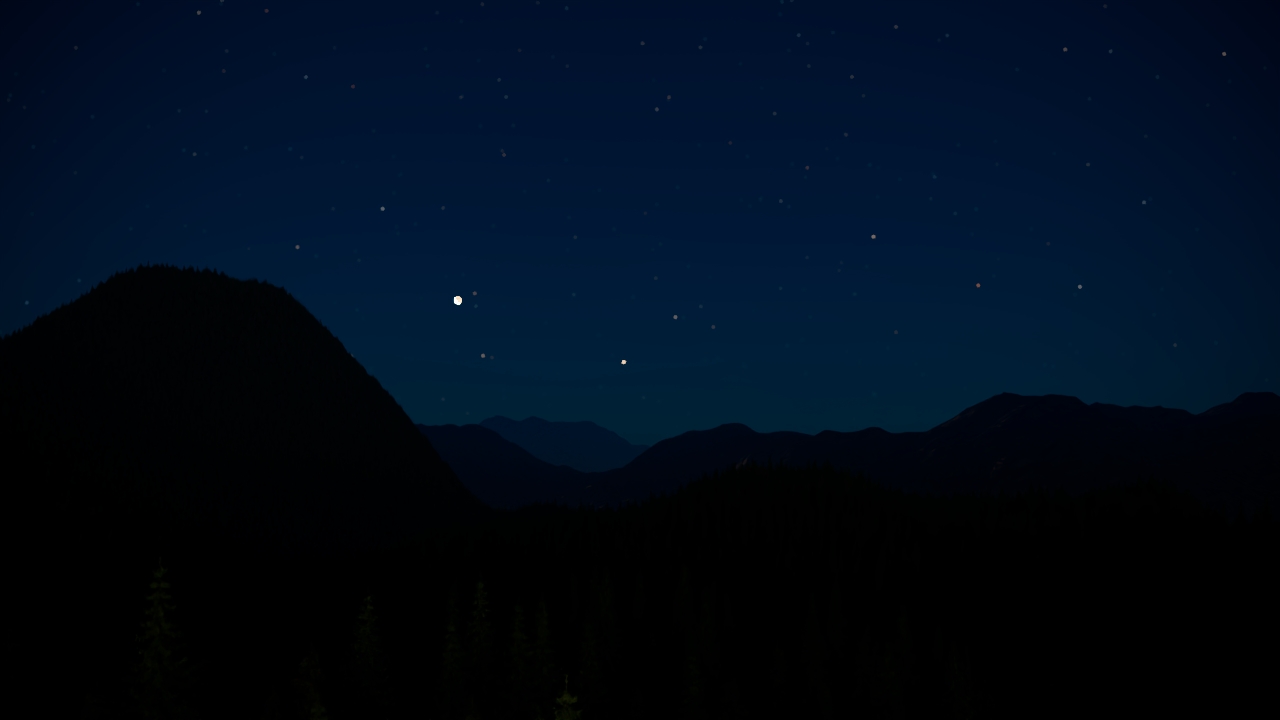
Size mult. = 200%
Size Diff.
Size diff = 0% (default)
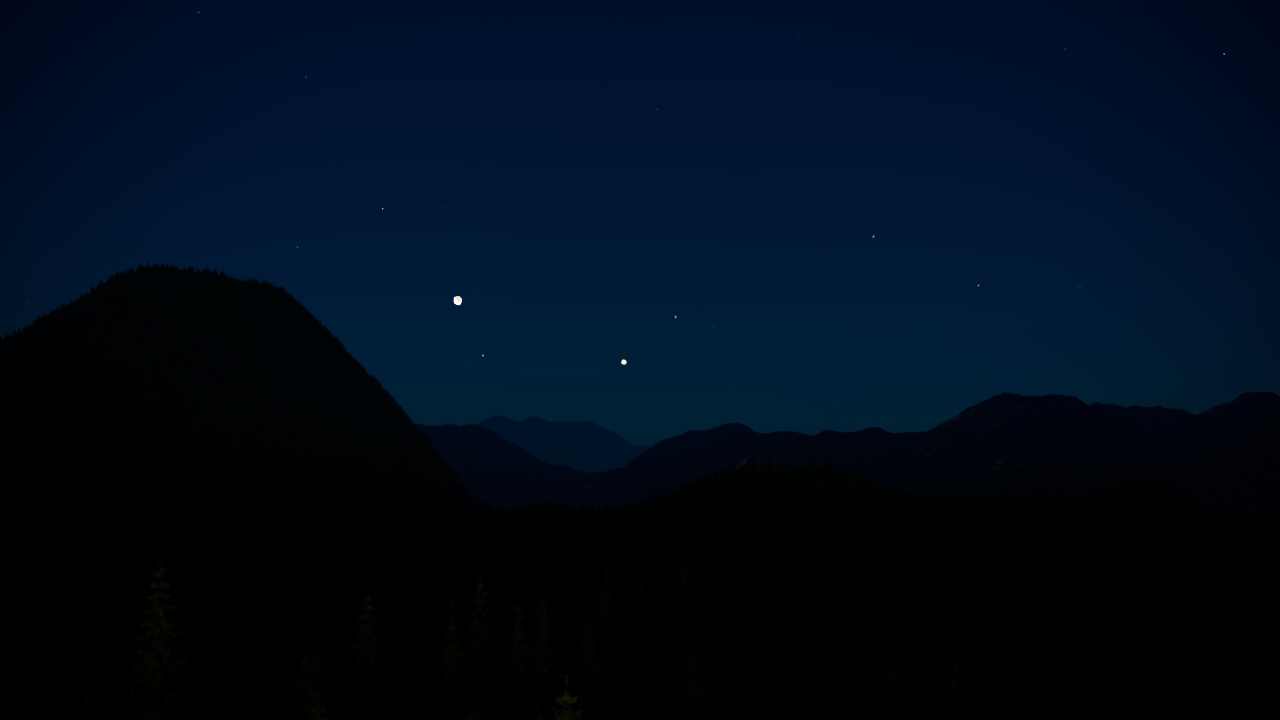
Size diff = 100%
Intensity Mult.
Intensity mult. = 100% (default)

Intensity mult. = 200%
Milky Way Mult.
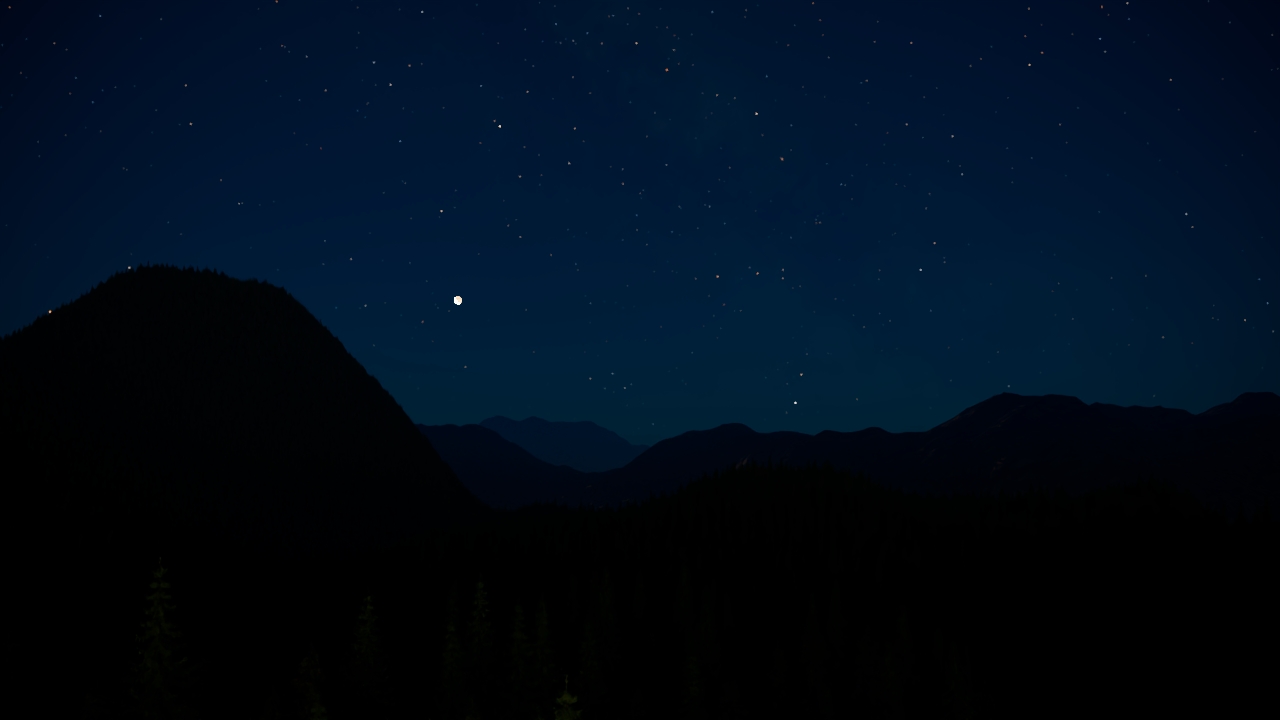
Milky Way mult. = 100% (default)
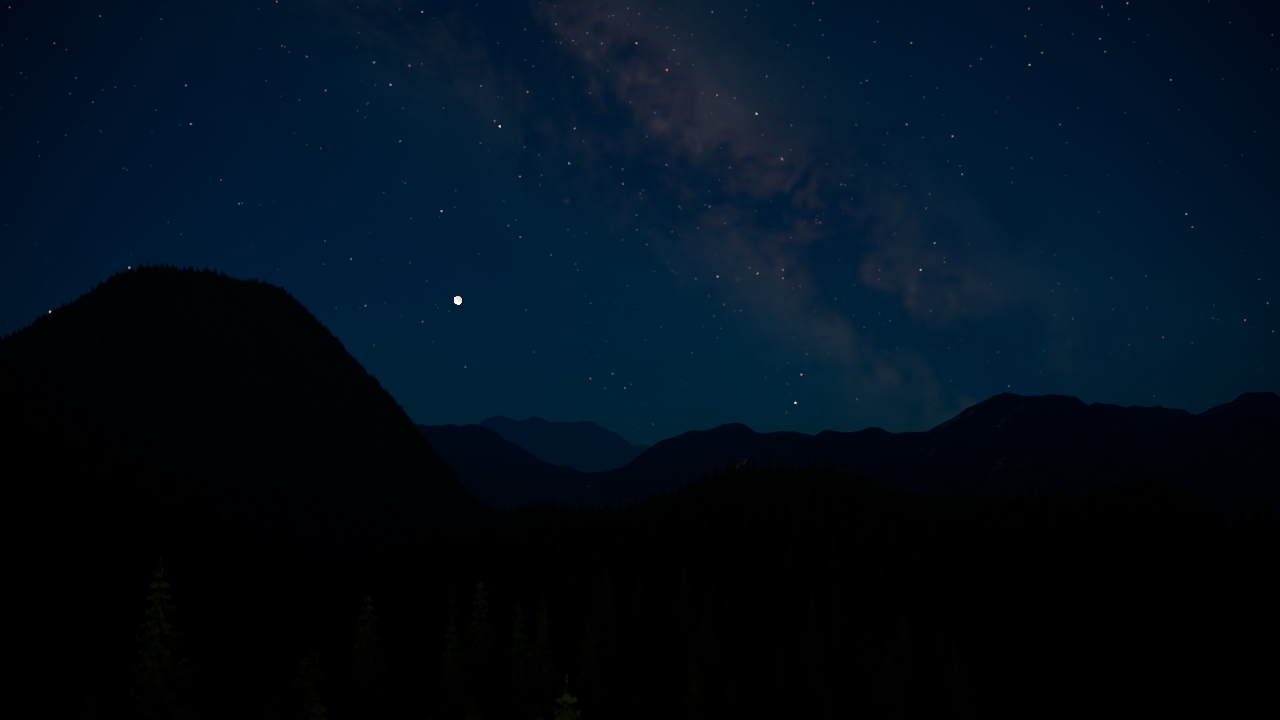
Milky Way mult. = 200%