Use Chaos AI Assistant in Enscape Envision and Enscape to get guidance, find assets and materials, match lighting and review renders.
Overview
Chaos AI Assistant is built into Chaos applications. It gives you step-by-step guidance, suggestions and workflow advice. It explains features, helps you optimise workflows and suggests assets and materials for your projects.
Features
- Matches the Sky by analysing the lighting in a reference image and suggesting matching HDRIs and LUTs. It automatically applies the best matching LUT and HDRI.
- Recommends assets and materials based on your project and instructions.
- Scatters recommended assets onto selected objects across your project to create a Scatter object.
- Places recommended assets onto a selected plane.
- Gives advice and instructions on tools, settings and common tasks. The assistant does not directly apply new values to settings.
- Analyses your render's visual and technical quality and gives specific feedback. It identifies areas to improve, highlights what works and recommends changes. It also gives an overall render score and detailed scores across six primary metrics.
Integrations
Chaos AI Assistant is currently available in:

Enscape Envision

Enscape
Actions with AI Assistant

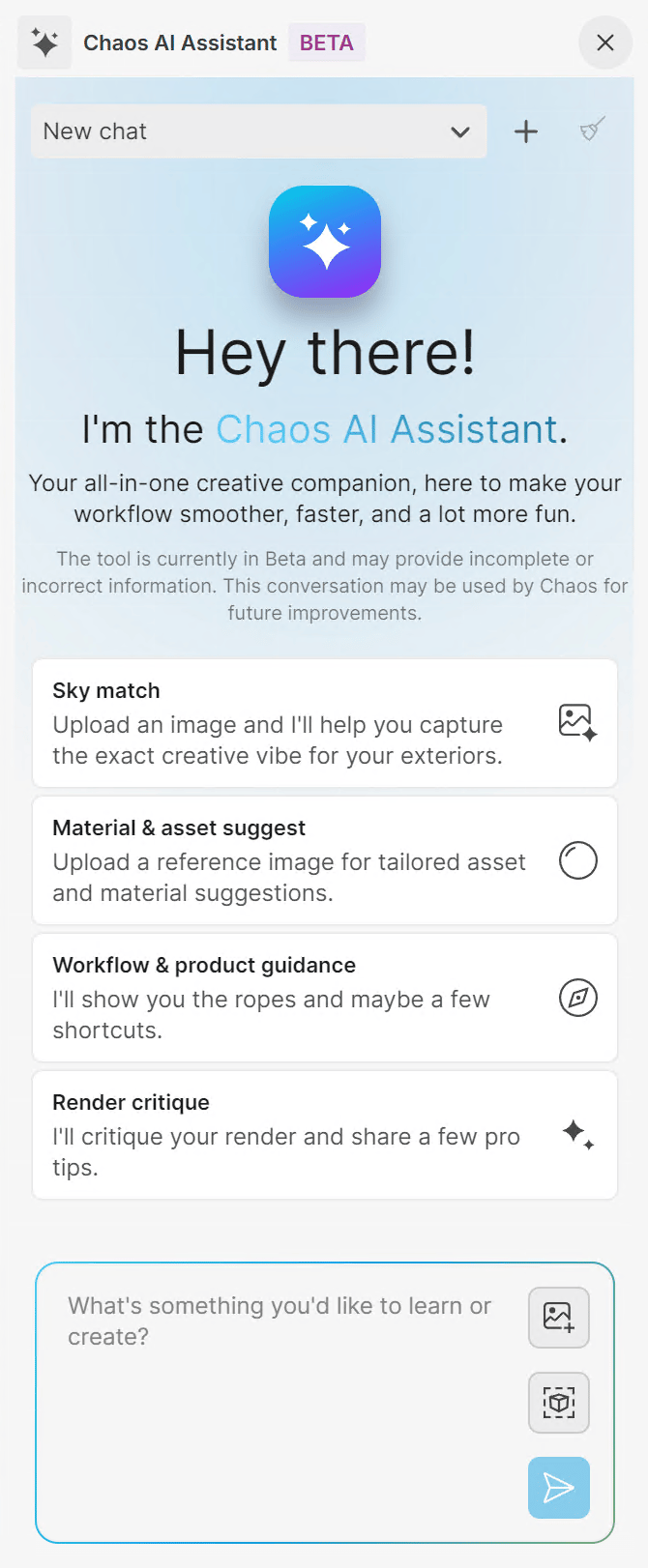
Select Create new chat session to start a chat where you can add your prompts.

Select Delete current chat session to delete the selected chat session from your chat history.
Select Sky match to open the Sky match tool and match the lighting of a reference image. See the Sky match page for details.
Select Material & asset suggest to open the Material & Asset Suggest tool. It suggests objects and assets for your current project and places them on a plane. It also creates a scatter object and scatters recommended assets onto a selection. See the Asset and Material Recommendations section, the Scatter Assets section and the Place Assets section for details.
Select Workflow & product guidance to open the Workflow & Product Guidance tool. See the Get Guidance page for details.
Select Render critique to open the Critique Render tool. See the Render critique page for details.

Select Attach image to load a reference image for Sky match. Supported formats are png, jpg and jpeg.

Select Context to take a snapshot of the current viewport and use it for Sky match.

Select Send message to send your prompt to the assistant for analysis.
To use Rate answer, hover over the assistant's answer and click the thumbs-up or thumbs-down button.

To use Copy answer, hover over the assistant's answer and click Copy.
Access AI Assistant
You must be logged into your Chaos account and have an internet connection to use Chaos AI Assistant.
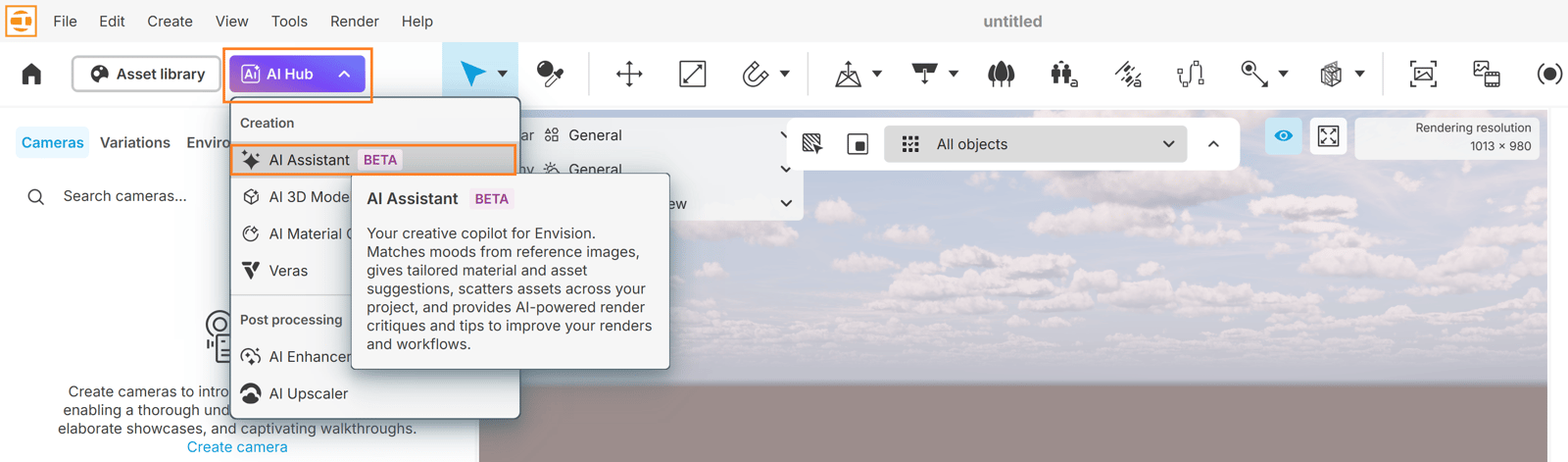
- Go to Envision toolbar > AI Hub > AI Assistant.