Enscape Envision
Cosmos Asset Library
This page provides information about the asset library in Enscape Envision.
Last updated 1 September 2026
This page provides information about the asset library in Enscape Envision.
Overview
The asset library content is delivered through Chaos’ asset browser called Chaos Cosmos. Chaos Cosmos provides high-quality 3D content selected from the rich Chaos ecosystem. It allows you to browse, place, and render 3D assets in Enscape Envision as well as to create your own material assets. The asset categories span across Furniture, Accessories, People, Vegetation, Vehicles, HDRIs, Materials, and more. In addition, the assets work seamlessly in the different Chaos renderers (V-Ray, V-Ray GPU, Corona, Vision, Enscape, Vantage, and Envision) and host apps (3ds Max, Maya, Revit, Rhino, SketchUp, Houdini, Blender, and Cinema 4D).
The asset library is accessible in the left-side panel after clicking the Asset library toolbar button.
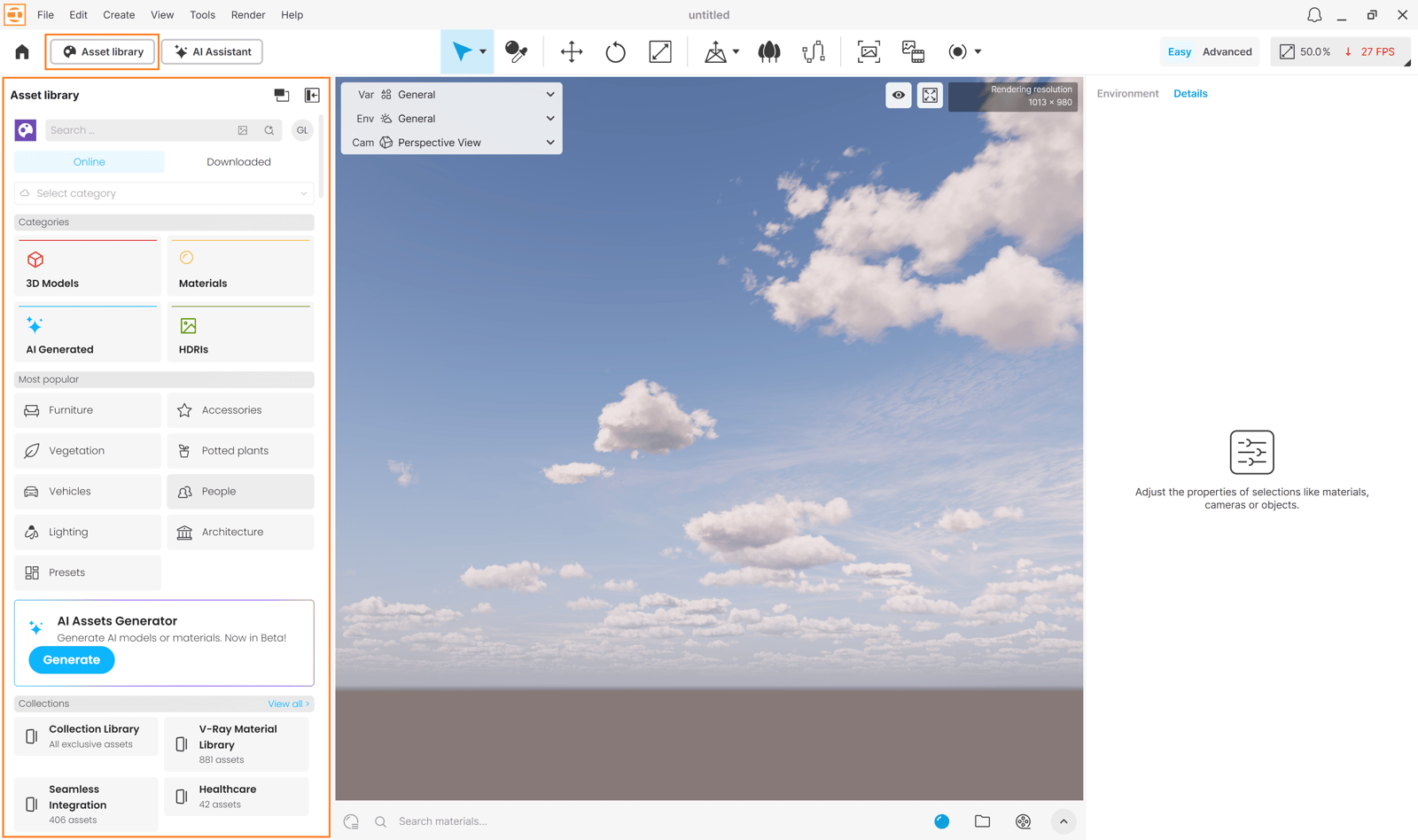
Cosmos Asset Library can be accessed from:

Installation
Chaos Cosmos and the asset library it offers are part of the installation of Enscape Envision and do not require any other specific actions. You can access the downloadable content of the Chaos Cosmos platform from within Envision after the installation is finished.
Chaos Cosmos's AI Material Generator tool is also part of the standard installation and does not require any other specific actions.
For more information on installing Envision, see the Installation page.
Usage
To start using the Chaos Cosmos content, please follow the steps below:
1. Click the Asset library toolbar button to open the asset library.
2. Use the menu or the Search tab to find assets. You can additionally choose between different Categories.
The filters help you refine your search by date, popularity, color, and space.
3. Perform various actions with the Cosmos assets such as downloading, importing, deleting, and updating.
See the sections below for more information.

youtu.be
Download and Import Assets
Once you choose an asset, there are three ways to import it into your project:
- click the Import button;
- click the button to open the asset in a pop-up window and then click the Import button;
- drag the asset into the viewport.

If the asset is used for the first time, the Import button initiates a downloading process before importing it. All downloaded assets are marked with symbol.
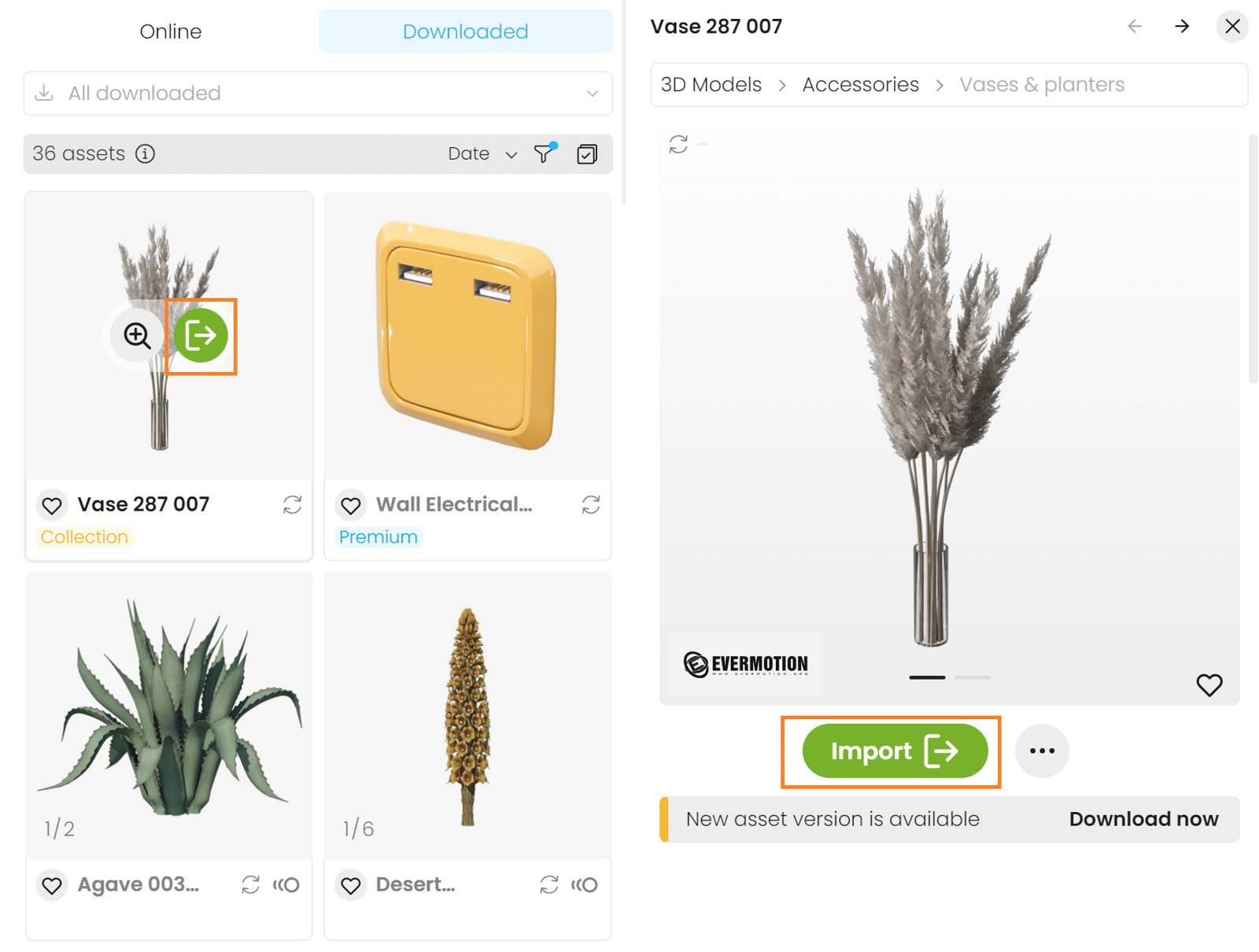
Import 3D Models
You can place downloaded 3D models either in the center or at a random place in the project.
To import a 3D model into Envision, do one of the following:
- Random place in the scene: Use dragging to the viewport. This starts the component placement tool and allows you to place the asset wherever you want in the project with proper surface alignment.
- Center of the scene: Use the Import button to bring the asset into the host platform. The button places the asset at 0,0,0 of the coordinate system
Once imported, the 3D models are listed in the Left panel > Objects tab > Cosmos filter tab.
youtu.be
Import Materials
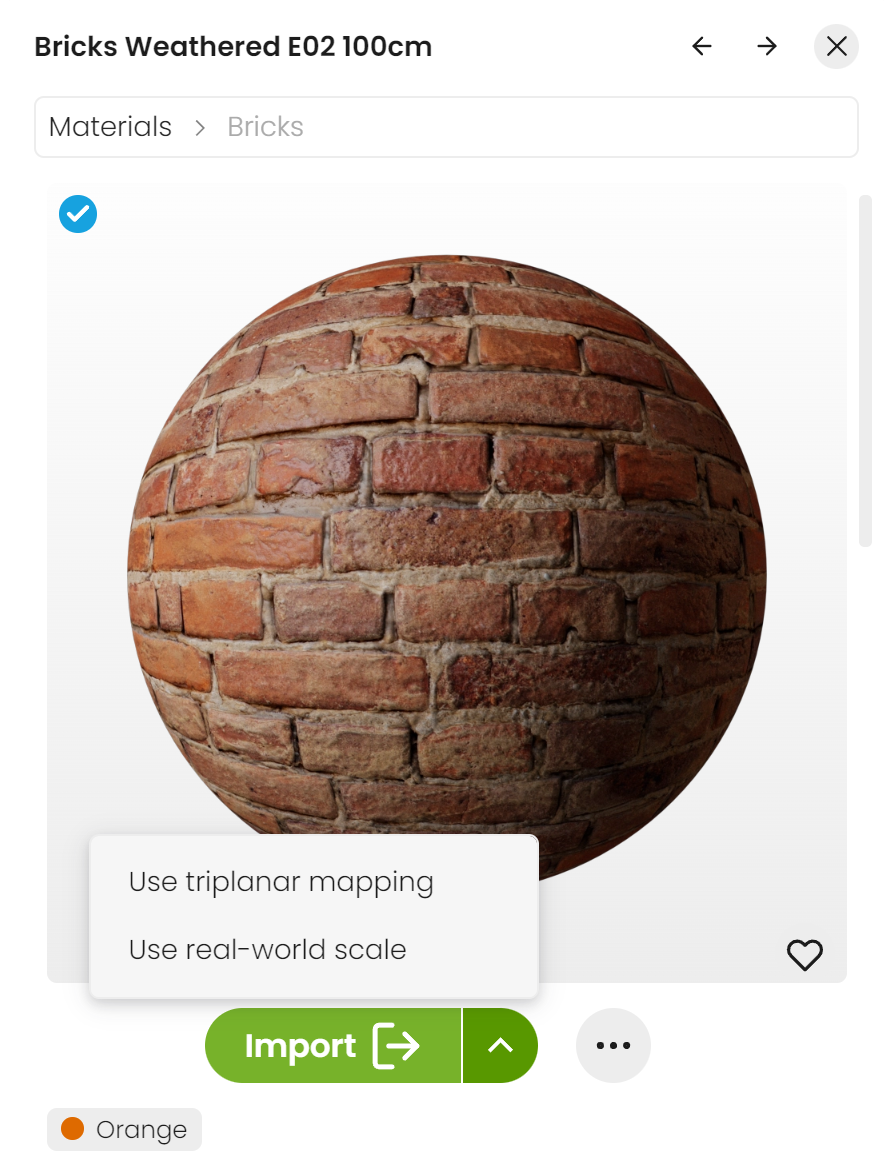
Materials can be imported via dragging onto a selected object. Alternatively, select an object and use the Import button. The imported material is visible in the Materials bottom tab.

Click the green arrow for two additional import options.
Use triplanar mapping – Enables triplanar mapping on Bitmaps (when adding the material to a scene or selection).
Use real-world scale – Enables real-world scale mapping for Bitmaps (when adding the material to a scene or selection).

Import HDRIs
Downloaded Chaos Cosmos HDRIs can be imported as an Environment texture. To assign an HDRI, click Import or drag it into the project, and it will automatically be assigned to the Sky subtab.
Once imported, the HDRI texture is visible in the Right panel > Environment tab > HDRI subtab.

Update Assets

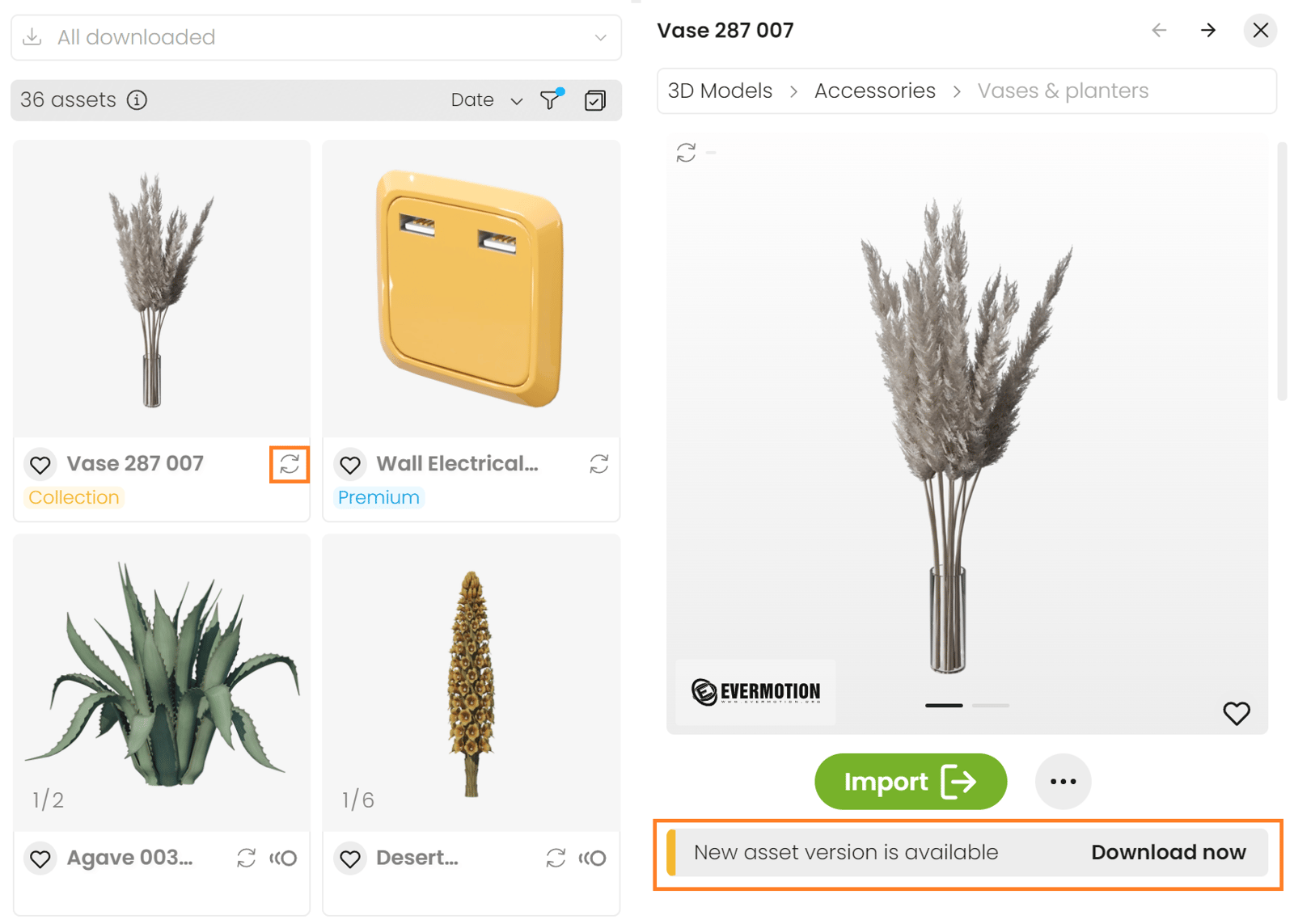
Cosmos assets get updated over time. When an update is available, an update label appears.
You can download the new versions from within the asset library. Open the asset in a pop-up window, and then click the Download now update text in the bottom.
Search Assets
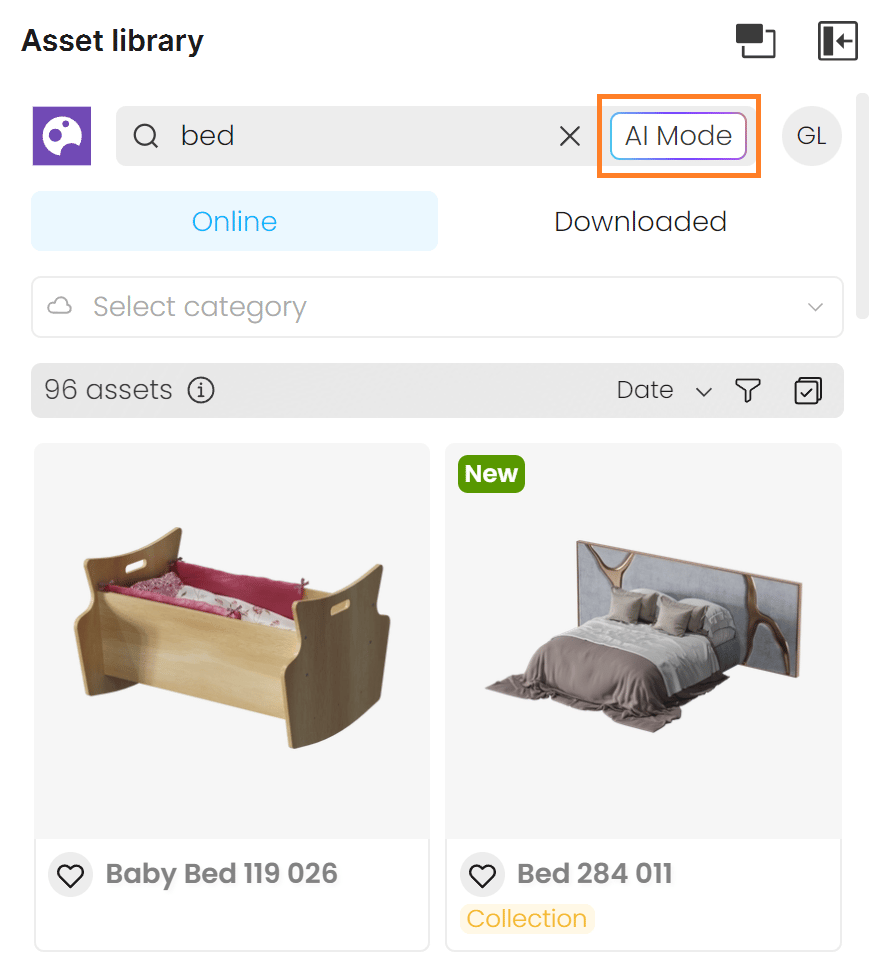
Switch between standard and AI Mode Search options to enhance the provided results. The AI Mode is available only after signing in with a Collection license.
The results show all available assets, regardless of the current subscription plan.
Filter Assets
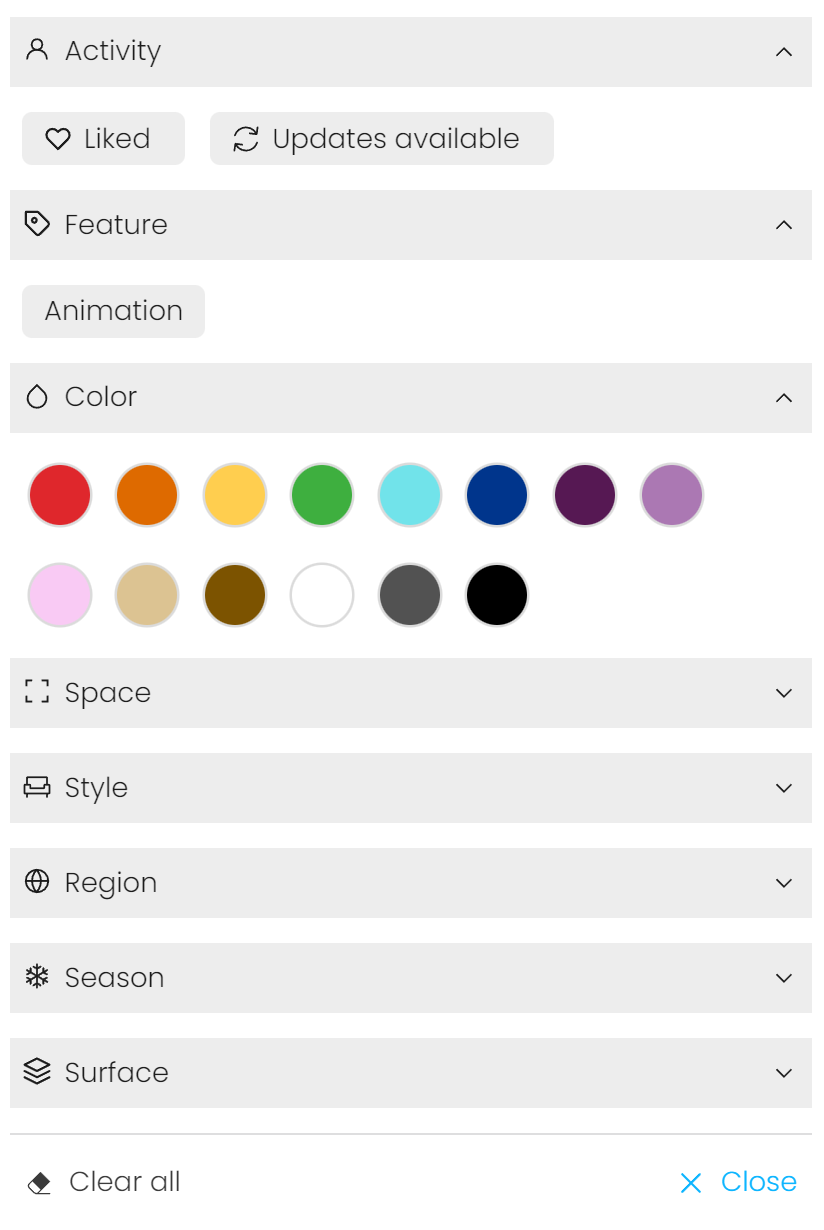
Use the Categories menu to refine the search based on the type of asset you are looking for. You can also select a themed Collection or Creator to filter the results.
The Filters menu provides additional options to filter by Color, by the Space where you would typically find the assets, by the Surfaces they are often placed on, and by preset Tags.
At the top of the menu, you can also find the Liked filter and the Updates available filter.
Filters work in combination rather than separately. For example, if you filter by the color yellow and by liked assets, Cosmos will display only the assets you have liked that are also yellow. Keep in mind that variants may have different filter tags depending on their appearance (e.g., vegetation variants often have summer and autumn versions, with one tagged as summer and green, and the other as autumn and orange).
To remove all filters, use the Clear all button at the bottom of the Cosmos Browser.


Multi-Select Assets
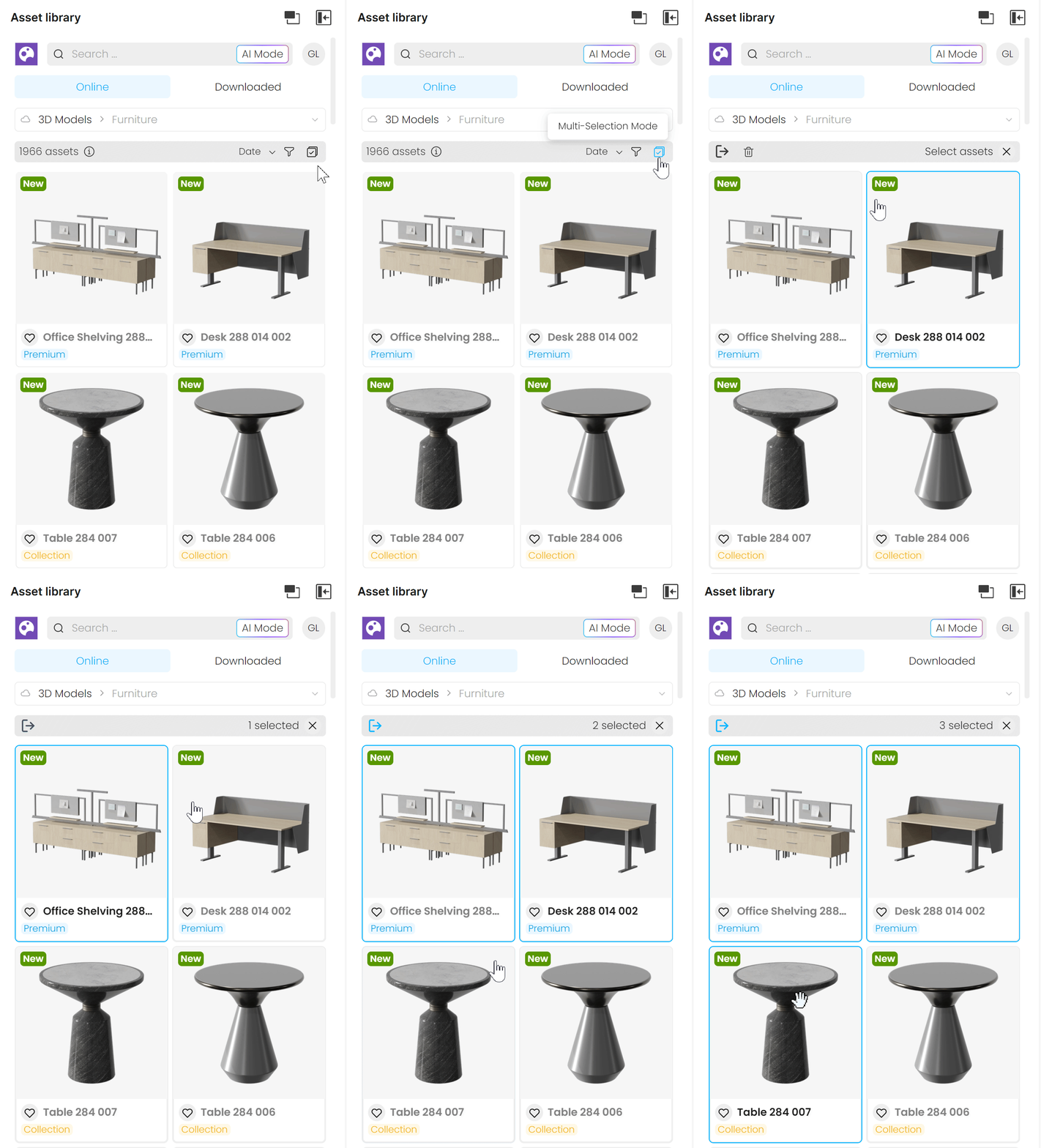
Use the Multi-Selection Mode () button to enable the Multi-Selection Mode. In this mode, you can select several assets to download, import, update or delete at once. Note that multi-importing 3D objects and HDRI assets with drag and drop into the viewport allows specific placement per object using mouse clicks.
Delete Assets
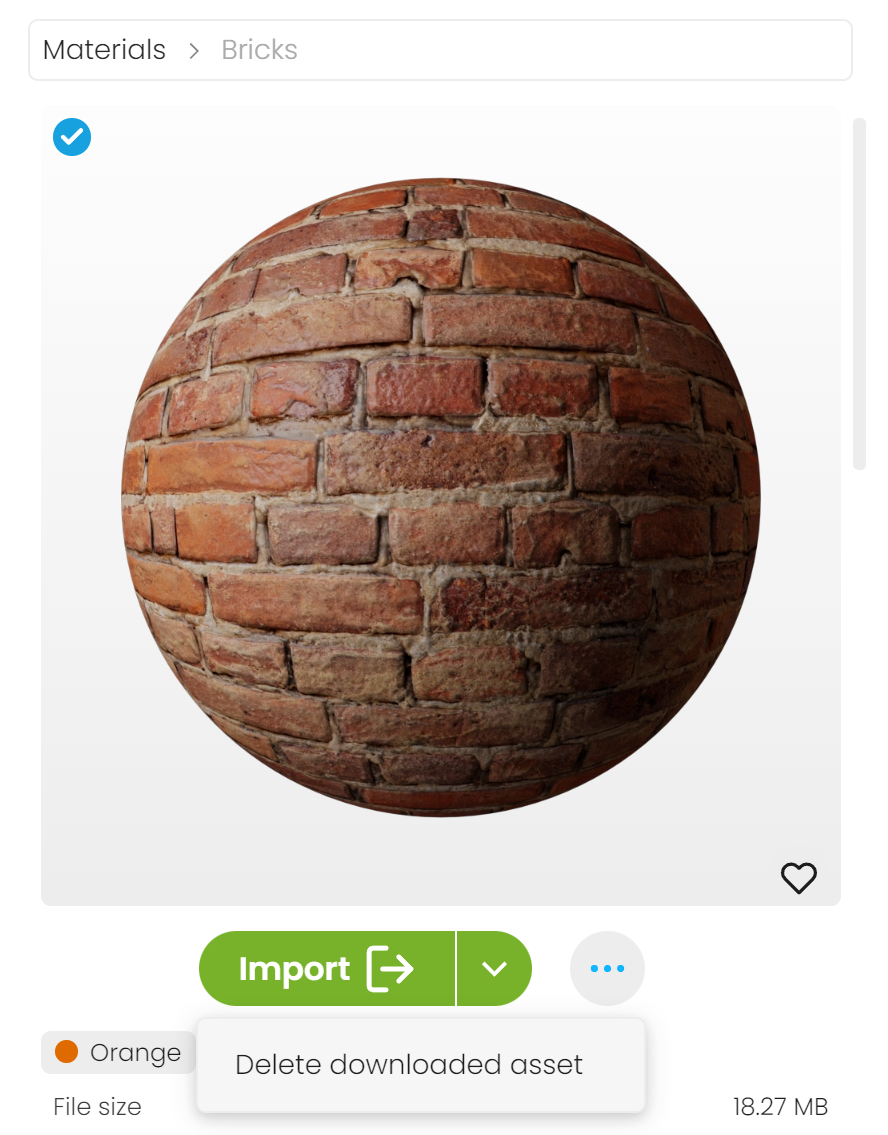
To delete a downloaded asset, open the asset in a pop-up window. Then use the dropdown options available when you right-click the tree dots next to the Import button.
See also: