Enscape Envision
Free Trial
This page provides information on activating and using the Enscape Envision Free Trial, available as part of the Enscape collection.
Last updated 5 June 2026
This page provides information on activating and using the Enscape Envision Free Trial, available as part of the Enscape collection.
Overview
Enscape Envision is offered as part of the Enscape collection. With this collection, you can use the product for 14 days free of charge.
Steps
The Enscape Envision Free Trial activation consists of the following steps:
Step 1. Visit the Free Trial Page
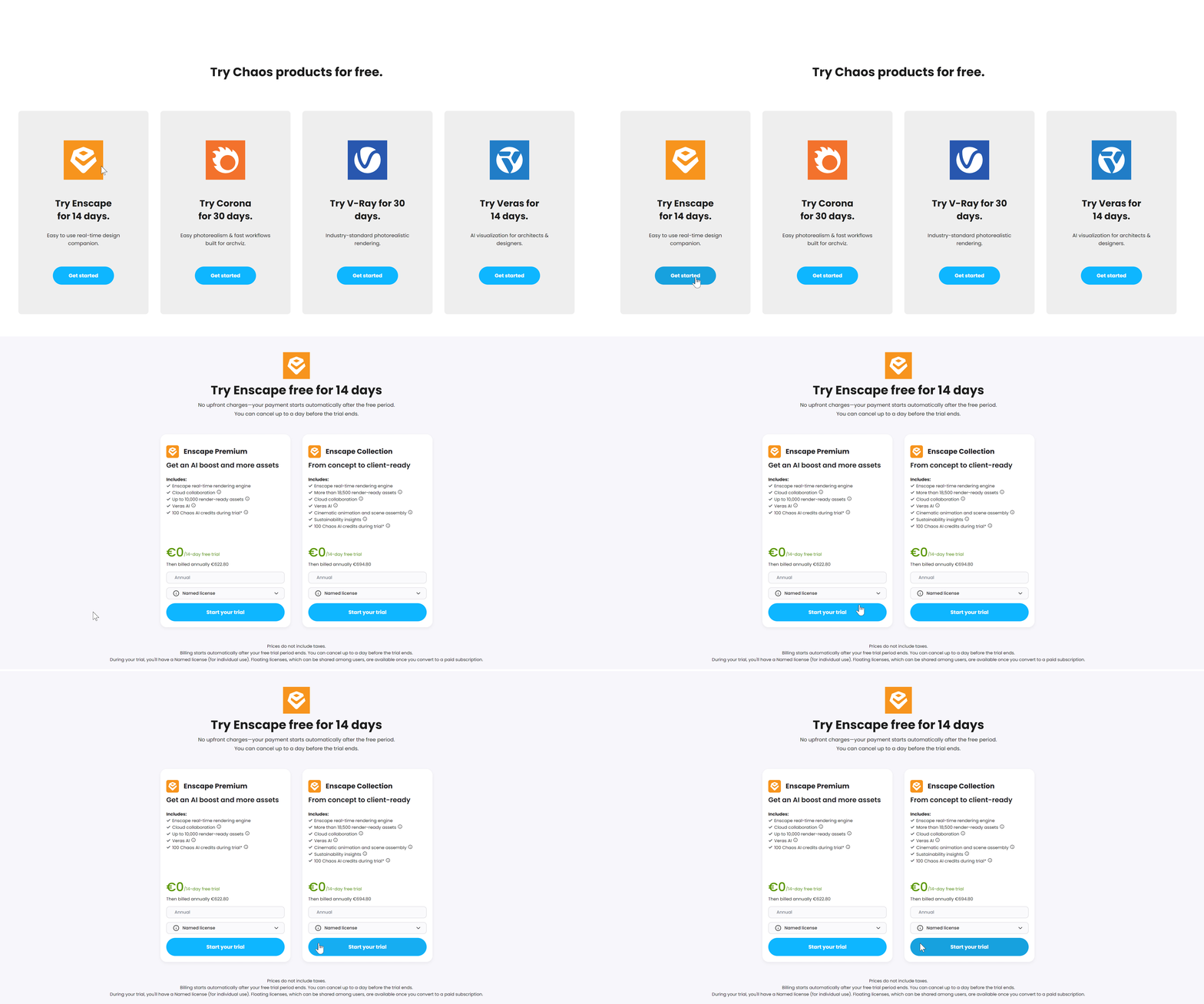
Go to chaos.com and click Try to open the Chaos Free Trials page.
Select Enscape and click Get started.
Select the Enscape collection. Then select a license type (named or floating) and click Start your trial. You can try Enscape Envision as part of the Enscape collection.
If you don’t have an account, you are prompted to create one.
To learn more, see: Chaos Suite offerings.
Step 2. Complete the Checkout Process
Enter your email address and billing details, and complete the checkout process.

3. Activate your Chaos Account (non-registered users)
After completing the checkout process, you will receive an account setup email from Chaos. Use the link in the email to set a password and activate your account.
4. Download and Install Enscape Envision
You are then redirected to the Enscape Envision downloads page. Click Download. Once the download completes, run the installer and follow the on-screen instructions to complete the installation.
See the Installation and Product Activation pages for detailed instructions. For a quick walkthrough of the default installation type, see the video:
- Read and accept the End-User License Agreement and the Global Consumer Privacy Policy.
- Click Continue and then click Install.
- Choose whether to participate in the improvement program and click Done.
- Sign into your Chaos account.
youtube.com
Cancelling the Subscription
If you wish to cancel the subscription, you can do so from the Active Products page of the my.chaos website. The Cancel subscription link is located next to the Auto renewal status.
Click on the link, fill out the questionnaire, and you will disable the auto-renewal. You can continue using the trial until its expiration date, but it will be removed from your account and will not renew after that.
