Enscape Envision
Home Screen
This page provides information about the Enscape Envision Home screen.
Last updated 13 July 2026
This page provides information about the Enscape Envision Home screen.
Overview
Enscape Envision Home is a welcome screen that appears when opening the Enscape Envision application. It allows you to open empty files or existing ones; provides you with links to useful websites such as Envision Product Feedback and Chaos Help Center, and gives you access to various sample projects.
The Enscape Envision Home screen has several tabs:

– Home – Opens Welcome to Enscape Envision tab, which is the main tab of the Enscape Envision Home screen. Here, you can check info about the main Envision features and get quick access to the recently opened files.

– Recent – Shows recently opened project files. You can clear the tab content from File menu > Open recent > Clear recent file list.

– Sample scenes – Shows sample projects available for download. Double-click a project to initiate download. Once the project is downloaded, double-click it again to open it.

– Get started – Provides access to various tutorials and webinars for Envision and its AI Assistant.

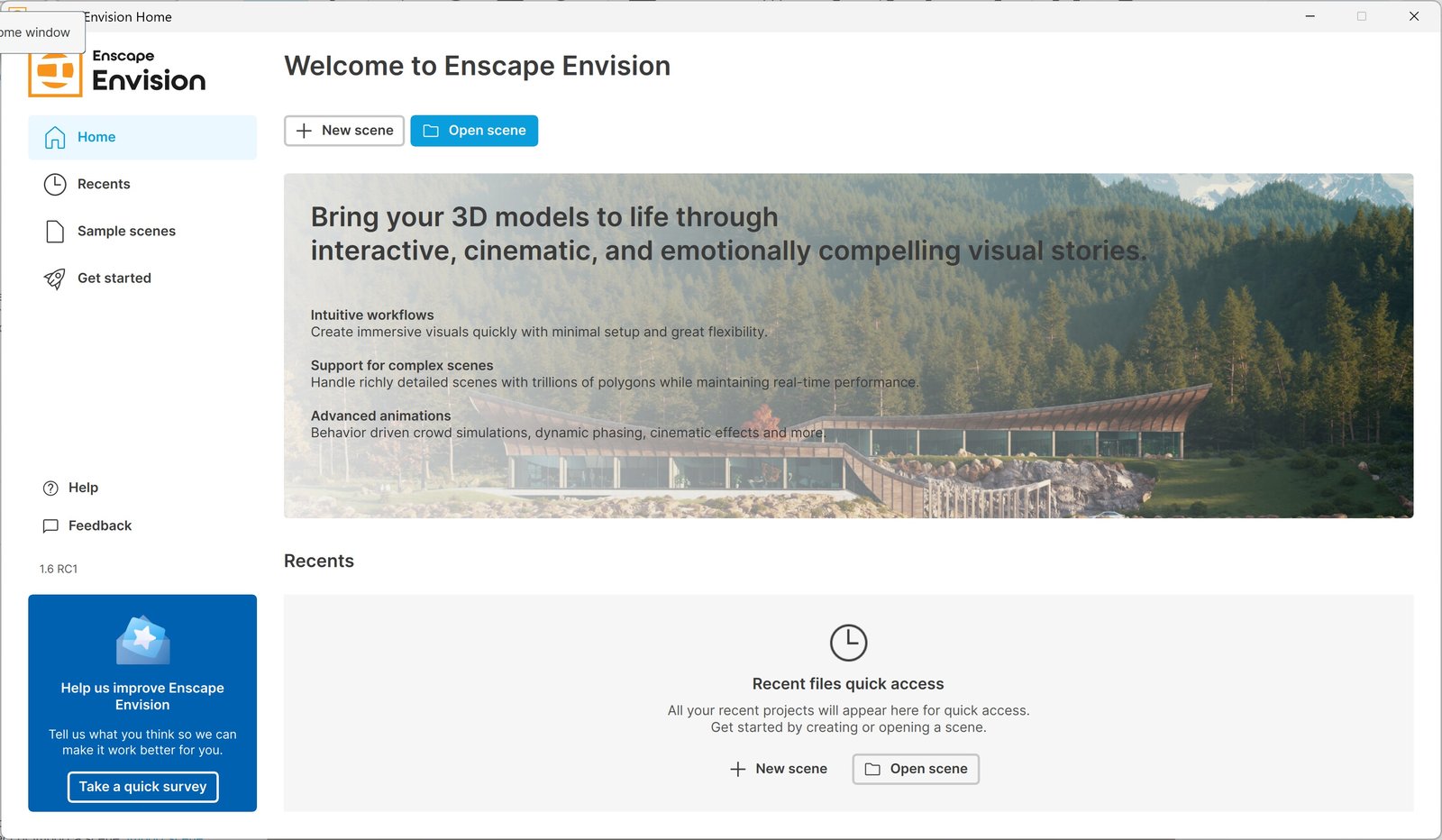
Envision Home Screen with Light theme

Envision Home Screen with Dark theme
Actions in Home Screen
The following buttons are available for all Enscape Envision Home tabs.
Help – Opens Chaos Help Center which provides helpful information such as service status, learning resources, troubleshooting solutions, and a request form. |
Help – Opens Chaos Help Center which provides helpful information such as service status, learning resources, troubleshooting solutions, and a request form. | |
Feedback – Opens a new browser window leading to the Envision Product Feedback where you can submit, vote, and collaborate on suggestions and feedback. | |
Download – Indicator that a project needs to be downloaded. | |
New scene – Opens an empty file with a default texture environment. | |
Open scene – Opens a browse window to select and load a scene file (.vrscene or .envision file). | |
Take a quick survey – Opens a survey form for submitting feedback on Envision and its features. |
Context Menus
Clicking the three dots menu under any project thumbnail opens a dropdown menu with options for downloading, locating, opening, and purging the project file. Depending on whether you click on a sample project or a recently opened project, the dropdown menu options differ.
Recent files
Open scene location – Opens the project files location in Windows explorer.
Sample scenes
Download – Starts downloading the sample project. This option is available only for sample projects that have not been downloaded yet.
Cancel – Terminates the downloading of the sample project.
Open scene location – Opens the project files location in Windows explorer.
Reset .envision scene to default – Resets the project file to its default state if changes have been made beforehand.
Delete from disk – Deletes the sample project files.
youtu.be