Use the AI Material Generator to create a tileable Enscape material from an image.
Overview
Open the Cosmos AI Material Generator from the Enscape Material Editor to create a material from an image, such as brick, fabric or wood. It generates albedo, bump/normal and roughness maps. You can import and edit the material in Enscape, or use it to replace an existing material in your project.
Requirements
Before you start, check that:
- You have Enscape 4.14 or later installed.
- Chaos Cosmos is installed and working with Enscape.
- You are signed in to your Chaos account in the Cosmos browser.
- You have a stable internet connection. Material generation runs in the cloud.
- You have an image file to turn into a material. Use a square image up to 2K resolution.
Access the AI Material Generator
Open the Enscape Material Editor
In your CAD host application, open the Enscape Material Editor from the Enscape Toolbar.

Enscape Material Editor button in the Enscape Toolbar
Launch the AI Material Generator
Click the AI Material Generator button at the top of the material list.
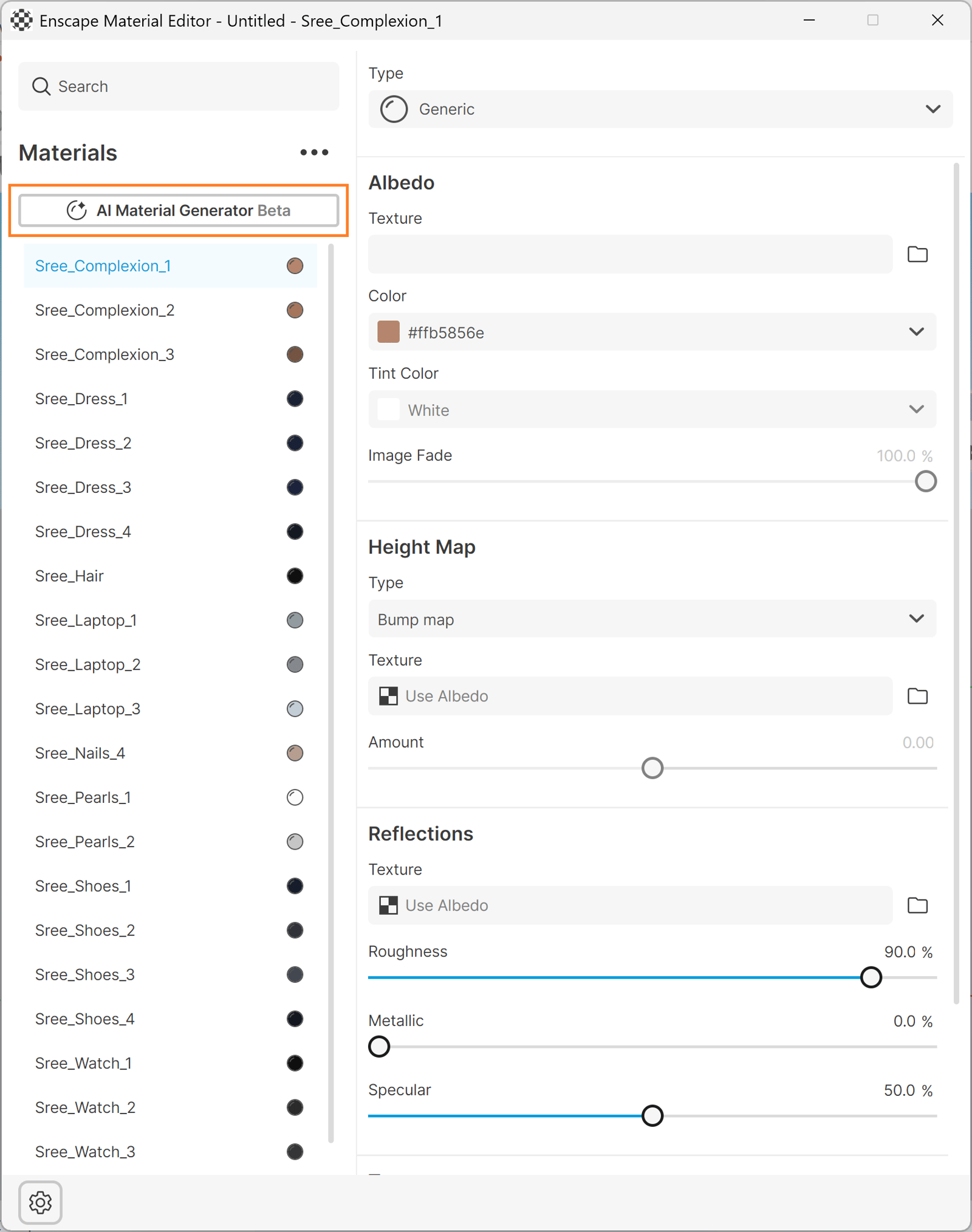
AI Material Generator button in the Enscape Material Editor
The Chaos Cosmos Browser opens at the AI Materials interface. You can start generating your material here.
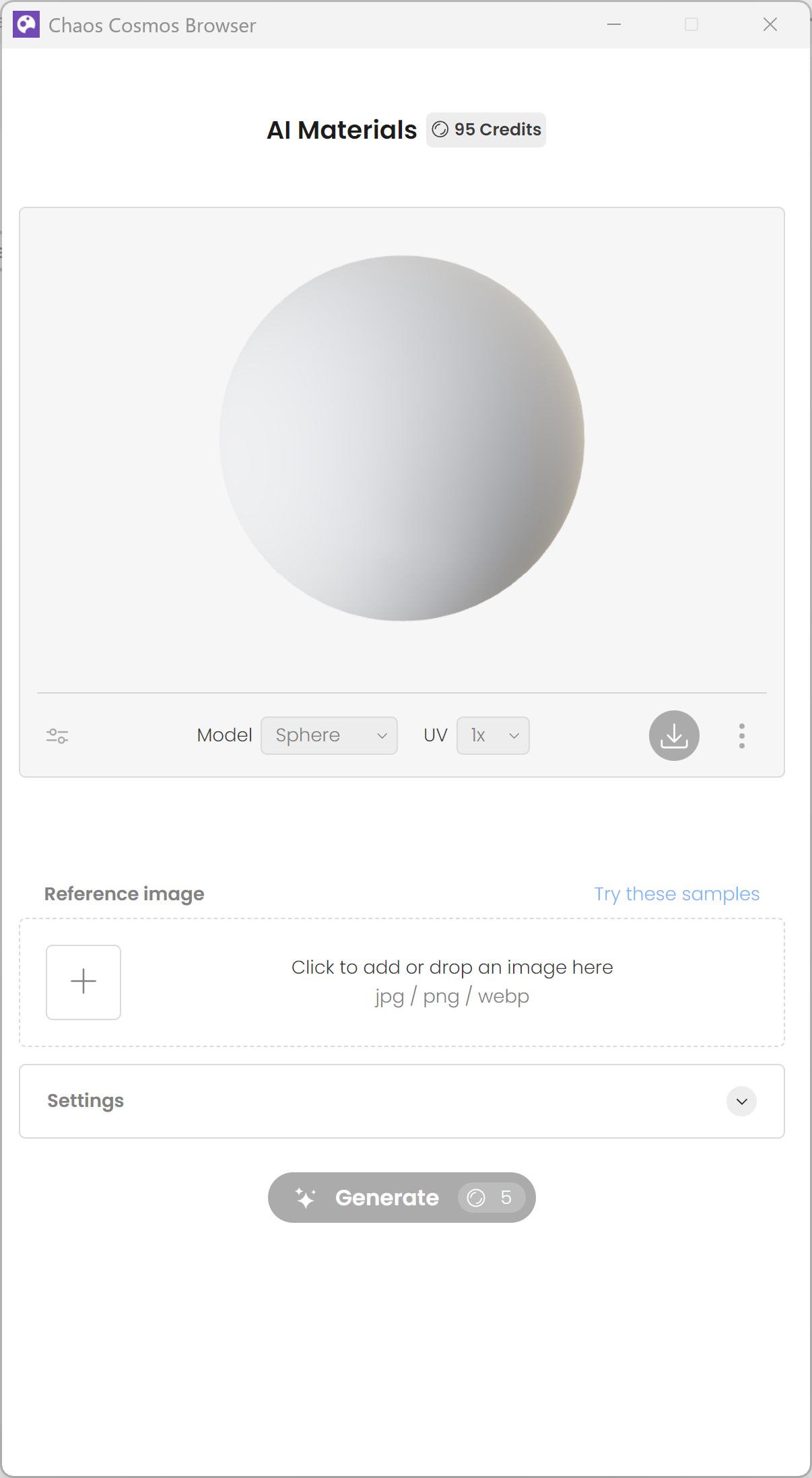
AI Material Generator in the Chaos Cosmos Browser
Create a material from an image
Upload your source image
- In the Chaos Cosmos Browser AI Material Generator, click the Plus (+) button to upload an image.
- Select an image from your computer to use as the base texture for the new material.
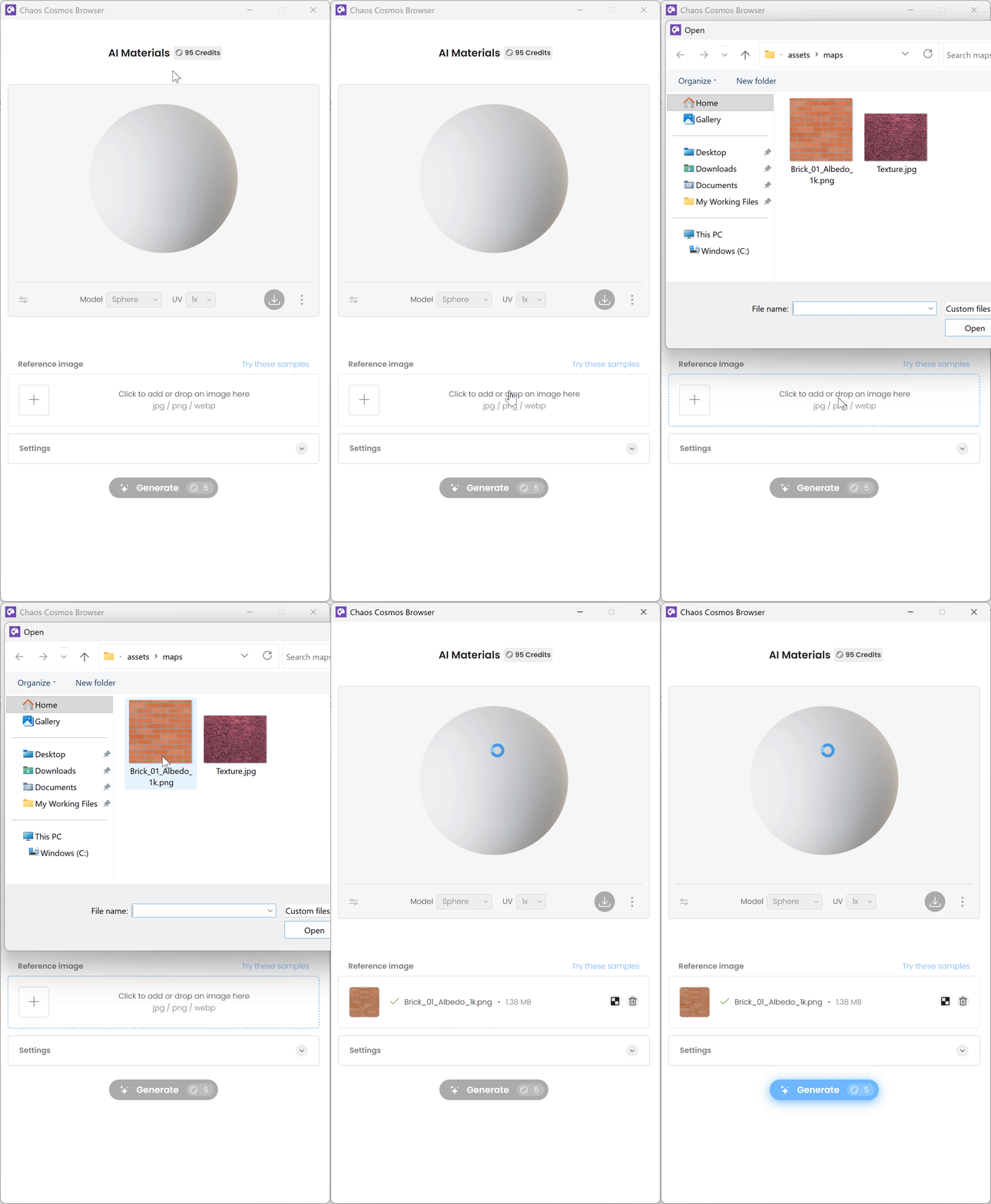
Image upload in the AI Material Generator
Make the texture tileable
Your material needs to repeat without visible seams when you apply it to large surfaces.
- After the image uploads, set the Pattern selection manually.
Or
- Use the automatic pattern selection shown on the right.
- Cosmos analyses your image and automatically selects an area that will tile well.
- Confirm the selection or adjust it if needed.
- Apply the selected pattern to continue.
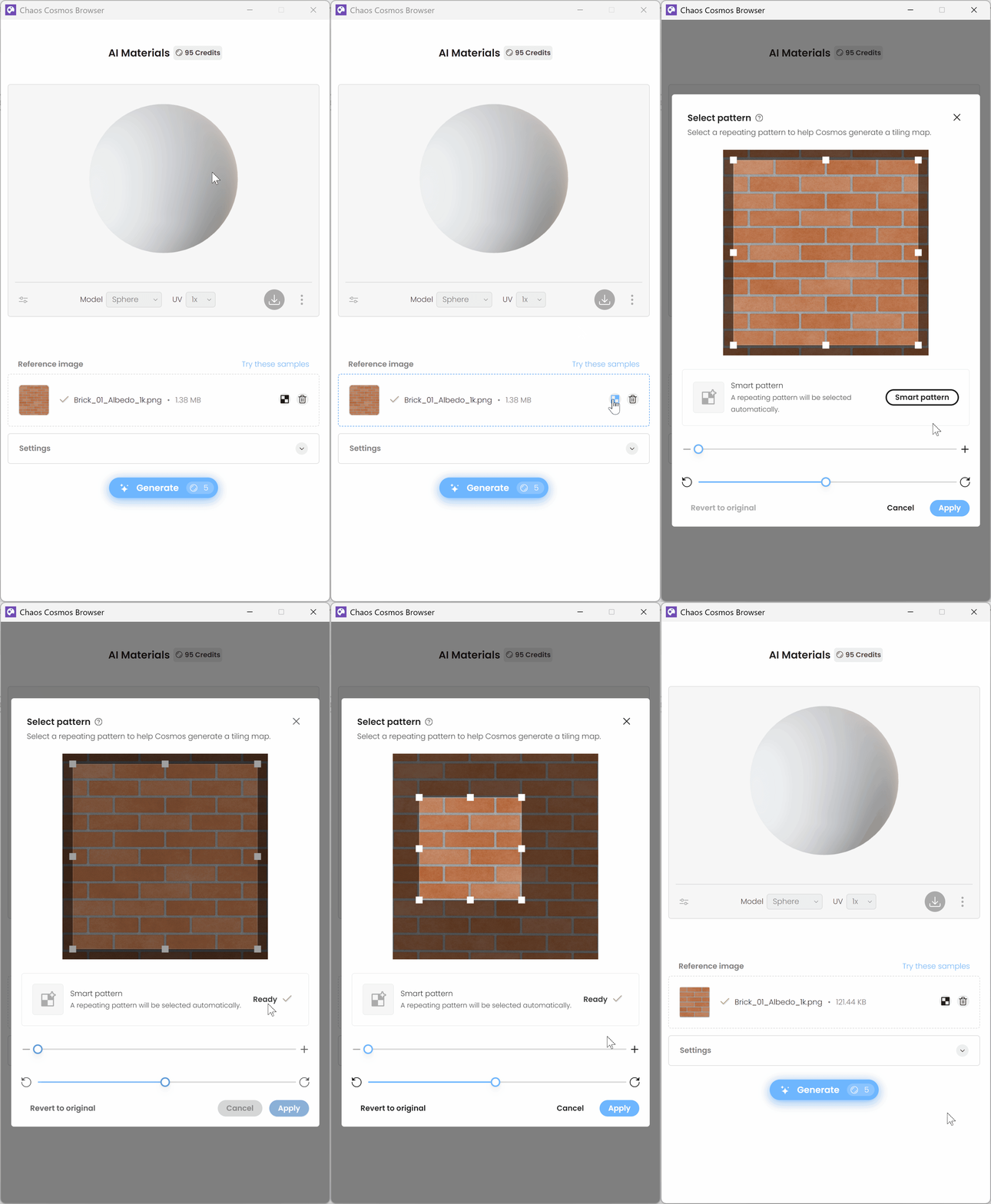
Smart Pattern in the Pattern Utility
Adjust material parameters
Adjust the material settings before you generate it.
Resolution sets the resolution of the generated textures.
- Higher resolution gives you sharper textures with more detail. Files are larger and take longer to generate.
- Lower resolution gives you smaller files that generate faster. Textures are less sharp and have less detail.
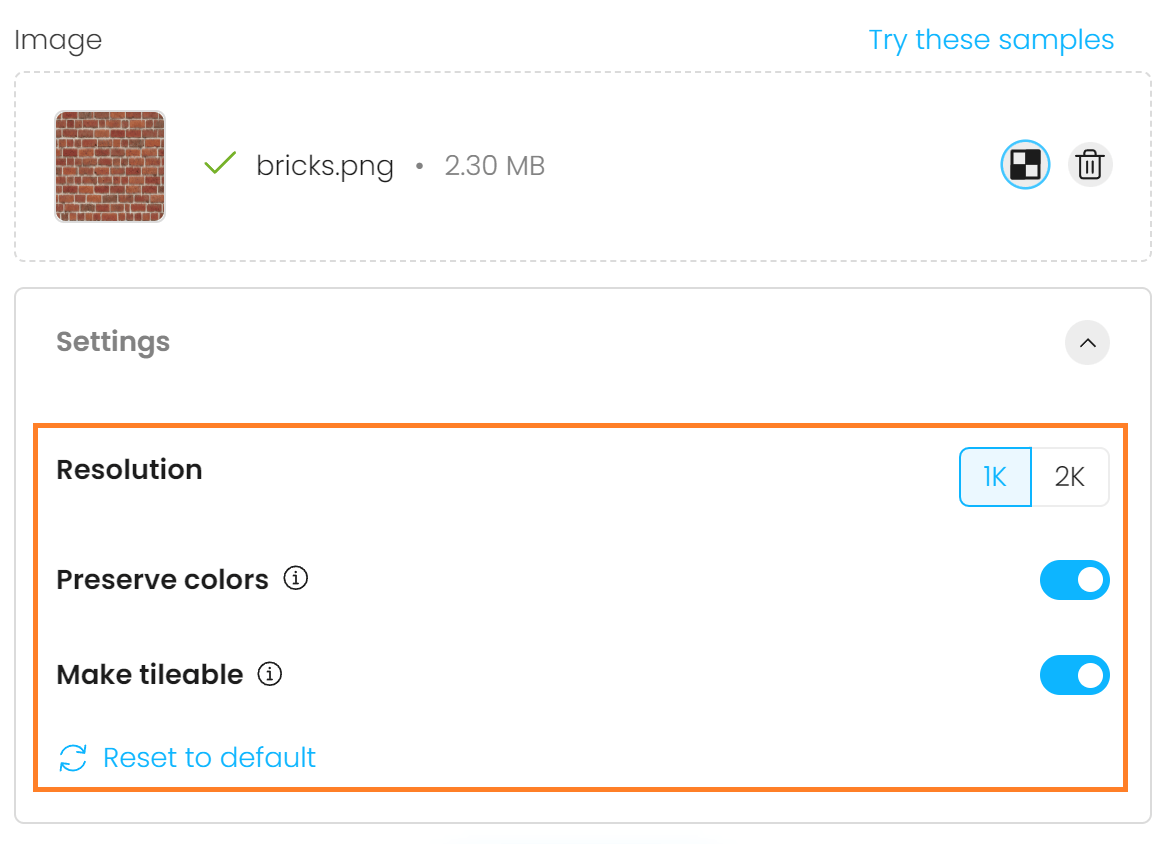
Parameter settings in the AI Material Generator
Generate and preview
- Click Generate to create the AI material. This takes a few seconds to about a minute, depending on your chosen resolution and internet connection.
- View the 3D preview when generation finishes.
The AI generator automatically creates:
- Albedo (colour) texture
- Bump/Normal map
- Roughness map
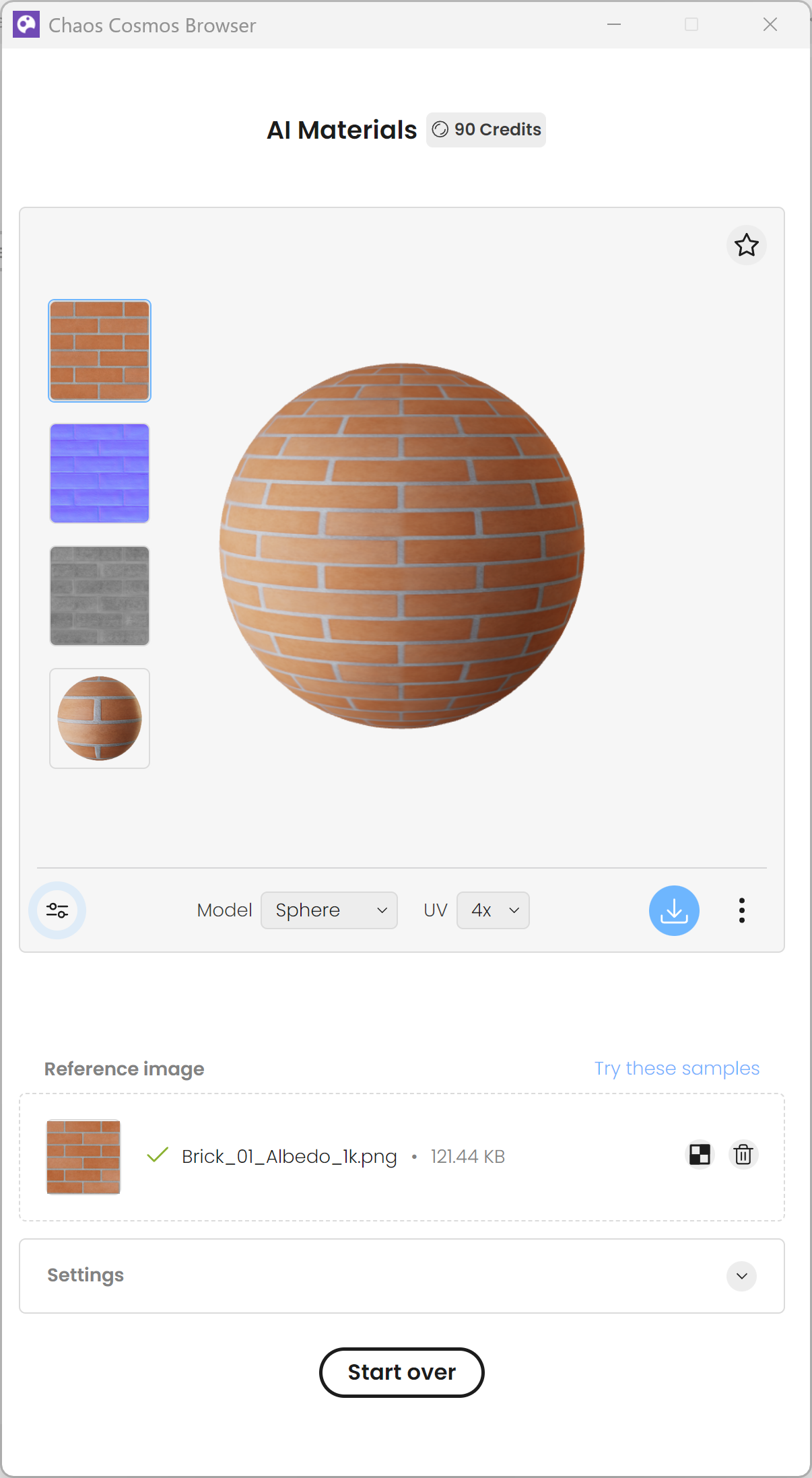
Generated material preview
If the result needs changes, adjust the interactive settings:
Normal / Bump adds the appearance of depth and surface detail to a flat texture.
Roughness controls how glossy or matte the surface looks.
- Lower roughness makes the surface shinier and more reflective.
- Higher roughness gives the surface a more matte, diffuse appearance.
Adjust the sliders and controls until the preview looks how you want.
If the result still needs changes:
- Adjust parameters such as tiling, roughness and normal strength.
- Click Generate again to create a new version.
Repeat until you are happy with the preview.
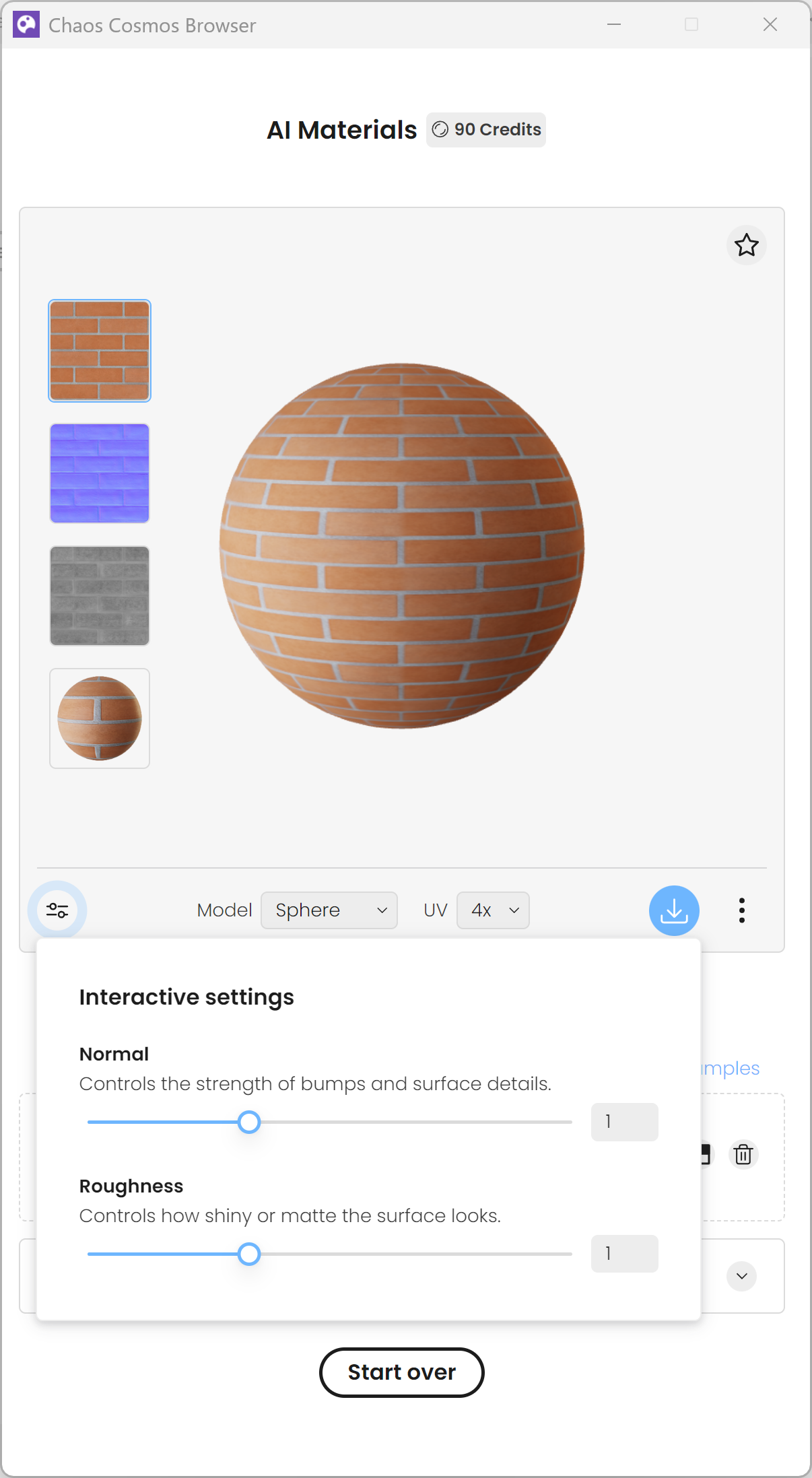
Interactive settings
Import the generated material into Enscape
When you are happy with the AI-generated material, import it into your project.
- Download the material from Cosmos.
- In the preview window, click Download.
- Name the material.
- A dialogue asks you to enter a material name.
- The name must be unique in the Enscape Material Editor.
- If the name already exists, Enscape automatically adds a number to make it unique.
- Save and import the material.
- Click Save.
- Cosmos downloads the material to your local Cosmos packages folder, and Enscape imports it automatically.
- The material appears in the Enscape Material Editor list. It is selected and ready to use.
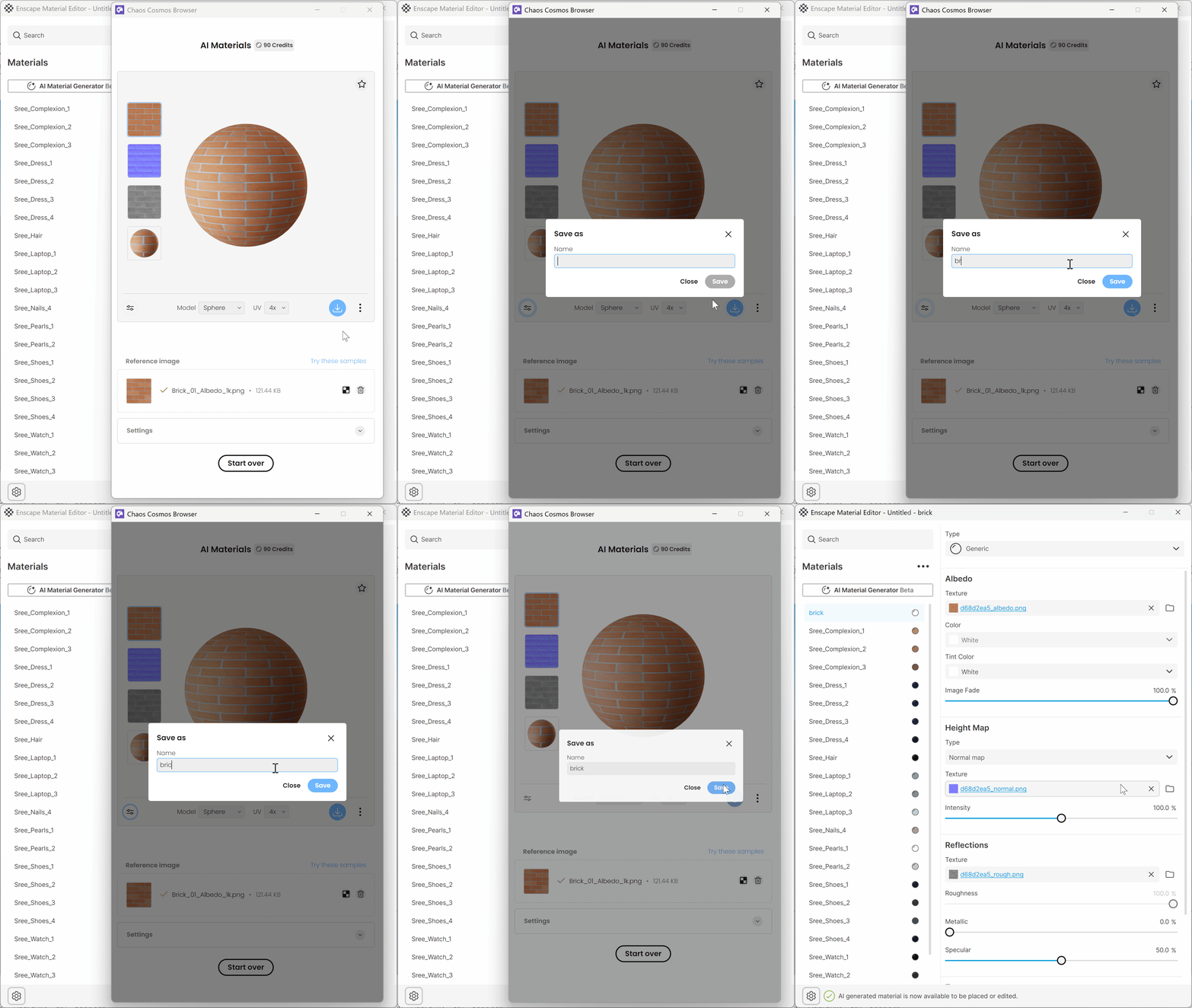
Importing the generated material into the Enscape Material Library
Replace a material with an AI-generated material
Use Replace with AI Material to replace a selected material in your scene with a newly generated AI material.
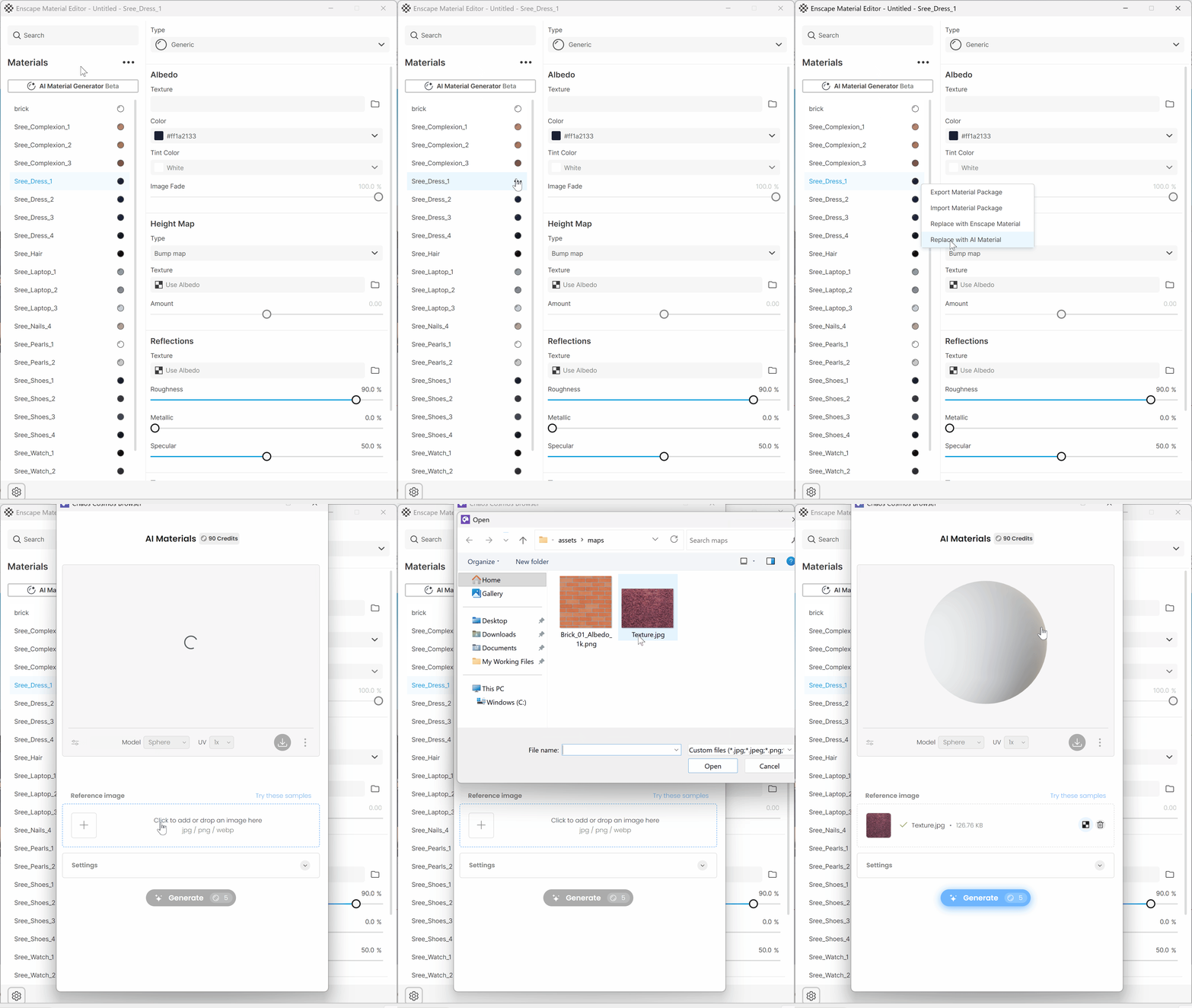
Replacing an existing material with an AI-generated material