This page provides information about creating views in Enscape.
Last updated 1 September 2026
This page provides information about creating views in Enscape.
Overview
Enscape supports creating and saving predefined Views, which can be linked to a Settings Preset saved to the project. Two methods are available for creating a View:
In Enscape – through the View Management panel in the Enscape Viewport toolbar. Enscape must be running and the Enscape Viewport must be in focus to access the panel.
In CAD/BIM – through the native View creation tools in SketchUp, Revit, Rhino, Archicad, or Vectorworks.
Create Views in Enscape
To create a View directly in Enscape:
Set the camera View position in the Enscape Viewport.
Position the sun (optional).
Apply any camera-specific settings, Visual Settings, or SketchUp styles to the project geometry.
Click the Create View button in the View Management panel. The Create View panel opens.
Enter a name in the CAD View Name field. The Create button remains inactive until a name is entered.
Optionally, mark the View as a Favorite, set a Linked Visual Preset, save the Sun Position, or update the View. For more information, see the View Settings section below.
Click Create to save the View.
youtu.be
To close the Create View panel, click the left-pointing chevron to the left of Create View to return to the View Management panel, or click the X to the right of Create View to close the View Management panel entirely.
Create Views in CAD/BIM
Each host application has its own workflow for creating views. Expand the relevant section below for step-by-step instructions.
Create a View in SketchUp
Create a View in Revit
Create a View in Rhino
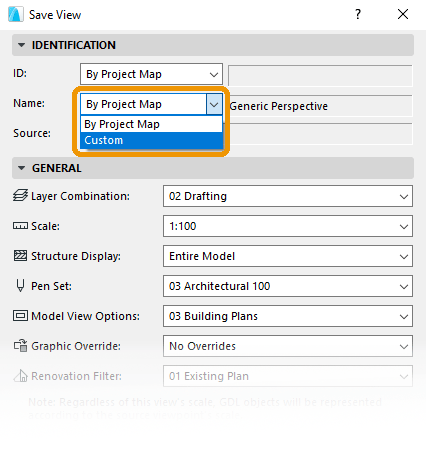
Create a View in ArchiCAD
Create a View in Vectorworks
View Settings
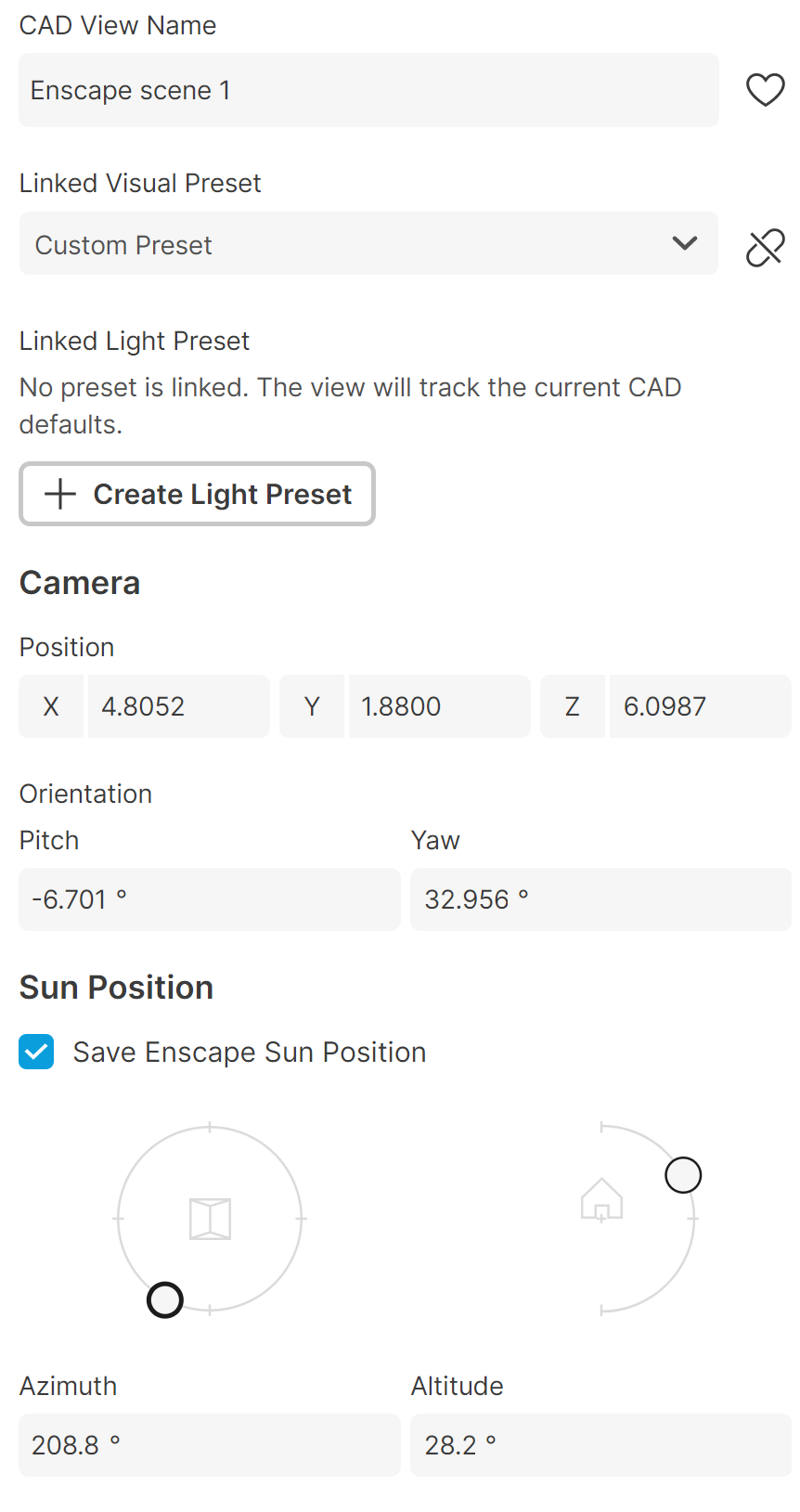
CAD View Name – Specifies a name for the view.
Linked Visual Preset – Links an existing visual preset to the view. For more information on the settings used to create visual presets, see the Custom Preset Settings page.
Create Light Preset – Creates a light preset and links it to the view. For more information on light presets, see the Lighting page.
Camera
Position – Moves the camera along the X, Y and Z axes.
Pitch – Tilts the camera up or down (along the X axis). Positive values tilt up, and negative values tilt down.
Yaw – Pans the camera left and right (along the Y axis).
Sun Position
Save Enscape Sun Position – When enabled, controls the sun position through the Azimuth and Altitude settings. When disabled, the sun position is taken from the CAD/BIM.
Azimuth – Sets the azimuth position (in degrees) of the sun in the sky.
Altitude – Sets the altitude position (in degrees) of the sun in the sky.