Enscape
Live Updates and Synchronize Views
This page provides information about the Live Updates and Synchronize Views options in Enscape.
Last updated 1 September 2026
This page provides information about the Live Updates and Synchronize Views options in Enscape.
Live Updates
Live Updates translates changes made in the host application – materials, lights, objects, and other project elements – into Enscape in real time. Live Updates is enabled by default and remains available while VR mode is active, so a user wearing a VR headset sees project changes as they happen.
To pause or resume Live Updates, click the Live Updates button in the Enscape toolbar or menu of the host app. The button background highlights in light blue when Live Updates is enabled.
See the respective host app sections for more information:



Synchronize Views
Synchronize Views keeps the camera view synchronized between the host application and Enscape. Any perspective or movement change made in the host application translates into Enscape immediately, which also allows navigation entirely through the host application without using Enscape controls.
To enable or disable Synchronize Views, click the Synchronize Views button in the Enscape toolbar or menu of the host app. The button background highlights in blue when Synchronize Views is enabled.
See the respective host app sections for more information:
Live Updates and Synchronize Views in SketchUp
In SketchUp, both Live Updates and Syncrhonize Views buttons appear in the Enscape toolbar and menu. The button background highlights in light blue when the option is enabled. Click the button a second time to disable the option.
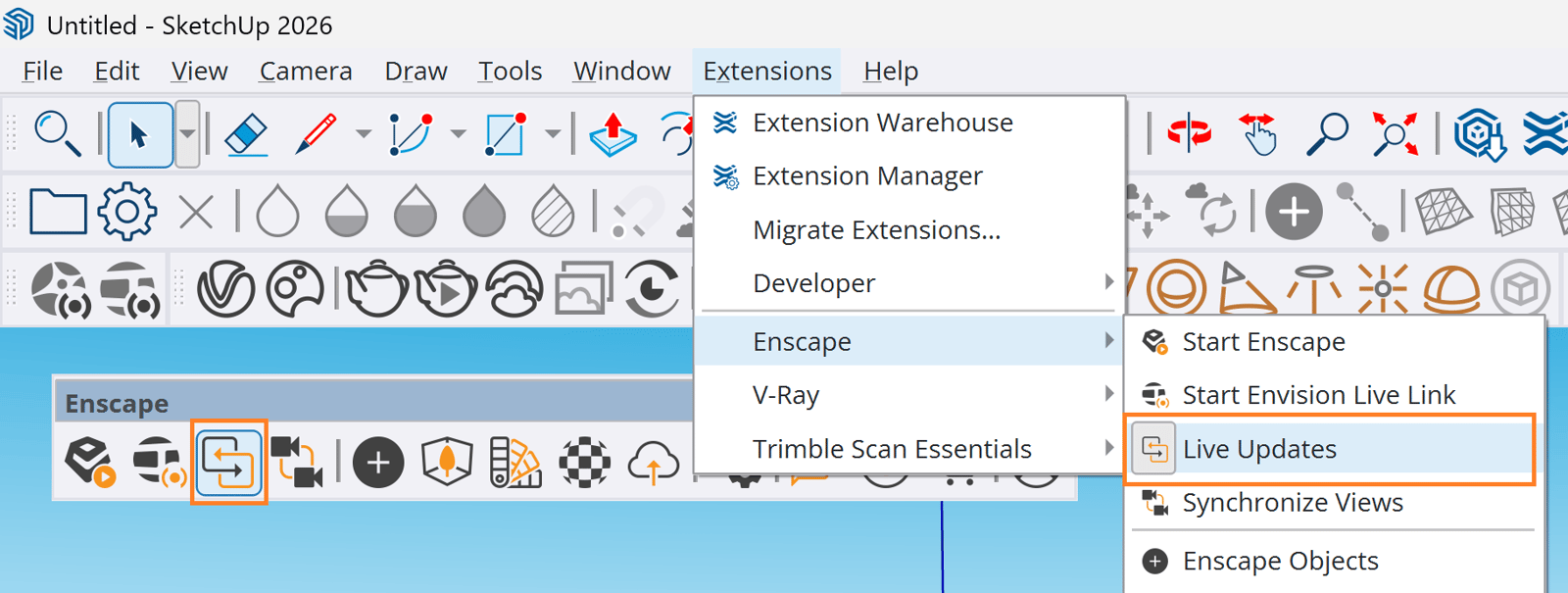
Pause and Resume Live Updates
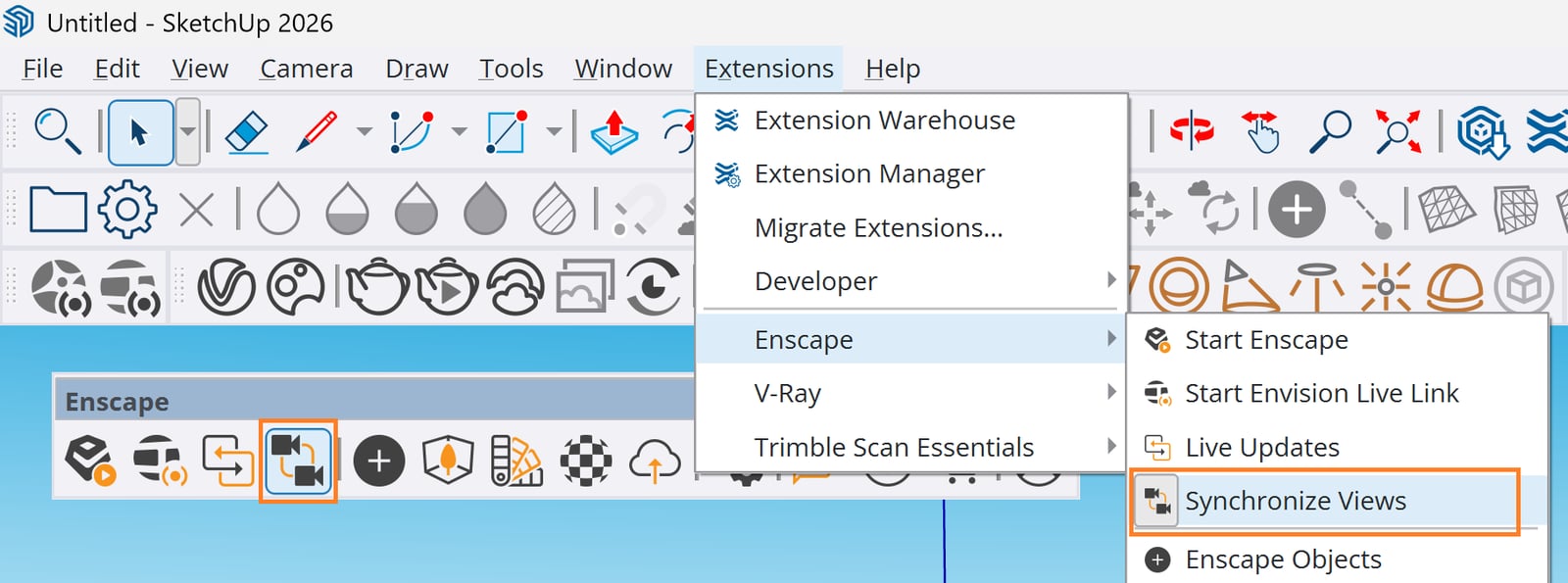
Pause and Resume Synchronize Views
Live Updates and Synchronize Views in Rhino
In Rhino, the state of both Live Updates and Synchronize Views options appears only in the Rhino command line area. Click the Live Updates button to pause or resume Live Updates, and click the Synchronize Views button to enable or disable Synchronize Views.
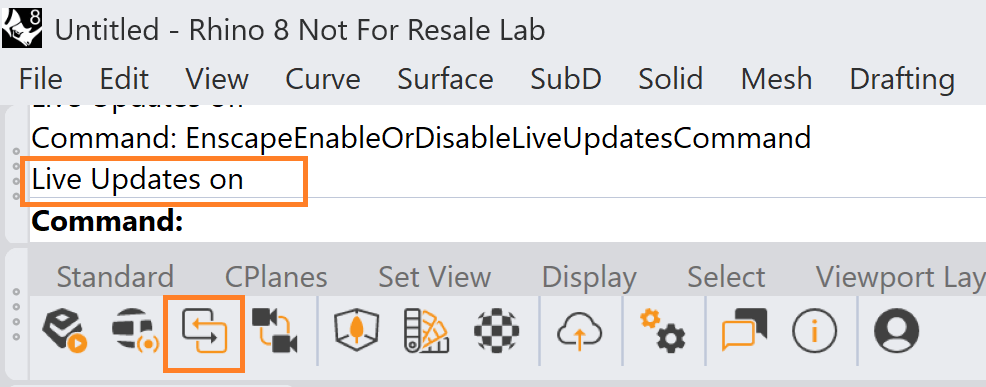
Pause and Resume Live Updates
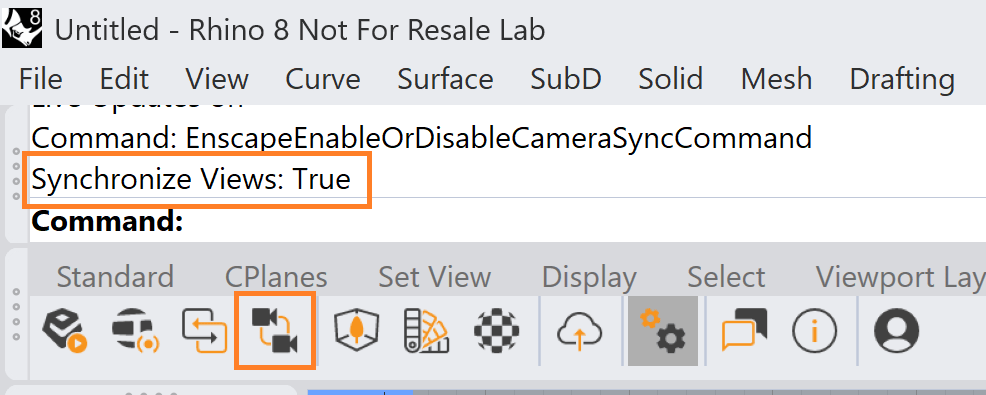
Pause and Resume Synchronize Views
Live Updates and Synchronize Views in Revit
Once Enscape starts in Revit, the live link between the two applications is disabled/enabled through the Resume Live Updates and Pause Live Updates buttons.
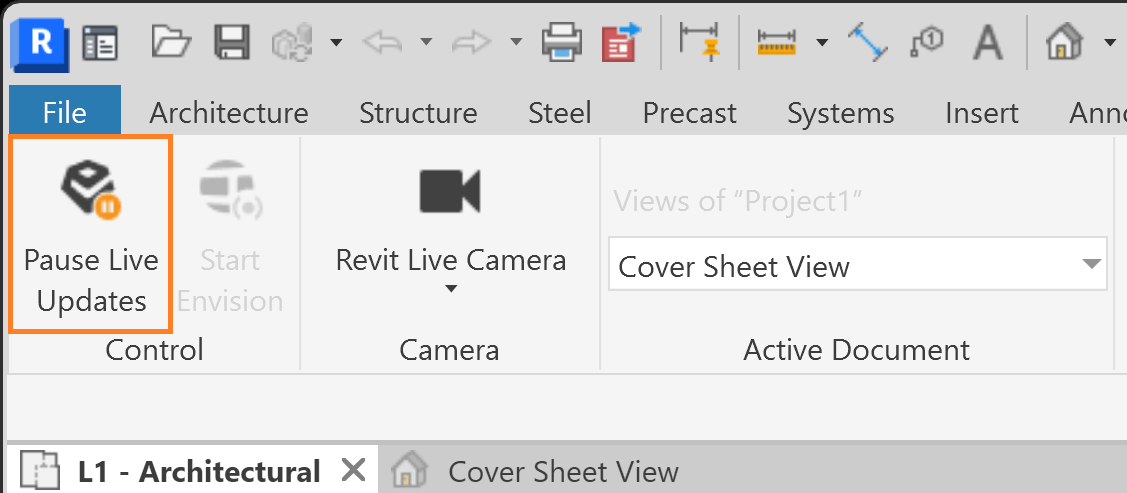
Pause-Resume Live Updates button in Revit
While Live Updates is enabled, the Active Document menu in the Revit ribbon remains accessible for selecting a View. Disabling Live Updates breaks that link. Views can still be created through the Enscape UI, and Enscape saves these Views to the Revit Active Document list even when Live Updates is paused.
Each View saves the following Revit attributes:
- Location and camera perspective
- Hide in View
- Sun Settings
- Phasing
- Design options
- Section boxes
This setup supports building a complete presentation by transitioning between saved Views.
The Enscape Export Geometry setting speeds up loading when switching between Views. It is available via the Enscape Export Geometry setting in the View Management panel.
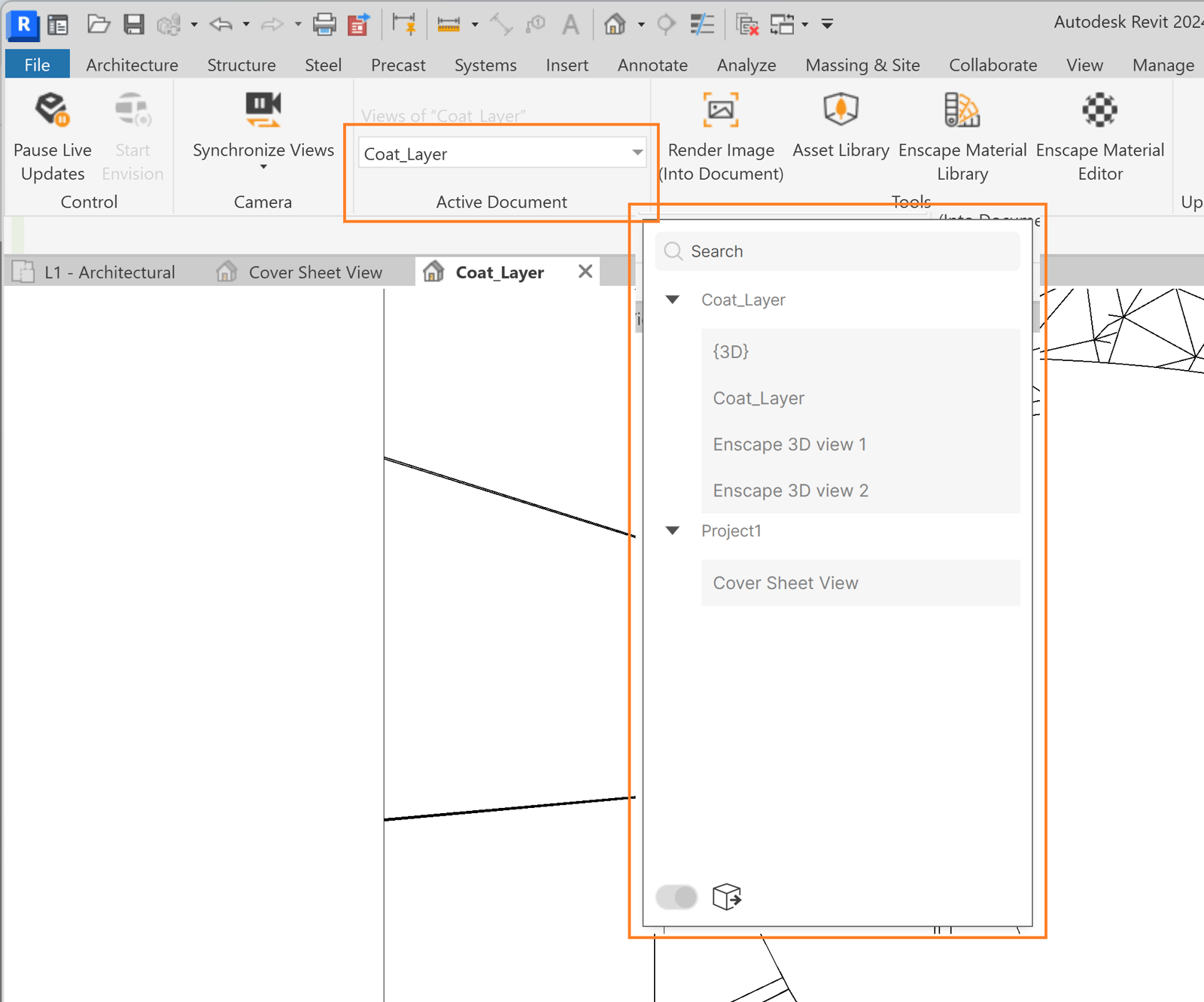
Active Documents menu in Revit
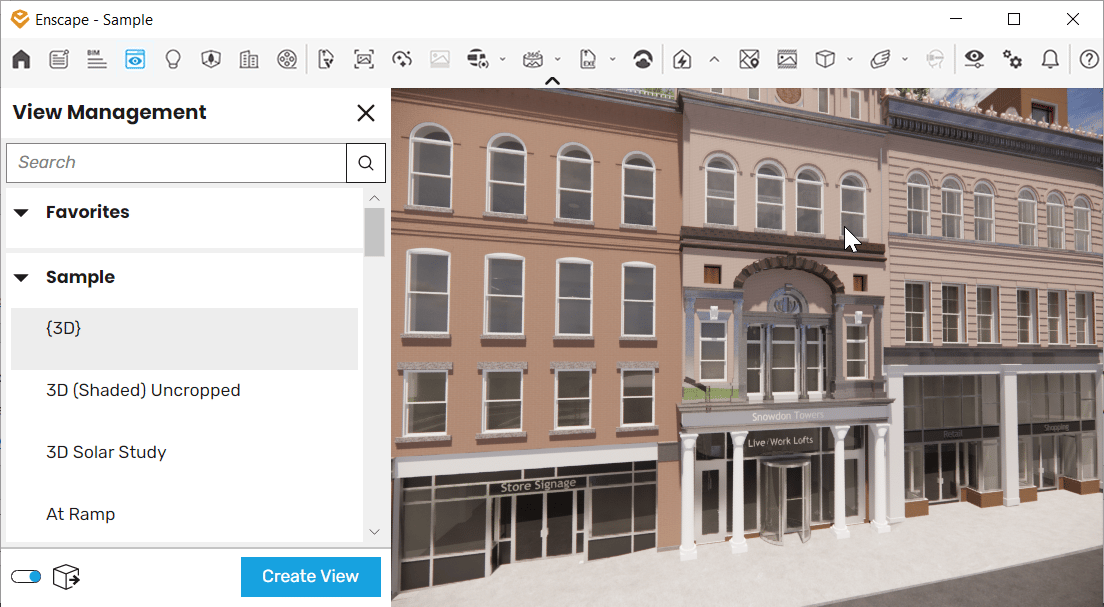
View Management in Enscape
To enable view synchronization, click the Synchronize Views button. Click the Synchronize Views button again to pause synchronization. An arrow next to the Synchronize Views button expands a menu with the Revit Live Camera option. The button background highlights in blue when Synchronize Views is enabled.

Synchronize Views button in Revit
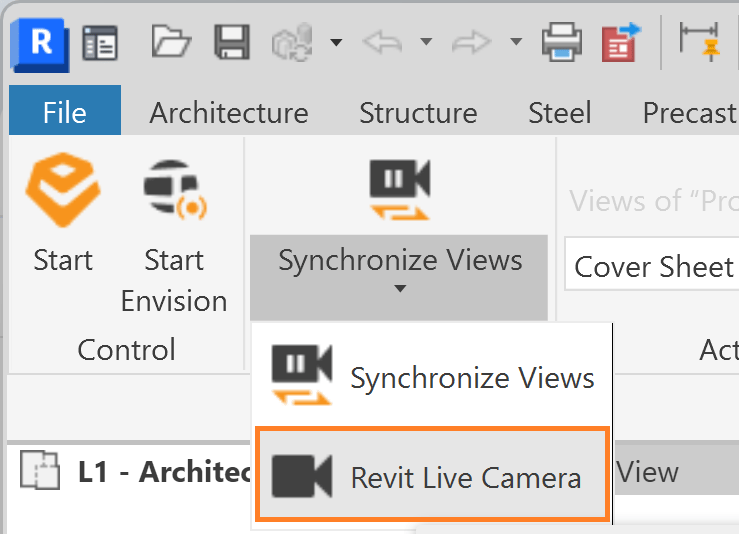
Revit Live Camera button
Live Updates and Synchronize Views in Vectorworks
Click the Live Updates button to pause or resume Live Updates. The button state updates accordingly.
On Windows, Live Updates remains available while VR mode is active. The Export Geometry option can be disabled to speed up switching between Views.
Click the Synchronize Views button to enable or disable Synchronize Views in Vectorworks.
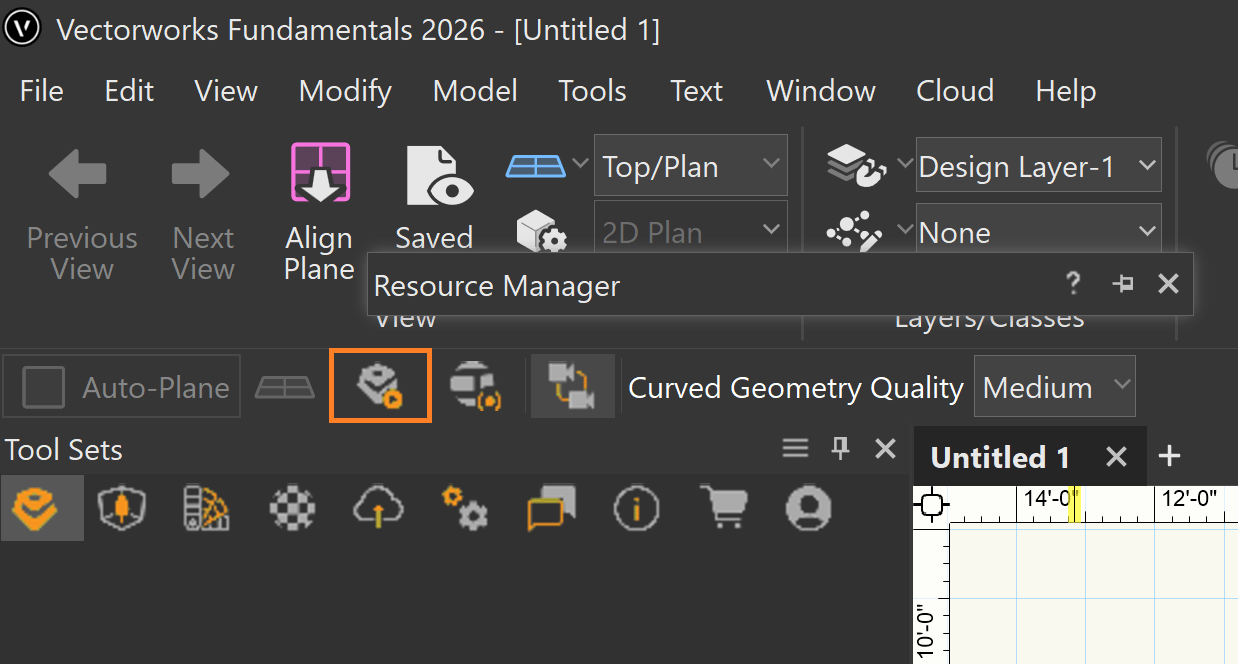
Live Update button in Vectorworks
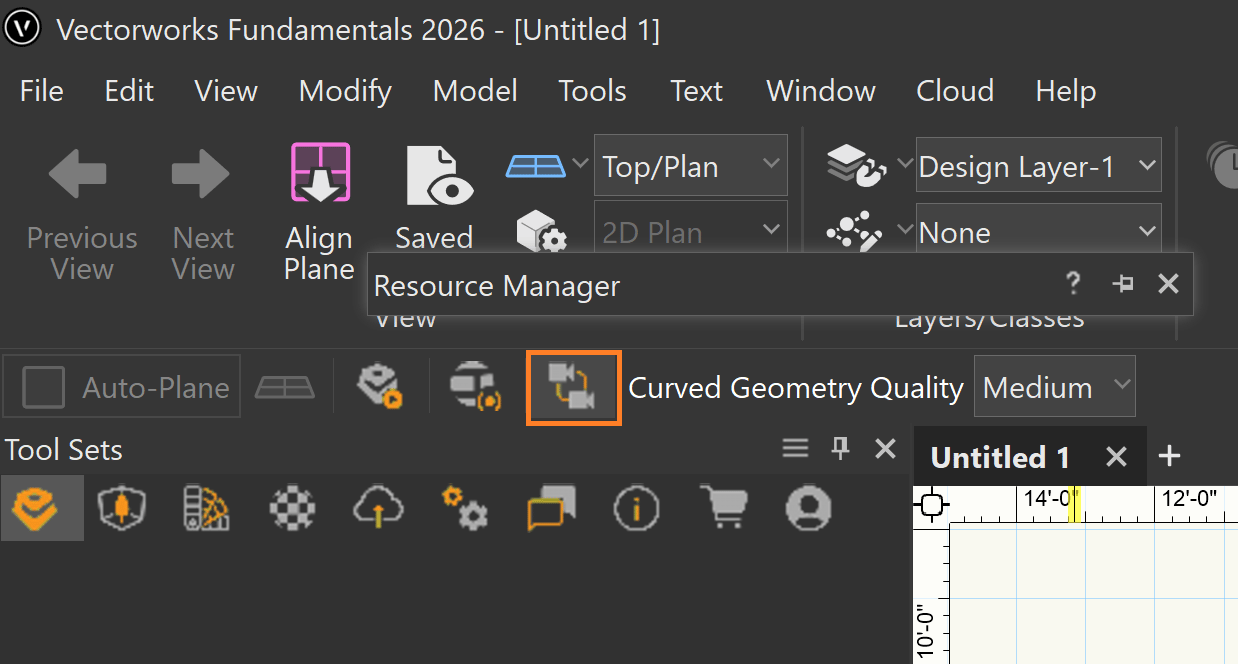
Synchronize Views button
Live Updates and Synchronize Views in ArchiCAD
The Live Updates button in Archicad is available in the toolbar, in a custom palette, or under the Enscape menu. The button background highlights in light blue when Live Updates is enabled.
Exporting geometry can be disabled when switching between Views, which reduces loading times.
To enable or disable Synchronize Views in Archicad, click the Synchronize Views button. The button background turns blue when Synchronize Views is enabled.
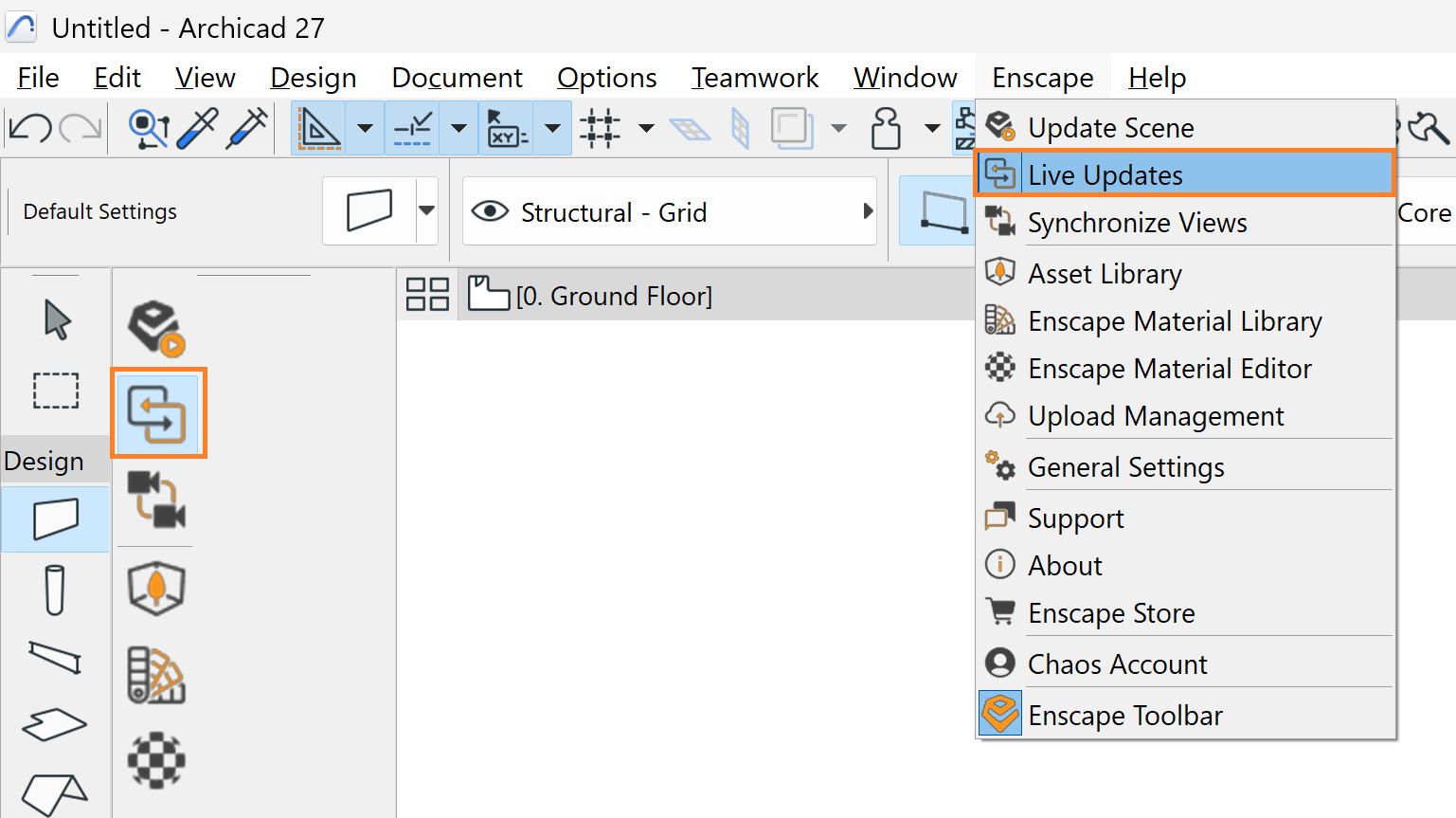
Pause Live Updates
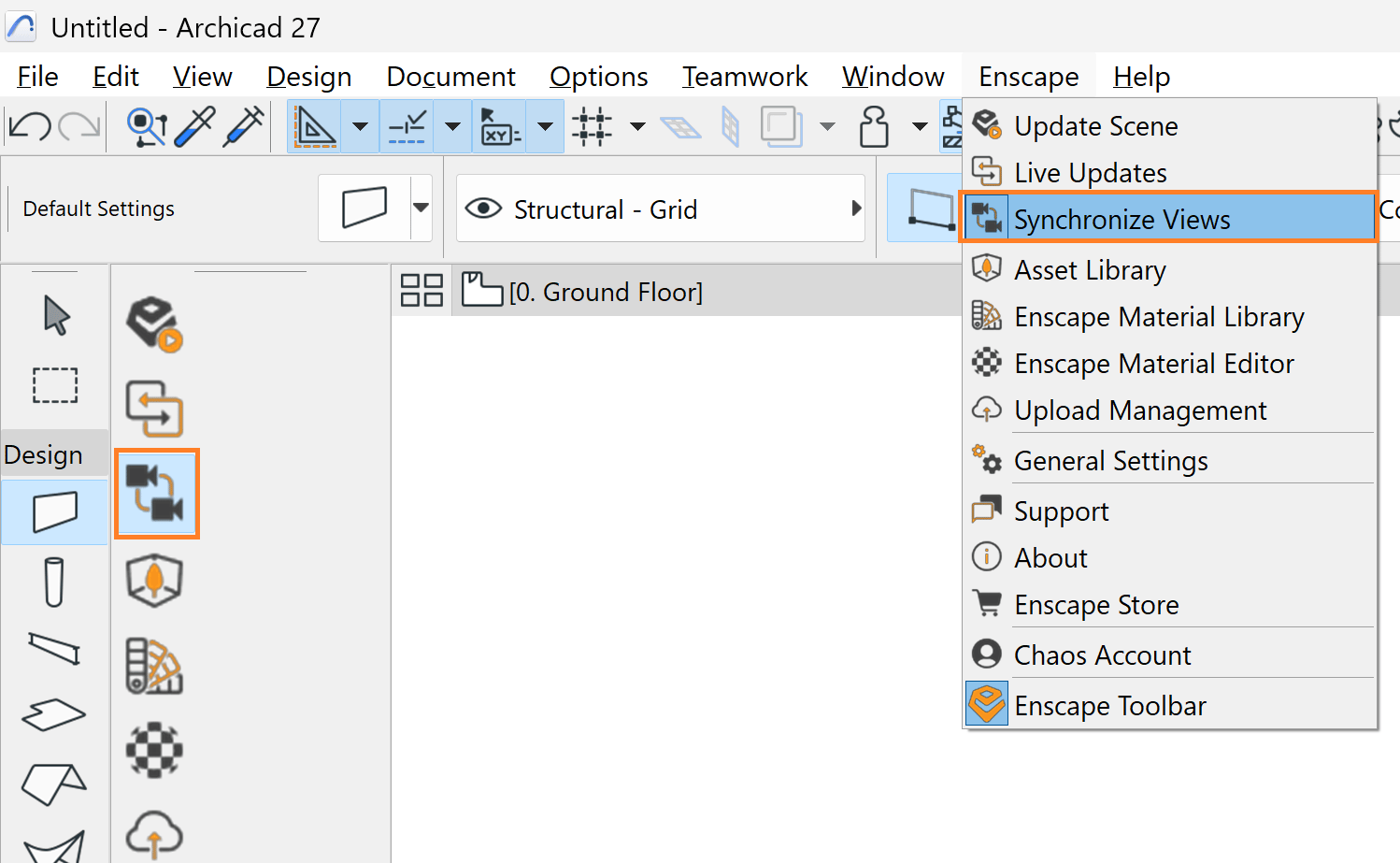
Synchronize Views button and menu options