Enscape
Entourage and RPC Content in Revit
This page provides information about the Entourage and RPC Content in Revit.
Last updated 3 June 2026
This page provides information about the Entourage and RPC Content in Revit.
Overview
By default, Enscape replaces the sample set of RPCs that come shipped with Revit with Enscape 3D models that perform better in 3D space.
This replacement content is locked and can not be altered or modified.
In the following screenshot, you can see the difference between the two RPC sets with Enscape content on the bottom.

Comparison between ArchVision RPC and the replacement Enscape Assets.
To replace the legacy Archvision RPC Content, follow the steps below:
- Go to the Enscape General Settings.
- Select Revit on the left-hand side.
- Locate the Replace ArchVision Content checkbox.
- When unchecked, it uses the standard Archvision RPC’s. A program restart is required for the changes to apply.
- It is checked by default, and it uses the Enscape 3D models
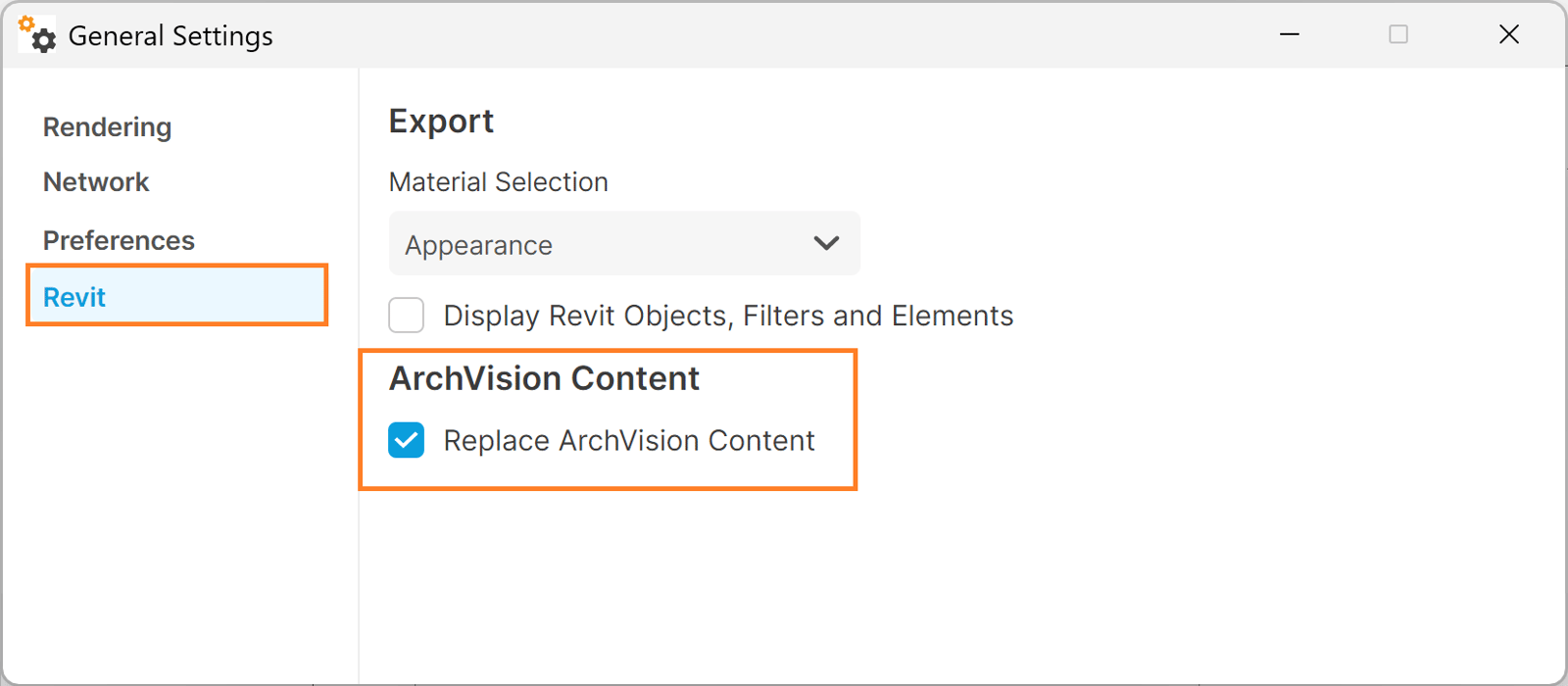
Location of the Replace ArchVision Content checkbox in the Enscape General Settings window
Archvision Watermarked RPC
If you’ve tried using Archvision content without an Archvision subscription, Archvision content will show up with a watermark (red stripes going through it). If you have a subscription to Archvision, then it will become unmarked in Revit but not in Enscape, and the reason for this is that Enscape buffers textures (including RPC’s) into the following folder:
<code data-v-c2b1f83f=""><span data-v-c2b1f83f="" class="line">%AppData%\Enscape\Data\Textures</span></code>
You must then delete the contents of this folder, restart Enscape, and Enscape will recreate the buffered content. This means your Archvision content will no longer have the watermark.
RPC Creator
Archvision provides 3D+ RPC creator which make it possible for you to create your own 3D+RPC content from regular 3D models. This was something that was not available before, so give it a look and learn more.