Enscape
Linked Models - Enscape for SketchUp Specific
This page provides information about Linked Models in Enscape for SketchUp.
Last updated 3 June 2026
This page provides information about Linked Models in Enscape for SketchUp.
Overview
Linked models serve as proxy objects that can add details to your projects without making the model too heavy. Components within a model can be saved externally as individual *.skp model files and imported into Enscape as linked models. The linked model serves as a Proxy Object in SketchUp, and shows up as a wireframe box placeholder. It is quite similar to how Enscape Assets function. You can see the Linked Model as a real-time render in the Enscape Viewport.
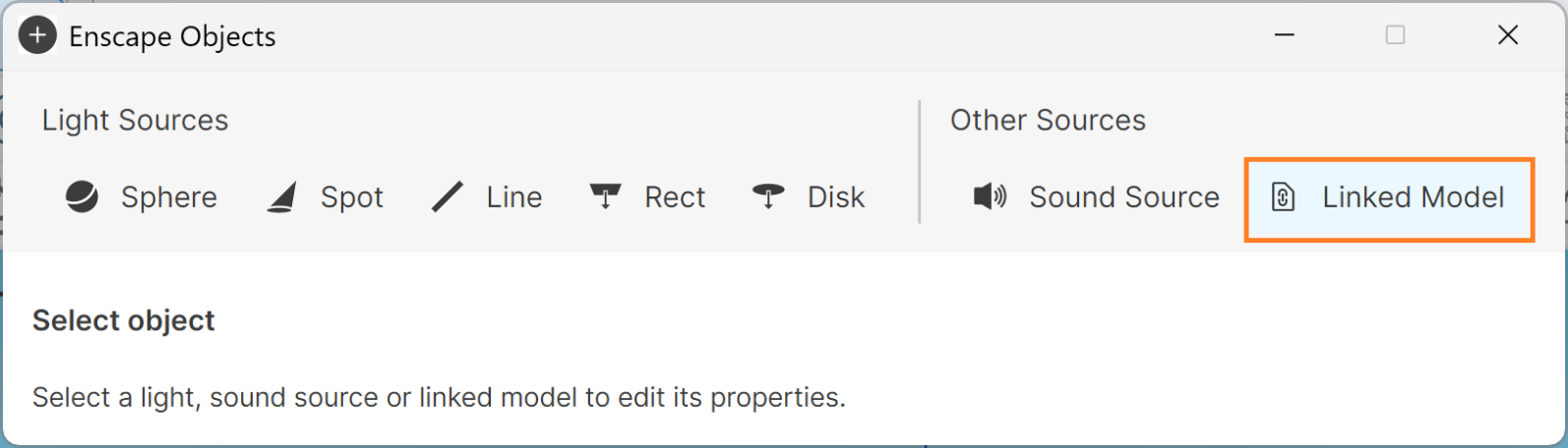
Linked Model option in SketchUp
Linking a Model
To import proxy objects, click on Objects in the Enscape Toolbar. Select the Linked Model option. Locate the *.skp Model. Once selected, it shows up as a proxy object in your SketchUp window and as a render in your Enscape Viewport.
linked_2
mp4
11 MB
Creating an External Model using SketchUp Components
You can create proxy objects using SketchUp components. Either create your own components or use existing ones. Export components by right-clicking and selecting Save As. Save the component as an external *.skp File. You can link this file as a linked model inside the Enscape objects window.
Updating a Linked Model
Updates to a Linked Model can be made in the external *.skp file. Open the file in SketchUp, update the model, and save the changes. Once saved, the changes are automatically updated in your Linked Model file.
Re-linking Models
If the original location of a linked model changes, you can re-link it by selecting the placeholder inside your project. Once selected, open the Enscape objects window. There is a folder icon at the bottom of the window with your selected linked model name. Click on the folder icon to re-link the model path to the new location.

Linked Model File