Enscape
Sound source - Enscape for SketchUp
This page provides information about the Sound Sources in Enscape for SketchUp.
Last updated 3 June 2026
This page provides information about the Sound Sources in Enscape for SketchUp.
Overview
SketchUp supports placing Enscape sound sources in projects. This can add sound to your live walk-throughs, standalone exports, and videos. You can use any .wav, .mp3, .ogg, .flac, or .raw sound file, which is looped, if the sound is enabled. There is no length or size limit on these files. The sound gets quieter the farther away you are from the source, but it is not affected by geometry. Enscape’s sound simulation is rather processor-heavy, so if your project is too large or detailed, it may lead to crashes. We recommend not to use too many sound sources at once.
Placing a Sound Source in SketchUp
To place a sound source in SketchUp, open the Enscape Objects window and click Sound Source.
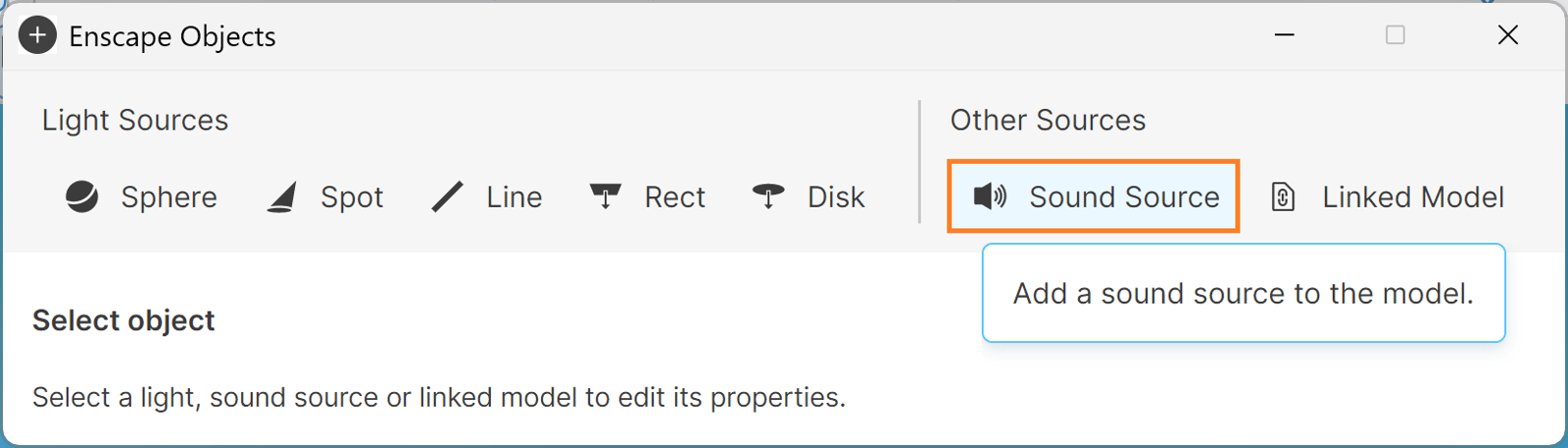
Sound Source option in Sketchup
A dialog window opens, asking you to select the sound source. By default, Enscape opens the sound files that come with Enscape, but you can also use your own.
Once you have selected your sound files, a speaker symbol appears next to the mouse pointer in the SketchUp viewport. It allows you to place the location of the sound source in the project. Click once to place the sound source.
Then, choose the axis direction. You can use the arrow keyboard keys to set the specific axis direction along which to slide the sound source.
Once the sound source is placed, you can adjust your sound file. The Full Volume setting defines the distance from the sound source (in meters) at which the sound is played at its full volume. Outside this radius, the sound fades until it reaches the distance defined in the Zero Volume setting, at which distance the sound will stop playing altogether.

Adjusting the settings for the sound source
Here is a video showing an audio file being placed in SketchUp (enable your audio).
sound_win_3_4-0
mp4
4 MB
Enabling Sound
Enscape needs to be running to adjust the sound source settings.

Access Sound Source options in Enscape

Show the sound source in the Enscape viewport