V-Ray for 3ds Max
Chaos Vantage Toolbar
This page provides information on the Chaos Vantage toolbar integrated in V-Ray for 3ds Max.
Last updated 23 June 2026
This page provides information on the Chaos Vantage toolbar integrated in V-Ray for 3ds Max.
Overview
Chaos V-Ray provides a Chaos Vantage toolbar with a few handy and useful tools that enhance the user experience and workflow between V-Ray for 3ds Max and Chaos Vantage. The toolbar is only visible if a Chaos Vantage installation is present.
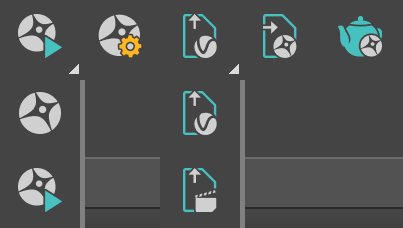
Among the tools it provides are:
- Live Link
- Live Link to Chaos Vantage in the 3ds Max Viewport
- export and send .vrscenes from 3ds Max to Chaos Vantage
- import changes from Chaos Vantage to 3ds Max.
The Live Link feature makes it possible to instantly see changes made in V-Ray for 3ds Max without the need to export and import .vrscenes in Chaos Vantage.
Toolbar Functions
Button | Description |
|---|
Button | Description |
|---|---|
Initiates a Live Link session between 3ds Max and Chaos Vantage. For more information on how to initiate a Live Link, see the Initiate Live Link to Chaos Vantage page. | |
Initiates a Live-Link to Chaos Vantage directly in the 3ds Max viewport. For more information, see the Chaos Vantage Integration page. | |
Opens the Chaos Vantage Live Link settings. Currently, the settings dialog includes options for setting IP and Port, options for modifying frame timeout, as well as for enabling/disabling object render state. | |
Exports and sends the current scene as static .vrscene to Chaos Vantage. For more information, see the Export and Send as .VRScene to Chaos Vantage page. | |
Exports and sends the current animation range as .vrscene to Chaos Vantage. For more information, see the Export and Send as .VRScene to Chaos Vantage page. | |
Opens the Imports changes from Chaos Vantage dialog. For more information, see the Import Changes from Chaos Vantage page. | |
Renders animation with Chaos Vantage. For more information, see the Render Animation with Chaos Vantage page. |
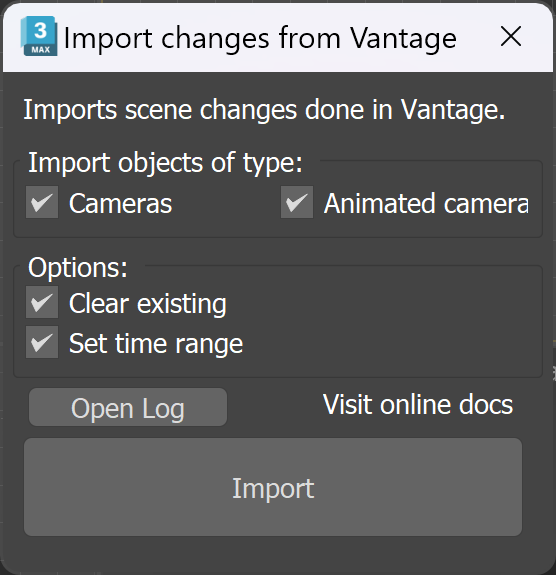
Imports changes from Chaos Vantage dialog
Cameras – When enabled, camera viewpoints are imported.
Animated camera – When enabled, the animated camera tracks from Chaos Vantage are imported as an animated camera.
Overwrite existing – When enabled, all existing objects in the 3ds Max scene are overwritten with the ones from Chaos Vantage.
Set time range – When enabled, the current time range is adjusted to match the animation length from Chaos Vantage.
Open Log – Opens the log listing the actions and processes executed by the script. Useful for debugging the scene if there is an issue. Default location is C:\Users\USER_NAME\AppData\Local\Autodesk\3dsMax\MAXVERSION - 64bit\ENU\scripts
Visit online docs – Opens Chaos online documentation on Importing Changes from Chaos Vantage Script.
Import – Opens a browse window to specify a Vantage Scene file (.vantage) to import.
Vantage Live Link settings
IP Address – IP address that the live link connection connects to.
Port – Specifies the port at which the Live link connection is started.
Frame timeout – Sets а specified time in seconds between frames to ensure data transfer for the next frame has begun .
Enable Object Render State – When enabled, uses Render states/counts/iterations/modes instead of their viewport representation. Anima 4D assets require this option to be enabled to be rendered properly. Enabling this option саn affect the interactivity of Live link updates.

Useful Links
In the following links, you can find useful information on how to work with Chaos Vantage Live Link feature: