V-Ray for 3ds Max
VRayReflection
This page gives an overview of the Reflection Render Element and explains how it is used.
Last updated 8 May 2026
This page gives an overview of the Reflection Render Element and explains how it is used.
Overview
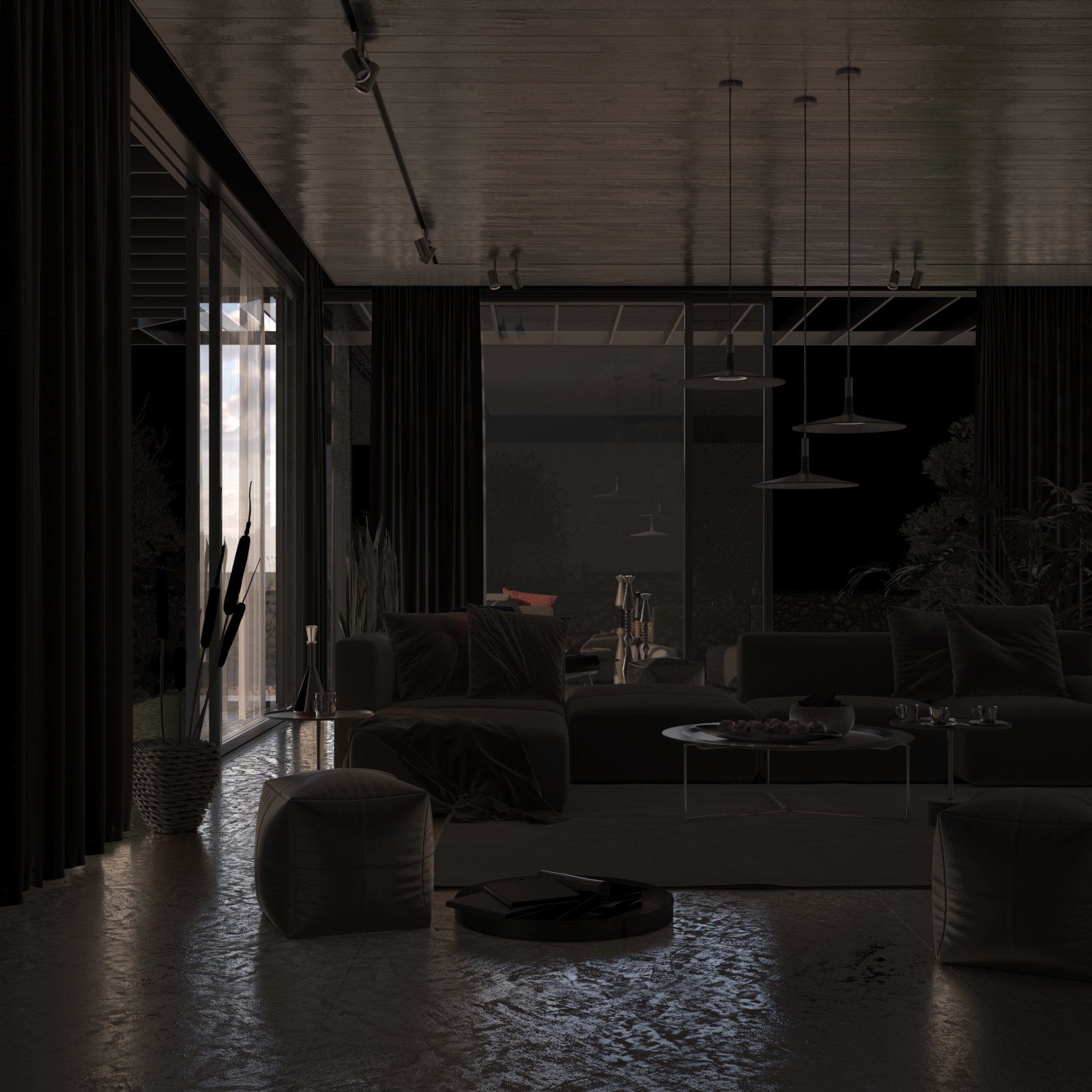
The Reflection Render Element stores reflection information calculated from the materials' reflection values in the scene. Surfaces with no reflection values set in their materials contain no information in the render pass and therefore render as black.
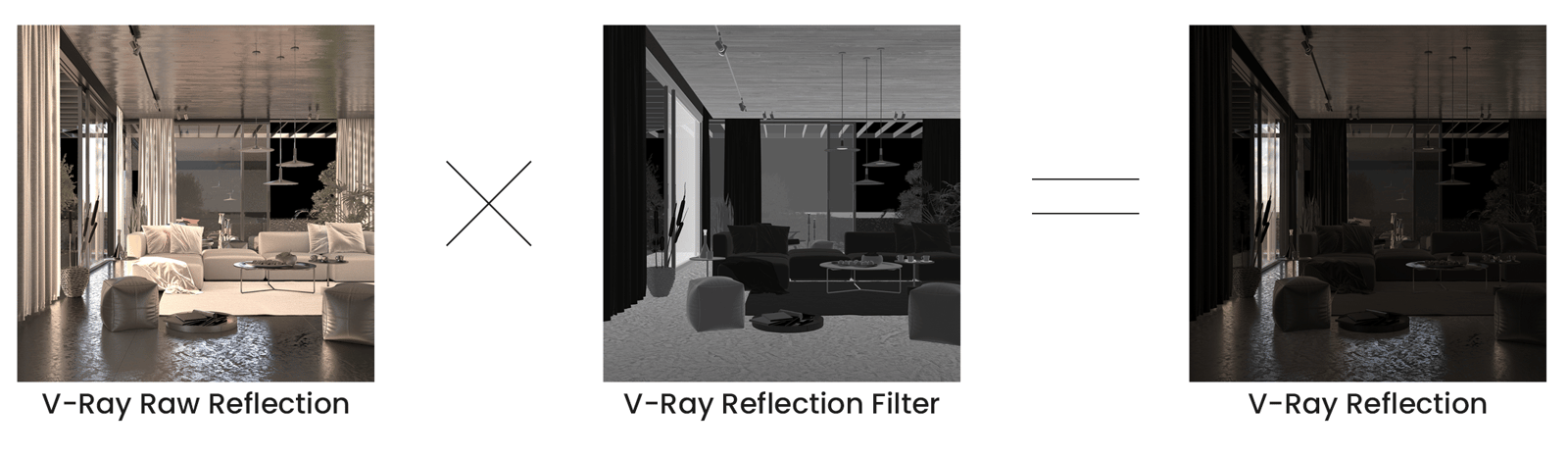
The Reflection Render Element is formed by multiplying the Raw Reflection (VRayRawReflection) Render Element by the Reflection Filter (VRayReflectionFilter) Render Element. So while the raw reflection pass gives the full reflection of objects reflecting in the scene, the reflection filter sets how much of that reflection should come through in the composite. The two are multiplied together to create the VRayReflection render element which gives a true representation of the reflection in the scene.
The Reflection Render Element is a key component in the main Beauty Pass.
UI Path
Parameters
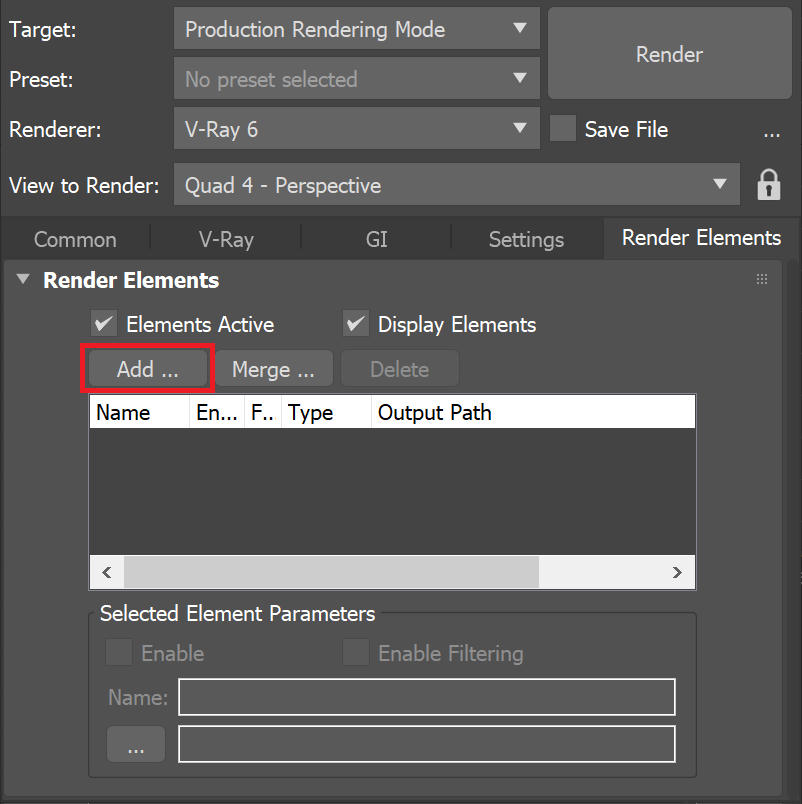
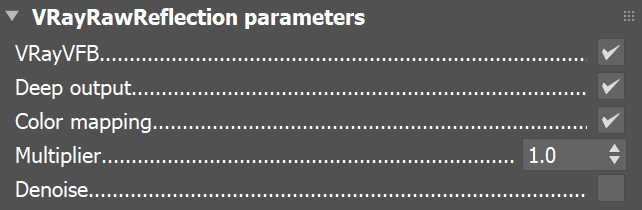
This render element is enabled through the Render Elements tab of the Render Setup window in 3ds Max and displays its parameters in a rollout at the bottom of the window:
VRayVFB – When enabled, the render element appears in the V-Ray Virtual Frame Buffer.
Deep output – Specifies whether to include this render element in deep images.
Color mapping – Applies the color mapping options specified in the Color mapping rollout (Render Setup window > V-Ray tab) to this render element. This option is enabled by default.
Multiplier – Sets the overall intensity of the render element, where 1.0 is the standard multiplier.
Denoise – Specifies whether to denoise this render element.
Common Uses
The Reflection Render Element is useful for changing the appearance of reflective elements after rendering using compositing or image editing software. In the example below, the reflections are brightened using the Reflection RE. Some of the reflections are selected using a Cryptomatte mask, and a cool tint is applied to them.

Before

After
Compositing Formula
VRayRawReflection x VrayReflectionFilter = VRayReflection