V-Ray for 3ds Max
VRaySoftBox
This page provides information on the Light Softbox Map.
Last updated 28 April 2026
This page provides information on the Light Softbox Map.
Overview
The VRaySoftbox is a procedural texture that can be used in a V-Ray Area Light to create the illumination coming from a Soft Box light source. The example shown here uses a VRaySoftBox texture on a V-Ray light.
UI Path


Parameters
Base Color – Controls the color of the texture. Enabling the checkbox on the right, enables the use of maps.
Tint Color – When enabled, multiplies the Base Color parameter by the Tint Color parameter.
Strength – A multiplier that controls how strong the effect of the Tint Color parameter is.
Processing
Multiplier – A multiplier for the overall VRaySoftBox texture. It acts similar to changing the multiplier of the VRayLight that uses this texture instead.
Gamma – A gamma correction that is going to be applied to the texture.

Hot Spot/Dark Spot
On – Enables or disables the hot/dark spot.
Multiplier – Controls the strength of the hot/dark spot effect.
Hot Spot (Add) – Adds more of the Base Color in the center area of the VRaySoftBox map. The amount added corresponds to the Multiplier value. See the Hot Spot vs Dark Spot example.
Dark Spot (Subtract) – Subtracts some of the Base Color in the center area of the VRaySoftBox map. The amount subtracted corresponds to the Multiplier value. See the Hot Spot vs Dark Spot example.
Tint Color – When enabled from the checkbox on the right, modifies the color of the spot.
Strength – A multiplier that controls how strong the effect of the Tint Color parameter is.
Tiling Options
U/V Offset – Controls the position of the texture along the U or V axis.
U/V Tiling – When enabled, control the tiling of the texture along the U or V axis. See the Tiling and Outer Radius example.
Fading Options
These options control how the hot/dark spot fades out into the base color.
Outer Radius – The outer radius where the hot spot ends as a fraction of the texture size. See the Tiling and Outer Radius example .
Inner Radius – The inner radius where the hot spot begins to fade out as a fraction of the texture size.
Softness – Controls the rate at which the hot spot fades out.

Gradients and Frame
V/U/Radial Vignette
The Gradients options allow you to blend gradient textures on top of the VRaySoftbox texture. You can add a gradient vignetting in the U and V direction, and also radially. See the V/U/Radial Vignette example.
On – Enables the Vignette.
Flip – When enabled, the direction of the Vignette is flipped.
Gradient swatch – Use double click on the gradient swatch to add new color mark to it or refine the current mark. A set of self-explanatory options is available from the context menu.
Frame
The Frame options multiply the VRaySoftbox texture with a square shape gradient defined with the gradient swatch. See the Frame example.
On – Enables the Frame.
Flip – When enabled, the direction of the Frame is flipped.
Gradient swatch – Use double click on the gradient swatch to add new color mark to it or refine the current mark. A set of self-explanatory options is available from the context menu.
Tint Color – When enabled from the checkbox on the right, modifies the color of the gradient.
Strength – A multiplier that controls how strong the effect of the Tint Color parameter is.
Noise
Adds Noise to the Frame gradient.
Amount – Controls the amount of effect the Noise has on the gradients.
Size – Changes the scale of the noise function.
Phase – Controls the speed of the noise procedural animation.
Fractal – Enables fractal noise.
Levels – Sets the levels for the fractal function.

Example: Tiling and Outer Radius
This example shows how V-Ray Softbox tiling affects the reflection and shadow sharpness that the Area Light casts on the object as well as the scene illumination. The same effect (achieved by tweaking the tiling value) can be done by tweaking the Outer Radius of the V-Ray Softbox. The Base Color is set to black and the Tint Color is set to white in the Base Parameters.

Tiling
= 2,
Outer Radius
= 0.5
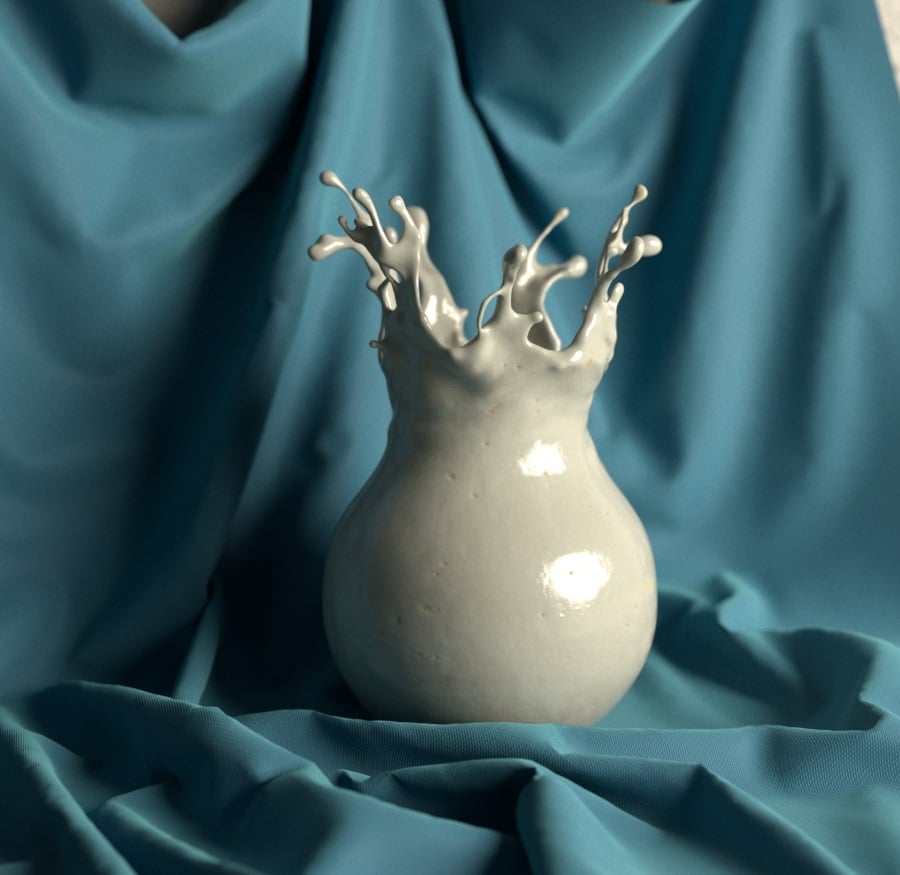
Tiling
= 1,
Outer Radius
= 0.5

Tiling
= 1,
Outer Radius
= 0.8
Example: Hot Spot vs Dark Spot
This example shows the difference between Hot Spot and Dark Spot methods. The Base Color is grey and the Tint Color is white. The Multiplier is set to 0.1.

VRaySoftBox texture with Hot Spot / Dark Spot options disabled

VRaySoftBox texture with Hot Spot option selected

VRaySoftBox texture with Dark Spot option selected
Example: V/U/Radial Vignette
This example shows the effect of gradient vignetting on the final render.
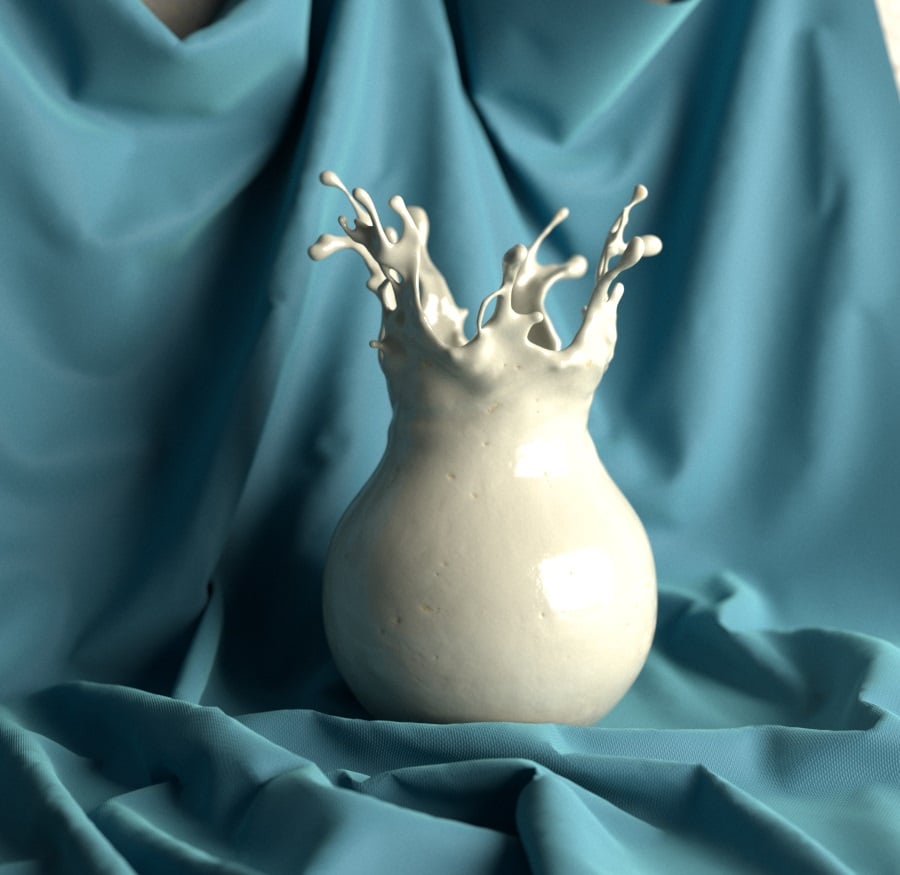
Vignette
is off

V Vignette
is on

V Vignette
is on, and
Flip
is enabled
Example: Frame
This example shows the effect of the Frame parameter. When the option is enabled, the VRaySoftBox texture is multiplied with a square shape gradient.
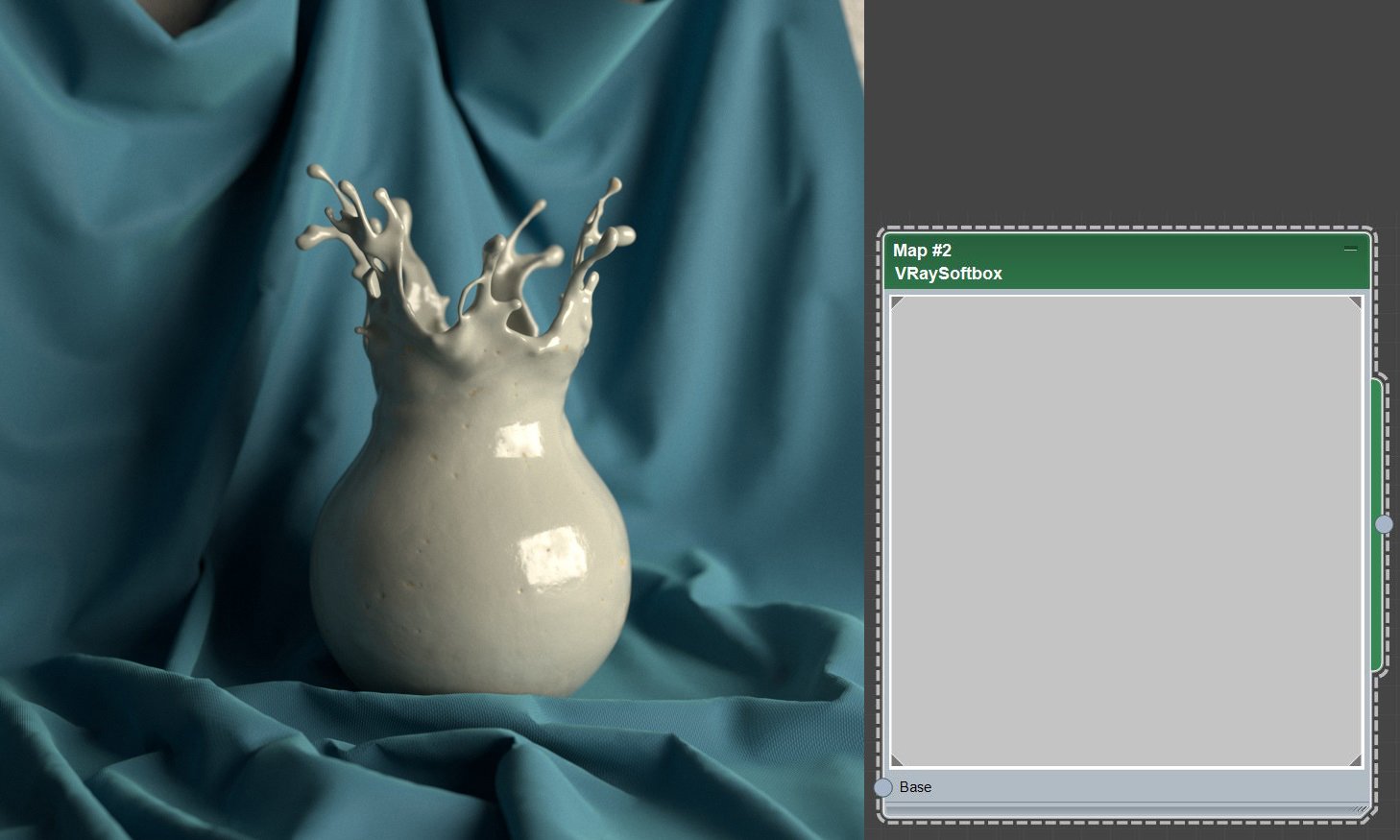
Frames
is off
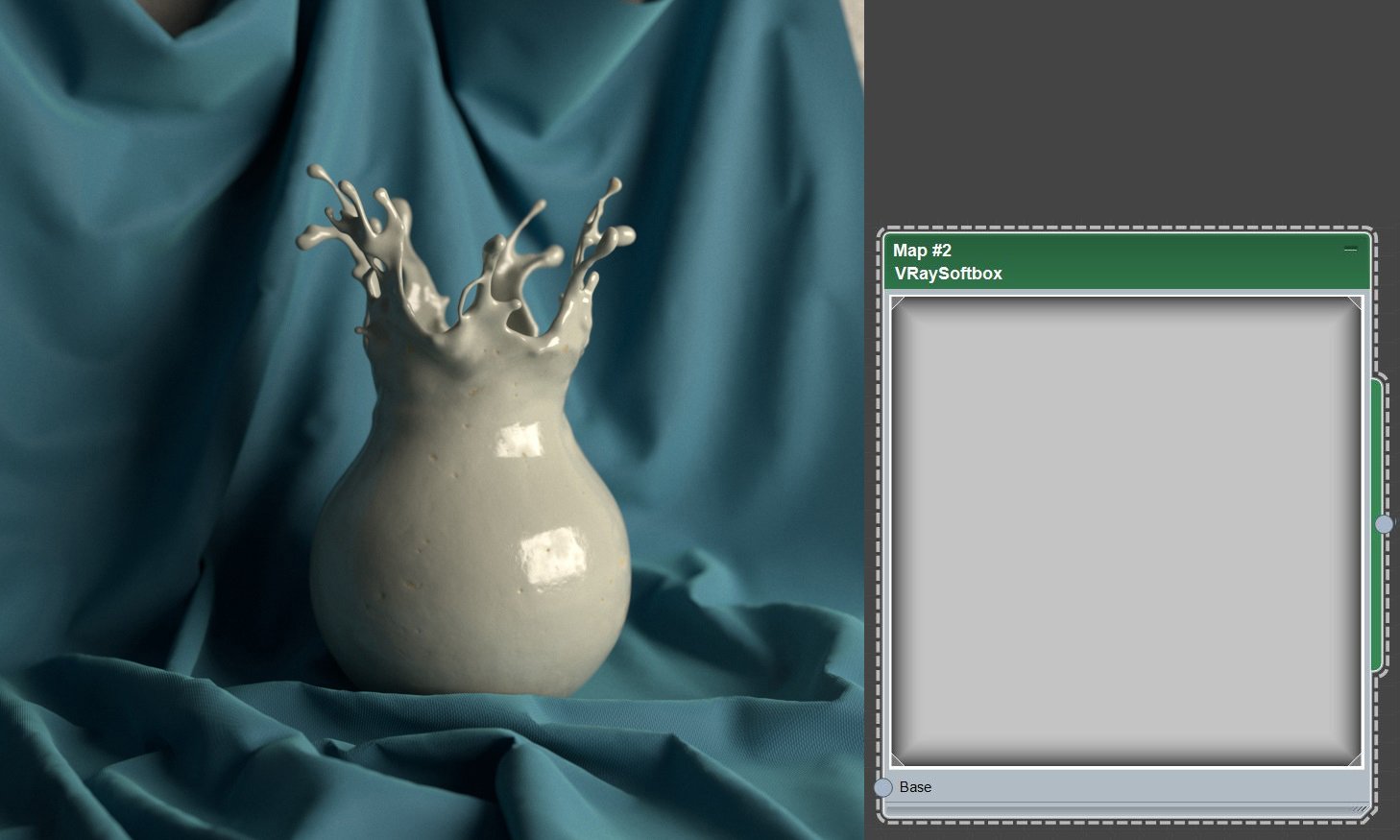
Frames
is on

Frames
is on,
Gradient
is darker