V-Ray for Blender
How to Create a Mirror Material
This tutorial shows you how to make a mirror material with full reflections in all directions.
Last updated 21 October 2025
This tutorial shows you how to make a mirror material with full reflections in all directions.
Overview
Mirrors are highly reflective, opaque objects with no color. Because mirrors reflect everything equally in all directions, this trumps any Fresnel effect that might occur. That is why, when we are setting a mirror material, we do not include Fresnel.
Download the scene to follow along
This scene is made with V-Ray 7 hotfix 2, on Blender 4.3.

Steps
1 Initial Setup

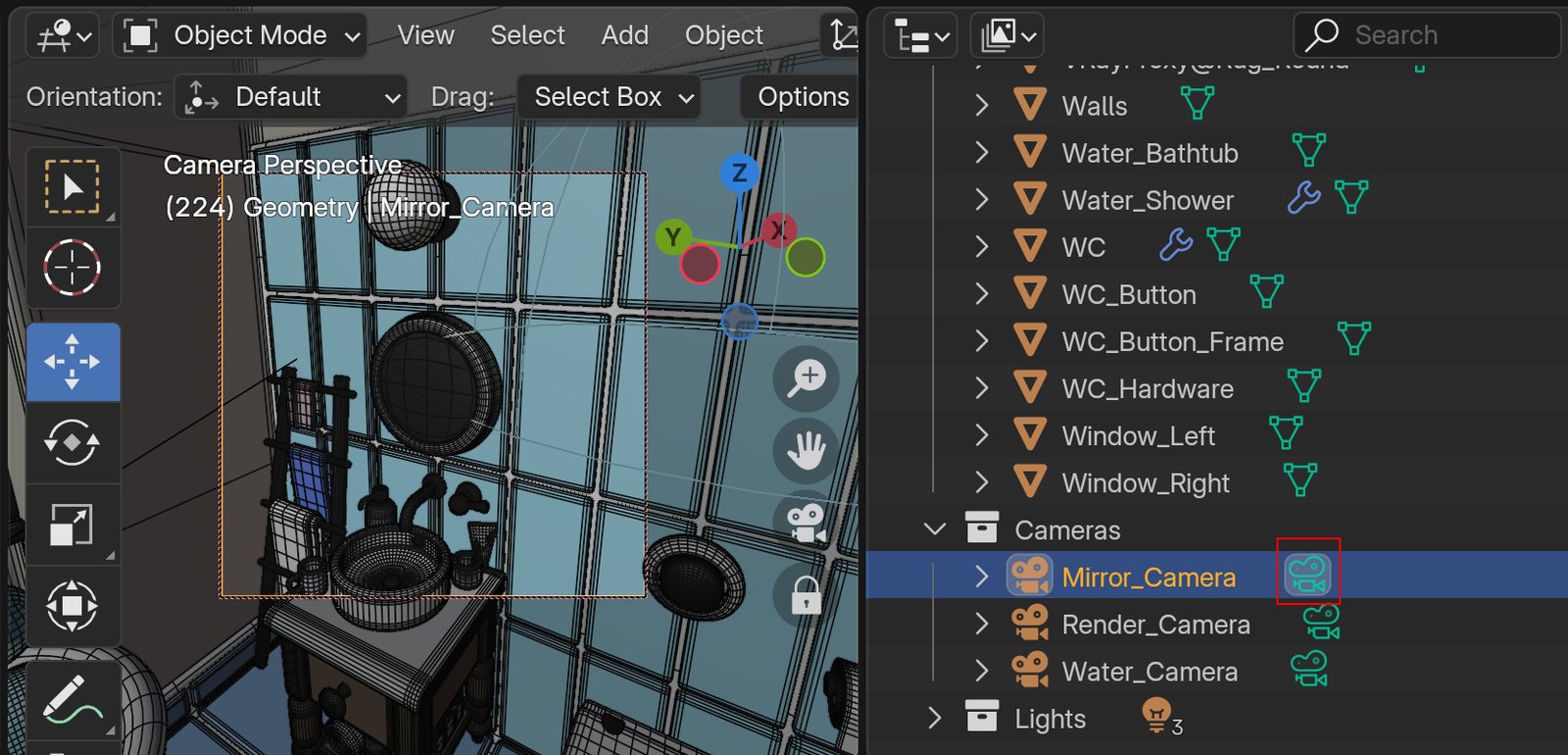
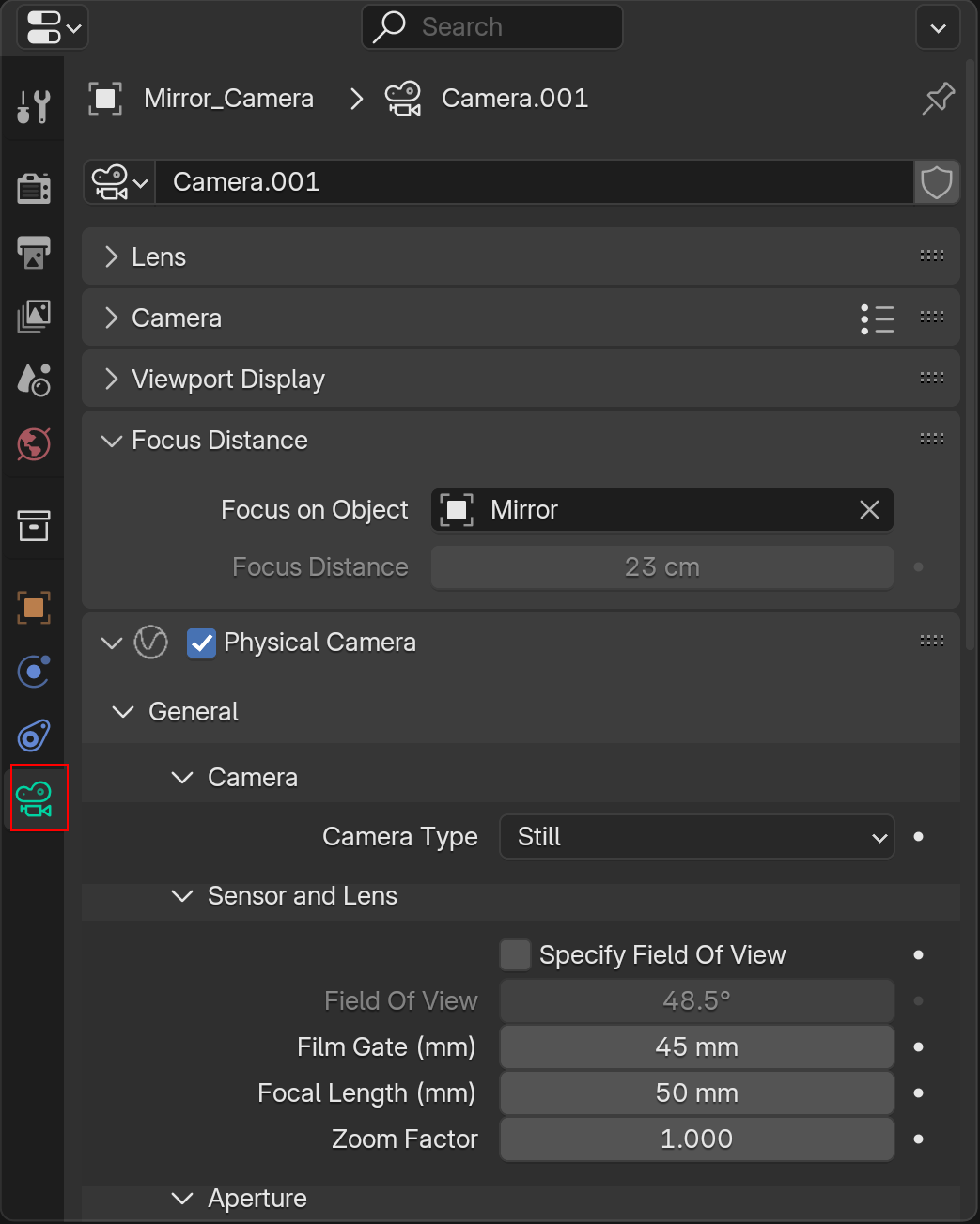
First, let's choose the camera that focuses on the mirror. Go to the Outliner and find the Cameras collection. There you will find the Mirror_Camera. Click on the green Camera icon next to its name ( ) to set it as the render camera. You should also see the mirror come into focus in the viewport. The camera has its properties preset for the scene. You can go into its settings and explore them from the Camera Properties (Data Properties when selecting a different object).
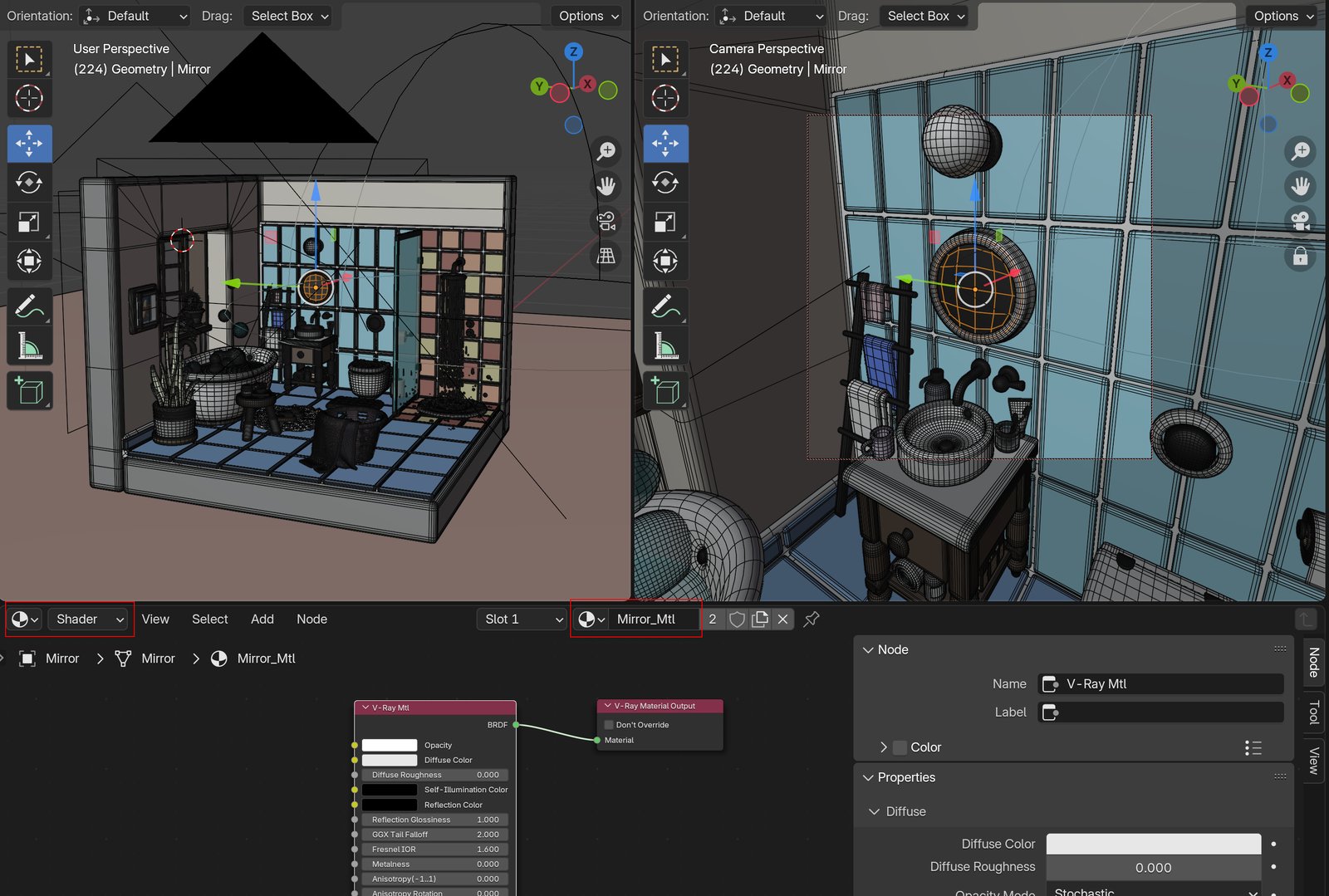
Then, select the Mirror geometry from the viewport. Set the bottom editor to the V-Ray Node Editor. Then, make sure the editor is adjusted to the Shader Node Tree. You can now see the Mirror Mtl in the editor.
2 Diffuse Properties
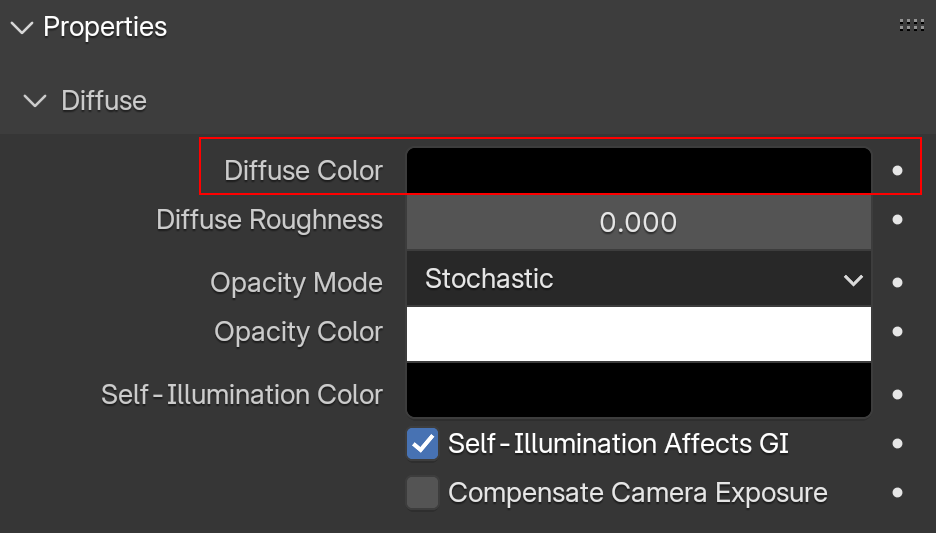
Firstly, let's set the Diffuse. Since the mirror has no underlying color, we'll adjust the Diffuse to black. You can edit this option from the Node side menu or from the node itself.
3 Reflection Properties
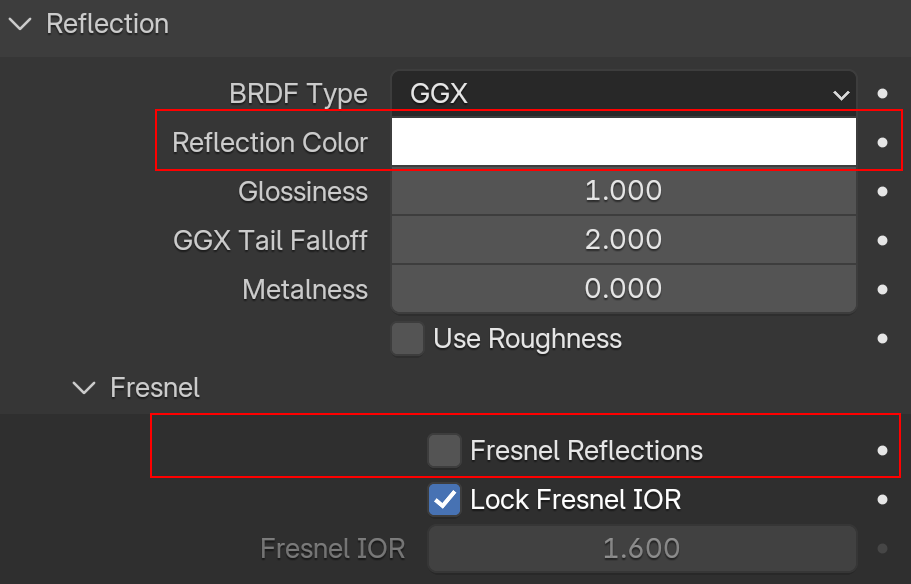
Next, in the Reflection rollout, set the Reflection to full white. In the Fresnel rollout, disable Fresnel Reflections.
4 Render
Those are all the needed settings!
You can now render using Mirror_Camera and see the result.
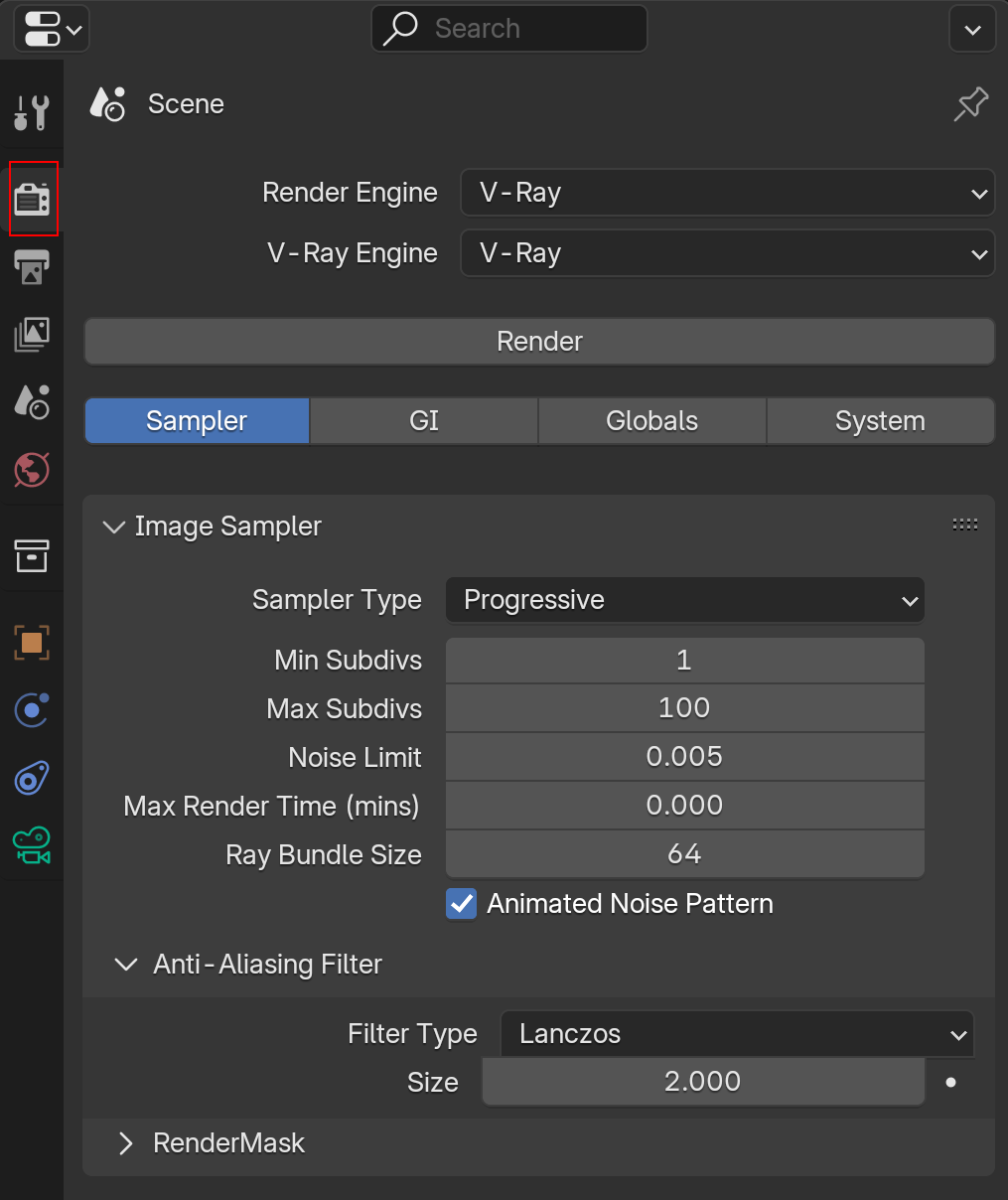
The render settings are preset; you can view them in the Render Properties tab. The Image Sampler is one of the most crucial factors for the noise and quality of any render, so if anything, check its settings.
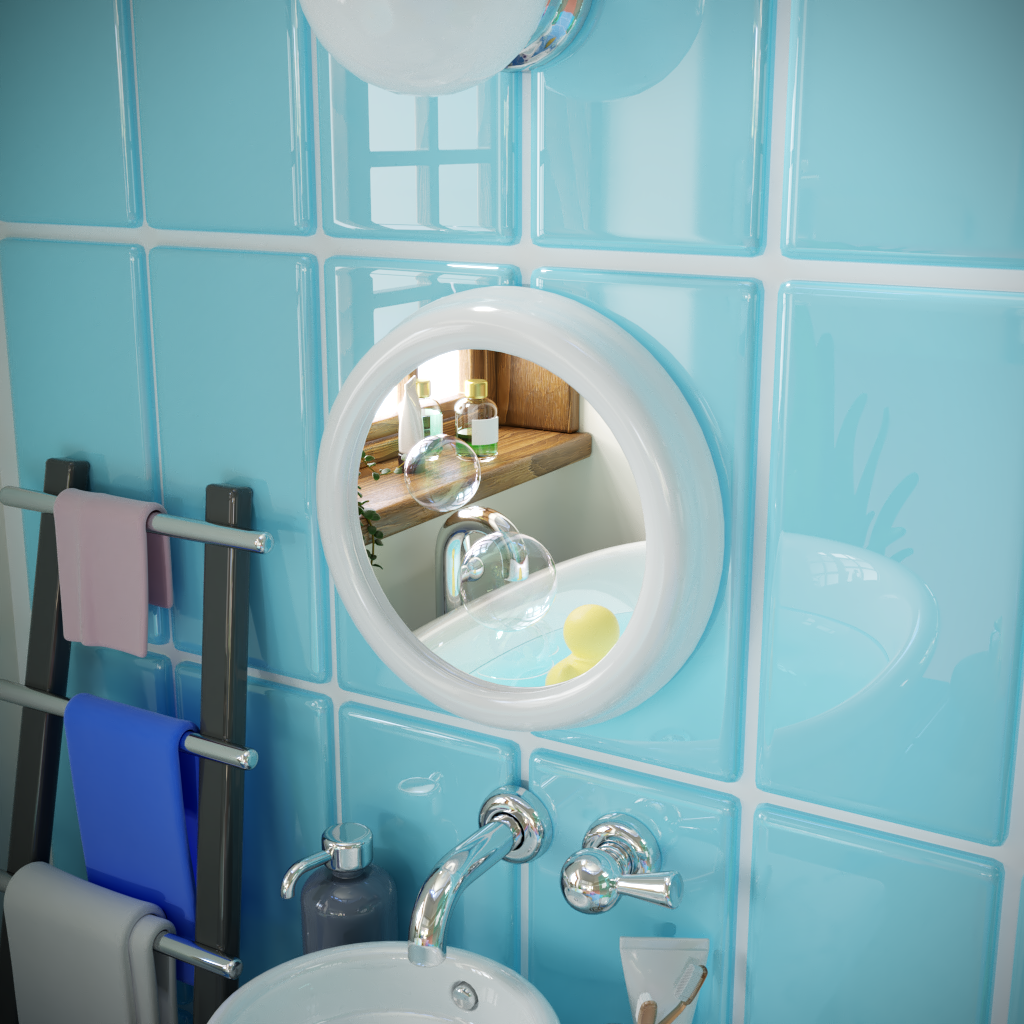
Here is the final render. Some post-effects are applied; you can set your own settings and effects from the Layers tab of the VFB.
You can now apply these settings to any material, and it will render a completely reflective mirror.