V-Ray for Blender
Preferences
This page provides information on the V-Ray Add-On window in the Preferences menu.
Last updated 1 September 2026
This page provides information on the V-Ray Add-On window in the Preferences menu.
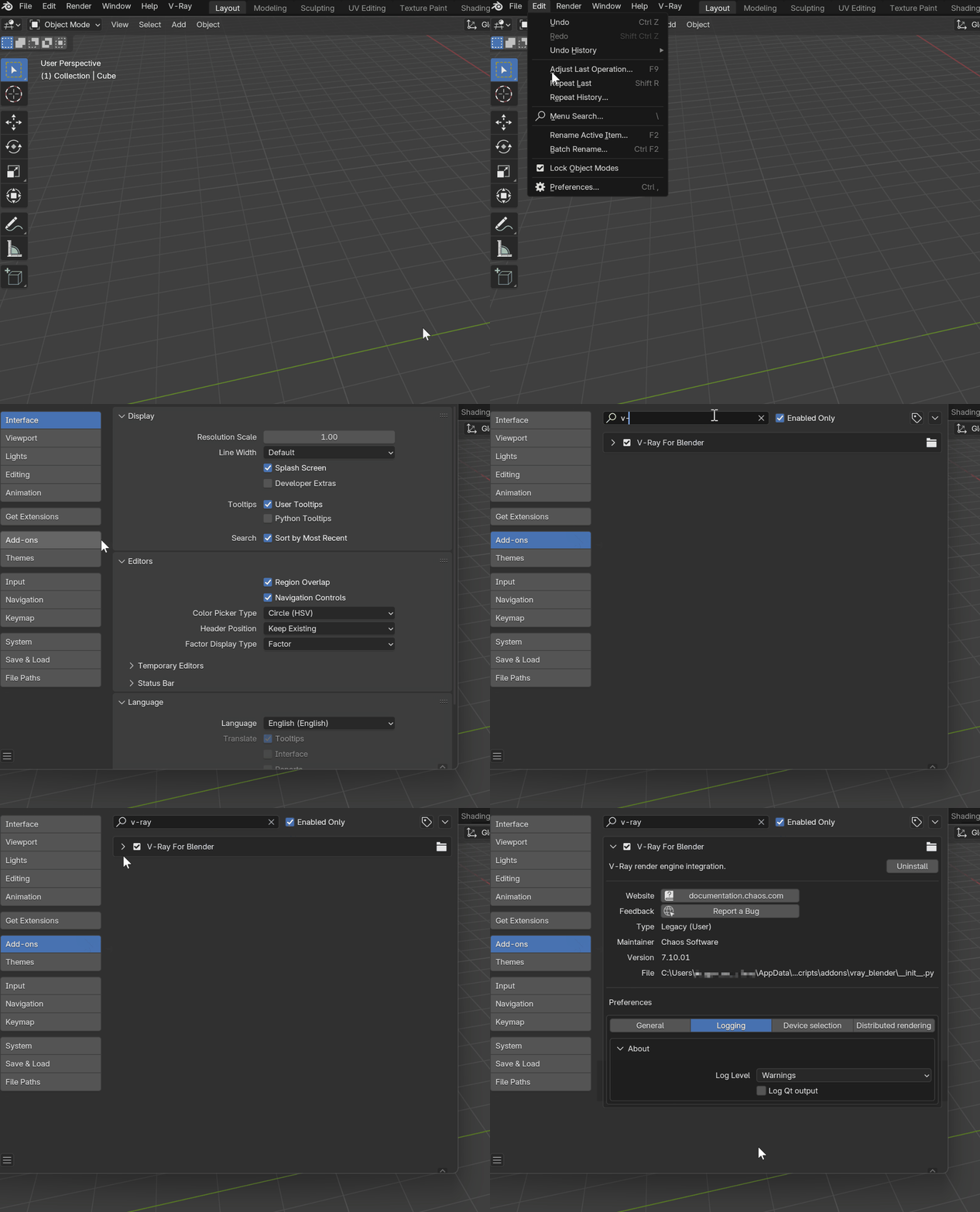
UI Path
This window is located in Edit > Preferences > Add-ons > V-Ray for Blender. If you have not enabled V-Ray yet, it will not appear in the list if Enabled Only is turned on.
Loading Previous Preferences
- After importing the preferences, go to Edit > Preferences … > Add-ons.
- Find the V-Ray for Blender section and expand it.
- Click on the Uninstall button on the right. Confirm when prompted.
- After the uninstall finishes successfully, close Blender.
- Install the new version of V-Ray for Blender as usual.
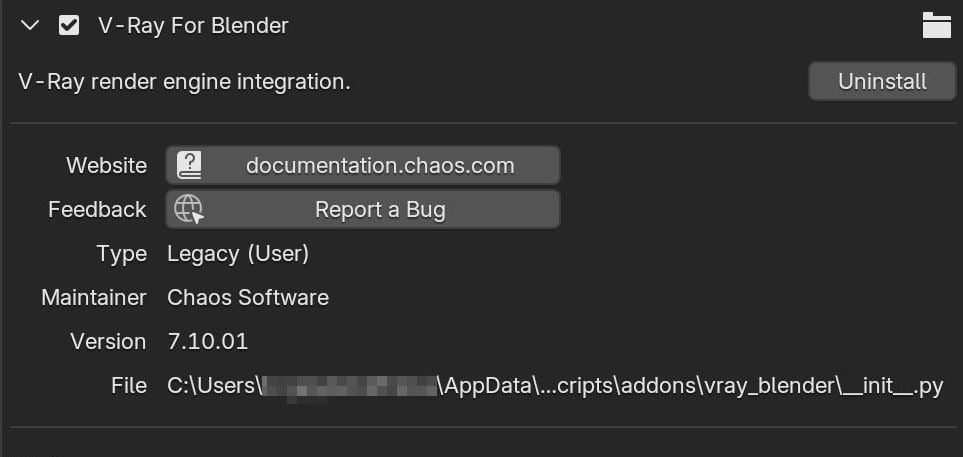
V-Ray for Blender
Uninstall – Deletes the files associated with the V-Ray plugin.
Website – Redirects to this documentation.
Feedback – Redirects to the support site, allowing you to submit a request.
General
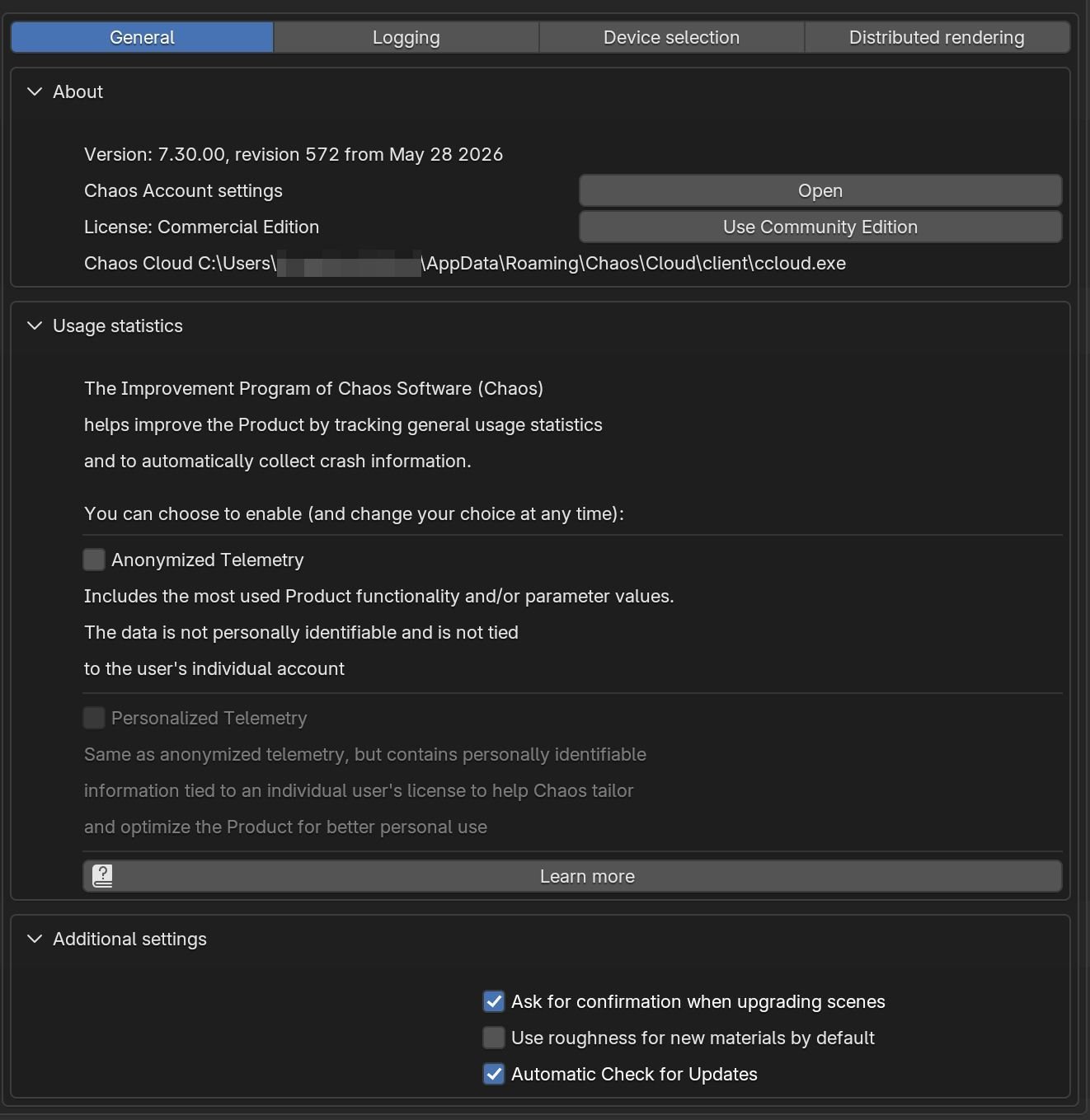
This window contains useful information about the V-Ray version in use, where V-Ray was installed, and more.
Open – Opens the Chaos licensing window.
Use Community Edition – Switches between Commercial and Community license. V-Ray needs to be restarted for the changes to be applied.
Usage statistics
Choose if you would like Anonymized or Personalized telemetry. No intellectual property is violated when agreeing to participate in the feedback program. Click the Learn more button to be redirected to the Chaos Telemetry page.
Additional Settings
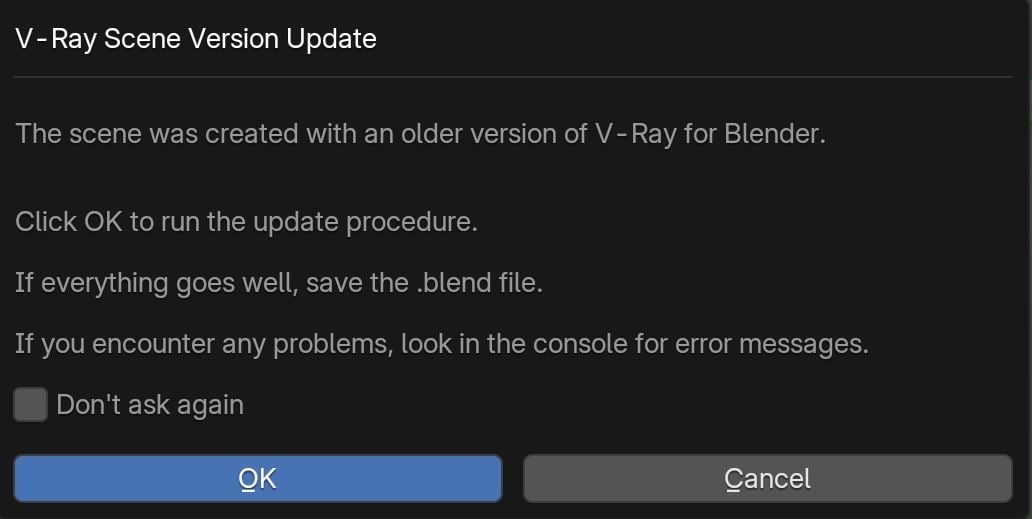
Ask for confirmation when upgrading scenes – This option toggles whether V-Ray asks for permission when converting older scenes to the latest V-Ray version. By default, this option is enabled, and the V-Ray Scene Update window appears each time you open an older V-Ray scene. If this option is disabled, V-Ray will automatically convert older V-Ray scenes, without asking.
V-Ray Scene Update window
Use roughness for new materials by default – When enabled, materials created have roughness enabled by default.
Automatic Check for Updates – When enabled, V-Ray automatically checks for updates.
Logging
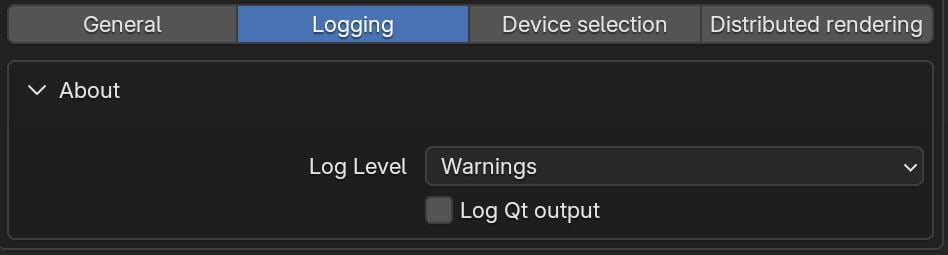
This window allows you to determine the logging level in the Blender Console, regarding the V-Ray processes. You can decide to log No information, Errors only, Warnings, Info ( which includes errors, warnings, and informational messages).
If you enable the Log Qt output option, in the Blender Console, you will also receive information from the interfaces of the VFB, Chaos Cosmos and Chaos Licensing windows. We recommend keeping this option off.
Device Selection
This window allows you to choose the GPU device when the Render Engine is set to V-Ray GPU in the Render Settings. The CUDA engine utilizes both the CPU and GPU(s); you can select the utilized devices from here.
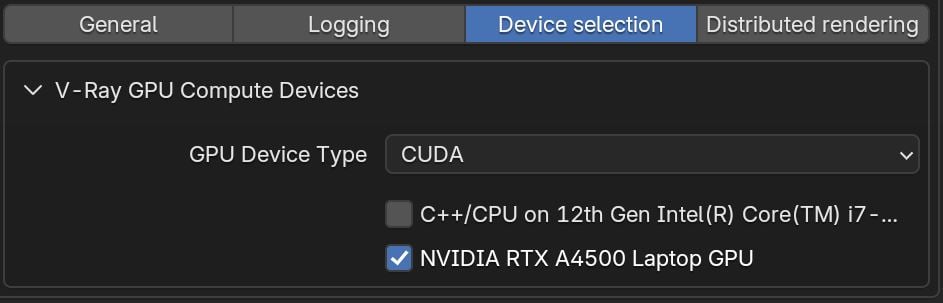
Device selection on a Windows machine
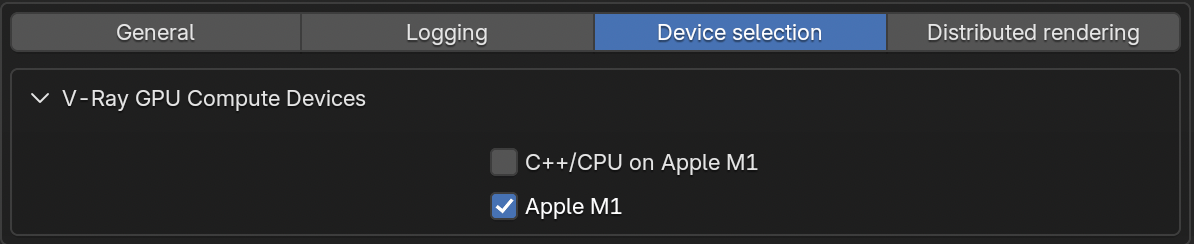
Device selection on a macOS machine
Distributed Rendering
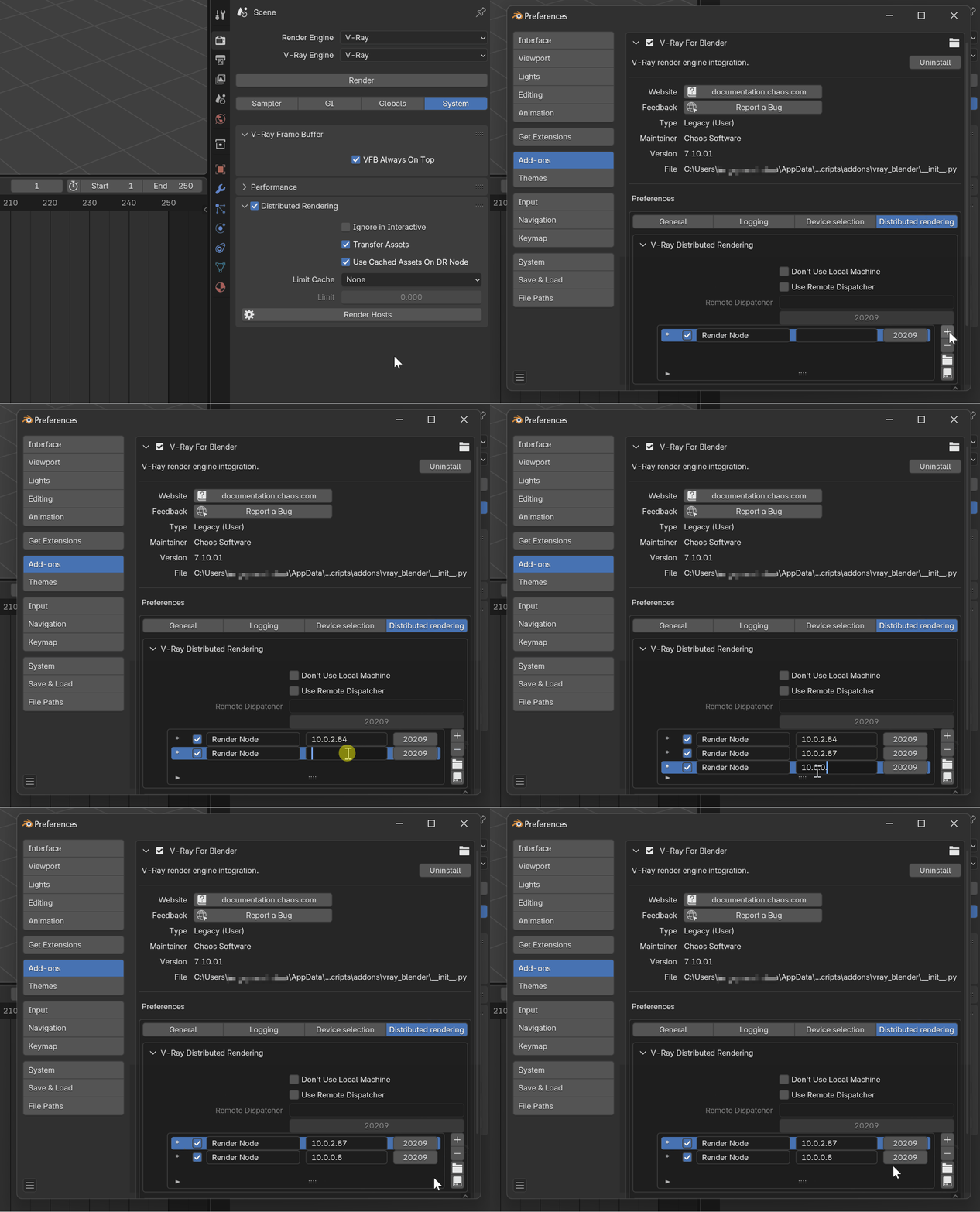
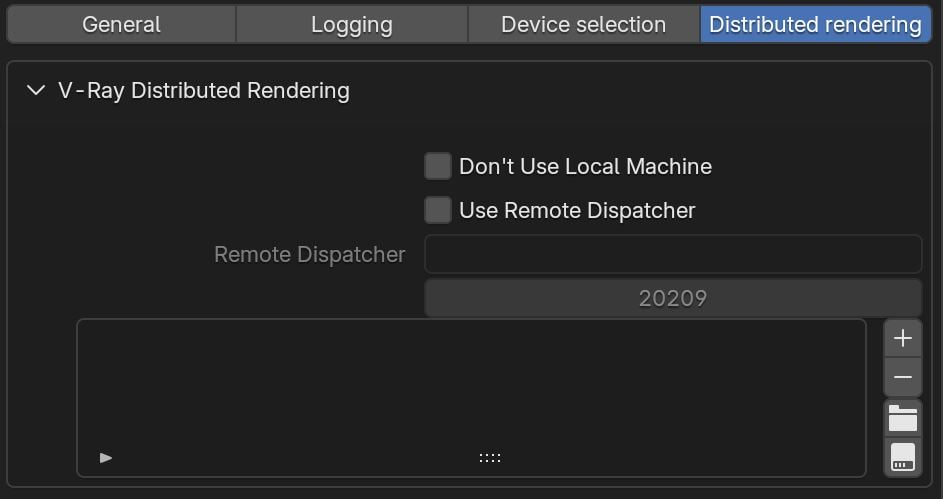
This window allows you to set up the Render Servers and Render Dispatcher for distributed rendering (DR2). For information on the steps, see the Distributed Rendering page.
Don’t Use Local Machine – When enabled, the Local Machine (Render Client) is excluded from the rendering. This allows the Render Client to be used while the render takes place. We recommend enabling this checkbox.
Use Remote Dispatcher – When enabled, the distribution of render regions to the Render Servers is assigned to a Remote Dispatcher machine. Otherwise, this task is performed by the Render Client. If you have a separate machine in mind, enter its Render Node IP or Hostname in the Remote Dispatcher field. Leave the port number at its default value of 20209.
Render Servers List
Use the Render Servers list to add and remove Render Servers. You can also save the current list or load the one most recently saved.
Button | Function |
|---|
Button | Function |
|---|---|
Add a Render Server to the list. You can then add a custom name to the Server. Add an IP address or Hostname to identify the Render Server in the network. | |
Remove a Render Server from the list. | |
Load the most recently-saved Render Server list. | |
Save the current Render Server list. |